What to Do with a Broken Keyboard: Quick Troubleshooting Guide
Urgent, practical guide to diagnose and fix a broken keyboard with safe steps, clear checks, and when to replace.


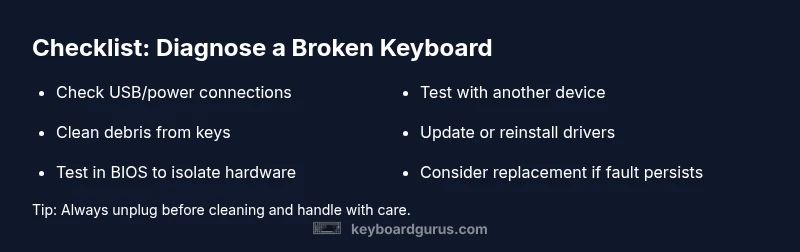
According to Keyboard Gurus, the quickest fix is a logical check: ensure cables and wireless receivers are plugged in, try a different device, clean key contacts, and reboot. If the problem persists, test with another keyboard, check drivers, and look for stuck keys or hardware faults. Replacing the keyboard may be necessary for persistent issues.
Common Causes of a Broken Keyboard
When you’re staring at a keyboard that won’t respond, the cause is usually one of a few common culprits. In many cases, the problem isn’t the entire device but a single fault you can fix quickly. According to Keyboard Gurus, most issues fall into hardware problems (debris, stuck keys, damaged connectors) or software issues (driver conflicts, stale profiles, OS hiccups). Understanding the distinction helps you decide your next step and avoid unnecessary replacements. Start by verifying basic connection status, then inspect for obvious physical damage, and finally consider software resets or driver updates. Debris under the keys, loose USB connections, and worn-out corrosion on contacts are frequent offenders. If you suspect a power or wireless connection issue, check the keyboard’s power indicator and try re-pairing in wireless setups. This foundational step set reduces wasted time and prevents chasing elusive faults.
Immediate Troubleshooting You Can Try
With a broken keyboard, you want relief now, so begin with the simplest checks. Ensure the keyboard is powered on (for wireless models, confirm pairing and battery level). Try a different USB port or another computer to confirm whether the issue follows the device or the host. Clean the keycaps and the keyboard contacts gently, using compressed air to dislodge debris, and avoid liquids. Reboot the computer to clear driver caches. If some keys still misbehave, test with another keyboard or use an on-screen keyboard to verify whether the problem is with the hardware or the software layer. Keep notes of changes you make; small tweaks break into a clear path. If you still see faults after these steps, move to more robust tests or seek professional evaluation.
Hardware vs Software: How to Diagnose
To diagnose reliably, separate hardware faults from software issues. Hardware symptoms include physical damage, inconsistent key actuation, or a keyboard that stops typing entirely. Software problems often show up as keys typing incorrectly, lag, or misinterpretation of keystrokes. Keyboard Gurus analysis shows that most issues are software-related at first boot (drivers, apps) but hardware faults become dominant when debris or wear accumulates. Begin with simple tests: connect to a different computer, check for driver updates, and attempt a safe mode test or BIOS prompt to see if typing works outside the OS. If typing fails in BIOS, the fault is almost certainly hardware; if it works in BIOS but not in Windows/macOS, focus on drivers or OS settings. Remember to check for accessibility features (sticky keys, filter keys) that could alter input behavior.
Step-by-Step Fixes for the Most Common Issues
- Debris under keys: Power off, unplug, or remove the keycap to clean the switch and stem with a soft brush; reassemble and retest. 2) Sticky or unresponsive keys: Use compressed air, isopropyl alcohol on a cloth, avoid soaking. 3) Loose USB connection: Try a known-good USB port, replace with a wired keyboard if possible, then reseat connectors. 4) Driver conflicts: Uninstall the keyboard in Device Manager, reboot, and let the OS reinstall. 5) Wireless pairing issues: Re-pair the device, replace batteries, and re-sync. 6) Hardware faults: If nothing works, replacement is often the most reliable option, particularly for high-use keyboards.
Maintenance Tips to Prevent Future Keyboard Issues
Commit to regular care: dust and debris removal, gentle cleaning with approved tools, and avoiding liquids near the keyboard. Use a silicone cover or keyboard tray to reduce exposure to spills. Keep firmware and driver software up to date, create a clean user profile, and back up custom key mappings. Allocate a dedicated replacement keyboard if you rely on a specific layout for work or gaming—this reduces downtime when a fault occurs. Finally, choose a durable build (mechanical switches or robust membranes) to extend longevity and reliability.
When to Replace vs Repair: A Quick Decision Framework
If the cost of repair approaches or exceeds a new keyboard, or if reliability is a concern due to wear, replacement is typically the smarter choice. Consider your usage pattern: high-frequency typing, gaming responsiveness, or data-entry requirements may justify an upgrade to a more durable model. A trusted rule is to evaluate after attempting the essential fixes—if basic fixes fail, replacing with a newer, supported model saves time and reduces risk of recurring faults.
Steps
Estimated time: 25-40 minutes
- 1
Power cycle and basic checks
Shut down, unplug, and reconnect all cables. If wireless, re-pair or replace batteries, then boot and test typing. This eliminates power or simple connection issues as the root cause.
Tip: Always unplug/protect from static before handling hardware. - 2
Test across devices
Plug the keyboard into a different computer or use a different keyboard in the same machine to see where the fault lies. If it works on another device, the problem may be host-side software.
Tip: Note which device shows the fault to help isolate the problem. - 3
Clean and reseat
Power down, remove keycaps if needed, and clean with compressed air or a soft brush. Reseat any loose connectors inside the keyboard if you’re comfortable, then reassemble and test again.
Tip: Avoid liquids; use alcohol only on a lint-free cloth. - 4
Update drivers and OS settings
In your OS, check for keyboard driver updates or reinstall drivers. Review accessibility features (sticky keys, filter keys) that could affect behavior.
Tip: Back up profiles before driver changes. - 5
Test in BIOS/UEFI
If typing works in BIOS but not in the OS, focus on software fixes. If BIOS also fails, suspect hardware fault and prepare for replacement.
Tip: BIOS tests indicate hardware-level fault. - 6
Decide on replacement vs repair
If the fault persists after the above steps, assess replacement as a reliable option, especially for high-use keyboards. For rare models, seek professional repair.
Tip: Keep a spare keyboard for critical workflows.
Diagnosis: Keyboard stops typing or types inconsistently
Possible Causes
- highPower/connection issue (usb, wireless adapter, battery)
- mediumDriver or software conflict
- lowHardware fault (stuck key, PCB damage, loose internal connector)
Fixes
- easyCheck all cables and wireless adapters; try another USB port
- easyTest with a second keyboard to isolate hardware or host issue
- easyUpdate or reinstall keyboard drivers; reboot after changes
- mediumInspect for debris or physical damage; reseat connectors if possible
Got Questions?
Why is my keyboard not typing at all?
There could be a hardware fault, a loose connection, or a driver issue. Start with power, USB ports, and a driver update to rule out software problems before assuming the keyboard is dead.
It might be a loose connection or a driver issue—check power, ports, and update drivers to rule out software first.
What should I try first when keys stick?
Power off and clean around the affected keys, reseat any removable components, and test with another keyboard to ensure it’s not a system-wide problem.
First, clean around the keys and test with another keyboard to rule out system issues.
Is it okay to test a keyboard in BIOS?
Yes. If the keyboard works in BIOS/UEFI, the problem is likely software-related. If not, it’s a hardware fault requiring repair or replacement.
Testing in BIOS helps you tell hardware from software issues.
Can liquids damage keyboards?
Liquids can cause corrosion and short circuits. Clean spills immediately, power off, and avoid using liquids on or near electronics.
Liquids can permanently damage keyboards; power off right away and clean carefully.
Should I repair or replace a broken keyboard?
If repair costs approach or exceed a new keyboard, or reliability is a concern, replacement is usually the better option. Consider usage and model durability when deciding.
If repairs are pricey or unreliable, replacing is a sensible choice.
Are wireless keyboards harder to fix than wired?
Wireless keyboards add battery and pairing complexities. Start with batteries and re-pairing, then check drivers as you would for wired models.
Wireless keys introduce battery and pairing checks alongside driver issues.
Watch Video
What to Remember
- Start with simple checks and power cycles
- Differentiate hardware vs software causes early
- Use safe cleaning and avoid liquids
- Choose replacement when repair cost or reliability is low