When Keyboard Is Locked: Quick Fixes and Step-by-Step Troubleshooting
A practical, step-by-step guide to fix a locked keyboard fast. Hardware checks, software fixes, and a clear diagnostic flow from Keyboard Gurus.


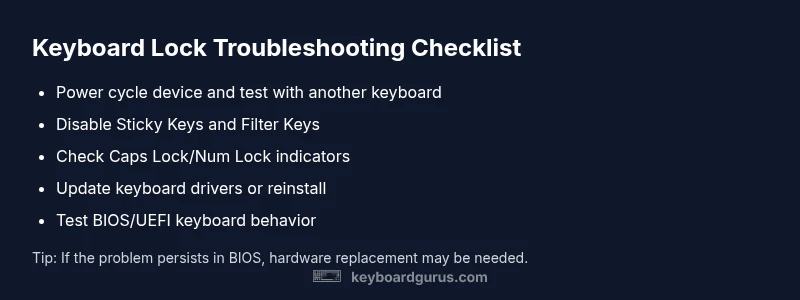
If your keyboard is locked, the most likely causes are sticky keys or accessibility features, a lock key status (Caps Lock, Num Lock, or Fn), or a hardware connection issue. Start by turning off Sticky Keys and Filter Keys, restarting your computer, and testing with another keyboard. If the problem persists, check keyboard drivers and USB ports, and consider trying BIOS or Safe Mode to isolate software from hardware.
Why when keyboard is locked happens
When keyboard is locked, the issue often stems from accessibility settings, a stuck key, or a hardware fault. According to Keyboard Gurus, many lock scenarios start with a simple setting being enabled. The first clue is to check whether any status lights indicate Caps Lock or Num Lock, or if the keyboard behaves the same across multiple applications and after reboot. If the problem appears after waking from sleep, a recent update, or a system change, software conflicts are likely. By following a disciplined, step-by-step approach you can identify the root cause and recover typing quickly. The goal is to move from symptoms to concrete fixes, starting with the easiest changes and escalating as needed.
Hardware checks you can perform in minutes
Start with the basics: test power and connections. Unplug the keyboard from the PC, inspect the USB or Bluetooth dongle, and try a different port or a wired keyboard if you’re on a laptop. If you use a USB hub, bypass it to rule out hub power issues. Check for debris under keys and ensure no key is physically stuck. On laptops, try the built-in keyboard to see if input works there. If available, test the keyboard on another device to confirm whether it’s a hardware fault. A simple swap can save hours of troubleshooting.
Software and accessibility settings that can lock input
Accessibility features are designed to help, but they can lock input if enabled. Disable sticky keys, filter keys, and toggle keys from the operating system’s accessibility menu. On Windows, review settings under Ease of Access > Keyboard. On macOS, check the Keyboard tab in Accessibility and System Preferences. If a third‑party utility manages keyboard shortcuts, disable or reconfigure it. After changes, log out and back in to ensure the settings take effect.
Lock keys and keyboard shortcuts to verify
Many keyboards have lock keys that alter input behavior. Caps Lock and Num Lock are the most common, but Fn lock can also freeze or redirect keys on laptops. Check the LED indicators if your model shows them. If the keyboard only fails in certain apps, the problem may be application‑level rather than system‑wide. Toggle the keys off and on, then test typing in a plain text editor to confirm baseline input.
OS-specific checks: Windows, Mac, and Linux
Windows users should run the built-in keyboard troubleshooter and inspect driver status in Device Manager. Mac users can reset the SMC or PRAM and check for conflicting third‑party keys. Linux users should test with a live session to distinguish between software configuration and hardware failure. In all cases, ensure the keyboard appears in the system’s hardware list and that no conflicts are reported by the OS.
Diagnostic flow in practice
A practical approach starts with the simplest check: is the keyboard physically connected and recognized? If yes, disable accessibility features and test with another keyboard. If still locked, update or reinstall drivers, then try a different USB port or a BIOS test. If input works in BIOS but not in the OS, the issue is software‑level. If input fails everywhere, hardware replacement is likely required.
Prevention and future-proofing
To prevent future lockups, keep drivers updated, maintain a clean USB registry, and avoid aggressive accessibility shortcuts. Periodically test your keyboard on another device to catch failing hardware early. Create a quick troubleshooting checklist so you don’t overlook steps, and back up any important work before heavy fixes. Regular maintenance reduces downtime and preserves typing efficiency.
When to seek professional help
If basic steps don’t restore input and the keyboard shows no activity in BIOS or on another device, consult a professional. A technician can safely diagnose internal hardware faults, damaged cables, or motherboard issues. In corporate setups, a dedicated IT staff member or vendor support line can guide you through diagnostics and replacement options.
Steps
Estimated time: 25-40 minutes
- 1
Power cycle the device
Shut down completely, unplug the power, wait 30 seconds, then reconnect and boot. A full restart clears transient states that can lock input.
Tip: Save work and close apps before restarting. - 2
Test with another keyboard
Connect a different keyboard or use a built-in keyboard to confirm whether the issue is hardware or software related.
Tip: If the second keyboard works, the original keyboard is likely faulty. - 3
Disable Sticky Keys/Filter Keys
Open accessibility settings and turn off Sticky Keys and Filter Keys. Log out/in or reboot to apply.
Tip: After turning off these features, test typing in a text editor. - 4
Check lock keys
Look for Caps Lock and Num Lock indicators. Toggle them off and on and test input again.
Tip: Note which keys affect input to identify a specific lock. - 5
Update keyboard drivers
Open the Device Manager, locate keyboards, and update drivers. If necessary, reinstall drivers.
Tip: Restart after installation to ensure changes take effect. - 6
Test in Safe Mode or BIOS
Restart into Safe Mode or BIOS to see if the keyboard works outside the normal OS environment.
Tip: If it works in BIOS, software/driver is the culprit. - 7
Try a clean boot
Disable startup programs to rule out software conflicts affecting keyboard input.
Tip: Re-enable programs one by one to find the offender. - 8
Inspect hardware connections
Reseat USB cables, clean connectors, and check for visible damage.
Tip: Avoid forcing connectors; handle with care. - 9
Seek professional help
If the keyboard still doesn’t respond on multiple devices, a technician can diagnose hardware issues safely.
Tip: Professional help is recommended for hardware failures.
Diagnosis: Keyboard locked or unresponsive input across all keys
Possible Causes
- highHardware issue (disconnected cable, USB port failure, damaged keyboard)
- mediumSticky or Filter Keys accessibility settings enabled
- highLock keys active (Caps Lock, Num Lock) or Fn lock
- mediumSoftware/driver conflict or outdated keyboard driver
- lowSystem-wide accessibility shortcuts triggered or USB power issue
Fixes
- easyCheck physical connections and try a different USB port or wired keyboard
- easyToggle Sticky Keys and Filter Keys off in Accessibility settings
- easyCheck Caps Lock/Num Lock status and test key LEDs or on-screen indicators
- mediumUpdate or reinstall keyboard drivers from Device Manager/Update Center
- mediumBoot into Safe Mode or BIOS to test keyboard at a low level; if works there, issue is software/driver
- hardConsult a professional if hardware failure suspected
Got Questions?
Why is my keyboard locked on Windows and how do I unlock it?
On Windows, keyboard lock can result from Sticky Keys, Filter Keys, or a stuck key. Disable accessibility features, check Caps/Num Lock, and test with another keyboard. If the problem persists, update the driver or boot into Safe Mode to isolate software.
Windows lock issues usually come from accessibility features or a stuck key. Disable Sticky Keys and Filter Keys, check the lock indicators, and test with another keyboard to isolate software from hardware.
How do I unlock a Mac keyboard that is locked?
Mac users should check System Preferences > Keyboard for input sources, reset the SMC and PRAM if needed, and verify that no accessibility shortcuts are hijacking input. Test with a different keyboard to rule out hardware faults.
On Mac, reset SMC/PRAM and review keyboard settings to ensure no shortcuts lock input. Try another keyboard to confirm hardware.
What are Sticky Keys and how do I disable them?
Sticky Keys is an accessibility feature that modifies key behavior. Disable it in the OS accessibility settings under Keyboard options, then test typing again. This often resolves locked-key symptoms.
Sticky Keys changes how keys register when pressed together; turn it off in accessibility settings and test typing.
My keyboard works in BIOS but not in Windows—why?
If the keyboard works in BIOS but not Windows, it’s usually a software or driver issue. Update or reinstall keyboard drivers, perform a clean boot, or try Safe Mode to identify conflicting software.
If it works in BIOS but not Windows, the problem is likely software or driver-related. Update drivers or boot in Safe Mode to troubleshoot.
Can a Bluetooth keyboard lock itself?
A Bluetooth keyboard can appear locked if pairing is unstable. Re-pair the device, replace batteries, or reconnect to the computer. If it still fails, test with a wired keyboard to confirm the issue.
Bluetooth keyboards can misbehave if pairing is unstable; re-pair or swap to a wired keyboard to verify.
When should I seek professional help?
If basic steps don’t restore input across devices or if the keyboard shows signs of hardware damage, contact a technician or vendor support for diagnosis and replacement options.
If fixes don’t help, a professional can diagnose hardware faults or warranty issues.
Watch Video
What to Remember
- Test hardware first with another keyboard
- Disable accessibility features before deeper fixes
- Check lock states and BIOS tests for software vs hardware
- Update drivers and perform safe mode tests
- Know when to call a professional