When Keyboard Won't Type: Essential Troubleshooting
Urgent, practical guide to diagnose and fix a keyboard that won't type. Follow quick checks, driver updates, language settings, and a step-by-step process to restore typing input across Windows and macOS.


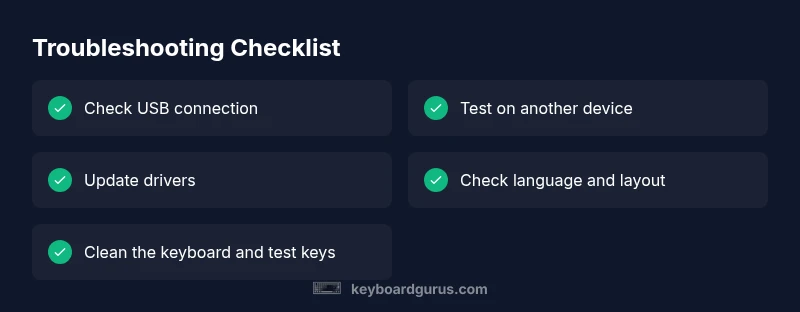
Most often, when keyboard is not typing, the issue is hardware or driver-related rather than a system-wide failure. Start with simple checks: ensure the keyboard is properly connected (USB or Bluetooth), test on another device, and reboot. If it still fails, update or reinstall keyboard drivers and verify the correct input language and keyboard layout.
Why Your Keyboard Stops Typing
When a keyboard stops typing, it can feel urgent, especially if you rely on it for work or study. According to Keyboard Gurus, most non-typing issues fall into hardware or software categories rather than a fatal system fault. First, consider whether the keyboard is physically connected or paired correctly. A loose USB plug, a drained wireless battery, or a Bluetooth pairing glitch can prevent input entirely. Next, look at software-level causes: outdated drivers, conflicts after Windows or macOS updates, or incorrect keyboard layout settings. Finally, check for accessibility features such as Filter Keys, Sticky Keys, or language settings that might disable normal typing. In 2026, the Keyboard Gurus Team emphasizes tackling the simplest possibilities first before diving into repairs.
To stay focused on the problem, isolate the symptom to typing only in specific apps or across the entire system. If only certain programs respond, the issue is likely app-related rather than a keyboard defect. If the keyboard is unresponsive in BIOS or outside the OS, the fault is almost certainly hardware. In contrast, if the keyboard works in BIOS but not in the operating system, drivers or language settings inside the OS are the prime suspects.
As you troubleshoot, document what you test and the outcome. This helps you avoid repeating steps and makes it easier to escalate to professional help if needed. The most effective approach is a structured sequence: verify connections, reboot, test on another device, and update drivers.
Steps
Estimated time: 30-45 minutes
- 1
Inspect physical connection
Inspect the USB cable or wireless dongle and reseat the keyboard. If wireless, check battery level and re-pair if necessary. This step eliminates simple connectivity problems that commonly cause non-typing.
Tip: Try a different USB port or a known-good keyboard to rule out port or device failure. - 2
Reboot the computer
A restart clears transient glitches that can block input. Save any work, then reboot. After startup, test typing in a fresh document.
Tip: If you have multiple keyboards, test with another one to confirm the issue isn’t the device itself. - 3
Test on another device
Connect the keyboard to a different computer or device to determine if the problem is hardware- or software-related. If it types on the other device, the issue is likely OS or driver-related on the original host.
Tip: For wireless keyboards, re-pairing on the second device ensures the pairing process isn’t the culprit. - 4
Update or reinstall drivers
Open Device Manager (Windows) or System Information (Mac), locate the keyboard, and update drivers. If updates fail, uninstall the device and restart to reinstall automatically.
Tip: Check the keyboard manufacturer's site for the latest firmware if available. - 5
Check language and layout settings
Verify the input language and keyboard layout match your hardware. Incorrect settings can make it feel like keys aren’t typing even when hardware is fine.
Tip: Turn off any alternative input methods you don’t use to reduce conflicts. - 6
Test with an external keyboard
If an external keyboard works, the problem may be the original keyboard’s hardware. If it still fails, the issue is likely OS or driver-level.
Tip: Document which keys respond and which don’t to aid diagnosis.
Diagnosis: Keyboard stops typing across the system
Possible Causes
- highPower issue (unplugged, worn cable, USB port power saving)
- mediumDriver or firmware conflict after OS updates
- lowIncorrect input language or keyboard layout
Fixes
- easyCheck physical connection: reseat USB cable or re-pair Bluetooth keyboard
- easy reboot the computer and test typing in a different app or text field
- easyUpdate or reinstall keyboard drivers/firmware and reset keyboard language/layout
Got Questions?
Why does my keyboard stop typing only in certain apps?
This is often an app-specific issue or a conflict with that program's shortcuts. Check the app’s settings, disable custom shortcuts, and try typing in a different document to confirm scope. If it’s isolated to one app, look for software updates or reinstall that app.
If typing fails only in one app, check the app settings or reinstall it to resolve the issue.
Why does my keyboard work in BIOS but not in Windows?
If the keyboard works in BIOS, the hardware is fine. The problem is usually drivers or Windows settings. Update or reinstall keyboard drivers, check language/layout, and test in Safe Mode.
If it works in BIOS but not Windows, focus on drivers and OS settings.
What should I do if my keyboard types only after a reboot?
A reboot temporarily resets drivers or cache, but the issue will recur if caused by a stale driver or startup conflict. Update drivers, check startup apps, and disable conflicting utilities.
If typing only comes back after reboot, fix drivers or startup conflicts.
Can a software update cause my keyboard to stop typing?
Yes, a recent OS or driver update can cause conflicts. Rolling back the driver or applying a clean update often resolves the problem.
Update conflicts can cause typing to fail; consider rolling back drivers or updating to a newer patch.
When should I replace my keyboard?
If the keyboard has persistent hardware faults after all software fixes, or if keys are stuck/unresponsive despite cleaning and testing, replacement is advised.
If all software fixes fail and hardware faults persist, consider replacement.
Watch Video
What to Remember
- Verify physical connections first
- Reboot to clear glitches
- Test on another device to isolate causes
- Update drivers and reset language settings
- Consider replacement if hardware failure is confirmed