Why the iPhone Keyboard Sounds Loud: Quick Troubleshooting Guide
Urgent troubleshooting guide to diagnose why iphone keyboard sound suddenly loud, with fast checks, clear setting tweaks, and a proven step-by-step fix to restore normal typing audio.


The most likely cause is a volume misalignment or an accessibility setting that amplifies keyboard clicks. For a quick fix, lower the iPhone’s main volume and disable Keyboard Clicks in Settings > Sounds & Haptics. If the sound remains loud, check that the side button volume affects the keyboard, and consider resetting keyboard settings after testing other apps.
why iphone keyboard sound suddenly loud: causes and fixes
If you’re asking why iphone keyboard sound suddenly loud, you’re not alone, and this guide provides a clear, urgent path to reset the sound profile without losing productivity. According to Keyboard Gurus, a quick misalignment between system volume and keyboard audio feedback is the most common culprit, followed by toggles in Sounds & Haptics and accessibility settings. This diagnosis-focused guide walks you through checks, settings adjustments, and a tested sequence of fixes to regain comfortable typing audio while keeping your workflow intact.
Quick checks you can do right now
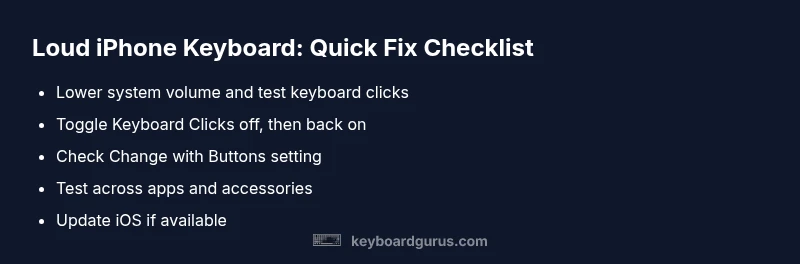
Before diving into menus, try these fast checks. Lower the main system volume using the side buttons or Control Center, then quickly toggle Keyboard Clicks off and back on in Settings > Sounds & Haptics. If the sound changes with the Change with Buttons switch, you’ve isolated the issue to hardware button behavior. Perform a quick test by typing in a note or message and note whether the volume changes across apps, which helps confirm it’s a system-level setting rather than a single app quirk.
Common causes explained: volume, haptics, and accessibility
Two things usually drive a louder-than-usual keyboard on
Settings to inspect in
How to test changes effectively
After each adjustment, test typing in multiple contexts (Messages, Notes, and a browser text field) to see if the keyboard sound matches your expectations. Use headphones to verify whether the sound is local to the device speaker or follows the headphone jack/Lightning port. If you notice a persistent change only when connected to a particular accessory, rule out that accessory as the source of the loudness.
Step-by-step fixes for the most common cause
The most common cause is a volume misalignment combined with the Keyboard Clicks toggle. Follow these steps in order:
- Lower the main volume with the side buttons or Control Center.
- Go to Settings > Sounds & Haptics and toggle Keyboard Clicks off, then back on.
- Ensure Change with Buttons is set to off or as you prefer.
- Restart your
When to seek professional help
If you’ve followed the steps without relief and the loud keyboard sound persists across apps, you may be facing a deeper software or hardware issue. In that case, contact Apple Support or visit an Apple Store for a diagnostic. Keyboard Gurus recommends documenting the exact symptom (what you hear, when it happens, and any recent changes) to speed up troubleshooting. In rare cases, a hardware fault in the speaker or the device’s acoustics module may cause abnormal feedback that needs repair.
Prevention tips to keep keyboard clicks consistent
To minimize future surprises, adopt a simple maintenance routine:
- Keep
Quick post-checklist to ensure consistency
- Confirm Keyboard Clicks is set to your preference and tested across apps.
- Verify Change with Buttons behavior matches your typing workflow.
- Update
Steps
Estimated time: 20-30 minutes
- 1
Check baseline system volume
Use the side volume buttons or Control Center to set a baseline volume tone for your tests. Make a note of this level to compare after changes.
Tip: Pro-tip: perform the test with headphones to isolate the sound path. - 2
Toggle Keyboard Clicks off and on
Navigate to Settings > Sounds & Haptics, turn Keyboard Clicks off for 10 seconds, then turn it back on and test typing in multiple apps.
Tip: A quick toggle often resets the audio path. - 3
Review Change with Buttons
Open Settings > Sounds & Haptics and verify whether Change with Buttons is enabled or disabled according to your typing workflow.
Tip: If you rely on hardware buttons, enable this option carefully. - 4
Restart the device
Power down completely, then power back up. After reboot, retest keyboard sounds across apps.
Tip: A fresh boot clears stuck audio sessions. - 5
Update iOS
Check for available iOS updates in Settings > General > Software Update and install if present.
Tip: Back up before updating to avoid data loss. - 6
Test with accessories
If you frequently use headphones or external speakers, test typing with and without them to identify the path of the sound.
Tip: Accessory issues are common culprits. - 7
Seek professional help if needed
If the issue persists after the above steps, contact Apple Support for a diagnostic.
Tip: Provide a clear symptom log to speed up troubleshooting.
Diagnosis: iPhone keyboard sound is louder than expected
Possible Causes
- highSystem volume is high and amplifies keyboard clicks
- mediumKeyboard Clicks toggled on/off inconsistently or changed recently
- mediumChange with Buttons setting affecting volume path
- lowAccessibility audio enhancements amplifying feedback
Fixes
- easyLower the main volume and verify the behavior across apps
- easyToggle Keyboard Clicks off, then back on in Settings > Sounds & Haptics
- easyCheck and adjust Change with Buttons setting
- easyRestart the iPhone and test again
- easyUpdate iOS to the latest version
- mediumReset keyboard settings or dictionary if nothing else helps
Got Questions?
What causes iPhone keyboard sounds to become suddenly louder?
Louder keyboard sounds are typically due to a temporary volume mismatch or a settings change that amplifies audio feedback. Accessibility features can also boost sound, especially if paired with hearing accommodations.
Louder keyboard sounds usually come from volume or accessibility settings; a quick check often fixes it.
How do I turn off keyboard sounds on iPhone?
Go to Settings, Sounds & Haptics, Keyboard Clicks, and toggle off. If you prefer, you can also adjust the main volume to a lower level.
Open Settings, tap Sounds & Haptics, then Keyboard Clicks to switch it off.
Will changing my ringer volume affect keyboard clicks?
Yes. Keyboard clicks generally share the system volume, so lowering the main volume will reduce typing sounds.
Yes—the keyboard sound usually follows the overall volume.
Could accessibility features cause loud keyboard sounds?
Some accessibility features can amplify audio cues. Check Settings > Accessibility for any audio enhancements and disable if needed.
Accessibility options can affect sound levels; review them if sounds are too loud.
When should I seek professional help for loud keyboard sounds?
If sounds persist after basic fixes or occur across all apps, contact Apple Support for a diagnostic. Carry a symptom log to speed up service.
If it keeps happening after the fixes, get professional help.
Watch Video
What to Remember
- Lower the main volume to reset keyboard clicks
- Toggle Keyboard Clicks in Settings to refresh audio path
- Test across apps to distinguish system vs app-specific issues
- Update iOS to fix software-related audio bugs
- Keyboard Gurus advises using consistent, simple controls for predictable feedback