Why Your Keyboard Types Symbols Instead of Letters — Fast Troubleshooting
Urgent guide to fix a keyboard that types symbols instead of letters. Learn how to diagnose language/layout issues, test hardware, and apply safe fixes with step-by-step instructions from Keyboard Gurus.


According to Keyboard Gurus, the most common reason your keyboard starts typing symbols instead of letters is a misconfigured input language or keyboard layout, often triggered by a recent update or regional switch. Quick fixes include checking the input language, selecting the correct layout, and testing with a second keyboard to rule out hardware faults.
Why symbols happen: the core culprits behind symbol-dominated input
If you suddenly see symbols like @#$% appearing where letters should be, the issue is rarely a dead key switch—it’s usually configuration. The two most frequent culprits are a mismatched input language and an incorrect keyboard layout. A third, less common factor is a temporary shortcut or accessibility feature that remaps keys. Keyboard Gurus emphasizes that recognizing whether the problem is language-related or layout-related is the fastest path to a fix. This distinction matters because changing a language won’t necessarily correct the physical keys if the layout is still wrong, and vice versa. Stay calm, identify which setting changed most recently, and start testing in a controlled way to confirm the root cause.
How to spot the difference between language vs. layout issues
Language settings determine which alphabet and symbols are produced by keystrokes, while layout specifies where each key is mapped on the keyboard. When symbols replace letters, you often notice that punctuation keys press as letters elsewhere or that pressing Q yields a quote. By isolating these two settings, you can rapidly determine whether the cure is a simple language toggle or a layout switch.
Quick note on updates and regional switches
Software updates can reset region settings or install new layouts without clear prompts. Regional keyboards (e.g., US vs UK vs ISO) have subtle but critical differences in key placement, especially around punctuation. If you recently updated your OS or installed a new language pack, start by revisiting the language and layout combination to see if the issue resolves itself.
Steps
Estimated time: 25-45 minutes
- 1
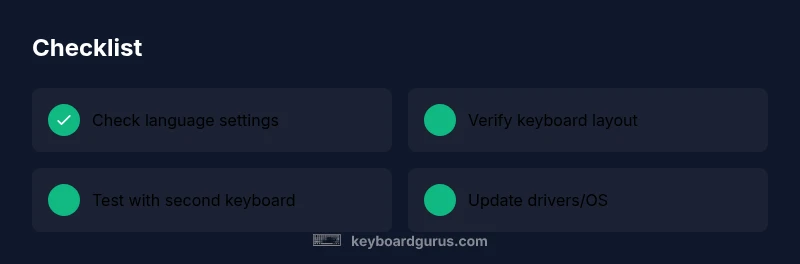
Check input language
Open Settings and verify that the preferred language is active. Remove any languages you do not use and ensure the language matches your keyboard's layout. This is the fastest fix when symbols appear after a software update or regional change.
Tip: Document the language changes you make to retrace steps if the issue returns. - 2
Verify keyboard layout
In the same settings area, confirm the keyboard layout (e.g., US QWERTY). Switch to a known-good layout and test key presses to see if letters return to normal.
Tip: If you have multiple layouts, try disabling all but the primary one to isolate the problem. - 3
Test with another keyboard
Connect a different keyboard or use a virtual on-screen keyboard. If the second keyboard works normally, the issue is likely hardware-related to the original device.
Tip: Use a USB hub with external power if you’re testing a USB keyboard to avoid power issues. - 4
Update drivers and OS
Check for pending OS updates and keyboard driver updates. Install any available updates, then reboot and retest.
Tip: Backup important data before major driver updates. - 5
Inspect accessibility features
Review features like Sticky Keys, Filter Keys, and keyboard remapping utilities. Disable anything that could reassign keys during testing.
Tip: Disable these features temporarily to confirm whether they’re causing the remapping. - 6
Physical inspection and cleanup
Inspect the keyboard for debris, liquid damage, or loose cables if using an external keyboard. Clean gently and reseat connectors.
Tip: Power down completely before unplugging or opening any hardware.
Diagnosis: keyboard suddenly types symbols instead of letters
Possible Causes
- highWrong input language
- highWrong keyboard layout
- mediumSticky keys or accessibility remapping
- lowOutdated or corrupted keyboard driver
- lowHardware fault in the keyboard
Fixes
- easySwitch back to the correct input language and layout
- easyUpdate or reinstall keyboard drivers and perform a reboot
- easyTest with a different keyboard to rule out hardware failure
- easyCheck accessibility features like Sticky Keys and disable them for testing
Got Questions?
What causes a keyboard to type symbols instead of letters?
Most often it’s a language or layout switch. Other causes include sticky keys or driver issues. Start with language settings and layout, then test hardware.
Usually it's a language or layout switch. Start by checking language and layout, then test hardware.
How do I quickly switch keyboard layouts in Windows?
Use Windows key + Space to cycle layouts, or go to Settings > Time & Language > Language > Keyboard. Remove layouts you don’t use.
Press Windows key and Space to switch layouts quickly.
Can software updates cause this issue?
Yes, updates can reset region or driver settings. Recheck language and drivers after updates and reinstall drivers if needed.
Updates can reset keyboard settings; recheck language and drivers.
Is this a hardware problem?
If another keyboard works normally, the issue is likely with the original keyboard. If not, the system input may be at fault.
Test with a second keyboard to rule out hardware failure.
When should I seek professional help?
If basic software fixes don’t help and the problem persists across devices, consult a professional technician.
If not resolved by software checks, get professional help.
Watch Video
What to Remember
- Verify input language first
- Test with an alternate keyboard to isolate hardware
- Update drivers and OS promptly
- Disable conflicting accessibility features during testing
- Seek professional help if unresolved