Why Is My Keyboard Too Big? Quick Troubleshooting Guide
Struggling with an oversized keyboard? Keyboard Gurus provides urgent, practical steps to diagnose why my keyboard feels too big and how to switch to a compact setup quickly.


The most likely reason your keyboard feels too big is its form factor, typically a full-size layout with a built-in numpad. If space on your desk is tight, a larger keyboard will dominate the surface and hinder reach. Start by confirming your layout, measuring your desk, and considering a compact replacement.
Understanding the size problem and the meaning behind why is my keyboard too big
The question why is my keyboard too big is common among deskbound typists, students, and gamers. In practice, size comes from layout choices more than a mysterious defect. A full-size keyboard includes a numeric keypad and sometimes extra function rows, which expands the width and can encroach on your mouse area. A compact form factor (such as tenkeyless or 60%) strips away the keypad and/or extra rows, dramatically reducing footprint. Keyboard Gurus analysis shows that most perceived size issues come from choosing a layout that doesn’t match your space or your hands. Understanding your actual layout type is the first step toward a practical fix.
Beyond raw width, perceived size is influenced by case design, key spacing, and how aggressively you tilt the keyboard with feet. Even the same model can feel different if your desk height is mismatched with chair height, or if your monitor pushes you to sit farther from the keyboard. By prioritizing a layout that fits your space and reach, you’ll often solve the core issue without sacrificing typing comfort.
Common culprits behind oversized keyboards
There are several frequent reasons a keyboard feels oversized. First, a full-size layout with a numeric keypad is inherently wider than its compact counterparts. Second, some keyboards include extra macro keys or a large function row that add width beyond the standard keys. Third, ergonomic or splitting designs (angled halves) can make the keyboard feel larger than a traditional block when mounted on a desk. Fourth, improper desk arrangements—such as a monitor crowding the workspace or a low chair that forces wrists into awkward angles—can exaggerate perceived size. Finally, a nonstandard keycap profile or unusually generous margins around the keys can visually inflate the footprint. Identifying which factor applies helps you pick a targeted fix.
According to Keyboard Gurus, most people overestimate the size because they’re holding onto a familiar 104-key template while their desk space has become more compact. Recognizing the form factor (full-size, TKL, 75%, 60%) is the most reliable diagnostic step. When you know your layout, you can compare it against available compact options and plan replacements that better suit your room.
Quick checks you can perform today
If you want immediate relief, start with these fast checks. First, count the number of keys per row and locate the presence of a numeric keypad. If the keypad is present and you rarely use it, you likely have a full-size layout. Second, measure the keyboard width against your desk depth and mouse space; a keyboard wider than your primary working area usually causes opposite-hand discomfort and limited mouse movement. Third, test with the feet retracted and then elevated; a steep tilt can make the keyboard seem larger and harder to reach. Fourth, try a temporary rearrangement: place the keyboard in a shorter spot on the desk or abandon the built-in stand for a flatter surface. Fifth, consider trying a compact model (TKL or 60%) on loan or virtually simulate its footprint by moving a model of the same size onto the desk. Sixth, review your posture: ensure your wrists are straight and your elbows are at about 90 degrees; if your posture is off, even a compact keyboard can feel awkward.
These quick steps can confirm whether you simply need a smaller layout or a different chair/desk arrangement. Keyboard Gurus recommends documenting your current measurements and hand reach so you can quantify improvements when testing replacements.
Diagnostic flow at a glance
- Symptom: Keyboard feels oversized and blocks mouse movement or workspace.
- Likely causes: full-size layout; extra keys; desk/ergonomics; unusual keycap profiles.
- Immediate checks: verify layout; measure desk depth; test with different feet positions.
- Quick fixes: swap to a more compact layout; relocate the keyboard; adjust tilt.
- When to seek help: if pain persists after layout changes, seek ergonomic guidance.
- Prevention: plan desk space before purchase; prioritize modular or adjustable keyboards.
Step-by-step fixes for the most common cause
- Confirm your layout type and identify a target size: start with a tenkeyless or 60% model if you don’t use the numeric keypad regularly. Tip: jot down how often you tap the keypad to verify.
- Trial a compact layout temporarily: borrow or borrow-like simulate the footprint by using a slim, compact board on your desk. Tip: position the compact keyboard as close to your primary mouse as possible to maintain natural reach.
- Remove or relocate unwanted sections: if you must keep a keypad, place it on a separate pad to the right only when needed. Tip: disconnect unused sections to reduce clutter.
- Adjust the keyboard height and tilt: use the lowest comfortable tilt with feet retracted, or test a flatter surface. Tip: small tilt changes can dramatically improve reach.
- Reconfigure your workspace: ensure there’s ample space for mouse movement; push monitors back to increase desk depth. Tip: keeping cables tidy reduces clutter that makes the setup feel larger.
- Try a modular approach: consider a keyboard with swappable modules or a compact base with an external numeric keypad. Tip: modular keyboards often combine a small base with a detachable keypad kept only when needed.
- Validate typing comfort: after changes, type for 10–15 minutes to assess reach, wrist angle, and key travel. Tip: take micro-breaks to avoid fatigue while testing.
- If persistent, revisit posture and seating: check chair height, desk height, and monitor alignment. Tip: ergonomic adjustments can transform how large or small a keyboard feels.
Prevention and future-proofing
To prevent size-related issues in the future, plan your workstation around a compact footprint. When buying, prioritize layouts that match your use case: if you never use the keypad, skip it. Consider modular keyboards or a space-saving 75% keyboard for a middle ground. Measure your desk depth, chair height, and the reach to your mouse before purchase, and test in a store or a friend’s setup when possible. Keyboard Gurus suggests maintaining a small but flexible toolkit for quick swaps—this keeps your desk adaptable rather than permanently anchored to a single layout.
When to seek professional help
If you experience persistent wrist, shoulder, or neck pain after optimizing layout and desk space, consult an ergonomic professional. A clinician can assess your posture, seating, and keyboard interaction to rule out repetitive strain injuries. Keyboard Gurus team recommends erring on the side of caution and scheduling a quick ergonomic check if discomfort continues beyond a few days of adjustment.
Steps
Estimated time: 30-45 minutes
- 1
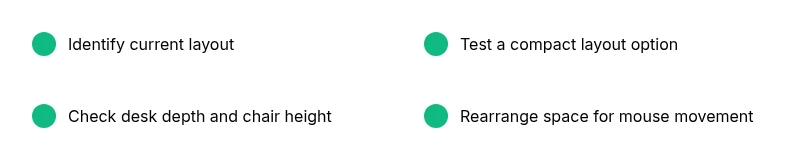
Identify current layout and desk fit
Check whether your keyboard is full-size or a compact variant. Measure the desk depth and determine how much space is available for the mouse and wrists.
Tip: Take quick photos from above to compare footprints later. - 2
Test a temporary compact layout
If possible, borrow or simulate a 60% or tenkeyless keyboard footprint on your desk and see if reach improves.
Tip: Keep your mouse close and comfortable. - 3
Assess keyboard height and tilt
Experiment with the built-in feet up or down and try a flatter surface to reduce perceived size.
Tip: Small tilt changes can dramatically affect comfort. - 4
Rearrange your workspace
Move monitors backward, adjust chair height, and ensure you have ample space for mouse movement.
Tip: Clutter-free surfaces feel noticeably larger. - 5
Consider modular options
Explore keyboards with detachable or optional keypad components that can be added only when needed.
Tip: Modularity offers flexibility without permanent change. - 6
Test typing comfort
Type for 10–15 minutes, focusing on reach, wrist angle, and key travel.
Tip: Take short breaks to avoid fatigue while testing. - 7
Evaluate posture
Ensure elbows are at ~90 degrees, wrists are straight, and monitor height aligns with eye level.
Tip: Small ergonomic tweaks can reduce overall strain. - 8
Decide on a final setup
If the compact layout resolves the issue, finalize the setup; if not, consult ergonomic guidance.
Tip: Document what works for future reference.
Diagnosis: Keyboard feels oversized on workspace, leaving little room for mouse movement or causing awkward reach.
Possible Causes
- highBuilt-in numeric keypad (full-size layout)
- mediumExtra macro keys or oversized function row
- lowDesk ergonomics or monitor position exaggerating perceived size
Fixes
- easyMeasure keyboard width and compare to desk; switch to a compact layout if necessary
- easyRemove or relocate keypad or choose a modular keyboard
- easyAdjust feet to reduce height and tilt for better reach
Got Questions?
Why does my keyboard feel oversized even in a clean desk setup?
A perceived size issue often comes from layout choice rather than a fault in the keyboard. Full-size layouts with numpads are wider and can crowd the workspace, especially on small desks. Consider a compact layout like tenkeyless or 60% to regain mouse space.
A full-size layout is usually the culprit behind an oversized feel; switching to a compact setup can reclaim desk space.
What’s the difference between full-size, tenkeyless, and 60% keyboards?
Full-size keyboards include a numeric keypad; tenkeyless removes the keypad but keeps the main block, and 60% removes more keys, leaving a very compact footprint. Each step reduces width and often height, making it easier to fit into tight spaces.
Full-size has the keypad, tenkeyless drops the keypad, and 60% is the smallest option with the smallest footprint.
Can I keep my current keyboard but still reduce its perceived size?
Yes. Try adjusting the keyboard tilt, removing unnecessary keycaps, or using a low-profile mounting. However, the most effective change is usually switching to a more compact layout.
You can adjust tilt and layout, but the biggest impact typically comes from moving to a smaller layout.
Should I remove the numeric keypad permanently?
If you rarely use the keypad, moving to a compact layout is often best. If you need it occasionally, consider a modular keypad that you attach only when needed.
If you don’t use the keypad often, swap to a compact layout; you can add a keypad separately when required.
What if I have large hands and still need a big keyboard?
Even with large hands, many users find comfort by using a brace-friendly layout with proper key spacing and a comfortable tilt. Consider a compact keyboard with a longer key travel or split design for a better fit.
People with large hands often prefer layouts that maximize comfortable reach while keeping the footprint reasonable.
When should I seek ergonomic help?
If you experience persistent pain or numbness after testing different layouts and desk adjustments, consult an ergonomic professional or clinician to prevent long-term injury.
If pain persists after trying fixes, get professional ergonomic advice.
Watch Video
What to Remember
- Choose a layout that fits your desk first
- Test compact models before committing
- Small ergonomic tweaks can dramatically improve perceived size
- Modular keyboards offer flexible sizing without sacrificing comfort
- Document measurements to guide future purchases