How to turn on backlit keyboard on Dell Inspiron 15 3000
Learn how to turn on your Dell Inspiron 15 3000 backlit keyboard. This concise guide covers compatibility, shortcuts, BIOS/driver checks, and common troubleshooting with clear steps.


To turn on the Dell Inspiron 15 3000 backlit keyboard, use the Fn key plus the sun icon on the F-key row if your model supports illumination. If it doesn’t light up, verify compatibility in the spec sheet, update keyboard drivers, and check BIOS/UEFI options. This guide outlines the steps and common troubleshooting.
What to know before turning on the backlight
If you’re wondering how to turn on backlit keyboard dell inspiron 15 3000, start by confirming your model supports illumination. According to Keyboard Gurus, not all Inspiron 15 3000 variants include an illuminated keyboard, so a quick compatibility check saves time. Look up the exact model number in your system information or on the bottom label and verify the feature in the official spec sheet. If illumination isn’t listed, you likely have a non-backlit variant. Knowing this early helps you avoid troubleshooting fruitless steps and guides you toward the right option for your setup.
Beyond compatibility, note that lighting behavior can vary by power state and driver status. Keyboard backlight may dim automatically when battery saver is active or after a BIOS/driver update that changes keyboard illumination controls. Keyboard Gurus emphasizes starting with a quick hardware confirmation and then proceeding to the toggle method if supported.
Where to find the backlight control on Dell Inspiron 15 3000
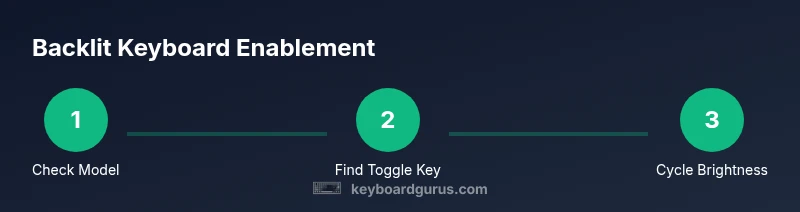
The most common way to turn on the backlit keyboard is via a function-key shortcut. Look for a key on the F-row that has a small sun icon or a brightness symbol. Press the Fn key along with that sun-icon key to cycle illumination levels. If your model uses a dedicated light keys row, you may have a separate key with illumination controls. Some users report that the Backlight toggle can be a single press, while others require you to hold Fn while tapping the sun key. If you don’t see any reaction, ensure your Fn Lock (Fn Lock) isn’t disabled and try a reboot to reinitialize keyboard firmware.
Tip: In some editions, the function-key row controls are region/region-specific, so the icon might look slightly different. If the toggle remains unresponsive, proceed to BIOS/UEFI and OS driver checks as the next step.
Compatibility, BIOS, and driver considerations
Even when a Dell Inspiron 15 3000 advertises a backlit keyboard, some configurations may lack the feature. If illumination isn’t turning on with the Fn + sun-key method, verify BIOS/UEFI settings for keyboard illumination. Some laptops include a BIOS option named Keyboard Illumination or Illumination under the Advanced tab. If present, enable it and save changes on exit. Additionally, ensure your keyboard drivers are up to date via Windows Update or Dell SupportAssist. Outdated drivers can prevent the OS from communicating with the keyboard hardware properly. Keyboard Gurus notes that firmware or driver updates can restore or improve backlight behavior on laptops that support it.
If you do find a BIOS option but can’t toggle brightness, consider performing a clean OS driver update or a BIOS reset as a last resort after backing up data.
Authority sources and related guidance
For broader principles of hardware compatibility and user guidance, you can consult established educational and research resources. For example, MIT’s hardware guidance emphasizes validating device capabilities before applying fixes, while Stanford’s interaction design resources discuss user expectations for device features and indicators. These references support a careful, user-centered approach when enabling features like a backlit keyboard on laptops.
Authoritative sources:
- https://www.mit.edu
- https://www.stanford.edu
Troubleshooting common lighting issues
If the keyboard remains dark after trying Fn + sun-key toggling, consider the following checks: verify the laptop is on power or plugged in to avoid power-saving restrictions; ensure the system BIOS has not disabled illumination; reapply updates to keyboard drivers; test the toggle in a plain desktop environment to rule out app-specific interference. If illumination still fails to activate, the keyboard backlight may be hardware-limited on your specific unit, in which case contact Dell Support for model-specific confirmation and service options. Keyboard Gurus recommends documenting your model number, BIOS version, and driver build when seeking assistance.
Tools & Materials
- Fully charged Dell Inspiron 15 3000 laptop(Testing should be done with adequate power; battery saver can affect backlight behavior.)
- Fn key + sun-icon F-key (or dedicated backlight key)(This is the primary toggle; exact key may vary by region and model.)
- Windows 10/11 PC with internet access(Necessary for driver/BIOS updates and OS-level checks.)
- Dell Support/BIOS update availability(Useful if troubleshooting indicates firmware or driver updates could help.)
Steps
Estimated time: 6-12 minutes
- 1
Confirm model supports backlight
Check your model’s exact configuration in the system information or Dell’s official specifications to verify whether a backlit keyboard is included. If not listed, your device may not support illumination. This saves you from chasing non-existent features.
Tip: If unsure, search for the exact model number + “illuminated keyboard” online to confirm. - 2
Charge and prepare the laptop
Connect the charger and make sure the battery is sufficiently charged. Some backlight behavior can be affected by low power states, and you want a stable session to test the toggle reliably.
Tip: Avoid relying on battery power alone during testing; use AC power if possible. - 3
Locate the backlight toggle key
Identify the function key with a sun icon on the F-row or the dedicated backlight key. The symbol indicates illumination control, which is your target for toggling brightness.
Tip: If you don’t see a sun icon, Fn Lock could be enabled or the device may use a different layout—verify with the owner’s manual. - 4
Toggle the backlight on
Press Fn + the sun-icon key to cycle the backlight on. If the keyboard lights up, cycle brightness to pick a comfortable level. If nothing happens, try a reboot and repeat the steps.
Tip: Hold Fn while tapping the key repeatedly to rotate through brightness levels. - 5
Adjust brightness and confirm stability
Once lit, adjust the brightness to your preference and observe for flickering or intermittent lighting. If the light remains stable, you’ve completed the basic setup.
Tip: Test in different lighting environments to ensure readability at night. - 6
Check BIOS and driver status
If illumination fails to respond, check for BIOS/UEFI options related to keyboard illumination and update keyboard drivers via Windows Update or Dell SupportAssist. Firmware issues can hide backlight controls.
Tip: Capture BIOS version and driver build before updating for easy rollback if needed. - 7
Test OS-level and app interactions
Run a quick test in a plain desktop session and then in a common app to rule out software overlays or power-saving profiles affecting backlight behavior.
Tip: Disable any power-saving modes temporarily during testing to rule them out. - 8
Contact support if necessary
If illumination still doesn’t respond after BIOS and driver checks, the feature may be hardware-limited on your unit. Reach out to Dell Support with your model, serial number, and steps you've taken.
Tip: Having a documented set of steps makes remote troubleshooting faster.
Got Questions?
Does every Dell Inspiron 15 3000 have a backlit keyboard?
No. Not all Dell Inspiron 15 3000 configurations include a backlit keyboard. Check your exact model specifications or Dell support pages to confirm if illumination is supported.
Not every Inspiron 15 3000 has backlight. Look up your exact model to confirm before troubleshooting.
Which keys toggle the backlight on Dell Inspiron 15 3000?
Typically the Fn key + the sun-icon key on the function row toggles the backlight. If there is a dedicated key, use that instead.
Use Fn with the sun icon key on the function row to toggle illumination.
What should I do if the keyboard backlight won’t turn on?
First confirm compatibility. Then update keyboard drivers and check BIOS options for illumination. If still off, the feature may not be supported on your unit and you should contact Dell support.
First check compatibility, then update drivers and BIOS settings; if still off, your unit may not support backlight.
Can BIOS settings enable keyboard backlight?
Yes, some Dell models provide a BIOS/UEFI option to enable keyboard illumination. Access BIOS at startup and look for Keyboard Illumination or Illumination options.
Some Dell models have a BIOS option for keyboard illumination; enable it there if available.
Does battery saver mode affect keyboard backlight?
Battery saver can affect backlight behavior by dimming or turning it off to save power. Ensure power mode is suitable when testing illumination.
Battery saver may dim or disable the backlight; consider testing while plugged in.
Watch Video
What to Remember
- Verify compatibility before troubleshooting.
- Use Fn + sun-icon key to toggle illumination when supported.
- BIOS/driver updates can enable or restore backlight control.
- If lighting remains off, the unit may not support backlight.
- Document model and steps when seeking official support.