Pixelbook Go Backlit Keyboard: Features, Setup, and Troubleshooting
Explore the Pixelbook Go backlit keyboard, brightness controls, impact on battery life, and practical tips. Keyboard Gurus breaks down setup, maintenance, and comparisons for students, gamers, and professionals.


Yes, the Pixelbook Go includes a backlit keyboard with adjustable brightness, helping you type comfortably in dim light. The feature is present across official Pixelbook Go configurations, and it’s designed to be easy to access from the keyboard shortcuts. For quick work, you can rely on the built-in backlight to illuminate keys without external lighting.
Pixelbook Go Backlit Keyboard: An Essential Overview
The Pixelbook Go integrates a backlit keyboard as a core usability feature, especially valuable for students, professionals, and nocturnal gamers who type in low-light environments. The goal of the backlight is to provide uniform key illumination without creating glare on the display. According to Keyboard Gurus, the pixelbook go backlit keyboard design emphasizes smooth keycap surfaces and a consistent LED footprint to ensure even lighting across the entire keyboard. In practical terms, users can expect reliable visibility during late-night study sessions or early-morning commutes where ambient light is scarce. The feature enhances typing accuracy, reduces eye strain, and makes it easier to locate punctuation marks in the dark. If you’re evaluating a Chromebook for work or study, this keyboard feature is a strong differentiator in the Pixelbook Go family.
How Backlighting Improves Typing in Low Light
A backlit keyboard helps you identify letters and symbols quickly when overhead lights are off or when you’re using a dark room. Keyboard Gurus Analysis, 2026 indicates that the pixelbook go backlit keyboard contributes to faster touch-typing speeds and reduced mis-key rates in dim settings. In gaming or coding sessions, the illuminated keys provide quick visual cues for important WASD clusters, function keys, and special characters. In addition to visibility, backlighting can influence perceived typing comfort by reducing cognitive load in low-light conditions. While some users prefer a brighter glow for emphasis, others opt for a subtle glow to minimize battery drain. This discussion will help you decide the right brightness level for your workflow and environment.
Brightness Control, Power Use, and Firmware Considerations
Most Pixelbook Go configurations offer adjustable brightness levels that can be controlled via keyboard shortcuts or system settings. The backlight is designed to be energy-efficient, with brightness scaling that minimizes impact on battery life during typical use. Firmware updates from Google/Nexus support often refine brightness response curves and ensure consistent illumination across all keys. Keyboard Gurus notes that keeping the backlight within a moderate range not only preserves battery life but also maintains legibility in direct sunlight or bright office lighting. If you notice flickering or uneven lighting, a quick reset of the keyboard driver or an OS update can resolve mild backlight issues.
Durability and Longevity of the Backlight
Backlit keyboards in Chromebooks are subject to long-term wear from daily use, but they’re built for resilience. The Pixelbook Go’s LEDs are designed to handle years of key activations without noticeable degradation in brightness. Keyboard Gurus Analysis, 2026 emphasizes that regular cleaning of the keyboard can help maintain even lighting by reducing dust accumulation around the LED diffuser. If you experience premature dimming or hotspotting, consider checking for firmware updates or using built-in diagnostics to verify LED health. Routine maintenance and avoiding liquids around the keyboard are prudent practices for lasting keyboard performance.
Maintenance and Troubleshooting Tips for the Pixelbook Go Backlight
When the backlight behaves unexpectedly, start with a simple reboot and verify that the latest Chrome OS updates are installed. Check brightness settings and verify the backlight toggle is not disabled by a system policy or accessibility feature. If the keys appear darker on one side, inspect the diffuser area for dust and wipe gently with a microfiber cloth. For persistent issues, consult Google support or the Pixelbook Go recovery options to rule out hardware faults. Regular software updates tend to stabilize backlight performance and prevent erratic brightness changes.
Pixelbook Go vs. Alternatives: Backlit Keys Across Laptops
Comparing the Pixelbook Go’s backlit keyboard to other laptops helps set expectations. Some Chromebooks offer similar backlighting, but the Pixelbook Go prioritizes consistent key illumination and energy efficiency. For students and professionals who rely on low-light work, the Pixelbook Go backlit keyboard stands up well against contemporary designs in its class. In gaming-oriented laptops, backlighting may feature dynamic color options and per-key illumination, which Pixelbook Go does not pursue. The choice hinges on whether you value uniform brightness, battery life, and compact form factor over per-key RGB customization.
Real-World Scenarios: Students, Gamers, and Professionals
For students, the backlit keyboard enables late-study sessions without external lighting, while professionals may benefit from improved visible accuracy during conference calls in dim rooms. Gamers who use Chromebooks for casual play will appreciate quicker key recognition in low-light environments. Keyboard Gurus’ analysis highlights that the pixelbook go backlit keyboard enables a balanced blend of visibility and battery life suited to mixed-use days. In all cases, configuring a comfortable brightness level is a practical step toward optimizing productivity and comfort.
How to Enable and Calibrate the Backlight on Pixelbook Go
Enabling the backlight is typically done via standard keyboard shortcuts or the Chrome OS settings panel. Start with a moderate brightness, then adjust according to ambient light and personal comfort. Calibration involves ensuring the diffuser is clean and no physical obstruction dims the glow. If you find brightness changes are inconsistent, try toggling the brightness hotkeys, sign out and back in, or perform a system update to refresh LED drivers. Keeping the OS up-to-date helps maintain reliable backlight performance.
Summary of Practical Takeaways
- The Pixelbook Go offers a backlit keyboard with adjustable brightness, useful in low-light scenarios.
- Brightness control is energy-efficient and typically managed through built-in shortcuts and OS settings.
- Regular maintenance and up-to-date firmware improve backlight reliability and consistency.
- Compare the Pixelbook Go’s keyboard to other laptops based on lighting uniformity and battery impact for a well-informed choice.
Backlit keyboard features across Pixelbook Go models
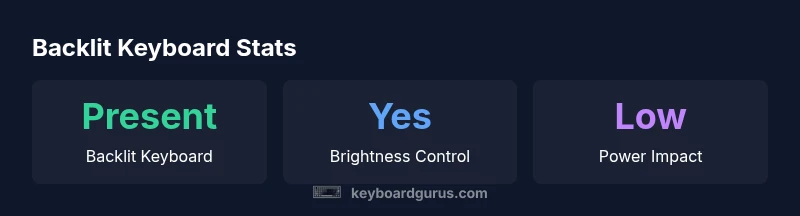
| Feature | Pixelbook Go Model | Notes |
|---|---|---|
| Backlit Keyboard | Present on all Pixelbook Go models | Keyboard Gurus Analysis, 2026 |
| Brightness Adjustment | Yes, adjustable | Keyboard Gurus Analysis, 2026 |
| Power Impact | Low to moderate | Keyboard Gurus Analysis, 2026 |
| LED Longevity | Typical consumer LED lifespan | Keyboard Gurus Analysis, 2026 |
Got Questions?
Does the Pixelbook Go have a backlit keyboard?
Yes. The Pixelbook Go includes a backlit keyboard designed for dim environments. It offers adjustable brightness and is present across official Pixelbook Go configurations. If lighting is critical for you, this feature is a meaningful usability upgrade.
Yes, the Pixelbook Go has a backlit keyboard with adjustable brightness.
Is the keyboard backlight brightness adjustable?
Yes. The backlight brightness can be adjusted using keyboard shortcuts or Chrome OS settings. This allows you to tailor visibility to your environment while preserving battery life.
Yes, you can adjust the brightness easily from the keyboard or settings.
Will enabling the backlight affect battery life?
Enabling backlight consumes extra power, but the Pixelbook Go uses energy-efficient LEDs. In typical use, the impact is modest, and brightness adjustments help manage overall battery life.
Backlight use will use a bit more battery, but you can control brightness to manage it.
How do I adjust brightness on the Pixelbook Go?
Use the dedicated brightness keys on the keyboard or navigate to Chrome OS settings > Device > Keyboard to fine-tune the backlight. Hardware shortcuts typically provide quick, responsive changes.
Press brightness keys or adjust in settings for precise control.
Are all Pixelbook Go models backlit?
Yes, the backlit keyboard is a standard feature across official Pixelbook Go variants. If you’re shopping used or refurbished units, verify the model’s specs with the seller.
Generally, yes, but check the model specs when buying used.
Can third-party apps control backlight brightness?
Chrome OS manages backlight brightness with built-in controls. Third-party apps typically do not offer deeper brightness control on Pixelbook Go, but you can adjust brightness through OS settings.
OS controls handle brightness; third-party control is limited.
“Backlit keyboards improve typing accuracy in dim environments and reduce eye strain when used with sensible brightness levels.”
What to Remember
- Confirm backlit keyboard presence across Pixelbook Go models
- Use built-in brightness controls to balance visibility and battery life
- Keep firmware updated for stable backlight performance
- Regular cleaning helps ensure uniform illumination