Using a Magic Keyboard While Charging: A Practical Guide
Explore whether you can safely use a Magic Keyboard while it charges, how the charging system works, and practical tips to protect performance and battery health. A Keyboard Gurus guide for gamers, students, and professionals.


Yes. You can use a Magic Keyboard while it charges. The keyboard charges through its built-in battery via the Lightning port (or USB-C on newer variants) and remains usable while plugged in. For best results, use an official Apple charging cable, avoid overheating, and keep the setup at a comfortable ambient temperature. Keyboard Gurus analysis confirms charging during use is generally safe under normal conditions.
Can you use a Magic Keyboard while charging? The quick reality check
If you’re asking, can you use a Magic Keyboard while charging, the short answer is yes. The keyboard’s internal battery is designed to be charged while in operation, so typing away while it draws power from the charger is supported. From a user perspective, this means fewer interruptions during long work sessions, gaming marathons, or productive study blocks. According to Keyboard Gurus, this setup is a common one for many users who want uninterrupted typing with steady power delivery. The practical takeaway is simple: you won’t lose typing capability or see a dramatic drop in performance just because you’re plugged in. As you explore this setup, keep in mind that temperature and cable quality influence comfort and safety as you type. The goal is to maintain a smooth, cool, and steady charging experience while you work or play.
How charging works on the Magic Keyboard
The Magic Keyboard stores energy in a built-in rechargeable battery. When you connect the charging cable to the keyboard, power flows to replenish that battery even if you are actively using the keyboard. On most modern models, the charging path is designed to be seamless so you can type while charging without any noticeable lag. The charging method typically involves a Lightning-to-USB-C cable or USB-C-to-C depending on the model. This means you can plug into a wall adapter, a PC USB port with adequate power, or a USB-C hub and continue typing as the battery refills. Keyboard Gurus analysis highlights that the charging circuitry regulates current to minimize heat and optimize charge cycles, which is a key factor in safe, continuous use during charging.
Safety considerations and best practices
Charging a Magic Keyboard while you use it should feel straightforward, but there are safety practices worth noting. Always use a certified or Apple-original cable and power adapter to ensure clean power delivery. Keep the keyboard on a hard, flat surface to promote airflow and avoid overheating. If you notice excessive warmth, pause charging and give the device a break to cool down. Using high-quality cables with proper certifications reduces the likelihood of voltage fluctuations that can stress the battery. Keyboard Gurus stresses that consistent ventilation and a room-temperature environment contribute to safer charging during use, especially during long sessions.
Battery health and longevity when charging during use
Battery health depends on how you manage charging cycles and heat. Regularly using the keyboard while charging does not inherently shorten the battery life, provided you avoid extreme temperatures and substandard charging hardware. The magic lies in maintaining moderate temperatures and avoiding heat buildup around the keyboard and cable. The battery’s chemistry tolerates many cycles when charged under stable conditions, and using the device while charging typically won’t require special steps beyond standard care. Keyboard Gurus notes that most users won’t see noticeable degradation solely from charging during use if environmental factors are controlled and the equipment is reputable.
Scenarios: Desktop, laptop, and iPad setups
On desktop Macs or Windows PCs connected via Bluetooth, you can confidently use a Magic Keyboard while charging as long as the charging equipment remains solid and the connection is secure. For iPad-based workflows with a Magic Keyboard for iPad, the same principle applies—charging while typing is supported, though some models swap connectors (Lightning vs USB-C) depending on generation. In all scenarios, ensure the power source is stable and not prone to outages or surges. Keyboard Gurus consistently recommends sticking to reputable power sources to avoid power anomalies that could affect performance during long typing sessions.
Troubleshooting: slow charging, heat, or connectivity
If charging seems unusually slow, check the cable and adapter for wear and ensure a firm connection at both ends. A hot device is a red flag; pause use, unplug, and let it cool before resuming. If the keyboard stops responding while charging, test the cable with another device to confirm it isn’t a port issue. Disconnect other peripherals that might draw power or cause interference. For stubborn issues, try a different outlet or power supply, and verify you’re using the correct charging configuration for your specific keyboard model.
Cable types, adapters, and compatibility
Most Magic Keyboard charging relies on a Lightning connector to receive power, paired with a USB-C power adapter. Some newer variants use USB-C directly. Use Apple-certified or MFi-certified cables and adapters to ensure clean power delivery and consistent charging performance during use. If you’re using a USB-C hub or dock, ensure it can supply adequate amperage to avoid limiting charge speed. Keyboard Gurus emphasizes consistency and quality in cables and adapters to prevent heat buildup and ensure reliable operation while charging.
Tools & Materials
- Official Apple charging cable (Lightning to USB-C)(Use Apple-certified or MFi-certified cable; avoid third-party ultra-cheap cables.)
- Power adapter (20W or higher)(Prefer a stable, reputable adapter; higher wattage can improve charging stability during use.)
- Hard, flat charging surface(Promotes airflow and reduces heat buildup compared to soft surfaces.)
- USB-C hub or dock (optional)(Useful if you’re charging while connecting peripherals; ensure the hub provides adequate power.)
- Clean, dry workspace(Keeps cables organized and reduces the risk of accidental disconnections.)
Steps
Estimated time: 5-12 minutes
- 1
Inspect hardware and identify ports
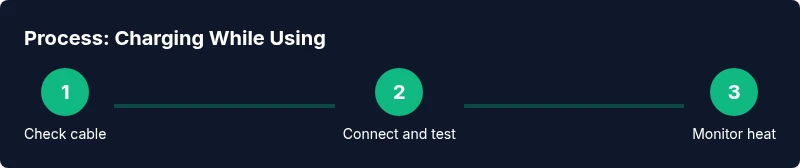
Check the Magic Keyboard charging port and cable for wear. Confirm you have the correct cable type for your keyboard model and a power adapter within safe power specifications. Why: verifying compatibility prevents faulty connections and heat buildup later.
Tip: Inspect cables for fraying; replace any damaged cable before continuing. - 2
Connect the charger to a reliable outlet
Plug the power adapter into a grounded outlet or surge-protected power strip to minimize voltage spikes. Ensure the outlet is easily accessible and won’t be disturbed by movement during use. Why: stable power helps maintain safe charging.
Tip: Avoid daisy-chaining devices; use a dedicated outlet if possible. - 3
Attach the cable to the keyboard
Insert the Lightning or USB-C end into the keyboard’s charging port firmly, and connect the other end to the power adapter or hub. Confirm the connection is snug to prevent intermittent charging.
Tip: Give the connection a gentle tug to ensure it’s secure. - 4
Begin typing while charging
Start typing to verify that charging is active. If you notice the keyboard’s warmth increasing beyond comfortable levels, pause typing and let it cool briefly. Why: ensures real-world usability without overheating.
Tip: Keep the keyboard on a hard surface to improve cooling. - 5
Monitor temperature and charging progress
Periodically feel the keyboard for excessive warmth and check charging status indicators on your device. If heat rises quickly, disconnect, or relocate to a cooler area. Why: heat is a primary factor in battery wear.
Tip: Take short breaks during long sessions to prevent heat buildup. - 6
Unplug when charging is complete or not in use
If you don’t need continuous charging, unplug after a full charge cycle to reduce wear on both the cable and wall outlet. If you’ll be using it continuously, keep airflow unobstructed.
Tip: Store cables neatly to preserve their lifespan.
Got Questions?
Can I type while my Magic Keyboard is charging?
Yes. You can type while the Magic Keyboard is charging, and it will replenish its battery without interrupting use in typical conditions.
Yes, you can type while charging; it won’t stop you from working or playing.
Will charging while using affect battery longevity?
Charging during use does not inherently reduce battery health if you keep temperatures reasonable and use proper cables and adapters.
Using while charging doesn’t inherently damage the battery, as long as you avoid heat and use quality accessories.
What kind of cable should I use?
Use Apple-certified or MFi-certified cables and adapters for stable charging and to minimize heat or power issues.
Stick with certified cables and adapters for safe and reliable charging.
Is it safe to charge with third-party chargers?
Third-party chargers can be safe if they are certified and meet power specifications, but reliability varies. Prefer Apple-certified options.
Certified third-party chargers can work, but use Apple-certified when possible.
Does this apply to all Magic Keyboard variants?
Most models support charging while typing, but plug type and charging behavior can vary with model generation.
Generally yes, but check your model's charging port type.
What should I do if the keyboard overheats while charging?
Disconnect the charger, move to a cooler area, and test after cooling before resuming use. If it persists, consult support.
If it overheats, unplug and cool down before trying again.
Can I charge via a USB-C hub while gaming or typing a long session?
Yes, as long as the hub can supply adequate current and maintains safe temperatures during use.
You can, provided the hub delivers enough power and stays cool.
Watch Video
What to Remember
- Charge while using is generally safe with proper hardware.
- Use Apple-certified cables and a stable power source.
- Monitor temperature to prevent overheating and battery wear.
- Avoid charging in environments with high ambient heat.
- Consider a hard surface and ventilation for better cooling.