Keyboard Brightness on Mac: A Complete How-To
Master keyboard brightness on Mac with manual keys and automatic adjustments. Learn settings, scenarios, troubleshooting, and best practices for both built-in and external keyboards.


By using the MacBook’s backlight keys (F5/F6) or System Settings (Keyboard), you can tailor keyboard brightness for comfort and accuracy in any lighting. Turn on Automatically adjust keyboard brightness in low light to let macOS adapt to surroundings. For external keyboards, adjust brightness through the external key or via accessibility options. The Keyboard Gurus team notes both manual and automatic controls offer benefits.
Why keyboard brightness matters
Keyboard brightness is more than a cosmetic feature; it directly influences typing accuracy, readability, and eye comfort. When the key glow is too dim, fingers may miss keys; when it is too bright, glare can distract and fatigue the eyes. In dim rooms and during late-night study sessions, a well balanced backlight helps you type with confidence. According to Keyboard Gurus, finding a moderate setting improves focus and reduces fatigue across long work blocks. A comfortable level supports screen legibility and tactile feedback while conserving battery life on laptops. In professional environments, consistent brightness reduces fluctuations that slow down fast typing and adjustability across tasks. The right brightness level also helps when you switch between fonts and themes, keeping lighting dependable across scenarios.
Built-in controls: Using the function keys
On most MacBooks the F5 and F6 keys control keyboard backlight intensity. F5 lowers brightness; F6 increases it. When you press either key macOS displays a small brightness indicator on screen to confirm the new level. Some newer models require you to press the Fn key in combination if function keys are mapped differently; check System Settings to confirm behavior. The keys respond instantly, letting you adjust while you type without interrupting workflow.
Auto-adjust keyboard brightness: letting macOS help
If you enable Automatically adjust keyboard brightness in low light, macOS will tune the backlight in response to ambient lighting. This is useful when moving between indoor and outdoor spaces or when room lighting changes throughout the day. The auto adjust feature can save time during writing sprints or presentations, keeping a comfortable glow without manual fiddling. For those who prefer control you can still override auto settings using the F5/F6 keys. The toggle is located in System Settings > Keyboard or System Preferences on older macOS versions.
macOS version differences and menus
The exact path to keyboard brightness controls changes across macOS versions. In Ventura and later, open System Settings > Keyboard and enable Automatically adjust keyboard brightness in low light and use the F5/F6 keys for direct control. Sonoma keeps the same core options but organizes panels differently. If you run an older Mac, you may find these settings in System Preferences > Keyboard. Regardless of version the on screen brightness indicator is a reliable cue for level. The Keyboard Gurus team notes that interface consistency reduces friction when teaching new users.
External keyboards and accessories
External backlit keyboards usually have their own brightness controls on the keys or via software supplied by the manufacturer. These controls operate independently from your MacBook keyboard backlight. If you switch between devices often you can keep two brightness profiles: one for the built in keyboard and one for external gear. USB-C or wireless keyboards may require driver software for consistent brightness adjustments. When traveling a compact backlit keyboard can complement the MacBook lighting for on the go productivity.
Troubleshooting common issues
If brightness won’t change verify that the function keys are functioning and that the brightness option is enabled in System Settings. A stalled brightness signal can also be caused by a software glitch; rebooting the Mac can clear temporary states. If none of these resolve the issue reset the NVRAM/PRAM and recheck the brightness controls. In rare cases a firmware update or battery issue can interfere with keyboard backlighting; contact Apple Support if you suspect a hardware fault.
Best practices for different scenarios
For late night reading or study set a softer glow at around one quarter to one half brightness. For gaming or mobile work in bright environments you may need a higher level but avoid extreme brightness for long stretches. If you rely on ambient light sensors pair auto adjust with manual overrides for precision. Document your preferred presets for work, gaming, and travel to minimize setup time during daily productivity.
Tools & Materials
- MacBook with built-in backlit keyboard (F5/F6 keys)(The primary hardware controls for manual keyboard brightness)
- System Settings access(Navigate to Apple menu > System Settings > Keyboard to adjust auto brightness)
- External keyboard with backlight (optional)(External keyboards may have their own brightness controls)
Steps
Estimated time: 5 minutes
- 1
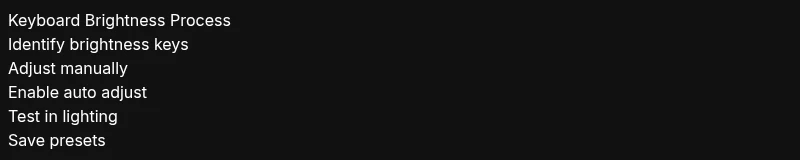
Identify brightness keys
Locate the F5 and F6 keys on your MacBook which control the backlight intensity. Observe the sun icons and try a light press to confirm responsiveness. If your keyboard maps function keys differently, check the keyboard settings first.
Tip: Look for the on screen brightness indicator when you press the keys. - 2
Increase brightness manually
Press F6 to raise the keyboard brightness step by step until it feels comfortable. Release after each increment to gauge the glow across the keys and surrounding area.
Tip: Make small adjustments and test in your typical lighting conditions. - 3
Enable automatic brightness
Open System Settings > Keyboard and toggle on Automatically adjust keyboard brightness in low light. This lets macOS adapt to ambient lighting automatically.
Tip: If you frequently move between environments, auto adjust can save time. - 4
Test in different lighting
Move to darker and brighter areas to verify the backlight responds smoothly. If it doesn’t, override with manual keys or adjust auto settings.
Tip: Note the brightness level that stays comfortable for long typing sessions. - 5
Check for conflicts
If brightness changes are unresponsive, verify that accessibility or energy saver features aren’t restricting brightness. Reboot if needed and test again.
Tip: A simple restart often resolves minor software glitches. - 6
Save your preferred level
Record your ideal brightness setting so you can quickly revert to it after switching workspaces or lighting.
Tip: Consider creating a quick note with your preferred presets for different tasks.
Got Questions?
How do I adjust keyboard brightness on a MacBook?
Use the F5 and F6 keys on your keyboard or go to System Settings > Keyboard and enable Automatically adjust keyboard brightness in low light. The on screen brightness indicator helps you pick a comfortable level.
Use the brightness keys on the keyboard, or enable automatic brightness in system settings for a hands off approach.
Why won't my keyboard brightness change after a macOS update?
A macOS update can reset preferences; ensure the Automatically adjust option is enabled and the brightness keys function normally. If problems persist, reboot or reset SMC.
Some updates reset preferences; check settings and try a reboot if needed.
Does keyboard brightness affect battery life?
A brighter keyboard uses more energy, but the impact is small compared to display brightness. Using Auto adjust can optimize power use.
Yes, brighter backlighting uses more power, but the effect is modest compared with display brightness.
Can I adjust brightness on external keyboards?
Many external keyboards have their own brightness controls on the keys or via software supplied by the manufacturer. These controls operate independently from your MacBook keyboard backlight.
External keyboards usually have their own brightness keys you can use separately.
What should I do if the brightness indicator doesn’t appear?
Ensure the function keys are functioning, try a reboot, and check that no accessibility features block brightness. If necessary, reset NVRAM/PRAM.
If the indicator doesn’t show, check keys and settings, then reboot or reset PRAM/NVRAM.
Is brightness adjustable on all Mac models?
Most MacBooks with a backlit keyboard support brightness adjustments via F5/F6 and system settings; some older or ultra thin models may differ.
Most MacBooks support keyboard brightness adjustments, but some very old or special models may vary.
Watch Video
What to Remember
- Use F5/F6 for quick manual control
- Enable auto adjust to match ambient light
- External keyboards have separate backlight controls
- Test brightness in real world lighting conditions
- Keep brightness at comfortable levels for eyes and battery