Windows Keyboard vs Mac Keyboard: A Practical Guide
A detailed, objective comparison of Windows and Mac keyboards—layouts, shortcuts, typing feel, and interoperability—to help you choose the best keyboard for cross-OS workflows and mixed setups.


TL;DR: The Windows keyboard vs Mac keyboard comparison hinges on your primary OS and how you work. Windows keyboards excel with Windows shortcuts, broad hardware options, and easy customization. Mac keyboards emphasize macOS shortcuts and ecosystem integration. For cross-OS use, a flexible model with remapping and OS switching often delivers the best balance.
Windows keyboard vs Mac keyboard: scope and stakes
According to Keyboard Gurus, the difference between a Windows keyboard and a Mac keyboard goes far beyond the legends on the keys. The choice influences shortcut habits, app behavior, and even how you navigate system prompts. In this guide, we analyze the two ecosystems side by side and explain practical implications for students, gamers, professionals, and keyboard enthusiasts. By focusing on layout, shortcuts, and interoperability, you can optimize a single input device for cross OS workflows or choose a dedicated keyboard for each environment. The term windows keyboard vs mac keyboard captures a broad spectrum of hardware variants—from budget membrane boards to premium mechanical keyboards—so the aim is to clarify which characteristics matter most for your setup.
Core design differences: Layouts, keys, and legends
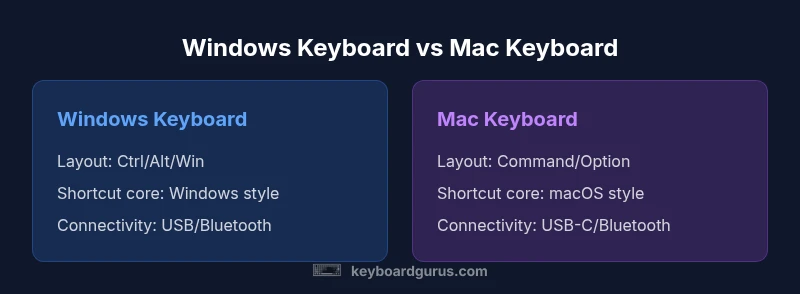
The basic difference between windows keyboard vs mac keyboard starts with layout conventions and key legends. On most Windows keyboards you will see the Ctrl key on the bottom left, the Fn in some cases, the Alt on the left, and the Win key between Ctrl and Alt. Mac keyboards swap the Command key for the Windows key and use Option where Alt is found on Windows. In practice this changes not only what you press to perform a command but also how applications interpret shortcuts across OS boundaries. For keyboard enthusiasts, the legend differences extend to symbol usage, such as the standard copy paste shortcuts that are Cmd+C on Mac and Ctrl+C on Windows. The result is a learning curve if you are moving between ecosystems. Keyboard Gurus notes that the physical shape and keycap legends influence muscle memory, and that manufacturers produce a wide range of layouts. Some keyboards offer a hybrid layout that mixes a Win key with Command style labeling, while others use a dedicated mode that remaps keys when an OS switch is detected. The key takeaway is that layout and legends are not cosmetic; they determine immediate usability and reduce mis-presses, especially during rapid gaming or productivity sessions.
Modifier keys and shortcuts: Windows vs macOS conventions
Modifier keys are the gating factor in the windows keyboard vs mac keyboard debate. Windows primary modifiers are Ctrl and Alt, with the Win key adding a separate set of OS level actions. macOS centers commands on the Command key and uses Option for alternate actions. This difference shows up in everyday tasks such as copying, pasting, undoing, and switching windows. When you press Cmd plus Q on a Mac, you quit an app; on Windows you press Ctrl plus Q which is often not assigned the same outcome. Shortcuts like Cmd+C and Ctrl+C perform the same copy action but map to different keys depending on the OS. For users who frequently switch between OSes, remapping or using keyboards with toggle OS modes helps a lot. Some keyboards include software that lets you remap the keys globally, while others rely on OS level remapping. In cross platform workflows, documenting the core shortcuts you rely on can reduce friction and speed up learning for new teammates. Keyboard Gurus consistently emphasizes designing a cross OS keyboard strategy that aligns with common apps in your toolkit, whether you are coding, designing, or gaming.
Typing feel and build quality: switches, keycaps, ergonomics
Typing feel matters as much as layout in choosing a keyboard. Across the two camps Windows and Mac keyboards come in a wide range of switch types from tactile to linear to silent. The decide factor is how much you value actuation force, travel distance, and acoustics. Mechanical keyboards offer adjustable switches and programmable layers, while membrane or scissor switch boards are more affordable and travel lighter, appealing to students and casual users. When comparing windows keyboard vs mac keyboard, consider the common models you already own and the ecosystem you favor. Keycaps may be standard or sculpted, and legends can be laser etched or dye sublimated, affecting legibility over time. Ergonomics such as angled stands, split layouts, and wrist rests also influence comfort during long sessions. If you frequently type for hours straight, investing in a keyboard with a stable stabilizer and quality keycaps reduces finger fatigue and improves accuracy. Keyboard Gurus recommends trying a few layouts in a neutral posture before committing to a single option.
Connectivity and compatibility: wired, wireless, and interoperability
Today most keyboards offer USB wired and Bluetooth wireless options as well as USB C or USB A connectors. When evaluating windows keyboard vs mac keyboard, you should consider how the keyboard pairs with devices across Windows PCs, Macs, iPads, and iPhones. Bluetooth profiles can vary, with some boards supporting HID and others requiring vendor software to unlock advanced features. Interoperability matters if you work across devices: a single keyboard that can pair to a Windows PC and a Mac without muting functions or swapping layouts saves time. Check features like on the fly switching, battery life, and charger compatibility. Some keyboards support OS specific presets that automatically map keys when connected to a Mac or Windows machine. Regardless of the OS, a keyboard that supports multiple devices and simple pairing is usually more valuable for students and professionals who move between a desktop, laptop, and tablet.
Keycap legends, font, and visual cues: learning curves
Legends are not just cosmetic choices; they guide how you recognize shortcuts. Windows style legends emphasize Ctrl and Win, while Mac legends highlight Command and Option. The font and size of legends can help or hinder quick recognition, especially in low light or during rapid typing. Some keyboards use iconographic legends to reduce language dependency, but icons may confuse if you switch OSs. For people entering a cross platform role, a keyboard with consistent legends or with the ability to switch to a neutral mode is helpful. Additionally, the color contrast between the keycaps and the letters matters for readability. Keyboard Gurus finds that a legible layout reduces errors in programming tasks, data entry, and gaming, particularly when you are adjusting to macOS shortcuts in a Windows heavy workflow.
Using a Windows keyboard on a Mac and vice versa: practical tips
Adapting a Windows keyboard to Mac work requires remapping the modifier keys and adjusting shortcut expectations. In macOS, you can redefine the Command key to behave like Control for some apps, and you can reassign the Option key to behave as Alt. Conversely, Mac keyboards used on Windows typically retain Command key labels, which may feel odd but still function. The easiest approach is to enable OS level remapping or to choose a keyboard with a dedicated OS switch that toggles between Windows and macOS layouts. For those who frequently switch between environments, consider a keyboard that supports both modes, or maintain two keyboards that are tuned to each OS. The end result is more fluid transitions between tasks, especially if you program macros or custom shortcuts for your most frequent actions. Keyboard Gurus notes that keeping a short cheatsheet next to your desk can reduce the friction of OS transitions over time.
Price, availability, and ecosystem considerations
Prices for keyboards vary widely, and the Windows keyboard vs Mac keyboard debate is often reflected in price bands. You can find cheap, functional keyboards well under 50 that work on both OSes, as well as premium mechanical boards that cost significantly more. Availability also matters: Windows compatible keyboards sell in abundance worldwide, while Mac oriented peripherals are widespread in Apple stores and authorized resellers but can carry higher price points. Ecosystem considerations include software and driver support, which may add value or complexity depending on your choice. If you rely on specific ecosystem features like iCloud or Continuity, a Mac optimized keyboard can deliver a more integrated experience, while Windows specific shortcuts may be easier to customize on a Windows friendly board. For students and professionals balancing cost with features, there is always a middle ground: a midrange keyboard with good cross OS support and programmable shortcuts provides flexibility without locking you into one platform.
Scenarios: who should choose which keyboard in real life
Students who predominantly use Windows software but appreciate Mac aesthetics may benefit from a versatile keyboard that supports both OSes. Gamers who require fast key responses and macro support often prefer Windows oriented boards because of broader software integration, but Mac gamers can still benefit from high end mechanical boards. Professionals in design, development, or data analysis who often work on multiple devices can gain from a keyboard that supports quick OS switching and seamless Bluetooth pairing. For those deeply embedded in the Apple ecosystem, a Mac keyboard offers consistent shortcuts and a streamlined experience across devices. The underlying message is that the decision is less about one OS being superior and more about how you use your devices. Keyboard Gurus encourages readers to map their most frequent workflows and choose a keyboard that minimizes context switching between OSes.
Practical recommendations for mixed OS setups
If you must live in both Windows and macOS environments, start with a single flexible keyboard and set OS level remapping to unify your core shortcuts. Create a short cheat sheet that lists your most used actions in both OSs, and keep it near your workstation. Consider enabling on the fly switching if your keyboard supports it, or invest in two keyboards assigned to each OS to reduce confusion during critical tasks. Regularly review and update your remaps as apps update their shortcut schemes. Finally, keep your firmware and software up to date to ensure compatibility with both platforms and keep your hands comfortable during long sessions. The goal is to minimize context switching, maximize accuracy, and maintain a smooth productivity rhythm across OS boundaries.
Comparison
| Feature | Windows keyboard | Mac keyboard |
|---|---|---|
| Layout/legends | Ctrl/Alt/Win legends typical of Windows keyboards | Cmd/Option legends typical of Mac keyboards |
| Modifier keys | Ctrl + Alt and Win for Windows actions | Command + Option and sometimes Control for Mac actions |
| Function keys/Media | OS level mapping; often requires Fn on laptops | Often mapped to macOS actions; Fn usage varies by model |
| Typing feel | Highly model dependent (membrane to mechanical) | Highly model dependent (membrane to mechanical) |
| Connectivity | Wired USB; Bluetooth; USB-C adapters common | Wired USB-C; Bluetooth; some models offer dual mode |
| Best for | Windows-centric workflows and games | Mac-centric workflows and design |
Advantages
- Wide hardware availability across price bands
- Strong compatibility with Windows software and games
- Easy to customize layouts and remap shortcuts
- Excellent options for multi device setups and cross OS use
Drawbacks
- Shortcut mismatches across OS can cause confusion
- Remapping complexity for persistent workflows
- Inconsistent cross platform shortcuts across apps
- Potential extra cost for dual OS optimized boards
Mixed OS users benefit from a flexible keyboard and clear remapping plan
Windows keyboards excel in Windows workflows and gaming, while Mac keyboards offer a smoother Mac experience. For cross OS work, choose a keyboard with robust OS switching and lay out a simple shortcut cheat sheet to minimize context switching.
Got Questions?
Which is better for gaming, a Windows keyboard or a Mac keyboard?
For gaming, a Windows keyboard is typically preferable due to broader support for Windows games and utilities. However, high end mechanical Mac keyboards can still perform well if you primarily game on a Mac or via Boot Camp. Consider latency, key rollover, and software support when deciding.
For gaming, Windows keyboards usually have broader support and customization options. If you game on a Mac, look for a high end mechanical board with good switch quality.
Can I use a Windows keyboard on a Mac without issues?
Yes, you can use a Windows keyboard on a Mac. Shortcuts map to Command and Option in most apps, but you may need to remap the Ctrl key to act as Command in some cases. OS level remapping or a keyboard with OS aware modes makes this easier.
You can use a Windows keyboard on a Mac, and remapping often makes the experience smoother.
Do Mac keyboards support Windows shortcuts?
Mac keyboards can support Windows shortcuts through remapping. Some apps honor standard shortcuts regardless of keyboard label, while others rely on the operating system mapping. A dual OS setup benefits from a consistent shortcut cheat sheet.
Windows shortcuts can work on a Mac keyboard with remapping, especially when you align key actions in software.
Are there differences in keycaps and legends that affect typing?
Yes, legends and keycap legends affect speed and accuracy. Clear Command and Option labeling helps Mac users, while visible Ctrl and Win cues help Windows users. If you switch OS often, choose a keyboard with neutral or switchable legends.
Legends matter for quick recognition; choose a layout that keeps shortcuts readable in both OSs.
What should I consider if I switch between OSs often at work?
If you switch OSs often, prioritize keyboards with fast OS switching, robust remapping options, and cross device pairing. Maintain a concise shortcut cheatsheet and test your most common tasks across both systems regularly.
If you switch OS often, pick a keyboard that makes switching easy and keep a handy shortcut cheat sheet.
What to Remember
- Favor a flexible keyboard for mixed OS work
- Remap core shortcuts to reduce learning curves
- Prefer OS switching features for cross device use
- Invest in legible legends and comfortable ergonomics