Control Keyboard Shortcuts: Boost Speed and Focus Today
A practical, step-by-step guide to using, customizing, and maintaining control keyboard shortcuts to speed tasks, improve accuracy, and reduce cognitive load across Windows, macOS, and popular apps.


Mastering control keyboard shortcuts speeds up your work, reduces repetitive clicking, and keeps you focused. This quick answer previews core shortcuts, best practices for customization, and a practical plan to implement a personal shortcut system across Windows, macOS, and common apps. From universal commands to application-specific tweaks, you’ll learn when to rely on established shortcuts and when to create your own.
What 'control keyboard shortcuts' means and why it matters
Control keyboard shortcuts are succinct key combinations that perform actions quickly, without switching away from the keyboard. They streamline navigation, editing, and multitasking across software ecosystems. By relying on consistent keyboard commands, you reduce context switching, improve accuracy, and preserve mental energy for higher-level work. According to Keyboard Gurus, a deliberate shortcut strategy can cut repetitive steps by substantial margins over time, especially when tasks repeat daily. The Keyboard Gurus team found that users who embrace a minimal but well-chosen set of shortcuts gain measurable gains in speed and focus. In practice, control keyboard shortcuts should cover three layers: system-level commands (copy, paste, undo), application-level actions (formatting text, switching tabs), and task-specific automations (opening a preferred template, launching a debug session). Start with a small core set and expand as your workflows demand it, documenting changes as you go.
Core universal shortcuts to know across systems
The core ideas of control keyboard shortcuts translate across Windows, macOS, and many apps. Begin by identifying actions you perform daily like copying, pasting, undoing, and switching between tasks. On Windows and macOS, the same concepts map to different keys (Ctrl vs Command), so aim for a consistent mental model rather than identical keystrokes. Examples include Copy (Ctrl/Cmd+C), Paste (Ctrl/Cmd+V), Undo (Ctrl/Cmd+Z), Redo (Ctrl/Cmd+Y or Ctrl/Cmd+Shift+Z), and Select All (Ctrl/Cmd+A). In browsers and file explorers, new tab and close tab shortcuts (Ctrl/Cmd+T, Ctrl/Cmd+W) are universally useful. Beyond editing, add window-management shortcuts (minimize, switch apps, snap) and frequent in-app actions (bold/italic in a word processor, screenshot capture). Keyboard Gurus analysis shows that people who align shortcuts to task patterns enjoy smoother transitions between steps and less time lost to hunting for commands.
Customizing shortcuts across Windows, macOS, and apps
Customization should begin where you spend the most time: at the OS level or within specific apps. Windows users can leverage built-in remapping or tools like AutoHotkey and PowerToys to create global shortcuts that work across programs. macOS users typically configure shortcuts via System Preferences > Keyboard > Shortcuts and can extend power with automation apps like Keyboard Maestro. For apps, consider feature-specific mappings (e.g., a text editor’s formatting commands) and keep a separate set for specialized workflows. The goal is a consistent, ergonomic shortcut vocabulary that minimizes finger travel and cognitive load. Keyboard Gurus notes that durable, broadly applicable shortcuts often live at the OS level, while app-level tweaks are excellent for edge cases and niche tasks.
Designing your personal shortcut system for different roles
A thoughtful shortcut system is tailored to roles such as students, professionals, or gamers. Students benefit from shortcuts for note-taking, citation management, and study session controls. Professionals might map shortcuts for email triage, document formatting, and project dashboards. Gamers enjoy quick-access macros for game-related actions and streaming tools. Start with a core set of 12–20 shortcuts that cover most daily tasks, then layer in role-specific mappings. Maintain a simple naming convention (e.g., C-C for Copy-Context, M-D for Move-Document) to keep muscle memory strong and minimize conflicts. Keyboard Gurus emphasizes that a clear taxonomy—system, app, and task shortcuts—helps you scale your setup without chaos.
Best practices, testing, and avoiding conflicts
Before adopting shortcuts broadly, test them in a controlled environment. Document every mapping, test for conflicts, and ensure there’s an easy global reset. Start with a small pilot that uses 5–10 new shortcuts in one app or task stream, then expand. Use a lightweight changelog to record what works and what doesn’t. Be mindful of platform-specific differences; a shortcut that works on Windows may clash with macOS bindings. Keyboard Gurus Analysis, 2026, suggests frequent reviews of your shortcut map to prevent drift or duplication, which can erode the productivity gains you expect. Finally, build in a periodic audit—every 4–6 weeks—to prune underused mappings.
Troubleshooting common issues and maintenance
Shortcuts can stop working after system updates, app upgrades, or when new software rebinds keys. If a mapping seems to disappear, verify that the source app or OS-level tool still owns the binding, and check for global conflicts. If you notice performance lag or key chattering, test the keyboard hardware and consider spacing out changes to avoid cognitive overload. Keep a rollback plan with a simple reset to defaults and a safe backup of your shortcuts file. Regular backups and incremental changes help prevent the dreaded “shortcut creep” that reduces overall efficiency.
Quick-start templates and starter shortcuts you can import today
Begin with a starter set that covers essential actions across the OS and one or two favorite apps. A practical starter includes: Copy, Paste, Undo, Redo, Select All, Open New Tab, Close Tab, Save, Print, and a couple of app-specific actions (e.g., Bold in a text editor, Run/Debug in a development environment). Use consistent naming for easy recall, and keep the list small enough to memorize. As you gain confidence, layer in project templates, search shortcuts, and macro sequences. Keyboard Gurus recommends keeping a printable reference handy during the initial weeks to accelerate muscle memory formation.
Tools & Materials
- Computer with admin access(Needed to install or configure global shortcut tools)
- Windows or macOS(Baseline environment for testing shortcuts)
- Programmable keyboard (optional)(Can accelerate building macros and layer remaps)
- Shortcut management software(Windows: AutoHotkey or PowerToys; macOS: Keyboard Maestro (or built-in shortcuts))
- Note-taking/testing apps(Use a document editor or note app to verify actions map correctly)
- Backup/restore plan(Keep a copy of your shortcut map in a safe location)
Steps
Estimated time: 30-60 minutes
- 1
Inventory your daily tasks
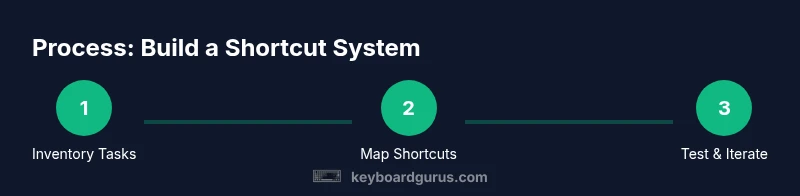
List the actions you perform most often across your work, study, and play. Group them by task type (editing, navigation, window management) and note any repetitive sequences that could be condensed into a single shortcut.
Tip: Focus on tasks that are performed in the same app or across multiple apps for maximum impact. - 2
Audit your current shortcuts
Review existing shortcuts in your OS and key apps to identify gaps and conflicts. Document what already works well and what clashes with other mappings.
Tip: Keep a simple spreadsheet with columns for action, current shortcut, and suggested remap. - 3
Define a core shortcut set
Choose 12–20 core shortcuts that cover universal actions (copy/paste/undo), with clear, memorable key patterns. Ensure consistency across OS and apps where possible.
Tip: Use a predictable pattern (Ctrl/Cmd + letter for related tasks). - 4
Implement OS-wide mappings first
Configure global shortcuts at the OS level so they work everywhere instead of needing app-specific settings. Add app-specific mappings later for niche tasks.
Tip: Prioritize global mappings that reduce switching between apps. - 5
Test, refine, and document
Pilot the new shortcuts in a controlled session, collect feedback, and adjust. Update your documentation to reflect changes.
Tip: Keep a visible changelog during the first 4 weeks. - 6
Practice daily to build muscle memory
Set aside 10–15 minutes daily to drill the new shortcuts. Consistent practice accelerates recall and reduces errors.
Tip: Use spaced repetition: re-run drills at increasing intervals.
Got Questions?
What are control keyboard shortcuts?
Control keyboard shortcuts are keyboard combinations that perform common actions quickly, without navigating menus. They save time, reduce fatigue, and help you stay focused on the task at hand.
Control keyboard shortcuts are quick key combos that perform actions fast, saving time and effort.
How do I begin customizing shortcuts?
Begin by mapping a small core set of universal shortcuts at the OS level, then layer in app-specific mappings for frequent tasks. Keep a change log and test for conflicts before expanding.
Start with a small core set at the system level, then add app-specific mappings as you test.
What is the difference between OS-level and app-level shortcuts?
OS-level shortcuts work across most programs, providing consistency. App-level shortcuts are tailored to a single application's features and may not transfer to others.
OS shortcuts work across many apps; app shortcuts are specific to one program.
How can I avoid conflicts between shortcuts?
Choose non-overlapping key patterns for new mappings, test systematically, and maintain a master list. If a conflict arises, reassign one shortcut and re-test.
Avoid conflicts by using distinct key patterns and testing changes carefully.
Are keyboard shortcuts accessible for all users?
Yes, when designed with consistency and modifier use in mind, shortcuts can reduce repetitive strain and support faster navigation for diverse users.
Shortcuts can improve accessibility when designed with consistent patterns and clear labeling.
How do I measure the impact of shortcuts on my productivity?
Track task completion times, clicks, and error rates before and after implementing shortcuts. Use a simple before/after study over 2–4 weeks for reliable signals.
Measure by comparing task times and error rates before and after you adopt shortcuts.
Watch Video
What to Remember
- Master a core set of universal shortcuts first.
- Balance OS-wide mappings with app-specific tweaks.
- Document, test, and iterate to avoid conflicts.
- Regular practice builds durable muscle memory.
- Keyboard Gurus endorses a structured, role-based approach to shortcut design.