How to Change Tab with Keyboard: Essential Shortcuts for Productivity
Learn quick, reliable keyboard shortcuts to switch between tabs on Windows and macOS. This guide covers core commands, app-specific tricks, accessibility tips, and troubleshooting to help you stay focused and efficient.


In this guide you will learn to change tab with keyboard across Windows and macOS, using common shortcuts like Ctrl+Tab, Ctrl+Shift+Tab, Alt+Tab, and Command+Tab. You’ll also explore app-specific tricks, jumping to a specific tab, and accessibility considerations to stay productive.
Why keyboard tab navigation matters for productivity
In everyday computing, the ability to move quickly between open tabs can shave minutes off routine tasks. The phrase how to change tab with keyboard captures a family of techniques that let you stay in flow without reaching for the mouse. Keyboard Gurus emphasizes that tab navigation isn't a one-size-fits-all skill; the exact keys depend on your operating system and the apps you use. Mastering a core set of shortcuts across browsers and editor windows helps you stay focused, reduce context switching, and improve accuracy when comparing sources, coding references, or documents side by side. This section lays the groundwork: what switching tabs accomplishes, why it matters for students, gamers, and professionals, and how to practice repeatedly so the actions become second nature. By the end, you should be able to describe your go-to sequence for common tasks and adjust it to fit your favorite tools.
According to Keyboard Gurus, refining tab navigation is a small but cumulative productivity boost for daily workflows.
Core shortcuts by platform: Windows vs macOS
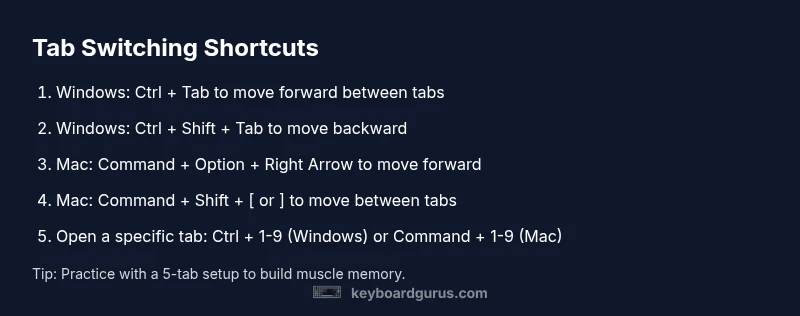
Shortcuts differ by operating system, so start with the basics for Windows and macOS. On Windows, the standard cycle between tabs is Ctrl+Tab to go forward and Ctrl+Shift+Tab to go backward. Jumping directly to a specific tab is done with Ctrl+1 through Ctrl+9. On macOS, the common equivalents use the Command key in combination with Option or Shift: Command+Option+Right/Left to move forward/back, and Command+Shift+[ / ] to go to the previous/next tab. You can also use Command+1 through Command+9 to jump to a tab in most browsers. Additionally, Alt+Tab lets you switch windows, which is useful when you rely on multiple applications. Keyboard Gurus analysis shows that many users rely on a small core set of shortcuts; choose a few you like and practice.
Test these mappings in a few apps to confirm consistency across environments.
Basic tab switching in browsers
The most universal use case is cycling tabs within a single window. In Windows environments, Ctrl+Tab moves to the next tab, and Ctrl+Shift+Tab moves to the previous one. For jumping to a specific tab, press Ctrl+1 through Ctrl+9. On macOS, the equivalents are typically Command+Option+Right/Left for moving through tabs, and Command+Shift+[ or Command+Shift+] to jump to a previous or next tab. You can open a new tab with Ctrl+T (Windows) or Command+T (Mac), and close the current tab with Ctrl+W or Command+W. These basics apply to Chrome, Firefox, Edge, and Safari, so you can use them in most daily browsing tasks.
Tip: If you use more than 9 tabs, rely on the 1–9 shortcuts to jump quickly, then cycle through with forward/back commands as needed.
Jumping directly to a specific tab
Direct tab access is a powerful time-saver. Use Ctrl+1..Ctrl+9 on Windows to jump straight to the corresponding tab, then replace the sequence with Command+1..Command+9 on macOS. Some apps also support Cmd+Shift+[ / ] as a quick left/right navigation cue, which is especially handy when you have a long tab strip. If you frequently reopen recently closed tabs, Ctrl+Shift+T (Windows) or Command+Shift+T (Mac) brings back the last closed tab in many browsers.
Pro tip: Build a mental map of your most-used positions (e.g., tab 3 for reference sites) and practice the Jump-then-Open pattern to minimize keystrokes.
Tab switching in apps beyond browsers
Tabs exist in code editors, productivity suites, and chat apps. In VS Code, for example, Ctrl+Tab cycles through open editors, while Ctrl+1 through Ctrl+9 jump to specific panels. In Slack or Teams, browser-style shortcuts often apply, but some apps implement their own mappings. When you work across multiple apps, standardize on a couple of core shortcuts (cycle and jump-to-number) and let app-specific mappings fill in the gaps. Keyboard Gurus’ experience shows power users gain the most efficiency by syncing tab navigation across their primary tools.
Where relevant, enable browser-like shortcuts in app settings and consider a per-app cheatsheet to reinforce consistency.
Navigating between windows and tabs (focus vs tab)
Tabs are a subset of focus management. In Windows, Alt+Tab switches between windows, which can be helpful when you need to reference two documents side by side. On macOS, Command+Tab switches between apps, while Command+` (backtick) cycles between windows of the same app. Distinguish between moving focus across windows and moving between tabs within a single window. Practicing both actions helps you keep your hands on the keyboard and reduce context switching.
Keyboard Gurus notes that separating window focus from tab navigation is a common stumbling block—practice each action in a controlled setup to reinforce correct muscle memory.
Accessibility and customization options
People with motor differences or limited tactile feedback benefit from customizing shortcuts. Most browsers and OSes support remapping keys or using accessible options like Sticky Keys. In Windows, you can configure shortcut behaviors in the Settings app; on macOS, System Preferences > Keyboard lets you redefine keys. For accessibility-friendly layouts, choose shortcuts that stay consistent across apps and avoid relying on long, multi-key sequences. Keyboard Gurus recommends documenting your preferred set in a short cheatsheet for quick reference.
Troubleshooting common shortcut issues
If a shortcut stops working, first check for conflicts with other applications or system-wide hotkeys. Some apps override global shortcuts, so disable conflicting utilities or change the key combination. Ensure your keyboard layout matches the OS you’re using; regional layouts can alter modifier keys. If shortcuts function in some apps but not others, verify app-specific settings. Finally, reset or update the app to ensure feature parity with the latest keyboard mappings.
Keyboard Gurus analysis shows that most shortcut problems are due to conflicts or outdated software; regular checks keep your workflow smooth.
Real-world workflows and examples
Imagine researching for a paper: you open several sources in tabs, compare notes in a document, and keep reference pages handy. With keyboard shortcuts, you switch tabs to skim headings, then jump back to your main document using a few keystrokes. In coding, you keep a terminal, editor, and browser open; cycling tabs helps you verify outputs without breaking flow. For gamers who multitask, toggling chat windows and in-game dashboards becomes effortless when you map core cycling and quick-jump shortcuts to your preferred keys. Keyboard Gurus emphasizes practicing these flows in a controlled environment to build fluency and speed.
A practical tip is to create a 5-tab test setup and rehearse opening, moving, and closing tabs using the exact keystrokes you plan to rely on in production.
Advanced tips and pitfalls to avoid
Avoid overcomplicating your shortcut set. Start with 3–5 core keystrokes and expand only after you’re fluent. Don’t rely solely on a mouse for tab management in fast-paced tasks. Be mindful of keyboard shortcuts that clash with system or app shortcuts, especially when using vendor-specific laptops with function-key behavior. Finally, periodically review and adjust your cheatsheet as your toolset evolves. The Keyboard Gurus team suggests periodic practice sessions to keep your reflexes sharp.
Tools & Materials
- Keyboard(Any standard layout with full modifier keys (Ctrl, Alt, Shift, Cmd, Option))
- Computer or device(Windows or macOS; test across Chrome, Firefox, Edge, and Safari)
- Web browser(Chrome/Firefox/Edge/Safari or equivalents to verify shortcuts)
- Shortcuts reference sheet(Optional quick-reference cheat sheet for practice)
- Mouse or touchpad(Only if needed for cross-checking mouse-based navigation)
Steps
Estimated time: 15-25 minutes
- 1
Identify your operating system
Determine whether you’re on Windows, macOS, or a Linux variant, as shortcut mappings differ. This step ensures you select the correct modifier keys (Ctrl vs Cmd, Alt vs Option).
Tip: Knowing your OS avoids applying wrong shortcuts and breaking focus. - 2
Open a test browser window
Launch a browser window with multiple tabs open so you can practice cycling and jumping without risking your work. This creates a safe environment for learning the shortcuts.
Tip: Use a consistent browser profile to keep shortcuts uniform. - 3
Learn the core cycle shortcuts
Practice cycling forward and backward through tabs using Ctrl+Tab/Ctrl+Shift+Tab on Windows, or Command+Option+Right/Left and Command+Shift+[ / ] on Mac. Ensure you can repeatedly move without looking at the keyboard.
Tip: Repeat until the motion becomes automatic. - 4
Try the direct-tab shortcuts
Become proficient at jumping to a specific tab via Ctrl+1..Ctrl+9 on Windows or Command+1..Command+9 on Mac. Use this for tabs you access often.
Tip: Start with tab 1-3 and expand as you gain confidence. - 5
Open and close tabs with keystrokes
Learn to open new tabs with Ctrl+T / Command+T and close with Ctrl+W / Command+W. These actions keep your hands on the keyboard during rapid tasks.
Tip: Close tabs you no longer need to reduce clutter. - 6
Reopen recently closed tabs
Use Ctrl+Shift+T (Windows) or Command+Shift+T (Mac) to restore tabs you just closed, which is useful during research sessions.
Tip: Use this for accidental tab closures to maintain momentum. - 7
Cross-app consistency
Test shortcuts in commonly used apps beyond the browser, like code editors or document viewers, to confirm the mappings hold or adjust as needed.
Tip: Document any app-specific exceptions for quick recall. - 8
Customize shortcuts for key tasks
If your apps allow remapping, assign the most-used actions to your preferred keys to reduce cognitive load.
Tip: Keep a consistent set across tools to minimize confusion. - 9
Create a personal cheatsheet
Summarize your 5–7 favorite shortcuts on a single page and keep it near your workspace for quick reference.
Tip: Review it weekly during setup or before big projects. - 10
Integrate practice into real tasks
In daily work, consciously apply the keyboard shortcuts during ordinary tasks, not just practice sessions, to reinforce long-term fluency.
Tip: Avoid breaking flow by overthinking shortcuts in critical tasks. - 11
Assess and adjust
After a week, assess which shortcuts you rely on most and adjust yourセット to maximize efficiency across your tools.
Tip: Regular refinement yields steady productivity gains. - 12
Extend to advanced workflows
Gradually add optional shortcuts for multi-step tasks, like toggling modal panels or switching between split views, as you become more fluent.
Tip: Don’t overwhelm your setup—incremental growth works best.
Got Questions?
What is the fastest shortcut to switch tabs on Windows?
On Windows, Ctrl+Tab cycles forward and Ctrl+Shift+Tab cycles backward. You can also jump to a specific tab with Ctrl+1 through Ctrl+9. These shortcuts work in most major browsers and many apps.
Windows users can quickly switch tabs with Ctrl+Tab to go forward, Ctrl+Shift+Tab to go backward, or Ctrl plus a number to jump directly to a tab.
What is the fastest shortcut to switch tabs on Mac?
On macOS, the common equivalents use the Command key with Option or Shift. Try Command+Option+Right/Left to move forward/back, or Command+Shift+[ / ] to go to the previous/next tab. Jump to a specific tab with Command+1 through Command+9.
Mac users can move between tabs with Command+Option+Right/Left or Command+Shift+[ and Command+Shift+]. Jump to a specific tab with Command+number.
How can I jump to a specific tab by number?
Use Ctrl+1 through Ctrl+9 on Windows or Command+1 through Command+9 on Mac. This lets you land on a particular tab quickly without cycling through all tabs.
Jump to a tab by number with Ctrl or Command plus the number key.
Can I customize keyboard shortcuts in my browser?
Yes. Most browsers allow you to remap or add shortcuts through built-in settings or extensions. Check Settings > Shortcuts or Extensions to customize actions you perform often.
You can customize browser shortcuts in the settings to fit your workflow.
Why do shortcuts sometimes not work?
Shortcuts may be blocked by other software, overridden by app-specific shortcuts, or affected by keyboard layouts. Ensure there are no conflicts and verify that the app supports the shortcut in your current mode.
Sometimes other apps steal shortcuts or the app doesn’t support a key combo; check for conflicts and app settings.
Are there shortcuts for tab switching in apps other than browsers?
Many apps support tab-like navigation (e.g., editors, IDEs, and office suites). Core cycles and number-based jumps often work, but some apps have unique mappings. Check each app’s help docs for specifics.
Yes, most apps have tab-like shortcuts, but mappings vary; consult the app’s help for exact keys.
Watch Video
What to Remember
- Master core shortcuts: cycle tabs with Ctrl/Cmd + Tab and jump with Ctrl/Cmd + 1–9
- Know OS differences and map a consistent set across your main apps
- Open/close tabs with single-key actions (Ctrl/Cmd + T/W)
- Practice regularly to turn shortcuts into second nature
- Customize or create a cheatsheet for quick reference