How to Keyboard with Mouse: Master Hybrid Input
Learn to blend keyboard shortcuts with mouse workflows to boost speed, accuracy, and comfort. This guide covers setup, task mapping, practice drills, and advanced tips for productive multi-input work.


Adopt a hybrid approach that uses both a keyboard and a mouse to boost productivity and accuracy. Start with keyboard shortcuts for navigation, then integrate mouse-centric workflows like precise pointer control and context menus. This guide walks you through setup, common layouts, and practical practice routines to build fluency. Whether you’re gaming, coding, or studying, mastering both inputs pays dividends.
Why pairing keyboard and mouse matters
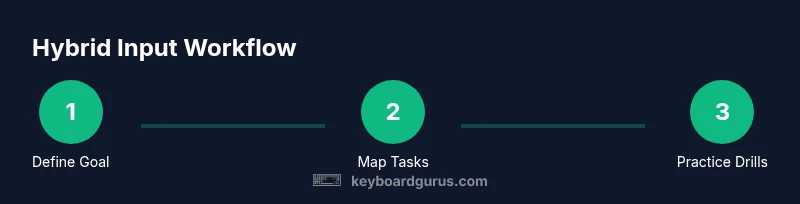
If you’re wondering how to keyboard with mouse effectively, the answer lies in a deliberate blend of fast input methods rather than relying on a single device. The Keyboard Gurus team has found that most productive workflows leverage both inputs to reduce unnecessary hand movement, minimize context switches, and keep eyes on the task rather than on the hardware. When you pair keyboard shortcuts with precise pointer control, you gain speed without sacrificing accuracy. This synergy is valuable across fields—from coding and data entry to design and gaming. In this section, we’ll explore why this combination matters, the types of tasks that benefit most, and how your comfort and setup influence results. You’ll start with a clear goal, then design a small, repeatable routine you can practice daily. By building fluency, you’ll reach a point where the keyboard does the heavy lifting for navigation and editing, while the mouse handles fine selection and layout tweaks. According to Keyboard Gurus, mastery comes from deliberate practice and consistent feedback, not from memorizing dozens of shortcuts at once.
Assess your current setup
A solid foundation starts with assessing how you currently use a keyboard and mouse together. Look for friction points: long cursor movements, over-reliance on the mouse for navigation, or frequent hand-reaching for shortcuts. Evaluate your desk height, chair support, and monitor alignment because ergonomics influence how quickly you can switch between inputs without fatigue. Check your mouse sensitivity and acceleration settings; too fast or too slow can hinder precision during text selection, image editing, or spreadsheet work. Review your keyboard layout: are your most-used shortcuts easy to reach with your left hand or your dominant fingers? If not, consider remapping or building a small cheat sheet. Keyboard Gurus analysis notes that customizing your environment to fit your natural movements reduces mistakes and speeds up learning. Before you change anything, define a simple, measurable goal such as reducing unnecessary mouse movement on routine tasks or cutting extra clicks per task.
Choose the right hardware
Selecting the right keyboard and mouse starts with aligning hardware characteristics to your tasks. For keyboards, consider layout (full-size, compact, or ergonomic), switch feel, and key spacing. Ergonomic models can reduce wrist strain during long sessions, while compact layouts encourage closer hand positions for faster access to frequently used shortcuts. For mice, look at grip style (palm, claw, fingertip), button layout, and sensor performance. A high-DPI sensor with adjustable acceleration helps you move precisely across large monitors or multiple displays. If your work involves lots of scrolling or image editing, a mouse with programmable side buttons can streamline common actions. For touch-based or media-focused tasks, a trackball or vertical mouse can relieve wrist pronation. The goal is to minimize travel distance between your typing and pointing actions while keeping comfort high. Remember: the best gear is the gear you actually use regularly, not the most feature-rich on the market.
Map common tasks to both inputs
Identify routine tasks and assign them logically to keyboard and mouse to minimize context switches. For navigation, use arrow keys and tab for moving between fields while reserving the mouse for selecting precise items or drag-and-drop operations. For editing, use keyboard shortcuts to cut, copy, paste, and undo, and let the mouse handle selection, resizing, or repositioning. For data entry, keep formula or text entry on the keyboard and use the mouse for precise cell selection or navigating large spreadsheets. In design or code editors, map line navigation or search shortcuts to keys, while using the mouse for selecting blocks of text or interacting with tool palettes. Create a simple cheat sheet and place it near your workspace. This approach reduces time wasted fumbling between input methods and keeps your hands in their most efficient zones. Keyboard Gurus' guidance emphasizes consistency and incremental improvements, not drastic overhauls.
Keyboard shortcuts that complement mouse work
Core navigation shortcuts help you move quickly through interfaces without touching the mouse. For example, use keyboard arrows to move the caret, Tab to jump between fields, and Alt/Option plus a letter to switch focus between panels. Editing shortcuts keep text and content flow smooth: Copy, Cut, and Paste; Undo and Redo; and Find/Replace when you need to locate something fast. Selection shortcuts let you extend or shrink selections with keyboard plus Shift and arrow keys, which is especially helpful in large documents or code files. Mouse-friendly shortcuts enable quick access to menus and tool options, so you can press a single key to open a contextual menu or toggle a tool without breaking your rhythm. Across platforms, build a tiny, personalized cheat sheet and practice it until it becomes second nature. The goal is fast navigation without breaking momentum.
Practice routines to build fluency
Consistency beats intensity when learning to coordinate keyboard and mouse. Start with two short drills, 5–10 minutes each, three times a week, then gradually add complexity. Drill A focuses on navigation and selection: use keyboard shortcuts to move between items, then switch to the mouse for precise selection, drag-and-drop, and resizing. Drill B emphasizes editing and formatting: type quickly with keyboard, then use the mouse to adjust blocks, alignments, or palettes. Drill C (30 minutes) combines multiple tasks in a realistic workflow—document editing, spreadsheet navigation, or design tool adjustments. Include micro-delays to simulate real work and track your progress through a simple log. Keyboard Gurus guidance emphasizes deliberate repetition, gradual increases in difficulty, and weekly self-checks to confirm improvements.
Setup tips for efficiency
Fine-tune your environment to reduce friction between keyboard and mouse. Start with pointer speed, acceleration, and scroll wheel behavior so you can glide across screens without overshooting targets. Position your keyboard within an easy reach of your dominant hand and keep the mouse within a natural arc. Consider a dedicated mouse pad with enough space to encourage smooth movements and practice. If you use programmable keys or macro software, map only a handful of routinely used actions to reduce cognitive load and errors. For multi-monitor setups, learn window-snapping shortcuts and use the mouse to move items between displays when needed. Finally, keep a clean desktop and minimal toolbars to prevent visual clutter from interrupting your flow. The result is a more fluid rhythm as you alternate between input methods.
Accessibility and alternative input options
Not everyone can or wants to rely solely on keyboard and traditional mouse input. An on-screen keyboard can help you type with the mouse when rapid key entry is necessary. Voice input can accelerate long-form writing or code comments, especially when you’re in flow and cannot take your hands off the keyboard. Sticky keys can be helpful for users who rely on keyboard-only commands, and screen magnification assists those with limited vision. If you need even more options, explore trackballs, touchpads, or ergonomic controllers that suit your posture. Testing different devices in short sessions helps you discover what reduces strain and preserves accuracy. Keyboard Gurus emphasizes choosing accessibility tools that integrate smoothly into daily tasks rather than adopting every new gadget.
Common pitfalls and how to avoid them
Even experienced users fall into a few traps when learning to blend inputs. Avoid trying to memorize hundreds of shortcuts in a single week; focus on a small, high-value set and practice until it feels natural. Don’t neglect ergonomics—poor posture or repetitive strain will undermine progress faster than any shortcut. Resist the urge to over-rely on either device; balance is essential. Be mindful of context switches that break momentum, such as hunting for a hidden menu or adjusting a settings pane instead of using a quick keyboard sequence. Finally, measure progress with simple checks, like time to complete a routine or error rate, so you know when to adjust your approach. The Keyboard Gurus team recommends revisiting your cheat sheet every few weeks and trimming unnecessary actions to keep your workflow lean.
Advanced workflows for power users
For power users, the blend of keyboard and mouse becomes a core efficiency system. In multi-monitor environments, learn keyboard shortcuts for moving windows between displays and use the mouse to position across displays with precision. Consider a secondary input method, such as a trackball or ergonomic mouse, to reduce wrist strain over long sessions. Combine macros or programmable keys with selective mouse actions for common sequences like formatting, aligning content, or batch editing. When you reach this level, you’ll design tailored playbooks for specific tasks—coding, design, or data analysis—so your hands never have to leave productive zones. The Keyboard Gurus team believes that continuous iteration and data-driven tweaks are the path to true mastery, not one-off hacks. Practice, reflect, and refine your configurations to sustain fast, accurate work.
Tools & Materials
- Keyboard (full-size, compact, or ergonomic)(Choose a layout that fits your desk and habitual reach.)
- Mouse (ergonomic, with adjustable DPI)(Select grip style that matches your hand and tasks.)
- Mouse pad with smooth surface(A stable base improves precision and comfort.)
- Desk setup (chair height, monitor alignment)(Ergonomics matter for long sessions and quick input switches.)
- Optional: Trackball or vertical mouse(Alternative input to reduce wrist strain.)
- Cheat sheet or quick-reference guide(Your personalized shortcut map placed nearby.)
- Macro software (optional)(Map a small set of routines you use often.)
Steps
Estimated time: Total time: 45-60 minutes to start, plus ongoing practice
- 1
Define your hybrid goal
State a simple objective for combining keyboard and mouse, such as improving navigation speed or reducing touchpoints during editing. Write it down and review it at the end of your practice session.
Tip: Keep the goal small and measurable to avoid overwhelm. - 2
Audit your current workflow
Identify 2–3 tasks that force you to switch inputs frequently. Note where you waste motion and how adjustments to shortcuts could help.
Tip: Create a one-page map of tasks to inputs before changing anything. - 3
Map actions to inputs
Assign the most common actions to keyboard or mouse in a way that minimizes context switches. Update your cheat sheet with the new mappings.
Tip: Aim for actions you perform in sequence to be keyboard-driven where possible. - 4
Create a quick-reference cheat sheet
Consolidate your mappings into a single, visible document. Keep it near your keyboard for fast recall during practice.
Tip: Review the sheet before each practice block. - 5
Practice structured drills
Run short routines focused on navigation, editing, and window management. Use a timer to track consistency.
Tip: Log results to see improvements over time. - 6
Review, refine, repeat
After each session, adjust mappings based on what felt clumsy. Re-test next time and iterate.
Tip: Small tweaks yield bigger gains over weeks.
Got Questions?
What is the best way to start blending keyboard and mouse?
Begin with a small set of core shortcuts and map them to actions you perform often. Practice in short cycles and gradually add more mappings as you gain comfort.
Start with a few core shortcuts and practice them in short cycles to build fluency.
How long does it take to build fluency?
Fluency develops with consistent, focused practice over weeks. Set a regular schedule and track improvements in speed and accuracy.
With steady practice, you’ll notice steady progress over weeks.
Should I switch to an ergonomic mouse?
If you experience wrist strain or fatigue, try an ergonomic mouse or trackball. It can reduce discomfort and help sustain long practice sessions.
If you feel strain, give an ergonomic option a test run.
What if I work on multiple monitors?
Learn window management shortcuts to move and align work across screens, and use the mouse for precise placement.
Use shortcuts to move windows and the mouse to place items precisely.
Are macros essential?
Macros can speed repetitive actions, but focus on mastering core shortcuts first. Use macros sparingly and test thoroughly.
Macros help, but learn the basics first and test them well.
How can I measure progress?
Keep a simple log of task completion time and accuracy. Review weekly and adjust mappings based on what improves speed.
Track simple metrics weekly to see what’s improving.
Watch Video
What to Remember
- Define a clear hybrid input goal.
- Assess ergonomics and comfort first.
- Map tasks to inputs for minimal switches.
- Practice with structured drills weekly.
- Review and refine shortcut mappings.