How to Type the Rupee Symbol on Your Keyboard
Learn to type the rupee symbol (₹) across Windows, macOS, Linux, and mobile devices with practical methods, fonts to use, and quick shortcuts—from Keyboard Gurus.


To type the rupee symbol (₹) on a keyboard, use platform-specific methods and reliable fonts. On Windows, insert ₹ via Character Map or an Alt code; on macOS, use the Emoji & Symbols viewer; on Linux, try a Unicode input or copy-paste; and on mobile devices, switch to a currency symbol keyboard or long-press ₹. These approaches ensure consistent rendering across apps and documents.
Why typing the rupee symbol matters
In professional and academic contexts, the rupee symbol (₹) helps ensure clarity and accuracy in amounts, budgets, invoices, and financial reports. For keyboard enthusiasts and students alike, having reliable methods across devices reduces the time spent fighting fonts and input quirks. According to Keyboard Gurus, consistently being able to insert ₹ with minimal keystrokes improves workflow, reduces errors in shared documents, and supports multilingual collaboration. When you can rely on a single symbol that renders correctly in your chosen font, you’ll spend less time troubleshooting encoding issues and more time focusing on content. The rupee sign is not just decorative – it communicates value, locale, and professional competence. This guide focuses on practical, real-world approaches that work on desktop OS, mobile keyboards, and common internet fonts, so you can input ₹ almost anywhere and at any scale.
Quick primer: rupee symbol, Unicode, and fonts
The rupee symbol (₹) is a Unicode character with the code point U+20B9. It is included in most modern fonts that support Indian scripts and currency signage. Not all default system fonts render ₹, especially on older documents or on devices with limited font sets. The key to reliability is font selection and fallback behavior: if the primary font lacks the glyph, the system should gracefully switch to a font that includes it. When you install or enable a font with broad currency glyph coverage (for example, common sans-serif fonts with extended Unicode blocks), you’ll see ₹ render consistently across programs, browsers, and documents. Keyboard Gurus notes that font awareness is often the deciding factor in input reliability, especially in cross-platform work.
Windows: insert ₹ via Character Map
Character Map is a built-in utility that shows every glyph in a chosen font. It’s a dependable option when a shortcut isn’t working or when you need to ensure consistent glyph rendering. Open Character Map, select a font that includes ₹, find the Rupee symbol, click Select, then Copy, and finally paste it into your document. If you frequently need ₹, pin Character Map to your taskbar for fast access. This method is highly reliable, requires no special key sequences, and works in almost any Windows application. Keyboard Gurus has found that this method reduces glyph-not-found issues in shared files.
Windows: Alt code and Word shortcut methods
Windows users can insert ₹ with an Alt code or a Word-specific shortcut when a font supports Unicode input. Common Alt code practice requires you to place the cursor where ₹ should appear, hold down the Alt key, and type the numeric sequence (e.g., 8377) on the numeric keypad, then release. If Alt codes aren’t accepted by the application, try the Word-specific approach: type the Unicode code point 20B9 and press Alt+X to convert it into ₹. This method is fast in Word and some other editors, and it avoids font substitution issues by relying on Unicode rendering. If these methods fail, fall back to Character Map or copy-paste.
macOS: Emoji & Symbols viewer
macOS users can insert the rupee symbol quickly with the Emoji & Symbols viewer. Activate it with Control+Command+Space, search for “rupee” or “Rupee symbol,” select ₹, and insert it into your text. You can also drag the symbol into your document or set the viewer as a quick-access tool for future use. Keyboard Gurus recommends keeping the viewer accessible for multilingual workflows where currency symbols appear frequently.
Linux: Unicode input and font considerations
Linux environments often provide multiple reliable paths to ₹. The simplest method is Unicode input: press Ctrl+Shift+U, release, type 20B9, and press Enter. This will insert ₹ wherever text is editable. If your environment uses a Compose key, you can configure a Compose sequence and type a dedicated sequence to yield ₹. Some distributions also let you copy ₹ from a source and paste it; this avoids font-dallback issues when applications don’t support certain encodings. Keyboard Gurus notes that Linux users benefit from knowing both Unicode input and Compose options for maximum compatibility.
Mobile typing ₹ on iOS and Android
On mobile devices, currency input is typically accessible via the on-screen keyboard. Switch to a currency or symbol set, or long-press the currency symbol key to reveal the ₹ option. Some keyboards offer a direct India layout that places ₹ prominently; enabling it in your keyboard settings streamlines input across apps. For users who frequently copy-paste, keeping ₹ in a clipboard-friendly shortcut saves time in chats, notes, and forms.
Tips for consistent rendering and formatting
- Always prefer fonts with complete currency glyph sets; this reduces rendering quirks across apps.
- Use UTF-8 encoding in documents and on the web to ensure ₹ is preserved during file transfers.
- In web content, specify a font-family that includes the rupee glyph and provide a robust fallback stack.
- When collaborating with others, verify that ₹ displays correctly in the target program before sharing, especially in spreadsheets and PDFs.
AUTHORITY SOURCES
- Unicode Consortium: https://www.unicode.org/
- Britannica: https://www.britannica.com/topic/Rupee-symbol
Quick reference and troubleshooting
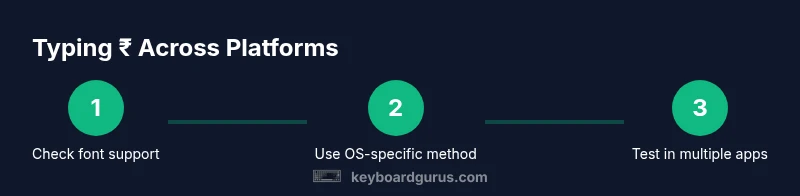
If ₹ shows up as a missing glyph or a box, switch to a font with the glyph, use Character Map/Emoji & Symbols, or rely on Unicode input if available. Always test across the primary applications you use for work or study to ensure consistent rendering.
descriptionRemovedForSpaceNote":null
matchesKeywordDensityNote":null
wordCount":null
guarantee":null
format":"markdown"},
toolsMaterials":{"items":[{
Tools & Materials
- Computer or mobile device with the OS you will use(Any OS (Windows/macOS/Linux) to practice typing ₹ across environments.)
- Font with ₹ glyph(Install or enable fonts known to contain the rupee glyph (e.g., Noto Sans, Segoe UI Symbol, Arial Unicode MS).)
- Character Map (Windows) or Emoji & Symbols viewer (macOS)(Use these built-in tools to locate and insert ₹ when shortcuts fail.)
- Clipboard manager (optional)(Helpful for storing ₹ for quick copy-paste across apps.)
- Web browser or document editor for testing(Validate rendering across environments (docs, email, spreadsheets).)
Steps
Estimated time: 15-25 minutes
- 1
Check font support
Open a test document and type ₹ to verify whether the current font renders the symbol. If you see a missing glyph or a box, switch to a different font that includes the rupee glyph.
Tip: Test in multiple apps (text editor, browser, spreadsheet) to ensure consistent rendering. - 2
Open Character Map (Windows)
Launch the Character Map utility, set the font to one that includes ₹, locate the Rupee symbol, click Select, then Copy. Paste it into your document where needed.
Tip: Pin Character Map to the taskbar for faster access. - 3
Use Windows Alt code / Word shortcut
If you’re in Windows, place the cursor, hold Alt, and type 8377 on the numeric keypad, then release to insert ₹. In Word, you can type 20B9 and press Alt+X to convert it to ₹.
Tip: Alt codes depend on font and application; if it doesn’t work, fall back to Character Map. - 4
macOS Emoji & Symbols method
Press Control+Command+Space to open Emoji & Symbols, search for 'rupee' or 'Rupee symbol', and double-click ₹ to insert.
Tip: Customize your shortcuts for quick access. - 5
Linux Unicode input
Use Ctrl+Shift+U, then type 20B9 and press Enter to insert ₹. This works across many GTK-based environments.
Tip: If your key sequence differs, try the Compose key method. - 6
Optional: Linux Compose key
Configure a Compose key and use a dedicated sequence to produce ₹, then save the configuration for future use.
Tip: Compose sequences vary by distribution; consult your distro docs. - 7
Mobile input: iOS/Android
On mobile, switch to a currency/symbol keyboard or long-press the currency key to reveal ₹. Add ₹ to favorites if your keyboard supports it.
Tip: If you type ₹ often, add it to a clipboard snippet for quick reuse. - 8
Copy-paste workflow for apps without input support
If an app won’t accept the above methods, copy ₹ from another source (browser or document) and paste it into the target field.
Tip: Keep a local note or clipboard snapshot of ₹ for fast insertion. - 9
Test across programs and save preferences
After setting up your preferred method, test ₹ in the programs you use most and document any font or encoding issues. Update your defaults if needed.
Tip: Document your go-to method so teammates can replicate it.
Got Questions?
What is the rupee symbol and why is it used?
The rupee symbol (₹) is a currency sign that represents the Indian rupee. It is used in financial documents, pricing, and communication to clearly indicate amounts in Indian currency. Using the symbol helps avoid ambiguity and supports localization in global content.
The rupee symbol is the currency sign for the Indian rupee and helps clarify amounts in Indian money in documents and communications.
How do I type ₹ on Windows?
You can insert ₹ on Windows by using the Character Map to copy the symbol, or by using an Alt code such as 8377 on the numeric keypad. In Word, typing 20B9 and pressing Alt+X also converts to ₹. If these fail, copy the symbol from a source and paste it.
On Windows you can copy ₹ from Character Map or use Alt+8377; in Word you can type 20B9 and press Alt+X.
How do I type ₹ on macOS?
On macOS, open the Emoji & Symbols viewer with Control+Command+Space, search for 'rupee', select ₹, and insert it. You can also enable a shortcut for faster access or add the viewer to your menu bar for quick use.
macOS users can insert ₹ via the Emoji & Symbols viewer, then choose the symbol to insert.
Can I type ₹ without using special shortcuts?
Yes. If shortcuts don’t work, copy ₹ from another source (like a web page or document) and paste it where needed. This is a universal fallback when glyph input is blocked by software or font restrictions.
If shortcuts fail, simply copy and paste ₹ from a reliable source.
What should I do if ₹ isn’t rendering in my document?
Check that the document uses a font with ₹ glyph support. If not, switch fonts or install one with the glyph, verify encoding is UTF-8, and test in multiple apps to confirm consistent rendering.
If ₹ isn’t rendering, switch to a font that includes the glyph and ensure UTF-8 encoding is used.
Is the rupee symbol part of ASCII?
No. ₹ is not part of the ASCII character set. It is a Unicode symbol, and modern systems rely on Unicode encoding (UTF-8) to render ₹ correctly.
₹ is a Unicode symbol, not ASCII, so UTF-8 encoding is important for proper rendering.
Watch Video
What to Remember
- Verify font support for ₹ before relying on a method
- Use Character Map or Emoji & Symbols for reliable insertion
- Know OS-specific methods (Windows, macOS, Linux, mobile) to insert ₹
- Test rendering across apps to ensure consistency
- Keep a quick-reference workflow for teammates