How to Zoom with Keyboard: A Hands-On Guide
Learn practical, OS- and browser-based keyboard shortcuts to zoom with precision, boost accessibility, and tailor your workspace. This guide covers quick keys, customization, and best practices for Windows, macOS, and major applications.


By using keyboard shortcuts, you can zoom your browser, OS, or apps without touching the mouse. This quick answer focuses on practical, widely-supported shortcuts for Windows, macOS, and major browsers, plus tips for creating custom hotkeys. In seconds you can adjust readability or presentation, then reset to 100%. Keyboard Gurus notes that consistent zoom habits improve accessibility and focus.
What Zooming with a Keyboard Really Means in Practice
For many Keyboard Gurus readers, "zoom with a keyboard" means more than just increasing font size. It encompasses browser zoom for websites, operating system magnification for system-wide readability, and in-app zoom settings. Understanding these contexts helps you choose the right shortcut in the moment, maintain visual comfort, and avoid layout breakages on critical pages or dashboards. In practice, mastering these shortcuts reduces eye strain, speeds up navigation, and keeps you focused on tasks rather than fiddling with the mouse. This section defines the core concepts and shows how they interact with your keyboard layout and monitor settings. Real-world examples from work, school, and gaming illustrate typical scenarios and the trade-offs of each approach.
Keyboard zoom in the browser: fast, page-specific control
Most people reach for browser zoom first because it affects only page content, not entire UI. The most common shortcuts work across major browsers and platforms. On Windows and Linux, press Ctrl and the plus (+) key to zoom in, Ctrl and minus (-) to zoom out, and Ctrl and zero (0) to reset. On macOS, use Command instead of Ctrl. These shortcuts are designed to be language-agnostic and work in text-heavy pages, images, and embedded content. When you need precise control, many browsers let you open a zoom menu with Ctrl+Shift+Plus or Command+Shift+Plus to step through levels. Remember that some sites implement responsive layouts that reflow at different zoom levels; test to ensure legibility and usability after each change.
System-wide zoom vs. app zoom: know the difference
System-wide zoom magnifies everything on the screen, from menu bars to icons, borders, and fonts. This is invaluable for accessibility but can break layouts in dense enterprise apps. App-specific zoom focuses on the content area and may be limited by the application’s own controls. For example, PDF viewers and document editors often have their own zoom controls independent of the browser. Understanding the distinction helps you apply the right shortcut in the right place and avoid unexpected scrolling or cropped content.
OS-level shortcuts you should know (Windows, macOS, Linux)
On Windows, Win + I opens Settings quickly, while Win + plus (Win + +) zooms in with Magnifier when activated. Mac users rely on the built-in Zoom feature, often toggled by Option + Command + 8 to enable, and Option + Command + = / - to zoom in or out. Linux environments vary by desktop, but GNOME and KDE generally map Screen Magnifier or Zoom utility to simple key combos. If you rely on screen readers, test zoom changes with your accessibility tools on to ensure you aren’t masking essential information.
Practical workflow: from browser to presentation
A typical workflow starts with a comfortable base level (e.g., 100%), then uses browser shortcuts to adjust content while preserving layout. When preparing a presentation, you might zoom the entire screen for readability, then switch back to 100% for smooth keyboard navigation during the talk. Practice each context separately: a website, a PDF, and a slide deck. This helps you remember the right keys and reduces cognitive load during live tasks.
Custom shortcuts for power users: when default shortcuts aren’t enough
If you frequently reach for zoom in a specific app, consider creating custom shortcuts. Windows users can leverage AutoHotkey to map a single key combo to a zoom action across apps. macOS users can employ Automator or BetterTouchTool to define global zoom actions. Linux users can set custom shortcuts in their desktop environment. Custom shortcuts boost consistency, especially if you work with multiple software suites that implement their own zoom controls.
Readability beyond zoom: complementary settings you should consider
Zoom is a powerful tool, but it isn’t the only lever for readability. Consider adjusting font size and line height within apps and browsers, enabling high-contrast themes, and choosing UI scaling options that reflect your monitor’s resolution. In many cases, a light combination of browser zoom and font-size tweaks yields better legibility than using extreme zoom levels alone. This holistic approach keeps your workflow comfortable over long sessions.
Conclusion you’ll actually use: a practical habit
A practical zoom habit integrates OS shortcuts, browser controls, and app-specific options. Start with browser zoom, know your OS magnification options, and reserve custom shortcuts for the most used contexts. With consistent practice, you’ll experience faster navigation, clearer content, and less eye strain. Keyboard Gurus believes that building a reliable zoom routine is a small but powerful step toward a more productive setup.
Tools & Materials
- Computer with Windows/macOS/Linux(Any OS that supports built-in zoom shortcuts or a browser zoom feature)
- Standard keyboard(Any layout; familiarity helps across platforms)
- Web browser or target app(Ensure you know where you want to zoom (web page, PDF, app UI))
- AutoHotkey (Windows)(Optional for custom shortcuts across apps)
- Automator/BetterTouchTool (macOS)(Optional for global zoom actions)
Steps
Estimated time: 15-25 minutes
- 1
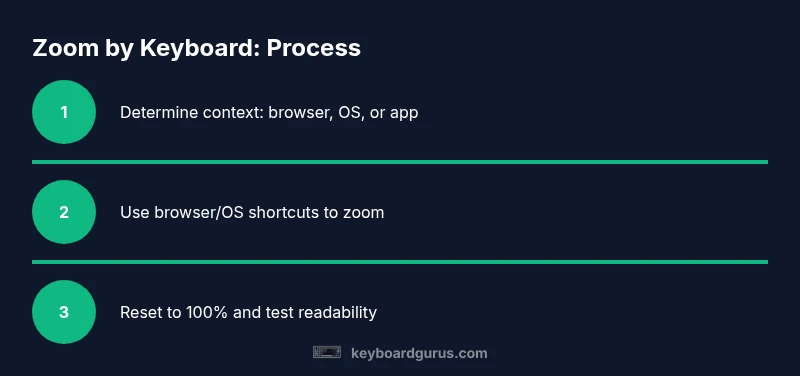
Determine zoom context
Decide whether you need to zoom a web page, a document, or your entire screen. This choice determines which shortcuts to use first and reduces trial-and-error during live work.
Tip: Note the target area before pressing shortcuts to avoid unintended zoom on other parts of the UI. - 2
Use browser shortcuts for page-level zoom
On Windows/Linux press Ctrl and + to zoom in, Ctrl and - to zoom out, and Ctrl and 0 to reset. On macOS replace Ctrl with Command. These affect only page content and are the quickest way to adjust readability.
Tip: If a page uses dynamic layouts, test several in-and-out zoom cycles to confirm content remains navigable. - 3
Reset to 100% quickly
Keep 100% handy as a baseline so you can compare readability before and after zoom. Use Ctrl+0 or Command+0 to snap back without chasing the exact percentage.
Tip: Regular resets help prevent cumulative zoom that can distort layouts in long sessions. - 4
Enable OS magnification for broader accessibility
If you need larger UI elements, turn on system-level magnification. Windows Magnifier or macOS Zoom provide screen-wide enlargement. Use their standard shortcuts to adjust levels and toggle off when not needed.
Tip: Be mindful of apps that don’t play well with system zoom and test critical tools before a meeting or exam. - 5
Fine-tune zoom levels for dense content
Use incremental zoom steps to maintain layout readability without breaking alignment or wrapping. Aim for a level where most text remains within a single reading line and interactive controls stay accessible.
Tip: Avoid extreme zooms (e.g., very high percentages) on complex dashboards unless absolutely necessary. - 6
Create a quick-custom shortcut for your typical workflow
If you often zoom in a specific app, map a single keystroke to the action using a scripting tool (AutoHotkey on Windows or Automator on macOS). This reduces cognitive load and keeps your hands near the keyboard.
Tip: Test new shortcuts in a non-critical document to ensure they don’t conflict with existing shortcuts.
Got Questions?
What is the difference between browser zoom and OS zoom?
Browser zoom changes only page content, preserving OS UI elements. OS zoom magnifies everything on screen, which is great for accessibility but can alter layout in apps. Choose based on your task and test critical interfaces.
Browser zoom affects pages; OS zoom magnifies the whole screen. Pick the one that fits your current task and test critical apps.
Which keyboard shortcuts work on Windows and macOS?
Windows uses Ctrl plus or minus and Ctrl+0 for page zoom; macOS uses Command plus or minus with the same reset key. For OS magnification, see Windows Magnifier shortcuts and macOS Zoom toggles in Accessibility settings.
Windows uses Ctrl keys for page zoom, macOS uses Command keys; reset with 0 as usual. OS magnification has separate toggles.
Can I customize shortcuts for zoom?
Yes. Windows users can map zoom actions using AutoHotkey; macOS users can use Automator or BetterTouchTool for global zoom shortcuts. Test for conflicts with existing shortcuts.
You can customize zoom shortcuts with scripting tools on Windows or macOS, but check for conflicts first.
Will zooming affect screen readers or other accessibility tools?
Zooming can change how content is announced or navigated by assistive technologies. Always test with your tools active to ensure essential information remains accessible.
Some zoom methods can change how screen readers read content; test to keep accessibility intact.
How do I reset to 100% quickly?
Use the standard reset shortcuts (Ctrl+0 or Command+0) from your current context, or toggle OS magnification off and back on to return to baseline.
Press the reset shortcut for your platform, or re-toggle magnification to return to normal size.
Watch Video
What to Remember
- Master browser and OS shortcuts separately
- Reset to 100% often to maintain consistency
- Use custom shortcuts for frequent tasks
- Combine zoom with font and UI adjustments for best readability