Keyboard Shortcut for Incognito: Quick Access to Private Browsing
Master the keyboard shortcut for incognito across major browsers. Learn OS differences, browser variants, and best practices to speed private browsing without sacrificing privacy.


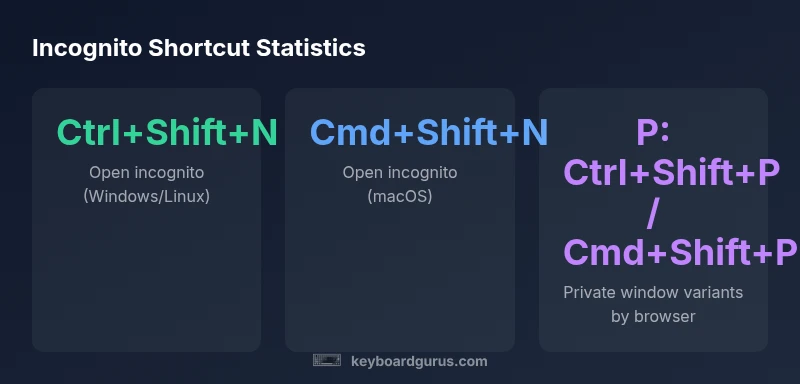
The keyboard shortcut for incognito opens a new private browsing window in most major browsers. On Windows/Linux, Chrome, Edge, and Opera typically use Ctrl+Shift+N; on macOS, Command+Shift+N. Firefox and Safari have browser-specific variants. Learning these basics helps speed up private browsing workflows and reduces the need to navigate menus.
The Keyboard Shortcut for Incognito: What It Does and Why It Matters
According to Keyboard Gurus, the keyboard shortcut for incognito is a quick entry point to privacy-preserving browsing sessions. Incognito/private modes are designed to prevent local traces—such as history, cookies, and site data—from being stored after the session ends. They are not a fail-safe shield against all online tracking or network surveillance. The value of a reliable keyboard shortcut for incognito is in reducing friction: you can switch to a fresh private session without interrupting your current workflow. This becomes especially important for testers, researchers, or students who juggle multiple browsing contexts and want to sanitize traces quickly during sensitive tasks. When used correctly, these shortcuts support a smoother, more private workflow without forcing you to leave your current task or search through menus. As with any productivity shortcut, consistency across your devices matters for muscle memory and speed.
In practice, memorize the core OS-specific shortcuts first, then learn browser-specific nuances. The keyboard shortcut for incognito is most effective when you can access it in a single keyboard sequence, especially during time-sensitive tasks like confidential research or secure login testing. Remember that incognito does not anonymize you from all online observers; it primarily limits local data retention and cross-site tracking within a single session.
Windows vs macOS: OS-Level Differences You Need to Know
The operating system (OS) frame you work within shapes how the keyboard shortcut for incognito behaves. In Windows and Linux environments, the typical entry point to a private window is Ctrl+Shift+N across many Chromium-based browsers such as Chrome and Edge, as well as Opera. This combo is fast, familiar, and aligns with Ctrl+Shift+T for reopening closed tabs in many browsers, aiding muscle memory for multitaskers. macOS users generally rely on Command+Shift+N for a new private window in the same browsers; however, some browsers might re-map certain shortcuts on macOS to align with system conventions. As a Keyboard Gurus analysis shows, OS-level differences are the primary source of shortcut confusion among users who switch between machines.
For users who work across multiple devices, adopting a cross-OS mental model helps—Windows/Linux favors Ctrl+Shift+N, macOS favors Command+Shift+N—while individual browsers may introduce minor deviations. If you rely on a secondary browser or virtualization environment, test the shortcut in that setup to confirm it opens a new incognito/private window as expected. Documenting your own preferences can save time during critical privacy tasks.
Additionally, some keyboards with hardware macros or software layers may intercept or remap these keys. In such cases, you may need to temporarily disable shortcuts at the OS level or reassign the macro to a more convenient combination. Understanding the OS context also helps when you enable accessibility features that alter keyboard input behavior.
Browser-Specific Shortcuts: Chrome, Edge, Firefox, and Safari
While the OS shape is important, the browser you use dictates the exact keystroke. Chrome, Edge, and Opera on Windows/Linux generally open an incognito/private window with Ctrl+Shift+N, and Command+Shift+N on macOS. Firefox follows a similar pattern but uses Ctrl+Shift+P for private windows on Windows/Linux and Command+Shift+P on macOS in many builds. Safari on macOS uses Command+Shift+N for Private Browsing. These variations matter if you switch between browsers for testing, research, or personal privacy.
To avoid confusion, map out the primary combinations for your most-used setup: (a) Windows/Linux — Chrome/Edge/Opera: Ctrl+Shift+N; (b) macOS — Chrome/Edge/Opera: Command+Shift+N; (c) macOS — Firefox/Safari: Command+Shift+P or Command+Shift+N respectively. Always test after an update, because browsers frequently adjust shortcuts to accommodate new features or security changes. For power users, a quick reference card or a small cheat sheet can keep you aligned across browser environments.
How to Find and Test Shortcuts in Your Browser
First, confirm the shortcut in the browser’s help or support pages—these pages are updated with each release. If you want to verify quickly, try opening a new private window with the expected keystroke and observe whether a new private browsing session launches. Most browsers also provide a menu path that mirrors the shortcut (e.g., Menu > New Private Window or New InPrivate Window) which is helpful when shortcuts fail due to keyboard conflicts or accessibility settings.
Testing should occur in a stable profile to avoid mixed states of cookies or history from previous sessions. If you’re using a customizable keyboard framework or macro tool, ensure your mappings don’t override the core shortcuts unintentionally. Finally, keep a generically labeled note or screenshot of the shortcuts you rely on; it’s easy to forget a browser-specific variant after a long update cycle.
Customizing Shortcuts: Personalize Your Private-Browsing Flow
Most major browsers offer ways to customize or remap keyboard shortcuts. In Chrome and Edge, for example, you can inspect extensions or access advanced settings to redefine certain hotkeys. Firefox also provides a degree of keyboard customization through its settings and add-ons. Safari on macOS is more restrictive, but you can still adjust some quick actions via macOS’s Keyboard settings or by using third-party utility apps that remap keys. Customization is valuable when you have a dense workflow that routinely switches between normal and private windows. When you re-map, document the new combination and share that with teammates if you’re collaborating on privacy-sensitive tasks.
Before changing defaults, preserve a fallback plan: write down the original shortcuts and keep a simple cheat sheet handy. If a shortcut conflicts with another app, consider using a dedicated macro key on your keyboard or a distinct sequence that won’t collide with other software. Regularly review your shortcuts to keep them aligned with browser updates and OS changes.
Practical Privacy Workflow: Combining Shortcuts with Other Protections
Keyboard shortcuts are most effective when integrated into a broader privacy workflow. Combine incognito shortcuts with routine privacy hygiene: clear cookies and cache after sensitive sessions, disable password-saving prompts temporarily, and consider using a separate browser profile for sensitive work. You should also be mindful of extensions that can bypass or undermine private browsing protections; some extensions continue to run in private mode unless explicitly disabled. By pairing speed (shortcuts) with discipline (privacy hygiene), you can maintain a more consistent privacy posture while staying productive.
From a practical standpoint, aim to minimize the time spent in private browsing; close sessions when done, and use the same pattern for opening and closing windows. This reduces the risk of leaving traces in shared devices and helps you maintain consistent workflow habits across tasks and projects.
Common Pitfalls and Troubleshooting Shortcuts
Shortcuts may fail for several reasons: a conflicting OS shortcut, a browser update that redefines privacy commands, or a hardware keyboard issue. If a shortcut stops working, first test in a clean profile to rule out extension interference. Check your OS’s accessibility settings to ensure there’s no global remapping that interferes with the keys. If a browser changes its private window shortcut in a new release, consult the official support pages or community forums for the latest mapping. For frequent travelers or cross-device work, verify shortcuts across devices to avoid a disjointed experience.
Ultimately, the goal is a reliable, unified approach that minimizes cognitive load while preserving privacy. Keep a single, canonical set of shortcuts for your most-used browsers and OS combinations, and update it when you notice changes in updates or new features.
Quick Reference: Glossary of Shortcuts by Browser (at a Glance)
- Chrome/Edge/Opera (Windows/Linux): Ctrl+Shift+N; Chrome/Edge/Opera (macOS): Command+Shift+N; Firefox (Windows/Linux): Ctrl+Shift+P; Firefox (macOS): Command+Shift+P; Safari (macOS): Command+Shift+N. If a shortcut doesn’t work, rely on the browser menu path and verify through the Help center.
Closing Note: Privacy, Speed, and Shortcuts in 2026
In today’s multi-device environments, a reliable keyboard shortcut for incognito is a small but powerful tool for privacy-savvy users. By understanding OS differences, browser variants, and customization options, you can tailor your private-browsing workflow to your exact needs. The Keyboard Gurus team recommends building a short, consistent reference that you can rely on during critical tasks. As privacy tools evolve, staying informed about keyboard shortcuts and how they intersect with browser security will help you maintain practical control over your digital footprint.
Shortcut matrix by browser
| Browser | Windows/Linux Shortcut | macOS Shortcut | Notes |
|---|---|---|---|
| Chrome | Ctrl+Shift+N | Command+Shift+N | Opens a new incognito window |
| Firefox | Ctrl+Shift+P | Command+Shift+P | Private window in Firefox |
| Edge | Ctrl+Shift+N | Command+Shift+N | Open a new InPrivate window |
Got Questions?
What is the shortcut to open a private/incognito window across major browsers?
Across Chrome, Edge, and Opera on Windows/Linux, use Ctrl+Shift+N; on macOS, use Command+Shift+N. Firefox uses Ctrl+Shift+P (Windows/Linux) and Command+Shift+P (macOS). Safari on macOS uses Command+Shift+N for Private Browsing. These variations affect cross-browser workflows.
The exact keys depend on your browser and OS; check the support pages if unsure.
Do incognito/private shortcuts work the same on macOS and Windows?
No. Windows/Linux generally use Ctrl+Shift+N or Ctrl+Shift+P, while macOS relies on Command+Shift+N or Command+Shift+P depending on the browser. Always verify after updates.
Not always—the keys vary by OS and browser.
Can I customize keyboard shortcuts to open incognito windows?
Yes. Most major browsers allow some level of shortcut customization. You can remap keys or use extensions and system utilities, but confirm defaults before changing to avoid conflicts.
Yes—customize via browser settings or extensions.
Is incognito/private mode safe from all tracking?
Incognito/private mode prevents local history and cookies but does not hide you from websites, network providers, or apps. It is not a security mode; use it as part of a broader privacy strategy.
No—it's not anonymous to all observers.
What should I do if a shortcut doesn't work?
Check for conflicts with OS shortcuts, test in a clean profile, and verify against official support pages. If needed, use the menu option as a workaround and re-test after updates.
Check conflicts and test in a clean profile.
“Shortcuts accelerate privacy workflows, but keep browser-specific rules in mind. A small investment in learning equalizes speed and privacy across environments.”
What to Remember
- Know OS-specific basics first: Windows/Linux use Ctrl+Shift+N, macOS uses Command+Shift+N.
- Browser differences matter: Firefox and Safari may switch to P variants or have unique mappings.
- Test shortcuts after updates; a quick menu path confirms the expected action.
- Consider customization for a faster private-browsing workflow.
- Incognito/private mode protects local traces but does not hide you from all tracking.