What Keyboard Keys to Screenshot: A Practical Guide
Learn which keyboard keys to screenshot on Windows, macOS, Linux, and Chromebook. Explore full-screen, window, and region captures, plus saving, copying, and organization tips.


Keyboard shortcuts for screenshots vary by operating system, enabling full-screen, window, or region captures with a keystroke. The most common combos include Windows PrtScn and Win+Shift+S, macOS Command+Shift+3/4/5, Chrome OS Ctrl+Show Windows, and Linux PrtScn variants. This guide explains when to use each and how to save, copy, or share the result.
Understanding Screenshot Shortcuts Across Platforms
According to Keyboard Gurus, screenshot shortcuts are built into every major OS, yet the exact keys vary. The goal is to capture your screen content quickly, share it with teammates, or save it for reference without leaving your keyboard. In this guide, we’ll demystify the common patterns and help you pick a primary approach for full-screen, window, or region captures. We’ll also discuss clipboard-first workflows and direct file saves, so you can decide what works best for your setup.
Most operating systems organize shortcuts around three core actions: capture the entire display, capture a specific window, or select a portion of the screen. The first option is fast and bread-and-butter for quick reports; the second helps when you need to show context around a single window; the third is ideal when you want to avoid sensitive information on your desktop. Across Windows, macOS, Linux, and Chrome OS, you’ll notice a practical pattern: a modifier key (usually Ctrl, Command, Windows, or Shift) combined with Print Screen or a dedicated capture key. The most effective workflow often combines a clipboard-friendly shortcut for quick sharing with a file-saving option for archival records. By choosing a primary shortcut per platform and knowing a reliable fallback, you speed up communication and reduce the friction that comes with onboarding new teammates.
Windows: Quick Keys for Full Screen, Window, and Region
Windows exposes multiple paths to capture your screen, each serving a different purpose. The classic PrtScn key copies a full-screen image to the clipboard, which you can paste into documents, chat apps, or image editors. If you want a quick file, press Windows+PrtScn; Windows will save a full-screen screenshot to the Pictures > Screenshots folder automatically. For more control, Windows+Shift+S opens the Snip & Sketch or Snipping Tool, letting you select a region, window, or the entire screen; the captured image remains on the clipboard and can be pasted immediately into the app of your choice. Alt+PrtScn captures the active window to the clipboard, which is perfect when you need to show just one app without desktop clutter. On many laptops with function keys, you may need to press Fn in combination with PrtScn or Windows keys to trigger the shortcut. To tailor this workflow, set up automatic saving in the settings of your preferred tool or use a quick paste-to-file script to automate repetition. With practice, Windows shortcuts become second nature.
macOS: Easy captures with built-in shortcuts
macOS provides a compact, predictable set of shortcuts that cover most screenshot needs. Command+Shift+3 captures the entire screen and saves the image to the desktop by default. Command+Shift+4 lets you draw a selection box to capture a region; add the Spacebar after pressing the keys to capture a window instead. Press Command+Shift+4 and then the Spacebar to move the crosshair to a specific window and click to capture it. Command+Shift+5 introduces a small on-screen control panel that lets you record the screen or set a timer, and it can save to a chosen location or clipboard depending on your settings. If you want to copy to the clipboard instead of saving to a file, press Control along with the main combo (for example, Control+Command+Shift+3 copies the full screen). Finally, you can use the Touch Bar (on compatible laptops) to capture content without using the keyboard. Understanding these patterns helps you switch between full-screen, region, window, and screen recording with minimal thought, keeping your hands on the keyboard and your focus on the task. According to Keyboard Gurus, macOS users tend to leverage the flexibility of Command+Shift+5 for mixed capture tasks, which streamlines later editing and sharing.
Linux: Flexible options that adapt to your desktop
Linux users enjoy a broad spectrum of screenshot tools and keyboard shortcuts that vary by distribution and desktop environment, but several core ideas remain constant. The PrtScn key often copies to the clipboard, while Shift+PrtScn or Ctrl+PrtScn may trigger region or window captures depending on the environment. In GNOME, for example, the built-in screenshot utility can be invoked with Print Screen to capture the desktop, Alt+Print Screen to grab the current window, or Shift+Print Screen to select a region; you can also configure these actions in Settings > Keyboard Shortcuts. KDE offers similar functionality, with applications like Spectacle installed to handle region, window, and full-screen captures, and it can be configured to save files directly to a chosen folder. Linux users frequently install lightweight tools such as Flameshot or Shutter for more control, annotations, and easier sharing. There’s a lot of flexibility here, so pick a path that matches your workflow, whether you prefer clipboard-based rapid sharing or automatic file saving. Keyboard Gurus analysis shows that Linux users often combine regional captures with post-processing to minimize exposure of sensitive data.
Chrome OS: Keyboard shortcuts for Chromebooks
Chromebooks lean into quick region and full-screen captures with a few keyboard combos that stay consistent across devices. The classic Ctrl+Show Windows takes a full-screen shot and saves it to the Downloads folder, while Ctrl+Shift+Show Windows enables region capture for a selected portion of the screen. For a window capture, pressing Ctrl+Show Windows (without Shift) captures the active window. After taking a screenshot, you can click the notification to open it, copy it, or drag it into a document. If you prefer to paste directly into a document or app, use Ctrl+V after copying to the clipboard. Additionally, you can customize the save location or set up a quick edit workflow using Chrome OS–native tools. These options make it straightforward to capture content from web apps, presentations, or code reviews on the go. With practice, Chromebook users can rapidly flip between screen capture modes, keeping pace with fast-moving collaboration and feedback cycles.
Saving and sharing: clipboard vs. file saving
Across platforms, you can opt to copy to the clipboard for immediate sharing or save to a file for archival or later editing. Clipboard-based captures are fastest for chat windows and quick responses, but they require a paste step into an editor or document. File-based saves create a persistent record that you can annotate, organize, and search later. When you save, consider naming conventions that reflect OS, date, and capture mode (e.g., WIN-2026-02-27-Region). Some environments automatically timestamp files, while others preserve the original capture time. If you frequently share screenshots in teams, set up a default folder in your cloud storage so colleagues can access them via links rather than duplicates. You can also create simple automation scripts that move or rename files after capture. By combining clipboard-use and file-saving strategies, you can accommodate both fast sharing and robust record-keeping.
Using third-party tools for extra control and annotation
While built-in shortcuts cover most needs, third-party tools can enhance screenshot workflows. Apps like Flameshot, Shutter, or built-in editors provide annotation, arrows, blur, and cropping with keyboard shortcuts. Choose a tool that integrates well with your OS and your preferred save location. When evaluating tools, look for features like region selection, delayed capture, and easy post-processing within a single interface. If privacy is a concern, test how the tool handles clipboard content and file storage before enabling cloud syncing. The goal is to reduce friction: you should be able to capture, annotate, and share or file-save without leaving your primary workflow. Keyboard Gurus suggests selecting a tool that complements your existing setup rather than adding a new sink of complexity.
Privacy and security considerations
Screenshots can accidentally reveal sensitive information: login prompts, personal data in the taskbar, or open documents. Be mindful of what you capture and where you store it. When possible, use region captures to exclude private areas, enable automatic local saves to a secure folder, and disable cloud-sync for sensitive captures. If you share content publicly, review the image before posting to blur or redact any credentials. Keyboard Gurus's guidance emphasizes building a habit of reviewing screenshots before sharing to protect privacy while maintaining efficiency. For teams, adopt a default policy that sensitive data is redacted by default or omitted from shared screenshots.
Troubleshooting common issues and quick fixes
Sometimes a shortcut stops working due to recent OS updates, keyboard remapping, or hardware quirks like Fn keys on laptops. First, confirm the exact combination and whether the key requires Fn; test with a different keyboard if possible. If a capture saves to clipboard but pastes as an empty image, check clipboard permissions, and ensure the destination app supports image data. If nothing happens when you press the keys, open the native settings panel for keyboard shortcuts to rebind the capture commands; you may also reset the keyboard shortcuts to the OS defaults. For Chromebooks or Linux distros, ensure the correct shortcut is active in the system settings rather than an app-based shortcut manager. When in doubt, consult OS-specific help pages and re-create the default shortcuts to reestablish a working baseline.
Quick-start plan to adopt screenshot shortcuts today
- Pick one primary shortcut per OS (full-screen, region, or window) and practice using it in a controlled task.
- Decide whether you want clipboard-based sharing or file-based saves and set a default destination.
- Create a simple naming scheme to track date, OS, and capture type for easier organization.
- If you share frequently, set up a basic automation (like moving new captures to a project folder) to reduce repetitive steps.
- Review captured screenshots before sharing to avoid leaking sensitive information.
Tools & Materials
- Computer or device with a supported OS (Windows/macOS/Linux/Chrome OS)(Ensure the OS is up to date to access the latest shortcuts.)
- Keyboard(Any keyboard; consider Fn-key behavior on laptops.)
- Clipboard viewer or image editor (optional)(Useful for pasting and editing before saving.)
- Storage destination (folder or cloud)(If saving as files, choose a well-organized location.)
- Annotation tool (optional)(Annotate screenshots after capture if needed.)
Steps
Estimated time: 25-35 minutes
- 1
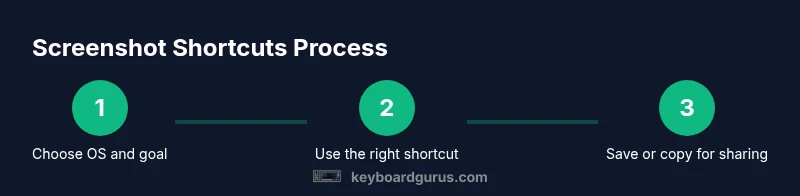
Identify OS and capture goal
Determine whether you need a full-screen, window, or region capture. Decide if you want the image copied to the clipboard for quick sharing or saved directly as a file for archival purposes. Clarifying the goal before you press keys saves time and reduces mis-captures.
Tip: Write down the target capture mode before your first attempt to build muscle memory. - 2
Use the OS-specific full-screen shortcut
For Windows, press PrtScn or Win+PrtScn depending on whether you want a clipboard image or a saved file. On macOS, use Command+Shift+3 to save a full-screen shot. On Linux, press PrtScn (or a variant supported by your DE) to copy or save.
Tip: If you’re unsure about Fn keys on your laptop, test both with and without Fn to confirm which triggers the shortcut. - 3
Capture a region or window
Windows users can use Win+Shift+S for a region; macOS users can press Command+Shift+4 and then Space to target a window. Linux users can often press Shift+PrtScn for a region capture, depending on the environment. Chrome OS users can press Ctrl+Shift+Show Windows for region captures.
Tip: Use region captures when sensitive data may appear in the corners of the screen. - 4
Decide save vs clipboard behavior
If you saved a file, locate it in the designated folder. If you copied to clipboard, paste into your editor or chat app. You can automate saving later with OS-specific tools or scripts.
Tip: Keeping a consistent save folder simplifies later retrieval. - 5
Annotate and share (optional)
Open the image in your editor of choice and add highlights, arrows, or blur sensitive content. Share the final image via your usual collaboration channels or embed in a document.
Tip: Use simple annotations to avoid clutter and preserve readability. - 6
Review privacy before sharing
Check the screenshot for any inadvertently exposed credentials or sensitive data. Redact as needed and consider region captures to minimize risk.
Tip: Establish a quick privacy checklist before sharing every screenshot. - 7
Refine your workflow with a quick drill
Practice a short, repeatable drill (e.g., capture region and paste into chat) to build speed. Rehearsing reduces hesitation and errors during real tasks.
Tip: Schedule a 5-minute daily drill to improve consistency over time.
Got Questions?
Can I use these shortcuts with an external keyboard?
Yes. External keyboards usually support the same OS-level screenshot shortcuts. If a laptop’s Fn key behavior changes, test both Fn-enabled and Fn-disabled variants.
Yes. External keyboards typically work the same as built-in ones; try both Fn modes if needed.
Can I customize shortcut keys for screenshots?
Most operating systems allow remapping shortcuts through accessibility or keyboard settings. Choose a primary shortcut you’ll remember and assign a distinct backup for region or window captures.
Yes, you can customize them via your OS settings.
Where are Windows screenshots saved by default?
Full-screen captures saved with Windows+PrtScn go to Pictures > Screenshots. Clipboard captures via PrtScn or Alt+PrtScn require pasting into an app to save.
Windows saves full-screen shots to Pictures, or you paste from the clipboard.
What if region or window captures aren’t working?
Check the active shortcut settings for your OS, ensure no other app overrides the keys, and verify that the capturing tool isn’t disabled by your security policy.
If it isn’t working, check settings and any conflicting apps.
Do I need third-party tools for screenshots?
Not strictly. Built-in shortcuts cover most needs, but third-party tools offer advanced annotations, delays, and workflow enhancements if your tasks require it.
You can start with built-ins; add tools if you need extra features.
Are screenshot shortcuts different on Linux distros?
Yes. Shortcuts can vary by desktop environment (GNOME, KDE, etc.). Consult your environment’s keyboard settings to confirm exact keys and default actions.
They vary by desktop environment; check your settings.
Watch Video
What to Remember
- Choose one primary shortcut per OS and learn its variations
- Decide clipboard vs file-saving approach for each task
- Use region captures to protect sensitive data
- Annotate and organize screenshots for quick retrieval