Windows 10 Screenshot Keyboard Shortcuts: A Practical Guide
Master Windows 10 screenshot shortcuts—Print Screen, Alt+Print Screen, and Windows+Shift+S—for full, active window, or region captures. Learn saving, pasting, and quick edits for students, gamers, and professionals.


Learn the Windows 10 screenshot keyboard shortcuts that let you capture full screens, active windows, or specific regions in seconds. This guide covers Print Screen, Alt+Print Screen, Windows key + Shift + S, and how to save, paste, or edit captures, with practical tips for common workflows and troubleshooting. We'll compare methods, note when each works best, and show how to enable clipboard history for easy reuse.
Why Windows 10 screenshot shortcuts matter for productivity
In daily work, students, gamers, and professionals often need fast, accurate screen captures. The right keyboard shortcuts reduce context switching, save time, and help you share precise visuals in reports, chats, or tickets. For this guide, we focus on the Windows 10 ecosystem and the core captures you’ll use most: full-screen, active window, and region screenshots. According to Keyboard Gurus, building fluency with a small set of built-in shortcuts can dramatically speed up your workflow and cut the time you spend chasing manual workarounds.
Built-in methods at a glance
Windows 10 provides several built-in shortcuts that cover common capture scenarios. The classic Print Screen copies the entire screen to the clipboard; Alt+Print Screen copies the active window. Windows key + Shift + S opens Snip & Sketch region capture and stores the image on the clipboard. These methods work without installing extra software, making them reliable options in classrooms, offices, or gaming setups. Keyboard Gurus analysis shows region captures are particularly versatile when you need to share precise content from a single window or a cropped area.
Step-by-step use cases: full screen, active window, region
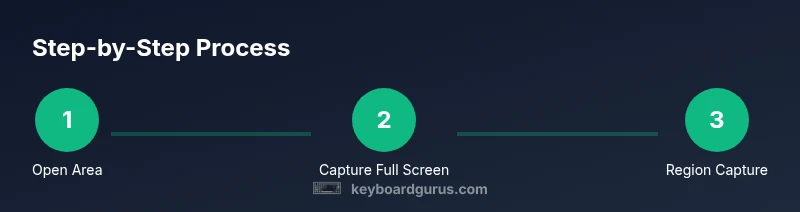
- Full screen: Use Print Screen to capture everything on every monitor, then paste into your destination app. This is fastest when you need a broad view for bug reports or tutorials. - Active window: Press Alt + Print Screen to grab only the foreground window, which helps when you don’t want other content in frame. - Region capture: Press Windows key + Shift + S to open a selectable capture mode; drag to select the exact area you want. The image remains on your clipboard and can be pasted anywhere. - Post-capture editing: If you want to annotate or crop, paste into Snip & Sketch or Paint and use in-app tools to refine the screenshot.
Saving, pasting, editing: workflow details
Most captures stay in your clipboard until you paste them. To save a capture as a file, paste into an editor like Paint or Snip & Sketch, then choose File > Save As and select a format (PNG recommended for quality). If you frequently share images, consider saving region captures directly to a dedicated folder so you can grab them quickly. For quick reuse, learn basic editing workflows (crop, annotate, and save) to keep screenshots publication-ready.
Real-world scenarios: students, gamers, professionals
- Students: Capture code blocks or lecture slides, then paste into notes or documents for quick study. - Gamers: Use region captures to share a precise game moment without extraneous UI; region saves avoid excessive cropping later. - Professionals: Draft bug reports with clear visuals by capturing error dialogs and relevant menus; region captures help isolate the issue.
Troubleshooting common issues
If a shortcut isn’t working, check hardware and driver issues, ensure the correct key names are used (some laptops require Fn for PrtSc), and verify that no software is intercepting keys. If nothing goes to the clipboard, try a different capture method (region or active window) and test in a different app. Privacy settings or clipboard history settings can also affect behavior. Finally, ensure your Windows 10 build is up to date to access the latest capture features.
Tips for maximizing efficiency
- Practice the three core methods (full screen, active window, region) until you can choose by need without hesitation. - Use Windows+Shift+S for precision region captures when content boundaries matter. - Turn on clipboard history (Win+V) to manage multiple captures in a single session. - When sharing visuals, save as PNG for lossless quality and legible text. Keyboard Gurus recommends consolidating captures into a single workflow for consistency.
Tools & Materials
- Windows 10 PC or laptop(Ensure the OS is up to date for best compatibility with built-in screenshot features)
- Standard keyboard(Includes PrtSc, SysRq or equivalent; on some laptops you may need Fn to activate PrtSc)
- Mouse(Helpful for precise region selection on touchpads or for clicking after paste)
- Clipboard-enabled editing app(Paint, Snip & Sketch, or Word for saving/pasting and quick edits)
- Clipboard history feature(Enable via Settings > System > Clipboard > Clipboard history (Win+V) to reuse captures)
Steps
Estimated time: 5-15 minutes
- 1
Open the area you want to capture
Focus the window or region you intend to capture. This ensures the screenshot contains the intended content and minimizes the need for later edits.
Tip: Close any popups or overlays that might obscure the target area. - 2
Capture the full screen
Press the Print Screen key to copy the entire screen to the clipboard. You can paste it directly into the destination app.
Tip: If you’re on a laptop, look for PrtSc or PrtScn; some keyboards require Fn to activate it. - 3
Capture the active window
Press Alt + Print Screen to copy only the foreground window to the clipboard. This excludes other windows.
Tip: Click the target window first to ensure it’s the active one before capturing. - 4
Capture a region with Windows+Shift+S
Press Windows key + Shift + S to activate region capture; drag to select the exact area. The image is copied to the clipboard.
Tip: The Snip & Sketch overlay shows drag handles; you can annotate later in the editor. - 5
Paste into your destination
Open the destination app (e.g., Word, Paint, email) and paste (Ctrl+V) to insert the screenshot.
Tip: If region capture was used, consider pasting into Paint first to save as a file. - 6
Save the capture as a file
In editors like Paint or Snip & Sketch, use Save As to store the image as PNG or JPG.
Tip: PNG preserves quality; use JPG for smaller file sizes when sharing inline. - 7
Edit or annotate quickly
Use built-in annotation tools to highlight areas, add notes, or draw arrows for clarity.
Tip: Keep edits focused on clarity; too many marks can reduce readability. - 8
Enable clipboard history for reuse
Activate Win+V to access a history of recent captures for quick reuse across apps.
Tip: Clear sensitive captures from the clipboard after sharing.
Got Questions?
What is the quickest way to capture a region on Windows 10?
Use Windows+Shift+S to invoke the region capture, then select the area. The image is copied to the clipboard for immediate pasting.
Press Windows plus Shift plus S to grab a region, then paste where you need it.
Do I need a screenshot tool to save images?
No. You can paste from the clipboard into Paint, Snip & Sketch, or Word and save from there. Region captures can be saved directly from the editor.
No extra tool is necessary; paste into an app and save from there.
Can I customize or remap these shortcuts?
Windows does not natively support remapping these shortcuts. You can use third-party tools if you need customization.
Remapping isn’t built into Windows by default; third-party apps can help.
Is region capture available on all Windows 10 editions?
Yes. Windows+Shift+S works on modern Windows 10 builds across editions that include Snip & Sketch support.
Region capture works on current Windows 10 editions with Snip & Sketch.
What if Print Screen doesn’t copy to the clipboard?
Check hardware keys and drivers, try an alternative method (Alt+PrtSc or Win+Shift+S), and ensure clipboard history isn’t interfering.
If PrtSc isn’t copying, try a different method and update drivers if needed.
How do I enable clipboard history?
Open Settings > System > Clipboard and turn on clipboard history. You can then access past captures with Win+V.
Turn on clipboard history in Settings to reuse past captures.
Watch Video
What to Remember
- Master full screen, active window, and region captures.
- Use region captures (Win+Shift+S) for precision.
- Paste or save screenshots with built-in editors.
- Enable clipboard history for quick reuse.
- Choose formats (PNG vs JPG) based on quality and size.