Windows Full Screen Keyboard Shortcut: A Practical Guide
Discover how to enter fullscreen on Windows with keyboard shortcuts. Learn browser fullscreen (F11), OS-level window management, app-specific controls, and tips for multi-monitor setups to boost focus and productivity.


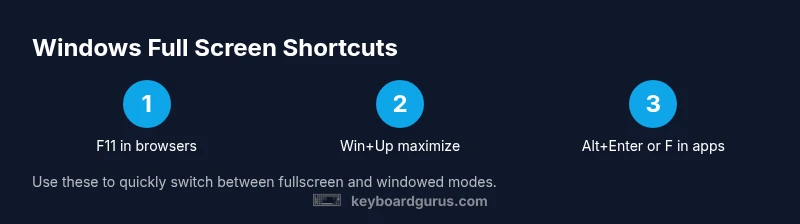
To enter full screen quickly, press F11 in most web browsers to hide chrome and maximize the viewing area. For Windows-wide fullscreen, use Windows key + Up Arrow to maximize the current window and Windows key + Down Arrow to restore or minimize. Some apps use Alt+Enter or a built-in fullscreen button. Keyboard Gurus's guidance covers app-specific quirks and exceptions.
What the shortcut covers
This guide explains the most common ways to enter fullscreen mode on a Windows-powered computer using a Windows full screen keyboard shortcut. It covers browser-based fullscreen, operating-system window management, and app-specific fullscreen controls. You’ll learn when to use each method, how they interact with multiple monitors, and how accessibility features influence shortcut behavior. By mastering these keystrokes, you can focus on content rather than chrome, improve immersion during media playback, and speed up workflows that require distraction-free viewing. Throughout this discussion, you’ll see how the windows full screen keyboard shortcut can be leveraged across browsers, media players, and productivity apps. According to Keyboard Gurus, mastering these shortcuts reduces distraction and boosts efficiency across tasks.
Distinguishing fullscreen from maximize
Fullscreen and maximize are not the same thing. Fullscreen hides most chrome and toolbars, giving you an immersive view, while maximizing simply expands the window to fill the screen with system UI still visible. In practice, you’ll often use fullscreen for video watching or reading in a distraction-free mode, and maximize when you need quick access to other windows or the taskbar. The choice depends on your task, app support, and hardware (especially multi-monitor setups). Keyboard Gurus analysis shows that users frequently switch between fullscreen and maximized views to balance focus and navigation, depending on whether they’re browsing, coding, or editing documents. When you’re working on a single monitor, maximizing can be a fast, reliable substitute for fullscreen if the app doesn’t support real fullscreen.
Browser-specific fullscreen with F11
F11 is the classic browser fullscreen toggle. In Chrome, Edge, Firefox, and other engines, pressing F11 hides the browser chrome—address bar, tabs, and toolbars—to maximize the page view. If you’re on a laptop with an Fn key, you may need Fn + F11 or FnLock enabled to use the F-keys directly. If a browser seems unresponsive, check that the page has focus and that no input field is actively selected. You can also exit fullscreen with F11 or by pressing the Escape key in most browsers. Remember that some browser extensions might modify the default behavior, so disable extensions temporarily to troubleshoot this shortcut.
OS-level window management shortcuts
Beyond fullscreen, Windows provides powerful window management shortcuts. Use Windows key + Up Arrow to maximize the active window. Use Windows key + Down Arrow to restore a maximized window or minimize a non-maximized one. Snap a window to the left or right half of the screen with Windows key + Left Arrow or Windows key + Right Arrow. Move a window to another monitor with Windows key + Shift + Left/Right. These combos help you create a distraction-free workspace by filling your primary monitor while keeping others accessible. For multi-monitor workflows, consider arranging apps in a predictable grid and using Win+Arrow to reposition them quickly. These actions are the foundation for a fluid, keyboard-driven setup that minimizes mouse travel.
App-specific fullscreen tricks
Many apps implement their own fullscreen controls in addition to the browser and OS shortcuts. For video players and media apps, Alt+Enter often toggles fullscreen, while VLC and other players frequently use F to toggle fullscreen. YouTube in a browser uses F to toggle fullscreen, and pressing Esc exits it. Some apps expose a dedicated fullscreen button or a View > Fullscreen menu option. When in doubt, check the app’s Help or Settings for a shortcut reference. The key idea is to combine universal shortcuts with app-specific commands for maximum efficiency.
Troubleshooting common issues
If a shortcut doesn’t work, verify the following: the correct window has focus, the Fn key state matches your keyboard’s F-key requirements, and the running app supports fullscreen. On laptops, Fn lock or BIOS/UEFI settings may alter F-key behavior. Some environments, especially remote desktops or kiosk modes, may disable fullscreen shortcuts for security or UI consistency. In browsers, ensure you’re not in a text field or an embedded iframe that captures keys first. If a shortcut conflicts with another program, rebind it or disable the conflicting software temporarily.
Accessibility and usability considerations
Fullscreen can be great for focus but may reduce accessibility features like screen magnification or keyboard navigation visibility. If you rely on assistive technology, ensure you have quick access to window controls and the ability to exit fullscreen without leaving the current task. Consider creating a small, labeled shortcut for your most common fullscreen action and keep it consistent across apps. Keyboard Gurus emphasizes balancing immersion with accessibility so you don’t lose navigational control during complex workflows.
Practical workflows and cheat sheet
A practical approach is to establish a core set of shortcuts you’ll use most: F11 for browser fullscreen, Win+Up to maximize, Win+Left/Right to snap, and Alt+Enter or F for app-specific fullscreen. Keep a printed or digital quick-reference (2-3 lines) near your monitor for fast recall. Use the multi-monitor workflow to dedicate one screen to content and another to tools or chat apps, toggling fullscreen on the content display as needed. This strategy minimizes context switching and keeps your attention on the task at hand.
Tools & Materials
- Windows PC or laptop with Windows 10/11(Ensure OS is up to date for consistent shortcut behavior)
- Keyboard with function keys (F1–F12)(On some laptops, you may need to press Fn to use F-keys; consider FnLock if you use F-keys frequently)
- Active browser (Chrome/Edge/Firefox)(Useful for practicing F11 fullscreen)
- Video player or app with fullscreen option(Test Alt+Enter or F within media apps)
- External monitor or multi-monitor setup (optional)(Helpful for practicing snapping and moving fullscreen across displays)
Steps
Estimated time: 10-15 minutes
- 1
Test browser fullscreen
Open a web page in a browser and press F11 to toggle fullscreen. If F11 is unavailable, try Fn+F11 or check for a browser setting that disables fullscreen. Ensure the focus is on the browser window before testing.
Tip: If you frequently fullscreen videos, pin the browser tab for quick access. - 2
Maximize the active window with OS shortcuts
With the desired window active, press Windows key + Up Arrow to maximize it. This expands the window to fill the screen while preserving OS chrome. If the window is already maximized, skip to the next step.
Tip: Use Windows key + Down Arrow to restore quickly if you over-maximize. - 3
Snap windows for a multi-monitor setup
Press Windows key + Left Arrow or Windows key + Right Arrow to snap the active window to half of the screen. On a second monitor, use Windows key + Shift + Left/Right to move the window between displays while maintaining fullscreen focus on the content window.
Tip: Create a predictable layout to speed up your workflow when multiple apps are open. - 4
Toggle fullscreen for video or media apps
Start a video or media app and press F to toggle fullscreen in many players. If the app uses a different shortcut, consult the built-in Help menu. For Windows Media Player and some older apps, Alt+Enter may activate fullscreen.
Tip: When using a YouTube video, press F to switch fullscreen without leaving the page. - 5
Exit fullscreen efficiently
To exit fullscreen, press Escape in most apps and browsers. If Escape isn’t effective, try F11 for browsers or the app’s built-in exit command. Always ensure the content window retains focus when exiting.
Tip: Keep Escape as your universal exit shortcut for speed. - 6
Practice a minimal, repeatable workflow
Run through a short sequence: F11 for browser, Win+Up to maximize, Win+Left/Right to snap, and F (or Alt+Enter) for fullscreen media. This reduces switch-time and keeps you productive across tasks.
Tip: Record your favorite sequence in a note for future reference.
Got Questions?
What is the quickest way to switch a video to fullscreen in Windows?
In most video players and browsers, press F to toggle fullscreen. If F is not responsive, try Alt+Enter in older players or check for a dedicated fullscreen icon in the player controls. YouTube and many players also respond to the Escape key to exit fullscreen.
Press F to toggle fullscreen in most video players. If that doesn’t work, try Alt+Enter or locate the fullscreen button in the player controls.
Does Windows provide a universal fullscreen shortcut?
There is no single OS-wide fullscreen shortcut. Use F11 in browsers or Windows key + Up Arrow to maximize a window. App-specific fullscreen controls may vary, so consult the help menu for each program.
No universal Windows fullscreen shortcut. Use F11 in browsers or Win+Up to maximize a window, and check app help for fullscreen options.
Can I customize or remap fullscreen shortcuts?
Some third-party tools allow remapping of keyboard shortcuts, and certain apps let you customize their shortcuts within settings. Exercise caution when remapping to avoid conflicts with core OS shortcuts.
Yes, you can remap some shortcuts with third-party tools or app settings, but be careful about conflicts with OS shortcuts.
What shortcuts help with multi-monitor setups?
For multiple monitors, snap windows with Win+Left/Right and move them across displays with Win+Shift+Left/Right. Use Win+Up to maximize on the active monitor and Win+D to show the desktop when needed.
Use Win+Left or Right to snap, Win+Shift+Left/Right to move across monitors, and Win+Up to maximize.
Are fullscreen shortcuts accessible for users with disabilities?
Fullscreen shortcuts can help focus tasks, but ensure you keep a way to navigate with the keyboard and screen reader. Avoid relying solely on fullscreen for critical navigation; maintain alternative controls and exit options.
Fullscreen needs careful accessibility planning; keep keyboard navigation and exit options available.
Watch Video
What to Remember
- Use F11 for browser fullscreen across major browsers.
- Maximize and snap windows with Windows shortcuts for distraction-free workspaces.
- Combine OS-level shortcuts with app-specific fullscreen controls for best results.
- Test across content types (video, web, and docs) to build a reliable workflow.
- Remember to exit fullscreen quickly with Escape or the app’s exit command.