Can You Use Mouse and Keyboard on Xbox? A Practical Guide
Learn how to connect a mouse and keyboard to Xbox, understand compatibility, configure per-game settings, and avoid common pitfalls with expert guidance from Keyboard Gurus.


Yes. You can use a USB mouse and keyboard on Xbox consoles (Series X|S and certain Xbox One setups) for many games and apps, though support varies by title. To use them, connect the peripherals via USB, then configure input in the game's options if required. Keyboard Gurus analysis shows that input from mouse and keyboard is common in modern titles but not universal.
Can you use a mouse and keyboard on Xbox? What to expect
According to Keyboard Gurus, the Xbox ecosystem supports USB input devices, including mice and keyboards, for many titles. The actual experience depends on the game and app. You can plug a USB mouse and keyboard into the console and navigate menus or play certain games with PC-style input. There are scenarios, though, where only menu navigation or text entry is feasible, and others where aiming and shooting respond to mouse input. The key point is that compatibility is driven by software developers, not just hardware. In practice, modern Xbox titles from the last few years increasingly support mouse and keyboard, especially those with PC ports or cross-platform play. However, support is not universal, and the control scheme may vary by genre. For example, strategy and simulation games often feel natural with a mouse, while fast-paced shooters might require per-title optimization or may be limited to certain modes. If you plan to game using MKB, start by confirming that the title explicitly mentions keyboard support in its store listing or official notes.
From a hardware perspective, most Xbox-friendly mice offer simple USB connections, and many keyboards are plug-and-play. If you rely on wireless devices, a USB dongle is typically preferred, as Bluetooth keyboards and mice are less commonly supported directly by Xbox consoles. Beyond hardware compatibility, you should expect varying levels of integration depending on the game’s design and whether the developer implemented mouse/keyboard input as a primary control method. Keyboard Gurus analysis shows growing adoption among recent releases, but it remains title-dependent. In short: you can, for many titles, but you should verify per-game support before investing heavily in peripherals.
How to connect mouse and keyboard to Xbox? A practical setup guide
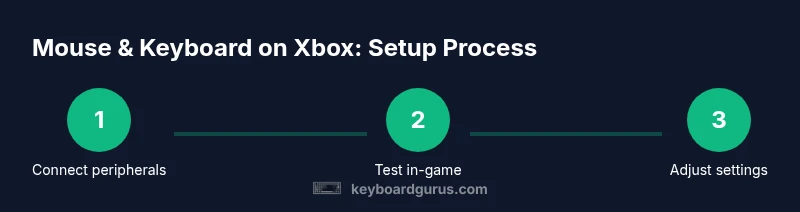
The basic approach is straightforward. First, locate the USB ports on your Xbox console and connect the keyboard and mouse one device per port. If you’re using a wireless setup that relies on a USB dongle, plug the dongle into the Xbox as well. Note that Bluetooth peripherals do not reliably pair with Xbox consoles in most cases, so wired USB connections are the simplest path to compatibility. If your setup requires more ports, a powered USB hub can help, but ensure it can supply enough power to both devices. After connecting, reboot the console or re-plug the devices to ensure recognition. In many games, you won’t need extra setup, but some titles require you to enable mouse/keyboard input in their own options. Finally, test in a simple menu first to confirm navigation, text entry, and movement respond as expected. If you encounter recognition issues, try a different USB port or another keyboard/mouse to isolate the problem.
Game compatibility and input modes
Game developers implement mouse and keyboard support in varying ways. Some titles include native MKB support across menus, inventory, and gameplay, providing a PC-like experience on console. Others limit mouse input to in-game menus or chat, with no direct control over character movement. A few games may disable certain features or adjust aim mechanics when a mouse is connected, to preserve balance with controller inputs. Because compatibility is game-specific, always check the store notes, official support pages, or developer forums for guidance on a given title. Keyboard Gurus analysis shows that newer releases commonly advertise MKB support, but there is still a long tail of popular games that do not offer full input parity. When in doubt, test the exact game you want to play and review its input options carefully.
In-game configuration and best practices
If a game supports mouse and keyboard, start with a clean, per-game setup. Map core actions to intuitive keys (for example, use WASD for movement and typical keys like E to interact, R to reload). Keep a consistent key layout across titles to reduce cognitive load, and adjust sensitivity settings to match your aiming style. In first-person or shooter titles, many players prefer higher DPI and a steady mouse speed; in strategy or simulation games, you may lean toward slower, more precise pointer control. If the game offers per-button rebinding, consider setting frequently used actions to accessible keys to minimize finger travel. Always save your profile after you finish adjusting a setup, and test in a practice or tutorial mode to fine-tune comfort and responsiveness. Finally, remember that some games may have built-in accessibility or control schemes that work better with specific devices; experiment with different mappings to find what feels natural.
Troubleshooting common issues and tips
Peripherals not recognized or unresponsive can be frustrating. Start by checking physical connections: ensure both devices are firmly plugged into active USB ports and that the ports themselves aren’t loose. If you’re using a USB hub, try connecting devices directly to the console because hubs can sometimes cause compatibility issues. Reboot the Xbox to refresh device detection, and try a different keyboard or mouse if possible to determine whether the issue is with the peripheral. If a game doesn’t respond to MKB input, check its in-game settings or support notes; some titles require you to enable input methods per game mode. In some cases, keeping firmware up to date on your peripherals (via a PC or the manufacturer) can resolve odd lag or input omissions. When all else fails, try a different game to confirm whether the issue is game-specific or console-wide.
Practical setup checklist and example workflow
Use this quick workflow to set up mouse and keyboard for a typical Xbox session:
- Connect both devices via USB to dedicated ports on the console. Ensure the keyboard supports the layout you prefer and the mouse has a comfortable polling rate.
- Power on the console and launch a game that advertises MKB support or test in a menu. Confirm basic navigation and text entry work as expected.
- If required, open in-game settings and enable mouse/keyboard input or select a PC-like input mode. Rebind essential actions to frequent keys for faster reactions.
- Run a quick practice session or tutorial to verify sensitivity and map layout. Make incremental adjustments to improve accuracy and comfort.
- Save your configuration and, for intense sessions, consider a quick-profile switch if you play multiple genres. If you play competitively, compare performance with controllers to understand any in-game limitations.
Tools & Materials
- USB keyboard(Any standard USB keyboard compatible with Xbox (wired preferred))
- USB mouse(Optical or laser; wired is most reliable for latency)
- USB hub (optional)(Use only if you need extra ports and the hub is powered)
- Bluetooth keyboard/mouse (optional)(Bluetooth devices typically require a dongle or may not be supported; wired USB is more reliable)
- Game controller (backup)(Keep as a fallback for navigating menus or troubleshooting)
Steps
Estimated time: 15-25 minutes
- 1
Connect keyboard
Plug the USB keyboard into one of the Xbox’s USB ports. Confirm the keyboard lights up or responds to key presses in a test field. If not detected, try a different port or use a powered hub if available.
Tip: If you’re using a USB hub, ensure it’s powered to deliver enough current to the keyboard. - 2
Connect mouse
Insert the USB mouse into another USB port. Move the cursor on the screen to verify basic input. If the mouse is not recognized, try another port or use a different device to confirm hardware availability.
Tip: Prefer wired mice for lowest latency during fast-paced gameplay. - 3
Launch a test game/menu
Open a game that supports MKB or navigate menus to see if inputs are recognized. If the game requires per-game enabling, locate the input or accessibility options and enable mouse/keyboard control.
Tip: Test in a non-competitive mode to avoid sudden, high-stakes situations until you’re comfortable. - 4
Configure per-game settings
Enter the game's settings and map essential actions to keyboard keys. Adjust sensitivity, dead zones, and any aim settings to fit your preference. Save the configuration after changes.
Tip: Use a consistent key layout across games to reduce muscle memory adjustments. - 5
Fine-tune and practice
Play a short practice session to gauge accuracy and reaction time. Make iterative tweaks to key bindings and sensitivity until you feel confident.
Tip: Keep a simple routine for warm-up and practice to track improvements over time. - 6
Document and switch profiles
If you play multiple genres, save different profiles and switch as needed. This keeps each setup optimized for its respective title.
Tip: Label profiles clearly (e.g., 'MKB - FPS', 'MKB - Strategy').
Got Questions?
Can I use Bluetooth keyboards or mice on Xbox?
Bluetooth peripherals are not reliably supported on most Xbox consoles; wired USB keyboards and mice are the standard path for compatibility. If you must use Bluetooth, check the device and game notes for specific guidance.
Bluetooth peripherals aren’t reliably supported on Xbox; use a wired USB keyboard and mouse for the best compatibility.
Do all games support mouse and keyboard on Xbox?
No. Support varies by title and developer. Some games fully support mouse and keyboard, others only allow menu navigation, and some do not support it at all.
Not all games support mouse and keyboard on Xbox; it depends on the title.
Will using a mouse disable aim assist?
Aim assist behavior varies by game. Some titles disable or adapt aim assist when a mouse is connected, while others apply it in a limited form. Always check per-game settings and notes.
Aim assist with a mouse depends on the game; check the in-game settings.
Is there a difference between Xbox Series X|S and Xbox One for MKB support?
In general, newer consoles offer broader peripheral support, but per-title compatibility remains the main factor. Always review the game's platform notes for exact support.
Newer consoles tend to have broader support, but it varies by game.
What should I do if peripherals aren’t recognized?
Try different USB ports, reboot the console, test with another keyboard/mouse, or check for updates to both the console and peripherals. If issues persist, test a different game to isolate the problem.
If not recognized, switch ports, reboot, and test another device.
Can you use mouse and keyboard for online multiplayer on Xbox?
Yes, in games that explicitly support it. Some titles distinguish input methods in lobbies, so verify per title notes and be aware of any input-based matchmaking caveats.
You can in supported games, but it isn’t universal.
Watch Video
What to Remember
- Verify per-title compatibility before playing with MKB.
- Connect peripherals via USB for reliability.
- Configure per-game input mappings and sensitivity.
- Expect varying levels of support across games.
- Practice with test modes to optimize comfort and precision.