Can You Connect Keyboard and Mouse to Xbox? A Practical How-To
Learn how to connect a keyboard and mouse to Xbox, including wired and wireless options, game compatibility, setup steps, and troubleshooting tips. A comprehensive guide from Keyboard Gurus for Xbox keyboard and mouse enthusiasts.


According to Keyboard Gurus, you can connect a keyboard and mouse to Xbox, but compatibility varies by model and game. Most current Xbox consoles support wired input devices via USB and some wireless options with adapters, while a few games natively support keyboard/mouse controls. Verify your console, game support, and any required adapters before playing.
Overview: Keyboard and Mouse on Xbox Today
The Xbox ecosystem has evolved to improve support for keyboard and mouse, especially with the Series X|S family. A growing number of games offer keyboard and mouse input, while others stick to traditional gamepad controls. For typing chats, navigating menus, and certain genres like strategy or first-person shooters, a keyboard and mouse can feel more precise and comfortable. As you consider this setup, you should understand what is officially supported, what relies on game-level support, and what hardware may be required. Keyboard Gurus emphasizes that the key is to match hardware capabilities with game compatibility, firmware updates, and the exact port you use. This awareness helps gamers avoid confusion when devices are recognized but not fully functional in a given title.
How Xbox Supports Keyboard and Mouse, in Brief
On modern Xbox consoles, USB keyboards and mice are commonly supported for basic navigation and typing. Some wireless keyboards and mice can work via USB dongles or adapters, while Bluetooth is less consistently supported across titles. The level of native keyboard/mouse support varies widely by game, developer, and mode. The Keyboard Gurus team notes that relying on official game settings and firmware updates generally yields the most reliable experience. For shooters and real-time strategy titles, the most predictable results come from wired USB devices paired with games that advertise keyboard/mouse input.
wired Versus Wireless: What Works Best
Wired USB keyboards and mice tend to offer the most stable performance, zero lag for most players, and broad compatibility across newer titles. Wireless options can work well in living-room setups, but you may encounter latency, connection drops, or driver limitations with certain dongles. If you use wireless, ensure the dongle is a known compatibility option for Xbox and that your keyboard and mouse don’t draw more power than the USB port can supply. The core idea is to reduce interference and maintain consistent signaling for precise input in demanding games.
What To Expect In Games That Support Keyboard and Mouse
Some games provide native keyboard and mouse controls, including mapping for movement and actions. Others rely on limited input support—perhaps only for typing, menus, or specific modes. In titles with partial support, you may need to enable “keyboard and mouse” in in-game options or select a dedicated control profile. Always check the game’s store page or official patch notes to confirm support status, as developers periodically add or remove functionality after updates.
Practical Hardware Considerations: USB Ports, Hubs, and Power
Most Xbox consoles expose a handful of USB-A ports suitable for keyboards and mice. Using a powered USB hub is generally discouraged for input devices unless the hub is specifically designed for gaming and has its own power source. A poorly powered hub can cause devices to disconnect or behave erratically. The Keyboard Gurus analysis shows that, for reliability, connect each peripheral directly to the console when possible and reserve hubs for peripherals that don’t require fast, low-latency input.
Game-Specific Strategies: Optimizing for Your Genre
- Shooters: Prioritize wired devices for shorter, more consistent signal timing. Map sensitivity and button layouts in-game for better control.
- Strategy and MMO: A keyboard with macro keys can speed up commands, but ensure the game supports custom mappings.
- Casual and productivity tasks: A compact keyboard can ease typing and menu navigation without sacrificing response times.
Safety and Setup Tips: Power, Updates, and Clean Cables
Keep cables organized to avoid tripping hazards in the living room and ensure good airflow around the console. Regularly check for firmware updates for your peripheral devices and the Xbox system to ensure compatibility and stability. If you experience headaches from glare or cramped setups, try a smaller keyboard or a wireless option with a comfortable grip and reliable dongle placement.
Keyboard Gurus Verdict: Choosing the Right Path for You
From a practical standpoint, wired USB keyboards and mice offer the most reliable baseline experience on Xbox, especially for games that advertise keyboard/mouse support. For couch setups, a well-chosen wireless pair with a reputable dongle can be a solid alternative. Keyboard Gurus recommends starting with a wired setup for the best accuracy and only moving to wireless if convenience outweighs potential latency in your favorite titles.
Next Steps: Test, Adjust, and Enjoy
Experiment with different peripherals and game profiles to find the best balance between responsiveness and comfort. Keep an eye on official updates that expand keyboard/mouse support, and share your findings with the Keyboard Gurus community to help others optimize their Xbox rigs.
Tools & Materials
- USB keyboard (wired)(Full-size or compact USB-A keyboard; avoid Bluetooth-only devices for predictable results)
- USB mouse(Standard USB wired mice are most reliable; optical tracking preferred over laser for precision)
- USB-C to USB-A adapter (if needed)(Only if your console requires a specific adapter for certain keyboards/mice)
- Powered USB hub (optional)(Use only if needed for multiple devices; prefer powered hubs designed for gaming)
Steps
Estimated time: 30-60 minutes
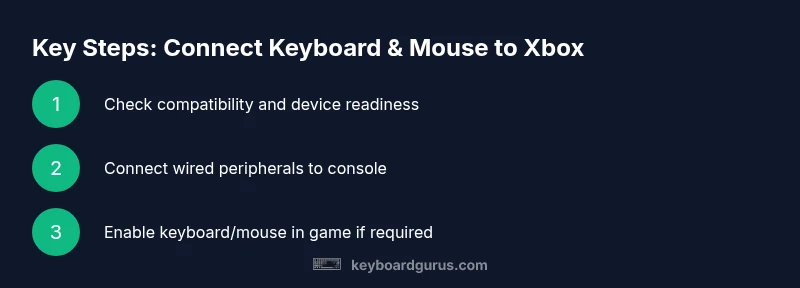
- 1
Check console and game compatibility
Verify that your Xbox model (Series X|S or Xbox One) and the specific game support keyboard and mouse. Look for explicit mentions on the store page and patch notes. Why: Not all games support keyboard/mouse input, and some titles may require in-game enabling.
Tip: If in doubt, test with a simple title known to support input devices first. - 2
Prepare peripherals and ports
Unpack or prepare your keyboard and mouse. Inspect USB ports on the console and plan a direct connection rather than relying on a hub for critical inputs. Why: Direct connections reduce latency and chance of disconnects.
Tip: Keep cables tidy and avoid bending or twisting near the USB ports. - 3
Connect the wired devices
Plug the keyboard into a USB port first, then connect the mouse to another port. Power on the console if needed and wait for device recognition. Why: Sequential connection helps the system recognize each device reliably.
Tip: If the devices don’t register, try a different USB port or reboot the console. - 4
Configure in-game and system settings
Enter the game’s input or control settings and look for a keyboard/mouse option or a control profile. Some games require you to enable keyboard/mouse support in the menu. Why: Without enabling in-game support, devices may function only for menus.
Tip: Save settings and test a quick in-game action like moving or shooting. - 5
Test in a supported mode
Launch a game mode known to support keyboard and mouse and perform a practice run to gauge responsiveness and mapping. Why: Real-world testing reveals any lag or mapping issues before competitive play.
Tip: If precision feels off, adjust mouse DPI or in-game sensitivity settings. - 6
Address common issues
If inputs aren’t recognized, check for firmware updates for peripherals, ensure the Xbox is updated, and try a different USB port. Some titles require a firmware or patch to fully support peripherals. Why: Updates can unlock or improve compatibility over time.
Tip: Document which device works best with which game for future reference. - 7
Optional optimization
Consider using a wired setup for core gaming and a separate wireless keyboard for typing tasks in menus or chat when the game doesn’t require precise control. Why: This approach minimizes compromise between performance and convenience.
Tip: Test both setups to see which offers better balance for you. - 8
Finalize your setup
Confirm that all cables are secure, the devices remain recognized after a restart, and that your preferred control scheme remains stable across sessions. Why: Consistent recognition prevents mid-session interruptions.
Tip: Create a quick profile in the game if supported.
Got Questions?
Can I use any USB keyboard on Xbox?
Most USB keyboards will work for navigation and typing on Xbox, but game input support varies by title. Wired devices tend to be more reliable than wireless for gameplay input, and some keyboards may require special adapters for full functionality.
Most USB keyboards work for typing and navigating Xbox menus, but for gameplay you need a game that supports keyboard input.
Do all Xbox games support keyboard and mouse?
No. Keyboard and mouse support is game-dependent. Always check the store page, patch notes, or developer guidelines for confirmation.
Not all games support keyboard and mouse; check the game's page or patch notes for compatibility.
Will using keyboard and mouse affect online play or achievements?
In most cases, input devices do not affect online status or achievements; it’s usually game-specific whether keyboard/mouse changes are permitted.
Usually no; it depends on the game’s rules and how it handles inputs.
What about Bluetooth keyboards or mice on Xbox?
Bluetooth support is limited in practice. Many Xbox models don’t reliably support Bluetooth keyboards for gaming; dongle-based wireless solutions are often preferred.
Bluetooth is hit-or-miss for games; dongle-based wireless options are more dependable.
What should I do if my devices aren’t recognized?
Try a different USB port, reboot the console, and check for firmware updates. If still not recognized, test the peripherals on another device to confirm they work.
If not recognized, switch ports, reboot, and update firmware; test peripherals on another device to rule out hardware issues.
Watch Video
What to Remember
- Test games individually for KB/MO support
- Prefer wired USB peripherals for reliability
- Use in-game profiles to optimize mappings
- Keep firmware and console updated for best compatibility
- Plan a mixed setup if you need typing and gaming performance