Xbox to Keyboard: A Practical How-To Guide
Learn to connect a keyboard to Xbox, map essential controls, and optimize latency for smooth gameplay. This guide covers compatibility, setup steps, and practical troubleshooting to help you master xbox to keyboard input.


By the end of this guide, you’ll master the xbox to keyboard transition: connect a keyboard to your Xbox, map core actions, and start playing with reduced latency. You’ll learn compatibility basics, wiring options, and practical tips to test and optimize your setup across common game genres. This quick path helps you move from curiosity to confident input.
Understanding the xbox to keyboard concept
Understanding the xbox to keyboard concept requires separating two ideas: console input support and third-party mapping. The phrase xbox to keyboard describes using a USB keyboard to input commands on a compatible Xbox game or system UI. For many players—gamers, students, and professionals—this approach can unlock faster navigation, more precise aiming, and new accessibility options. According to Keyboard Gurus, the key to a smooth transition is verifying game compatibility and choosing the right peripherals. Keep expectations realistic: not every title supports full keyboard input, and latency varies by setup. This section sets the foundation for practical, task-oriented setup.
Why players benefit from keyboard input on consoles
Keyboard input on Xbox can accelerate actions that rely on fast, precise keystrokes. For productivity apps or UI navigation, a keyboard can streamline tasks that would otherwise use a controller’s analog input. In games, the keyboard offers distinct advantages for certain genres, such as rapid movement, complex macros in strategy titles, or extended key-binding schemes in RPGs. Keyboard Gurus notes that players who practice regularly tend to develop muscle memory quicker with a well-structured binding map. However, benefits depend on game support and your own comfort with layout changes. Always test in a neutral setting before committing to long sessions.
Compatibility basics and what to expect
Not all Xbox titles support keyboard input, and some may only recognize basic keystrokes for menus or chat. The experience varies by game, developer, and whether the game has native keyboard support or relies on an external mapper. Start with games known to provide keyboard/mouse options or those that explicitly allow external input devices. If a game lacks native support, adapters and mapping devices can bridge some controls, but results may differ. Keyboard Gurus recommends verifying recent compatibility lists and keeping expectations aligned with current hardware limitations.
Setup paths: built-in support vs adapters
There are two main paths to xbox to keyboard input: native support within the game or console, and external adapters that translate keyboard inputs to controller signals. Native support is typically the simplest path and minimizes latency, but it’s limited to specific titles. Adapter-based setups can widen the playable catalog but may introduce added latency and occasional input quirks. Evaluate your library, budget, and patience for troubleshooting. In many cases, starting with native support tests is the fastest way to gauge viability for core titles you care about.
Wiring, latency, and in-game performance
Latency is the central concern when adding a keyboard to Xbox. Wired keyboards generally offer lower latency than wireless models, and a direct USB connection minimizes signal re-broadcast delays. Wireless keyboards can introduce sporadic lag or interference if a strong, stable dongle or Bluetooth path isn’t available. To optimize performance, prefer wired connections, keep your USB cable short and unobstructed, and ensure the console firmware is up to date. Real-world performance will vary by game, USB port availability, and your environment.
Mapping principles for different genres
Different genres reward different binding schemes. Shoot-’em-ups benefit from quick access to reload, crouch, and weapon switch, while strategy games prosper with hotkeys for unit selection and commands. RPGs often require menus and quick-spot navigation, so assign critical actions to easily reachable keys. Consider habit-building: cluster related actions on adjacent keys and avoid conflicts with on-screen prompts. The goal is to create a layout that minimizes finger travel and cognitive load during play.
Troubleshooting common issues
If inputs don’t register, first check USB connections and game compatibility. Some titles require you to enable external input in settings or to launch the game in a specific mode. If lag appears, test with a wired keyboard and a short, direct USB cable. In rare cases, firmware updates for keyboards or console can resolve issues. When problems persist, test with a different keyboard to rule out device-specific faults, then consult the game’s support resources for known issues.
Practical testing and maintenance
After you set up the xbox to keyboard workflow, run a short test session across two or three games to confirm consistency. Observe latency, binding accuracy, and any input delays. Maintain your peripherals with periodic firmware checks and clean connectors to prevent degraded performance. A clean and stable setup improves reliability and reduces the frequency of troubleshooting sessions. Regular practice with your chosen games will help solidify muscle memory and improve long-term performance.
videoEmbedSubtitleKeypointsToKeepReadyListKeyPointsYouMightNeedMore
tipsListInlinePlaceholderForBodyBlock
Tools & Materials
- Wired USB keyboard(Full-size or compact; wired connection preferred for lowest latency)
- Xbox Series X|S console(Any model with available USB ports)
- USB-A to USB-C adapter (optional)(Use if your keyboard uses USB-C and you need USB-A ports on the console)
- USB hub with power (optional)(Helpful if planning to connect multiple input devices at once)
- Official game compatibility guide(Keep handy to verify keyboard support for titles you play)
Steps
Estimated time: 30-60 minutes
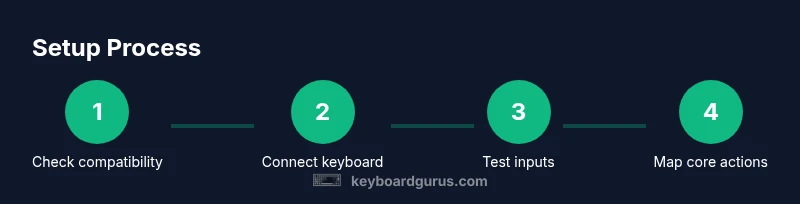
- 1
Check game compatibility
Review the game you intend to play and confirm whether it officially supports keyboard input or if external mapping is required. If the game lacks native support, plan for an adapter-based approach or alternative titles. Why this matters: you’ll avoid buying a non-functional setup and save time.
Tip: Always start with titles you know have strong community support. - 2
Prepare your hardware
Plug your wired keyboard into a direct USB port on the Xbox. If using USB-C, attach the appropriate adapter. Ensure cables are untangled and the keyboard is powered (if it requires batteries).
Tip: A short, direct USB cable reduces latency more than a long extension. - 3
Power on and test basic inputs
Turn on the console and enter a menu to verify that keystrokes register. Check common commands like arrow keys, enter, and escape. If basic input fails, recheck connections and try another USB port.
Tip: Test both alphanumeric keys and function keys to gauge consistency. - 4
Launch a supported game and map controls
Open a game known to support external input and practice mapping core actions (movement, interaction, menus). Start with simple, essential bindings before adding complex macros.
Tip: Use in-game presets when available to reduce setup time. - 5
Tune latency and bindings
If the game allows, enable any performance modes or reduced polling rates on the keyboard. Adjust binding locations to minimize finger travel for your usual playstyle.
Tip: Keep frequently used actions in the most accessible keys. - 6
Validate across titles
Test at least two more titles to ensure the setup isn’t game-specific. Document which games work well and which don’t so you can pivot if needed.
Tip: Create a small binder of working games as your quick-reference.
Got Questions?
Can I use any keyboard on Xbox?
Not all keyboards work on Xbox. Some games support keyboards natively, while others require adapters. Always check the latest compatibility lists and game-specific notes.
Not every keyboard will work on Xbox. Some games support keyboards directly, others need adapters; verify compatibility first.
Does Xbox natively support keyboard and mouse?
The Xbox system supports keyboard and mouse in several games, but not universally. Always test in-game or consult official guides for each title.
The Xbox supports keyboard and mouse in many games, but not all. Check each game's support status.
Are adapters necessary for xbox to keyboard?
Adapters can bridge input gaps, but they may introduce latency or inconsistent results depending on the title. Research your specific setup and test thoroughly.
Adapters can help, but they might cause latency or variability; test with your games.
Will keyboard input affect online fairness?
Impact depends on the game and rules of the community or competition. Some titles permit it; others may have restrictions in multiplayer settings.
It depends on the game’s rules; check community guidelines and tournament policies.
How do I map keys for shooters on Xbox?
Start with basic bindings: movement to WASD and aim to right-hand controls. Use in-game guidance and keep critical actions within easy reach.
Map movement to WASD and keep aiming and reloading close by for quick access.
What should I do if inputs lag?
Try a wired keyboard, shorten USB paths, and update firmware. If the problem persists, test another keyboard to rule out device issues.
If it lags, switch to wired, check cables, update firmware, and test with another keyboard.
Watch Video
What to Remember
- Confirm game support before buying accessories.
- Prefer wired keyboards to minimize latency.
- Map controls logically to reduce cognitive load.
- Test across multiple games to ensure consistent performance.