How to Fit a Keyboard Stand: A Practical Guide
Learn to fit a keyboard stand for ergonomic comfort, stability, and a clean desk setup. This step-by-step guide from Keyboard Gurus covers stand types, height and tilt adjustments, compatibility, and cable management for any workspace.


Fits a keyboard stand to your desk by choosing the right stand type, measuring space, adjusting height and tilt for neutral wrists, and organizing cables for a neat setup. This quick guide outlines essential steps and considerations to ensure comfort and stability. Whether you type for gaming, study, or work, the process remains the same: select compatibility, confirm clearance, and test posture.
Why Fit a Keyboard Stand Matters
According to Keyboard Gurus, a well-fitted keyboard stand is not just about holding the keys; it supports your posture, reduces wrist strain, and makes long typing sessions more comfortable. When you position the keyboard at the correct height, your forearms remain roughly parallel to the desk, and your wrists stay in a neutral position. A stand also helps keep your desk clear of clutter, which improves focus and reduces fatigue. In addition to comfort, a sturdy stand protects your equipment from accidental knocks and helps maintain consistent key travel. If you frequently switch between seated and standing work, an adjustable stand becomes even more valuable because you can preserve a neutral posture in both modes. Lastly, consider how a stand affects accessory placement, such as a mouse, trackpad, or numeric keypad, to keep everything within easy reach.
Types of Keyboard Stands
Keyboard stands come in several designs, each with pros and cons. Fixed-height stands offer simplicity and stability but lack flexibility. Adjustable stands provide a wider height range and tilt options, which is ideal for sharing a workstation or adapting to different chairs. Some stands are integrated into a sliding tray or desk surface, which can save desk space but may require more mounting. There are also compact portable stands that hinge or fold for travel. When choosing, prioritize a design that keeps the keyboard flat, reduces wrist deviation, and supports cable management. Always verify compatibility with your keyboard width and depth, especially if you have a long or wide ergonomic keyboard.
Assessing Your Setup: Desk, Chair, and Keyboard
Before purchasing, map out how you sit and type. Note your chair height, whether your desk is fixed or adjustable, and how far your hands rest from the edge of the desk. If your chair is high, you may need a taller stand; if your desk sits high, you might favor a lower tilt. Record the keyboard width, height of your elbows when typing, and the distance from the edge to your monitor to keep your wrists in a comfortable position. Consider the space available beneath the desk for cable routing and whether you need extra clearance for a palm rest or wrist rest. Think about future upgrades, such as a split keyboard or additional peripherals, and how a stand will accommodate them.
How to Choose the Right Stand: Height, Tilt, and Footprint
The right stand balances height, tilt, and footprint. Start by setting a baseline height so your elbows are near shoulder height and wrists stay straight. Adjust the tilt to keep wrists in a neutral pose; small tilts toward you can reduce flexion and fatigue. Check the stand’s footprint to ensure it fits your desk without crowding other devices. If you share a workstation, an easily adjustable model makes it feasible to switch users without repeated setup. Look for anti-slip feet, wide base stability, and durable materials that can support your keyboard’s weight and travel load. If you use a mouse, ensure there is enough space for comfortable movement.
Compatibility and Accessories: Cables, Mats, and Mounts
Compatibility isn’t only about width. Ensure the stand can handle your keyboard’s depth, weight, and any attached accessories like a palm rest or wireless receiver. Use anti-slip mats or a rubber pad to prevent sliding on smooth desks. Cable management becomes easier when the stand offers integrated channels or clips for USB, power, and audio cables. If you need mounting options, check whether the stand supports clamp-on or grommet attachments and whether your desk permits them without damage. For travel or compact desks, consider a foldable or collapsible option with secure latching.
Common Setup Scenarios: Students, Gamers, Professionals
Students typically value portability and quick setup; opt for a lightweight, foldable stand with straightforward height adjustments. Gamers may want a robust, stable stand with a low profile to avoid obstructing monitor angles and to maintain precise keyboard alignment. Professionals often require a repeatable setup across multiple workstations, so a stand with memory heights and quick-release clamps can save time. Regardless of scenario, prioritize neutral wrist posture, comfortable elbow height, and easy accessibility to mouse and peripheral devices.
Maintenance and Longevity: Care and Adjustment
To maximize lifespan, wipe down stands with a mild cleaner and inspect feet for wear. Periodically re-check mounting points to ensure no loosened screws or wobble. As your workspace evolves, recalibrate height and tilt to maintain proper posture. A stand that’s easy to adjust will encourage you to re-check alignment as you switch between seated and standing modes. Store portable stands in a protective sleeve when traveling to prevent bending or impact damage.
Troubleshooting Common Issues
If the stand slides on a glass or polished desk, add anti-slip pads or switch to a stand with rubberized feet. For wobble, inspect the base and tighten screws or clamps as needed. If the keyboard sits at an awkward angle, re-check the tilt mechanism and whether a different mounting option would offer a better line of sight to the monitor. Remember that even small changes can significantly impact comfort, so adjust in small increments and test each change for at least a few minutes.
Tools & Materials
- Adjustable keyboard stand(Ensure compatibility with keyboard width and depth)
- Desk anti-slip pad or mat(Prevents sliding on smooth surfaces)
- Cable ties or Velcro straps(For proactive cable management)
- Measuring tape(Useful for height and width checks)
- Allen wrench or screwdriver(Only if assembly requires screws)
- Notebook or device to record dimensions(Helps track your preferred settings)
Steps
Estimated time: 25-40 minutes
- 1
Measure keyboard and space
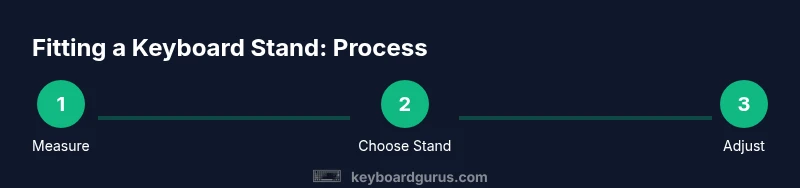
Begin by measuring the keyboard width and depth, then assess the available desk space where the stand will sit. This ensures the stand won’t collide with the monitor, mouse, or chair. Write down your measurements for reference.
Tip: Measure from the desk edge to the back of the keyboard, not just the center. - 2
Choose the stand type
Select a stand that matches your desk shape and typing style. Consider adjustable stands for flexibility or fixed stands for simplicity. Ensure the chosen model can support your keyboard’s weight and width.
Tip: If you're sharing a workstation, opt for a model with adjustable memory positions. - 3
Position the stand on the desk
Place the stand so the keyboard sits directly in front of your typical typing position and aligns with your monitor. Leave enough space for a mouse and palm rest if used. Double-check there’s no obstruction to leg movement.
Tip: Mark a starting height on the chair leg to reuse later. - 4
Mount or place the keyboard
If your stand requires mounting, attach the keyboard securely using the provided fasteners. If it’s a freestanding platform, simply place the keyboard and ensure it rests flat. Check that the keyboard is level and doesn’t wobble.
Tip: Avoid over-tightening screws which can strip threads. - 5
Adjust height and tilt
Adjust the stand to set the keyboard at elbow height with wrists straight and hands at or below elbow level. Fine‑tune the tilt to minimize wrist flexion. Test by typing for several minutes and adjust as needed.
Tip: Make small changes and test in real typing tasks. - 6
Cable management
Route USB, power, and peripheral cables along the stand’s channels or under the desk edge to avoid interference with leg movement. Bundle cables with ties and leave slack for movement. Verify there’s no tugging on connectors.
Tip: Label cables at the stand for quick re-setup later. - 7
Test and finalize
Type for several minutes in different postures (sitting and standing if possible) to confirm comfort. Re-check height, tilt, and clearance, and adjust if any discomfort appears. Document your preferred setup for future recalls.
Tip: Keep a simple checklist to remember your preferred settings.
Got Questions?
What is the ideal height for a keyboard stand?
Ideal height aligns with your elbow level when your wrists are neutral. This reduces strain and supports comfortable typing sessions.
The ideal height is when your elbows are about at desk level and your wrists stay straight while typing.
Can I use a laptop stand as a keyboard stand?
Yes, if the stand can support the keyboard’s width and weight and offers the right tilt for comfortable typing.
Yes, as long as the stand supports your keyboard and allows a comfortable tilt.
Do I need anti-slip pads?
Anti-slip pads prevent sliding on smooth surfaces and improve overall stability.
Yes, anti-slip pads help the stand stay in place and protect surfaces.
How do I know if a stand fits my desk?
Check the stand’s footprint, mounting options, and clearance for cables and peripherals.
Check the stand's size, mounting options, and clearance for cables.
Is a standing desk required for ergonomic benefits?
No, a properly fitted stand on a seated desk already offers ergonomic benefits; standing is optional depending on preference.
Not required; you can get ergonomic benefits from a good seated setup with a stand.
Watch Video
What to Remember
- Plan around your typing posture first, then stand selection.
- Measure accurately to ensure compatibility and space.
- Adjust height and tilt to keep wrists neutral.
- Organize cables for a clean, safe setup.