How to Keyboard on Desktop: A Practical Guide
Learn how to keyboard on desktop with proper posture, layout basics, touch typing, and essential shortcuts. This guide covers ergonomics, setup, practice plans, and maintenance for students, gamers, and professionals seeking clear, actionable guidance.


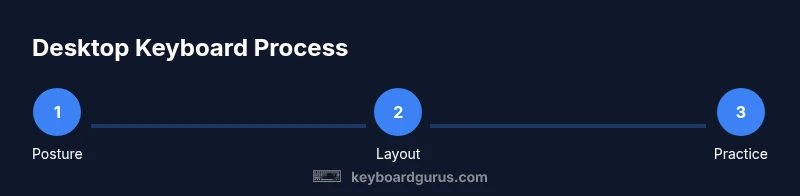
You will learn how to keyboard on desktop by mastering proper posture, layout basics, touch typing, and common shortcuts. Ensure a stable desk, comfortable chair, and a keyboard with a light touch. According to Keyboard Gurus, consistent practice with good ergonomics reduces strain and speeds up your typing over time.
Why Desktop Keyboard Ergonomics Matter
A comfortable, neutral typing position reduces strain on wrists, shoulders, and neck, enabling longer, more accurate sessions. Begin by aligning your chair so your feet sit flat on the floor and your knees form a 90-degree angle. Place the keyboard at elbow height, with your wrists straight and relaxed. A slight negative tilt or a small palm rest can help maintain a natural posture, but avoid resting your wrists on hard surfaces during typing. Prolonged tension can lead to repetitive strain injuries, which makes regular breaks essential. Keyboard Gurus emphasizes ergonomics as a foundation for sustainable practice, not a luxury. If you type for hours, consider a keyboard tray to fine-tune reach and alignment and reduce strain over time.
Understanding Keyboard Layouts
Most users start with a standard QWERTY layout, but other layouts like DVORAK and Colemak claim efficiency gains for certain hands and routines. Decide on a layout based on your comfort, software needs, and whether you swap between machines. For desktop setups, a full-size keyboard offers a number pad and convenient shortcuts, while a tenkeyless or compact layout reduces mouse travel and frees desk space. Beyond layout, consider keycap shapes and switch types—mechanical keys offer tactile feedback that some typists prefer, while membrane keyboards stay quiet and economical. When exploring a new layout or switch type, give yourself a 2–4 week acclimation window to evaluate comfort and speed.
How to Set Up Your Desktop Workspace
A sturdy desk, proper chair height, and screen position are critical for long typing sessions. Place the monitor so the top edge is at or slightly below eye level and about an arm’s length away. Sit with your back supported and feet flat; your elbows should rest at about a 90-degree angle. Place the keyboard directly in front of you and use a palm rest if your wrists drift upward. Cable management helps keep the surface clean and prevents accidental pulls. Lighting should minimize glare on the screen, reducing eye strain. A dedicated typing area with a stable mouse position and ergonomic accessories creates sustainable habits from day one.
Touch Typing Basics: The Core Skill
Touch typing means locating keys without looking at the keyboard. Start with the home row: left hand on A-S-D-F and right hand on J-K-L-;. Your index fingers rest on F and J, which have tactile bumps to guide your fingers. From here, every other key is assigned to a finger, enabling faster typing with fewer hand movements. Practice should focus on accuracy first, then speed. Use drill exercises that emphasize consonant-vowel patterns, common words, and punctuation. Regular, focused practice trains muscle memory and reduces the cognitive load of typing.
Learning Common Shortcuts That Speed Up Work
Shortcuts save time by performing actions without removing hands from the keyboard. Start with universal commands: copy (Ctrl+C / Cmd+C), paste (Ctrl+V / Cmd+V), cut (Ctrl+X / Cmd+X), undo (Ctrl+Z / Cmd+Z), save (Ctrl+S / Cmd+S). Learn window-management shortcuts like minimize, snap, and switch apps, and for macOS, use Command-space to open Spotlight. Cross-platform use matters—tailor your toolkit to your OS and common apps. Shortcuts become second nature after repeated use, creating a noticeable efficiency boost in daily tasks.
Maintenance and Hygiene for Desktop Keyboards
Regular cleaning prevents grit buildup and sticky keys. Unplug the keyboard before cleaning; remove keycaps if your model allows and dust with a soft brush. For stubborn grime, use a lightly damp microfiber cloth on the keys and switch surfaces—never spray liquids directly. Keep liquids away from the workspace and wipe surfaces frequently to prevent residue. Periodic deep-cleaning extends keyboard life and keeps typing pleasant. A quick wipe every week and a thorough cleaning every few months is a practical rhythm.
Troubleshooting Common Desktop Keyboard Issues
A malfunctioning keyboard can disrupt work efficiency. If keys stick, inspect for debris and use compressed air to dislodge dust. For connectivity issues on USB keyboards, try a different USB port or reboot the computer. If keys aren’t registering, test the keyboard on another device to determine whether the problem is hardware or software. Update drivers, check for faulty cables, and consider testing with a different keyboard to isolate the cause. When issues arise, a methodical approach helps restore typing flow quickly.
Practice Plans and Progress Tracking
Set a weekly practice schedule with clear goals: accuracy targets, weekly speed benchmarks, and a variety of drills. Use online typing tutors or built-in tests to monitor progress, and log results to visualize improvement over time. Start with 10–15 minutes of warm-up, then 20–30 minutes of focused drills, followed by 5–10 minutes of free typing. Track errors by category (letters, punctuation, speed drops) to identify persistent pain points. A structured practice plan makes growth measurable and keeps motivation high.
How to Build a Regular Practice Routine
Create a simple, repeatable routine that fits your lifestyle. Block out a consistent time each day for typing, begin with quick accuracy checks, then progress to timed drills. Set incremental goals—reachable weekly targets prevent discouragement and foster steady progress. Use reminders and keep your workspace ready—this reduces friction to start. Review your progress weekly and adjust drills to target weaknesses, ensuring your routine remains effective and enjoyable.
Tools & Materials
- Desk with stable surface(If possible, add a keyboard tray for ergonomic height adjustment)
- Ergonomic chair(Adjust so feet rest flat and thighs are parallel to the floor)
- Keyboard (full-size or compact)(Choose layout (full-size vs tenkeyless) and switch type per preference)
- Mouse(Keep close to keyboard to reduce shoulder strain)
- Wrist rest (optional)(Optional support to maintain neutral wrists during pauses)
- Desk mat (optional)(Non-slip surface to keep keyboard position stable)
- Monitor stand or adjustable arm(Eye level alignment reduces neck strain)
- Lighting(Soft, even lighting to reduce glare and eye fatigue)
- Keyboard cleaning kit(Soft brush, microfiber cloth, compressed air)
Steps
Estimated time: 60-90 minutes
- 1
Assess workspace and posture
Evaluate your chair height, desk height, and monitor position. Ensure your feet are flat, knees at about 90 degrees, and the keyboard is at elbow height with wrists in a neutral position. Wait a few minutes after adjusting to see if your posture remains comfortable.
Tip: Take a 2-minute posture check and adjust if you feel any tension. - 2
Choose keyboard layout and equipment
Decide between full-size or compact layouts based on desk space and mouse usage. If you frequently reach for the mouse, a compact layout can reduce movement. Ensure the keyboard has a comfortable switch or keyfeel for your touch typing.
Tip: Test a few layouts by typing a paragraph to assess comfort. - 3
Position keyboard and screen for neutrality
Place the keyboard directly in front of you. Align the monitor so the top line is at or slightly below eye level. Keep wrists straight; consider a palm rest if needed. This setup minimizes neck and wrist strain.
Tip: Use a keyboard tray or adjustable stand to maintain height consistency. - 4
Learn home row and finger assignments
Memorize the home-row layout (ASDF for left hand, JKL; for right hand) and the tactile bumps on F and J to reorient without looking. Practice simple strings to build muscle memory.
Tip: Start with repetitive drills like 'asdf jkl; asdf jkl;' daily. - 5
Practice touch typing with guided drills
Use online tutors or built-in typing tests focusing on accuracy first, then speed. Avoid pecking with few fingers; keep eyes on the screen and gradually increase pace as you gain confidence.
Tip: Set a 20-minute daily drill window for consistent progress. - 6
Learn essential shortcuts and OS-specific tips
Master core shortcuts (copy, paste, undo, save) and OS-specific equivalents (Ctrl/Cmd, Windows/Spotlight shortcuts). Build a mental library you can rely on across apps.
Tip: Practice one OS at a time to avoid cross-platform confusion. - 7
Maintain progress with a routine and checks
Schedule regular practice, track your results, and adjust drills to target weaknesses. Clean the keyboard monthly and review posture quarterly to prevent complacency.
Tip: Keep a small log to visualize improvement over weeks.
Got Questions?
What is the best keyboard layout for desktop typing?
There is no universal best layout; many users prefer QWERTY for broad compatibility, while DVORAK or Colemak can increase efficiency for some. Try a layout for 2–4 weeks and compare comfort and speed.
Try a few layouts and compare comfort and speed over a few weeks to decide what works best.
How long does it take to learn touch typing?
Learning touch typing varies by person, but regular, focused practice typically yields noticeable improvements within several weeks. Start with accuracy, then gradually increase speed as you gain confidence.
With steady daily practice, most people see steady gains in a few weeks.
Should I use a mechanical keyboard for desktop typing?
Mechanical keyboards offer tactile feedback that many typists enjoy and can improve accuracy and speed for some users. If you dislike the feel or noise, a high-quality membrane keyboard is also effective.
Many people like mechanical keyboards for typing, but it’s not mandatory for good speed and accuracy.
Do I need a wrist rest when keyboarding on desktop?
A wrist rest can help maintain neutral wrists during breaks, but it’s not essential. Ensure the rest is comfortable and does not encourage resting wrists while typing, which can affect form.
Wrist rests are optional; use them if they help you maintain a comfortable, neutral position.
What are the first shortcuts to learn on Windows and macOS?
Windows: Ctrl+C, Ctrl+V, Ctrl+S, Ctrl+Z, Alt+Tab. macOS: Command+C, Command+V, Command+S, Command+Z, Command+Tab. Practice these across your most-used apps to gain quick wins.
Start with basic shortcuts like copy, paste, save, and undo; switch between apps with Alt+Tab or Command+Tab.
Watch Video
What to Remember
- Adopt a neutral, ergonomic typing posture.
- Choose a layout that fits your desk and workflow.
- Master home row and core shortcuts for efficiency.
- Practice consistently to build muscle memory and speed.
- Regular maintenance keeps your keyboard comfortable and reliable.