Can a Keyboard Be Connected to PS5? A Practical Guide
Learn how to connect keyboards to PS5, including USB and Bluetooth options, compatibility notes, setup steps, and troubleshooting tips from Keyboard Gurus.


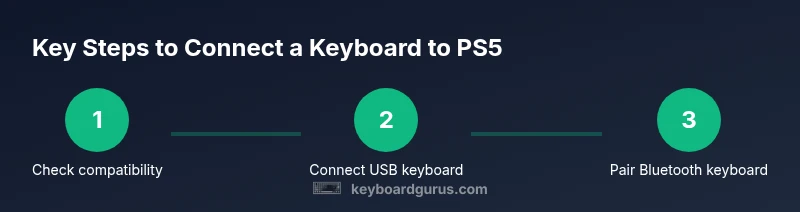
Yes. You can connect keyboards to PS5 via USB or Bluetooth. A wired USB keyboard works out-of-the-box for typing and navigation in the PS5 UI and supported games. Bluetooth keyboards can pair through Settings > Accessories > Bluetooth Accessories, but compatibility varies by model and firmware. For the smoothest experience, choose a standard-layout keyboard without extra multimedia keys, and use a reliable USB cable if wired.
Can PS5 support keyboards? Compatibility overview
According to Keyboard Gurus, the PS5 platform provides native support for standard HID keyboards, with both wired USB and Bluetooth options. In practice, most USB keyboards will work immediately for typing in the PS5 UI, text chats, and basic navigation in many games and apps. Bluetooth keyboards can be paired via the PS5 Settings menu, but compatibility varies by keyboard model, firmware version, and the specific game you’re playing. This means some keyboards may exhibit input lag, missed keystrokes, or limited functionality in certain titles. If you’re new to console keyboards, start with a reliable USB keyboard to establish a baseline, then experiment with Bluetooth if you need greater freedom from cables. Keyboard Gurus analysis shows that USB connections typically deliver the most stable response on PS5, especially for fast-paced navigation and typing tasks.
Wiring options: USB, Bluetooth, and adapters
PS5 supports two main paths for keyboard input: wired USB and wireless Bluetooth. USB keyboards are almost always plug-and-play on the PS5, requiring no pairing steps. Bluetooth keyboards require pairing via the Settings menu, and you may experience occasional input lag depending on interference, battery life, and firmware. If you need to use a USB-C keyboard, you may require a USB-C to USB-A adapter if your console’s ports do not match the keyboard’s connector. A powered USB hub can help when you connect multiple devices, ensuring stable power delivery to each device. In short, plan for one primary input method (USB for reliability) and consider Bluetooth as a flexible secondary option if your keyboard is compatible with the PS5’s pairing flow.
Step-by-step overview: USB connection basics
A wired USB keyboard is the simplest route for most PS5 users. Find a free USB-A port on the back of the console for best stability, plug in the keyboard, and test typing in a text field (e.g., search bar, message box). If you’re using a USB-C keyboard, an adapter may be necessary. In practice, you should see the keyboard recognized immediately, with keys producing characters on-screen. If not recognized, try a different USB port, reboot the PS5, or test the keyboard on another device to confirm there isn’t a hardware fault.
Bluetooth keyboards: pairing and considerations
If you prefer wireless input, Bluetooth keyboards can pair through Settings > Accessories > Bluetooth Accessories > Pair New Device. Put the keyboard into pairing mode before initiating the PS5 pairing process. Be mindful of distance and potential interference from other wireless devices. Once paired, you can use the keyboard in the PS5 interface and in supported games, but some games may still restrict input to on-screen keyboards. Keyboard Gurus notes that battery life and firmware updates on the keyboard can influence pairing stability.
Tip: Keep the keyboard close to the PS5 during pairing and test quickly by opening a text field.
Keyboard input in games and menus: what works
Many PS5 games support keyboard input for menus, chat, and occasionally in-game commands. Some titles, particularly strategy and role-playing games, better leverage keyboard input, while first-person shooters and fast-action games may only support navigation in menus. The PS5 system UI itself is keyboard-friendly for typing messages, searching, and navigating with arrow keys and Enter. If a game doesn’t respond to keyboard input, check the in-game settings or publisher documentation to confirm supported input methods. In all cases, testing with a known text field is your quickest sanity check.
Troubleshooting common issues and firmware tips
If your keyboard isn’t recognized, verify the cable is intact and the PS5 recognizes other USB devices. For Bluetooth keyboards, ensure the keyboard is fully charged, in pairing mode, and within pairing range. Firmware updates for both the PS5 and the keyboard can improve HID compatibility; check the console’s system software update and the keyboard manufacturer’s support page for recommendations. If multiple devices are connected, a powered USB hub can help stabilize power delivery. Finally, a full power cycle of the PS5 can clear stubborn connection glitches.
Choosing the right keyboard and setup tips
When selecting a keyboard for PS5, prioritize a standard layout (ANSI or ISO) with a reliable USB connection for the best reliability. Avoid keyboards with heavy macro or media key mappings that might not be supported. If you want wireless freedom, ensure your keyboard has proven HID compatibility with the PS5 and good battery life. For desk ergonomics, pair the keyboard with a comfortable mouse or controller setup and consider a compact keyboard if you have a limited space. Keyboard Gurus suggests starting with a common, reputable model to establish a baseline before exploring alternative layouts or gaming-specific keyboards.
Tools & Materials
- USB keyboard (wired)(Any standard USB-A or USB-C keyboard; choose rear PS5 port for stability.)
- USB-C to USB-A adapter (if needed)(Use only if your keyboard is USB-C and your PS5 port is USB-A.)
- Bluetooth keyboard(Pair via PS5 Settings > Accessories > Bluetooth Accessories; ensure keyboard is in pairing mode.)
- USB hub (optional)(Powered hub helps when connecting multiple devices without power drop.)
- Charging cable or extra batteries (Bluetooth keyboard)(Keep the keyboard charged for stable pairing and longer sessions.)
Steps
Estimated time: 15-25 minutes
- 1
Prepare your keyboard and PS5
Check that the keyboard is functioning and free of visible damage. Ensure your PS5 has the latest system software installed. Decide on a primary input method (USB for reliability) and set expectations for Bluetooth as a secondary option.
Tip: Verify the keyboard works on another device to rule out hardware faults. - 2
Connect a wired USB keyboard
Plug the keyboard into a USB port on the PS5. Use a port on the rear panel for best power delivery and signal stability. Wait a few seconds for the PS5 to recognize the device and display a keyboard prompt in a text field.
Tip: Prefer the rear USB port for a more stable connection. - 3
Test basic typing in the PS5 UI
Open a text field (e.g., search bar or chat). Type to confirm characters appear on screen. If typing works, you’re ready to explore supported apps and games.
Tip: If keys don’t appear, try another USB port or reboot the PS5. - 4
Pair a Bluetooth keyboard (optional)
Put the keyboard in pairing mode. On PS5, navigate to Settings > Accessories > Bluetooth Accessories > Pair New Device and select your keyboard from the list. Allow pairing to complete and test in a text field.
Tip: Keep the keyboard within close range during pairing to avoid disconnects. - 5
Test keyboard in games and apps
Launch a game known to support keyboard input and test menu navigation, chat, and typing. Some games may restrict input to menus only. If keyboard works in UI but not in-game, check in-game controls or publisher guidance.
Tip: Consult the game's official FAQ for supported input methods. - 6
Troubleshoot common issues
If issues persist, power cycle the PS5, reconnect the keyboard, or re-pair Bluetooth. Ensure no interference from other wireless devices and check firmware updates for both the PS5 and the keyboard.
Tip: Attempt a clean reboot before testing with a different keyboard.
Got Questions?
Can any USB keyboard work with PS5?
Most USB keyboards work for typing in the PS5 UI and many apps, but input in gameplay may vary by title. Try a standard keyboard first to establish a baseline.
Most USB keyboards work, but game support can vary, so test in menus before assuming full gameplay control.
Can I use a Bluetooth keyboard on PS5?
Yes, Bluetooth keyboards can pair via the PS5, but some models may lag or drop connections depending on firmware and interference.
Yes, you can pair a Bluetooth keyboard, but be prepared for possible lag or disconnects in certain setups.
Will keyboard input work in all games?
Not all games support keyboard input for gameplay; many support typing in menus and chat only.
Keyboard input is great for menus and chat, but not guaranteed for gameplay in every title.
Do I need adapters for PS5 keyboard use?
Only if your keyboard uses a connector not native to PS5 USB ports. In most cases, USB-A keyboards work without adapters.
Usually you won't need adapters unless you have a non-standard connector.
How do I fix a keyboard that isn’t detected?
Try a different USB port, reboot the PS5, or re-pair a Bluetooth keyboard. Check for loose cables and ensure the keyboard is powered.
Switch ports, reboot, or re-pair; confirm the keyboard has power and is in pairing mode if using Bluetooth.
Watch Video
What to Remember
- Use USB for reliability and quick setup.
- Bluetooth is convenient but can lag or disconnect on some setups.
- Test keyboard in UI first before trying in-game input.
- Check game-specific keyboard support before expectations.
- Consider a powered hub if using multiple USB devices.