Can You Use a Mouse and Keyboard on PS5?
Learn how to connect a mouse and keyboard to your PS5, including compatibility, setup steps, and best practices. Keyboard Gurus provides practical guidance for reliable navigation and gaming.


Yes. You can plug a compatible USB mouse and keyboard into PS5 for menu navigation and many games, depending on support. Some Bluetooth keyboards may work with adapters, but not all titles recognize input. This guide explains compatibility, how to connect, and tips for a smooth setup. We'll cover wired vs wireless, latency, and recommended models.
Compatibility basics for input devices on PS5
If you want to navigate the PS5 UI with a mouse or play PC-style with a keyboard, the short answer is: it's possible, but not universal. According to Keyboard Gurus, the PS5 supports USB mice and keyboards for menus and many titles, but support varies by game and by whether the device uses standard HID drivers. Wired USB devices tend to offer the most reliable experience, while Bluetooth keyboards can work in some cases but are more inconsistent. Before you start, make sure your PS5 has the latest system software installed, because firmware updates have gradually expanded input support and fixed compatibility quirks. In addition to basic navigation, you should know which ports on the console to use, whether your device requires extra drivers, and how to test input in a safe environment (the home screen, a text field, or a supported game). This block sets the stage for practical setup steps, real-world tips, and caveats that affect latency and responsiveness.
What types of keyboards and mice work with PS5
The PS5 recognizes USB Human Interface Devices (HID) that present standard keyboard and mouse input. In practice, this means most wired USB mice and keyboards that adhere to widely adopted HID profiles are recognized for navigation and text input. Wireless models with a USB dongle are typically treated like wired devices, provided the dongle is a standard USB-A HID receiver. Bluetooth keyboards and mice can work, but many games and the system UI prefer a direct USB connection for lower latency. If you rely on Bluetooth, be prepared for pairing steps and potential input lag or delayed response in fast-paced games. Finally, avoid gaming mice with unusual non-HID features unless you’ve tested them with PS5; some buttons may not register correctly or could interfere with system navigation. In short: start with a straightforward USB keyboard & mouse and assess compatibility on a per-game basis.
Wired vs wireless: latency, reliability, and setup considerations
Wired USB devices generally deliver the lowest latency and most stable performance on PS5. This matters in fast-paced titles where every input maps to an on-screen action with minimal delay. Wireless keyboards and mice can be convenient but may introduce occasional lag due to radio interference or polling rates. When choosing wireless devices, look for models that explicitly advertise low-latency USB receivers and compatibility with HID profiles. If you experience jitter or missed inputs, switch to a wired connection for testing, then re-evaluate your wireless setup. Keep in mind that some gaming keyboards include macro features or non-standard keys that PS5 may not map as expected; disable these features when testing basic navigation. In practice, most users find wired peripherals provide the cleanest experience for PS5 navigation and basic game control.
How to connect a USB mouse to PS5
- Power on the PS5 and go to Settings > Accessories if available, or simply connect the mouse to any USB-A port on the front or rear. 2) The console should recognize a standard HID mouse; if not, try a different USB port or restart the console. 3) Test cursor movement on the home screen and try the left-click to select a tile. 4) Open a text field to verify cursor focus and typing. 5) If your mouse has extra features (buttons or DPI presets), disable non-standard mappings during testing to avoid unexpected behavior. 6) When ready, use the mouse to navigate menus and in games that support it. Tip: keep the mouse away from power cables to avoid interference.
How to connect a USB keyboard to PS5
- Plug the USB keyboard into a USB-A port on the PS5. 2) The console should recognize the keyboard for text input in any text field or search bar. 3) Open a menu that requires navigation and test using arrow keys and the enter/space keys. 4) If your keyboard has extra media keys, test whether PS5 responds or if they are ignored. 5) If some keys do not map as expected, try another keyboard or reset controller mappings in a game that supports custom keybinds. 6) For longer typing sessions, ensure your keyboard remains detected after sleep/wake cycles.
Using Bluetooth keyboards: pros, cons, and setup steps
Bluetooth keyboards offer wireless freedom but can introduce pairing friction and occasional latency. If you want to try Bluetooth, put the keyboard in pairing mode, then go to PS5 Settings > Accessories > Bluetooth Accessories and select the keyboard from the list. After pairing, test typing in a text field and ensure navigation keys work in the system UI. Be aware that some Bluetooth keyboards are not fully compatible with every PS5 game, especially fast-paced shooters or games with strict input timing. In practice, a wired keyboard is the safer starting point; Bluetooth can be used for casual navigation or non-kinetic tasks.
Game compatibility: finding which games support KB/mouse
Many titles support keyboard and mouse for UI navigation or in-game controls, but support is not universal. Check the game’s store page, official support site, or patch notes for confirmation. Some games enable WASD movement or mouse aiming specifically when launched on PC or with a dedicated KB/M input option. In multiplayer experiences, verify whether keyboard shortcuts map correctly to in-game actions and consider remapping controls within the game’s settings. Keyboard Gurus notes that patch cycles can expand or shrink support, so re-testing after updates is advisable. If a game does not support KB/M input, you’ll still be able to use the controller while enjoying menu navigation with the mouse.
Troubleshooting common issues
If your mouse or keyboard isn’t recognized, start with the simplest checks: replug devices, try a different USB port, restart the PS5, and verify the devices work on another console or computer to rule out hardware faults. Disable any non-standard features (macros, special keys) that could confuse PS5 input parsing. For wireless devices, re-pairing or changing the USB dongle can resolve lag or dropouts. If only the UI works but a game doesn’t respond, it’s usually due to game-specific support limitations rather than hardware. Finally, consider testing with a different model of USB keyboard or mouse to determine whether the issue is device-specific or systemic to your PS5 firmware.
Best practices and recommended models
As you experiment, prioritize reliable USB peripherals with standard HID support. Prefer devices with straightforward key layouts and stable USB-A connectors, and avoid models that rely on proprietary drivers for basic input. If you often play games that benefit from precise cursor control or rapid button presses, wired devices generally outperform wireless options in latency-sensitive scenarios. Use the PS5’s built-in accessibility and input settings to tailor the keyboard and mouse behavior, test in both UI and a supported game, and document what works well for your setup. Keyboard Gurus analysis suggests that consistent results come from sticking to standard HID devices and monitored firmware updates, rather than chasing feature-rich peripherals that aren’t broadly supported on PS5.
Accessibility and ergonomics for long sessions
Long play sessions demand ergonomics and comfort. Choose keyboards with comfortable key travel and wrist support, and select mice with a comfortable grip suitable for your hand size. Position peripherals so that wrists stay neutral and shoulders relax, preventing strain during extended play or productivity work. If you suffer from repetitive strain or have mobility considerations, explore PS5-friendly input options like split keyboards or ergonomic mice, and adjust PS5’s accessibility features to customize key repeats, cursor speed, and on-screen prompts. Regular breaks, good posture, and a tidy desk setup help maintain performance and reduce fatigue over time.
Tools & Materials
- PS5 console with latest system software(Ensure the console has the most recent firmware for maximum compatibility.)
- USB mouse (wired or wireless with USB receiver)(USB-A preferred; HID compatibility is key.)
- USB keyboard(USB-A is recommended; verify HID support.)
- USB hub (optional)(Useful if you want multiple peripherals or extra USB ports.)
- Bluetooth keyboard (optional)(Only if you plan to test Bluetooth pairing; performance may vary.)
Steps
Estimated time: 45-60 minutes
- 1
Check PS5 software readiness
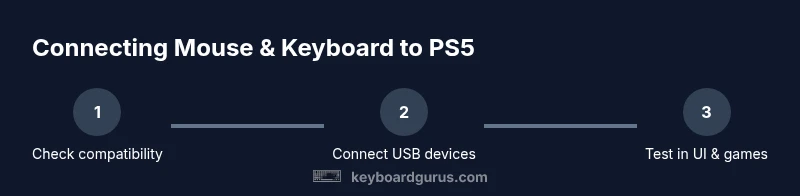
Power on the PS5 and, before plugging peripherals in, go to Settings > System > System Software Update to ensure you’re on the latest firmware. This minimizes compatibility surprises and aligns with Keyboard Gurus guidance that firmware affects input support.
Tip: If an update is pending, complete it before testing peripherals to avoid rework. - 2
Connect a wired USB mouse
Plug the mouse into any USB-A port on the PS5. Observe whether the cursor appears on the home screen and whether a left-click selects items. If the mouse is unrecognized, try another USB port or restart the console.
Tip: Wired devices usually offer the lowest latency for navigation. - 3
Connect a USB keyboard
Plug the keyboard into a separate USB-A port. Test typing in a text field and navigating menus with arrow keys. If keys aren’t registering, confirm the keyboard uses a standard HID profile and try a different port.
Tip: If you’re testing in a text field, ensure the text cursor is active before typing. - 4
Test input in a supported game or UI
Launch a UI screen or a game known to support KB/M input and verify both navigation and in-game actions map correctly. Adjust mapping if the game provides a keybind editor or customization options.
Tip: Not all games support keyboard input; treat this as a per-title test. - 5
Experiment with Bluetooth (optional)
If you want wireless input, pair a Bluetooth keyboard via Settings > Accessories > Bluetooth Accessories and verify responsiveness in menus. Be prepared for occasional pairing steps and potential latency.
Tip: Bluetooth can be convenient but is less reliable than USB for fast action titles. - 6
Adjust game settings and key mappings
In games that support keyboard input, review control schemes and remap keys where useful (e.g., WASD movement, E for interact). Save changes and retest in a match-ready scenario.
Tip: Default mappings may differ between PS5 and PC versions; adjust as needed. - 7
Evaluate latency and ergonomics
Compare perceived input latency between wired and wireless modes and assess comfort during longer sessions. If latency is unacceptable, revert to wired devices and consider alternative ergonomic peripherals.
Tip: Latency is usually lower with wired connections. - 8
Troubleshoot common issues
If devices fail to register, swap ports, restart the PS5, or test with another keyboard/mouse to isolate whether the problem is hardware or firmware-related. Keep firmware updated.
Tip: Document what you tested to streamline future troubleshooting.
Got Questions?
Can I use any mouse and keyboard on PS5?
Most wired USB mice and keyboards with standard HID profiles work for navigation, but not every model or game is supported. Bluetooth devices may work in some cases but are less reliable. Always test per title and verify firmware is up to date.
Most USB HID devices work, but not every model or game. Bluetooth can work sometimes, but reliability varies.
Will using a keyboardGive me a competitive edge in games?
In some titles, especially PC-style games or shooters, a keyboard and mouse can offer precision not possible with a controller. However, latency, input mapping, and game support vary; don’t assume universal advantage.
In some games you can get a precision edge, but it depends on the title and how well it supports KB/M input.
Do I need adapters to use a Bluetooth keyboard?
If your keyboard is Bluetooth-only, you’ll need to pair it via PS5 Bluetooth settings. Many PS5 titles still favor wired input, and some keyboards won’t pair reliably with PS5.
You may need to pair via Bluetooth settings, but wired input remains more reliable for most games.
How can I tell if a game supports keyboard/mouse?
Look for KB/M support in the game’s store page or official support docs, and test within the game’s settings. Some patches add or remove support over time.
Check the store page or patch notes; test within the game to confirm.
Is PS5’s UI usable with a mouse and keyboard?
Yes. The PS5 UI generally responds to keyboard and mouse input, allowing navigation, text entry, and search without a controller.
The PS5 UI usually works with a mouse and keyboard for navigation and text input.
What should I do if peripherals aren’t recognized?
First, try different USB ports and reboot the PS5. Ensure firmware is up to date and test with another USB HID device to isolate the issue.
If not recognized, swap ports, reboot, and check for firmware updates.
Watch Video
What to Remember
- USB input is device- and game-dependent; test per title.
- Wired USB peripherals give the best response times on PS5.
- Bluetooth KB/M input can work but may introduce latency and pairing steps.
- Not all games support keyboard/mouse; check per-game compatibility.
- Always update PS5 firmware to improve peripheral support.