How Do You Use Keyboard and Mouse on PS5
Learn how to connect and use a keyboard and mouse on PS5. This step-by-step guide covers wired vs. Bluetooth inputs, settings, compatibility, bindings, and troubleshooting.


On PS5 you can use a keyboard and mouse by plugging a USB keyboard and mouse into the console’s USB ports. Bluetooth keyboards/mice work for some setups, but USB is the most reliable option. Not every game supports keyboard/mouse input, so you’ll want to test in menus first. Enable and map devices in Settings > Accessories, then try a supported title.
What keyboard and mouse input on PS5 means for your gaming
If you're asking how do you use keyboard and mouse on ps5, you're not alone. For many players, the question hinges on two realities: hardware compatibility and software support. The PS5 recognizes standard HID input devices, so a wired USB keyboard and mouse usually work reliably for navigating the system menus, typing messages, and playing games that explicitly support this input method. According to Keyboard Gurus, USB keyboard and mouse inputs tend to be the most dependable option on console hardware, especially when you need precise cursor control or quick text input. The kind of support you get in a game is not guaranteed a priori; developers decide whether their titles honor keyboard and mouse inputs, and some games require specific patches or settings.
In practice, you’ll see three levels of support. First, system-level input: PS5 menus and the browser generally respond to keyboard focus and mouse clicks, letting you type and click as you would on a PC. Second, in-game support: many modern titles allow keyboard movement and mouse aiming, but not all controls are mapped intuitively, and some games only recognize mouse clicks for actions while movement stays on the controller. Third, peripheral limitations: not every dongle or wireless setup performs the same; battery life, polling rate, and latency can differ between devices. Keyboard Gurus analysis shows that baseline performance comes from a wired USB setup, with Bluetooth offered as a secondary option in some cases but often less reliable for fast-paced play. Finally, be mindful of console safety: attach devices securely, avoid forcing adapters that could damage ports, and disconnect when not in use to preserve USB ports for charging or other accessories.
In short, you can use keyboard and mouse on PS5, but the extent of support depends on the game and the hardware you choose. This reality makes it essential to prepare your devices, verify compatibility, and test in both menus and actual gameplay before committing to a title.
Tools & Materials
- USB wired keyboard(Any standard USB-A keyboard with HID support)
- USB wired mouse(Optical or laser mouse with USB-A connection)
- Bluetooth keyboard(If your PS5 setup supports Bluetooth, may work for menus but reliability varies)
- USB-C powered hub(Useful if you need multiple HID devices; prefer direct USB ports for reliability)
- Extension cable (USB-A)(For longer reach; keep latency low and connections secure)
- Device firmware documentation(Check for compatibility notes and firmware updates)
- PS5 system software update(Ensure your console is on the latest firmware)
Steps
Estimated time: 30-60 minutes
- 1
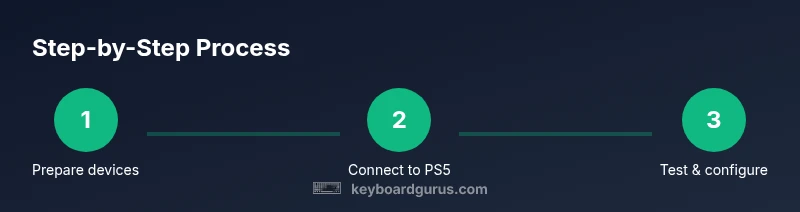
Prepare devices
Before connecting, verify HID support and ensure keyboards and mice are clean, updated, and undamaged. If using wireless devices, check batteries and pairing status prior to plugging in.
Tip: Wired devices reduce pairing issues and latency; start with them for reliability. - 2
Connect to PS5
Plug the keyboard and mouse into separate USB ports on the PS5 for best recognition. If you must use a hub, choose a powered hub to avoid drawing power from the console.
Tip: Use the ports closest to the front for quick access. - 3
Power on and detect
Turn on the PS5 and observe the home screen for typing cursor movement or key input. If nothing responds, try a different USB port or device to confirm detection.
Tip: Restart the console if devices fail to map after initial connection. - 4
Open settings
Navigate to Settings > Accessories to confirm recognition and locate any per-device options like pointer speed or key repeat rate. Adjust as needed for comfortable use.
Tip: Set a conservative pointer speed first; you can fine-tune later. - 5
Test in a supported title
Launch a title that explicitly supports keyboard/mouse or use the PS5 browser to type and navigate. Practice menu navigation before entering gameplay.
Tip: Always start in menus to avoid sudden in-game inputs. - 6
Bind and customize
In games that support it, remap keys and mouse actions to match your playstyle. Save profiles if the game or system allows it.
Tip: Label bindings or take a screenshot for quick reference. - 7
Troubleshoot
If input feels laggy or unresponsive, test with another device, check firmware, and ensure USB ports aren’t blocked by accessories. Consider resetting device connections.
Tip: Keep spare devices handy for cross-checks.
Got Questions?
Can I use a keyboard and mouse on all PS5 games?
No. Keyboard and mouse support varies by title. Some games support full input, others only use menus or not at all.
Not every PS5 game supports keyboard and mouse input; it depends on the game.
How do I connect a keyboard to PS5?
Plug the USB keyboard into a PS5 USB port and check Settings > Accessories to verify detection. Test in a supported title.
Just plug it into a USB port and test.
Will Bluetooth keyboards work with PS5?
Bluetooth keyboards can work for system navigation on PS5 but reliability varies for games; USB is preferred for gaming.
Bluetooth keyboards might work for menus, but USB is usually better.
What if my devices aren’t detected?
Try different USB ports, restart the console, and ensure device firmware is up to date. If problems persist, test with another device.
Try other ports and restart; check device firmware.
Can I customize bindings in every game?
Binding options depend on the game. Some titles offer per-title profiles, others rely on default mappings.
Some games let you map keys; others don’t.
Watch Video
What to Remember
- Connect wired devices for reliability.
- Test keyboard/mouse in menus before playing.
- Expect varied support across titles.
- Configure per-game bindings when available.
- Keep PS5 and peripherals updated.