Can You Customize Keyboard on iPhone? A Practical Guide
Explore how to customize your iPhone keyboard with built-in options, shortcuts, multiple languages, and third-party keyboards, plus privacy considerations and practical tips for a better typing experience.


Yes. You can customize your iPhone keyboard using built-in settings (shortcuts, language keyboards, auto-correct), keyboard layout options, and third-party keyboards from the App Store. Deep customization is limited by iOS, but you can tailor typing for efficiency and privacy. This guide shows what you can change, how to enable and manage keyboards, and the trade-offs.
What customization means for the iPhone keyboard
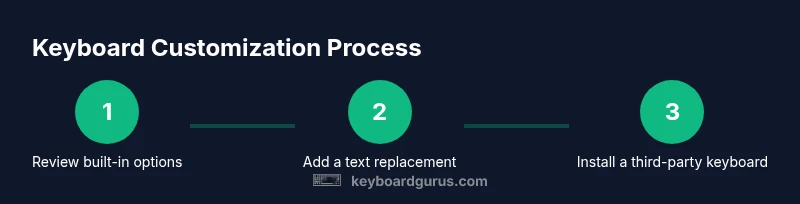
Customization on the iPhone keyboard is about tailoring your typing experience rather than reworking the entire UI. You can add multiple language keyboards, create text replacements (shortcuts) for common phrases, toggle predictive text and auto-correct, and experiment with different third-party keyboards for varied layouts and features. According to Keyboard Gurus, the iPhone's customization landscape centers on three pillars: built-in settings, shortcuts/text replacements, and third-party keyboards that must operate within iOS privacy boundaries. The Keyboard Gurus team found that most users start with built-in options and expand to third-party keyboards only when they need a specialized layout, better swipe input, or additional language support. Keyboard Gurus Analysis, 2026 emphasizes that user control comes with clear privacy trade-offs—understanding what data a keyboard can access helps you type with confidence.
Built-in options you can adjust today
iPhone provides a robust set of built-in customization features that don’t require installing anything extra. You can:
- Add language keyboards (Settings > General > Keyboard > Keyboards > Add New Keyboard) to type in multiple languages.
- Turn on predictive text, auto-correction, and check spelling (Settings > General > Keyboard).
- Create and manage text replacements for rapid phrases (Settings > General > Keyboard > Text Replacement).
- Adjust keyboard layouts and enable features like Caps Lock and QuickType to suit your typing style.
- Manage per-app keyboards by switching between them with the globe key. These settings apply system-wide, but you can tailor per-app behavior by testing in messages, notes, and email. The goal is to reduce friction and improve accuracy without sacrificing privacy or speed.
Text replacements and shortcuts: how to set up
Text replacements are powerful for boosting typing speed. To add a shortcut, go to Settings > General > Keyboard > Text Replacement, tap the plus sign, and enter a phrase and its shortcut. Example: Phrase: 'On my way!' Shortcut: 'omw'. You can create folders of phrases for different contexts (work, study, gaming). Pro tip: use long, memorable shortcuts that won’t collide with regular words. Monitor how often your shortcuts trigger unintentionally and adjust them as needed. This feature is data-light and works offline for most replacements, preserving privacy while saving keystrokes.
Managing multiple keyboards and language options
Switching between keyboards is quick once you have several installed. Settings > General > Keyboard > Keyboards lists all added keyboards. Drag to reorder priorities, or remove ones you don’t use. The globe key lets you cycle through languages and layouts on the fly. If you type in multiple languages, consider enabling per-language autocorrect to reduce mixed-language errors. Remember that some third-party keyboards may request Full Access to enable features like glide typing or cloud-based dictionaries; review these prompts carefully and only grant permissions you’re comfortable with.
Installing and using third-party keyboards
Third-party keyboards offer alternatives to Apple’s default layout, with features like different swiping experiences, themes, and specialized layouts. To install one, open the App Store, search for a keyboard, and install it. Then add it via Settings > General > Keyboard > Keyboards > Add New Keyboard and toggle Allow Full Access if you trust the app. Always read privacy policies and reviews; disable Full Access if you don’t need it, or remove the keyboard entirely if you notice unusual behavior. Test the keyboard in a few apps to ensure it behaves consistently.
Privacy and security considerations with third-party keyboards
Third-party keyboards can access what you type, especially when Full Access is enabled. If privacy is a priority, limit permissions and choose keyboards with strong privacy practices. Before enabling a new keyboard, review what data the app collects and how it uses it. Use built-in iOS options first, and only add third-party keyboards when you need functionality not offered by Apple’s native keyboard. If you ever notice abnormal data requests or performance issues, disable the keyboard and revert to the stock option.
Tips to optimize your typing workflow
- Prioritize built-in features before expanding with third-party keyboards.
- Use text replacements for frequent phrases to save time and reduce errors.
- Keep language keyboards organized to minimize switching time.
- Regularly audit installed keyboards and their permissions.
- Test new keyboards in multiple apps to ensure a consistent experience.
Limitations you should know before you customize
Apple limits deep customization of the native keyboard to protect privacy and security. You can’t radically alter key shapes, fonts, or the core layout beyond what iOS provides. Third-party keyboards can change appearance and input experience, but may require Full Access with privacy trade-offs. Some features (like per-app predictions) may vary by app and iOS version. If you rely on accessibility features, ensure any keyboard you install remains compatible with VoiceOver and other services.
How to troubleshoot common issues
If the keyboard isn’t appearing in an app, ensure it’s enabled under Settings > General > Keyboard > Keyboards and that the app isn’t restricting input methods. If auto-correct behaves inconsistently, reset keyboard dictionary (Settings > General > Reset > Reset Keyboard Dictionary) and re-enter your replacements. For third-party keyboards, check for app updates and re-authorize permissions if predictions seem off. If problems persist, switch back to the native keyboard and revisit the settings one step at a time.
Tools & Materials
- iPhone (any model supported by current iOS)(Make sure your device runs the latest iOS version for best compatibility)
- Apple ID and internet connection(Needed to download or update apps and settings)
- Settings app access(Access to General > Keyboard and related menus)
- Third-party keyboard apps (optional)(Install from App Store if you need alternative layouts or features)
- Privacy awareness(Review keyboard privacy policies before enabling Full Access)
Steps
Estimated time: 15-25 minutes
- 1
Open Settings and access Keyboard
Open the iPhone Settings app, tap General, then select Keyboard to see the built-in options for languages, autocorrect, and shortcuts.
Tip: Take note of which languages you’ll actually use to minimize switch times. - 2
Review built-in options and toggle features
Toggle Auto-Capitalization, Auto-Correct, Check Spelling, and Predictive. These controls shape how the keyboard anticipates and corrects text.
Tip: Experiment for a few days before deciding which toggles to leave on or off. - 3
Add a text replacement (shortcut) for common phrases
In Text Replacement, create phrases you use often and assign a short trigger word or abbreviation.
Tip: Use unique shortcuts to avoid accidental replacements. - 4
Add a new language keyboard
If you type in multiple languages, tap Keyboards > Add New Keyboard and select the languages you need.
Tip: Organize languages so you can switch quickly with the globe key. - 5
Install and enable a third-party keyboard (optional)
From the App Store, install a keyboard and add it under Keyboards. Allow Full Access only if you trust the app and need features.
Tip: Read the privacy policy and review app permissions before enabling Full Access. - 6
Test and refine your setup
Open several apps and type to see how the keyboard behaves with your phrases, languages, and corrections.
Tip: If something feels off, revert one change at a time to identify the cause.
Got Questions?
Can I change the look of the iPhone keyboard?
iOS doesn’t support deep theming of the native keyboard. You can enable dark mode and install third-party keyboards for different appearances, but core key shapes stay the same. Privacy and security considerations apply when using third-party options.
You can’t deeply customize the native keyboard’s appearance, but you can use themes through third-party keyboards with privacy considerations.
Do third-party keyboards affect privacy?
Some third-party keyboards request Full Access to function fully, which may allow the developer to see what you type. Always review the privacy policy and toggle Full Access off unless you need a feature.
Yes, they can affect privacy, especially with Full Access enabled. Check policies before enabling.
How do I install a third-party keyboard?
Install the keyboard from the App Store, then add it under Settings > General > Keyboard > Keyboards > Add New Keyboard. Allow Full Access only if you trust the app and need the feature.
Install from the App Store, then enable in Settings and grant permissions carefully.
Can I use multiple languages on the keyboard at once?
Yes. Add multiple language keyboards and switch between them with the globe key. This helps keep different language inputs organized and accessible.
Yes, you can switch languages on the fly using the globe key.
How do I remove a keyboard I no longer want?
Go to Settings > General > Keyboard > Keyboards, swipe left on the keyboard you want to remove, and tap Delete. You can also disable it by removing permissions for Full Access if needed.
You can remove a keyboard from the list or revoke permissions to limit its use.
What should I do if the keyboard isn’t appearing in an app?
Ensure the keyboard is enabled in Settings > General > Keyboard > Keyboards and that the app isn’t restricting input methods. Reboot the device if needed and test in a different app.
Check the settings, restart the app or device, and test in another app.
Watch Video
What to Remember
- Start with built-in options before third-party keyboards.
- Use text replacements to speed up common phrases.
- Review privacy settings and permissions for any keyboard you install.
- Test across apps to ensure consistent behavior.
- Reassess and prune keyboards periodically to maintain speed and privacy.