Can you go back to the old keyboard on iPhone? A practical guide
Explore whether you can revert to the old iPhone keyboard, why changes happen, and practical steps to tailor your typing experience today with trusted guidance from Keyboard Gurus.


Can you go back to the old keyboard on iPhone? Not through an official iOS toggle, as Apple updates keyboards with each major release. You can approximate older behavior by choosing a third‑party keyboard and adjusting settings, or by tweaking iPhone keyboard options like predictive text and shortcuts. This guide explains what’s possible and how to proceed safely.
Can you go back to the old keyboard on iPhone? A practical reality
Can you go back to the old keyboard on iPhone? The short answer is no for a true, official 'old keyboard' toggle. Apple introduces changes with iOS updates, and there isn’t a built‑in control to revert to a previous layout or feature set. According to Keyboard Gurus, the iPhone keyboard is treated as a core system input that evolves over time, and Apple does not provide a switch that rolls back major redesigns. However, you can shape your typing experience to feel closer to prior versions by choosing alternative keyboards and adjusting advanced settings. The Keyboard Gurus team emphasizes that user control over layout depth and behavior typically comes from third‑party keyboards, custom shortcuts, and your iPhone’s own text settings rather than a single button named “Old Keyboard.”
In practice, most users who want an older feel end up exploring a mix of options rather than a single rollback. You’ll gain more consistency by selecting a keyboard that aligns with the older layout you prefer and by fine‑tuning features like key size, spacing, and prediction within that keyboard. This approach helps you recapture familiarity while staying within the supported features of iOS and third‑party apps.
Why updates change keyboards and how the old feel fades
As iOS evolves, Apple refines the keyboard for performance, accessibility, and security. These changes can include redesigned layouts, new gesture controls, and updated auto‑correct logic. Even if you loved a particular key spacing or the older predictive behavior, those elements can shift with a major update. Keyboard Gurus analysis shows that although some users miss earlier layouts, Apple’s priority is to balance speed, accuracy, and privacy. If you’re stuck on features you don’t like, you’re not alone: many enthusiasts report a sense of ‘newness’ after updates, followed by a period of adaptation. The goal is to minimize disruption while still benefiting from improved typing reliability, language support, and security enhancements.
To ease the transition, you can gradually adjust to new features, customize shortcuts, and trial multiple keyboards until you find a blend that feels closest to your prior setup. This is not a perfect retrograde, but it’s a practical path to a familiar feel without sacrificing the benefits of the latest iOS.
What you can control today to tailor your typing experience
If your goal is to regain familiarity rather than physically revert to an older iOS version, start with the built‑in options and then consider third‑party keyboards. You can disable or modify predictive text, auto‑correct, and text substitutions; you can also adjust keyboard size and layout through accessibility settings. In many cases, a mix of settings yields a comfort level similar to previous experiences. Keyboard Gurus recommends a deliberate approach: try one change at a time, then test in real tasks to gauge impact on speed and accuracy. Small tweaks—like turning off punctuation suggestions in certain apps, or enabling larger keys—can produce noticeable gains in comfort without introducing new hidden quirks. Remember: any change should improve or preserve your workflow, not complicate it.
By engaging with iPhone keyboard settings and trying well‑reviewed third‑party options, you’ll gradually curate a setup that’s pleasantly close to what you loved in the past.
How to install and configure a third‑party keyboard to approximate an older feel
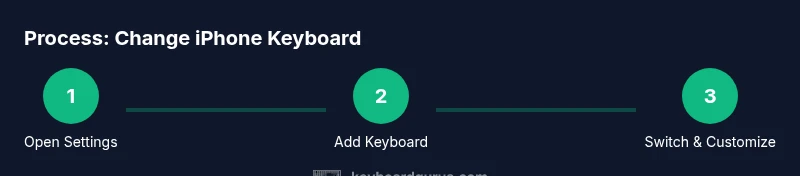
A practical route to reclaim some familiarity is to adopt a third‑party keyboard that offers a classic or customizable layout. Popular options like Gboard or SwiftKey provide flexible themes, adjustable key sizes, and extended layouts. Start by visiting Settings > General > Keyboard > Keyboards > Add New Keyboard, then select your preferred third‑party keyboard and enable Full Access if you trust the app. After installation, switch keyboards quickly by tapping the globe icon on the keyboard or via the quick‑switch menu in app. In the keyboard’s own settings, you can set a more compact layout, reduce keyboard height, or toggle high‑contrast themes to mimic a prior look. Keyboard Gurus notes that privacy considerations are essential here; choose reputable keyboards and review their data handling policies before enabling Full Access. If you need a truly retro feel for only certain apps, you can switch keyboards per app or per language to replicate specific layouts or typing experiences.
Tips for a smoother trial: keep a backup of your preferred layout in notes or shortcuts, and test each keyboard across different messaging apps to confirm consistency.
Privacy and security considerations when using third‑party keyboards
Using third‑party keyboards introduces new privacy considerations. Some keyboards collect keystrokes to improve suggestions, which raises questions about data handling, especially for sensitive inputs like passwords or financial information. Keyboard Gurus advises evaluating each keyboard’s privacy policy, disabling Full Access if possible, and limiting data sharing to what you’re comfortable with. In practice, you can often rely on the core features of third‑party keyboards without enabling Full Access, thereby reducing data exposure. If you decide to enable Full Access for a particular keyboard, review what data is transmitted, how it’s stored, and whether data could be shared with the keyboard developer. Regularly update your keyboards to ensure you have the latest privacy protections. When in doubt, test privacy settings with non‑sensitive text to observe how the keyboard behaves before using it for confidential information.
Common myths and misconceptions about 'going back' to an older keyboard
A frequent myth is that Apple will reintroduce an exact replica of a past keyboard in a future iOS update. In reality, Apple’s roadmap prioritizes broader features, security, and accessibility improvements rather than reverting prior designs. Another misconception is that you can simply downgrade iOS to regain an older keyboard; downgrades are often unsupported and pose security risks. The truth is you can approximate an older experience by carefully selecting a third‑party keyboard and adjusting system settings. Finally, some users believe a reset of all settings will restore the old keyboard; resets can affect more than just the keyboard and won’t revert iOS design changes. Keyboard Gurus emphasizes cautious experimentation—document changes, test across multiple apps, and keep a rollback plan in case a setting disrupts work.
Troubleshooting and advanced tweaks to get closer to the old feel
If you still miss the old keyboard after trying official options, you can explore advanced tweaks. Start by testing multiple third‑party keyboards, comparing layout options, theme choices, and key sizes. Some keyboards offer a 'classic' or 'compact' mode that mimics older designs more closely. Ensure you’ve disabled any conflicting features (like adaptive hints) that could interfere with a familiar feel. If you notice performance issues, update the keyboard app, restart iPhone, and re‑check permissions. For those with accessibility needs, you can increase key size via the iPhone accessibility settings or within the keyboard app itself to reduce strain and improve typing accuracy. Remember, the goal is improved comfort and speed, not perfection in recreating a past interface.
The value of a deliberate, evidence‑based approach
The pursuit of an 'old keyboard' experience on iPhone should be deliberate, not nostalgic impulse. By balancing reliable built‑in controls with reputable third‑party keyboards, you can reclaim a familiar workflow while staying current with iOS reliability and security improvements. Keyboard Gurus’ approach is to guide you through a structured process: identify what you miss most, experiment with one change at a time, and measure impact on accuracy and speed. This method minimizes frustration and maximizes the likelihood of a setup that feels natural again.
Tools & Materials
- iPhone with latest iOS installed(Ensure you’re on the newest security updates for best compatibility)
- Stable Wi‑Fi connection(Needed for app installs and syncing keyboard preferences)
- Alternative keyboard app (e.g., Gboard, SwiftKey)(Optional but recommended to approximate older feel)
- Apple ID configured on the device(Needed to install and manage apps from the App Store)
- Backup method for keyboard settings(Keep a record of your preferred settings to revert quickly)
Steps
Estimated time: 15-25 minutes
- 1
Open Settings on iPhone
Unlock your iPhone and open the Settings app. This is where you manage keyboard options, privacy controls, and app permissions that affect how you type across apps.
Tip: If you’re using a lot of apps, consider pinning Settings to your home screen for quick access. - 2
Review Built‑in Keyboard Settings
Navigate to General > Keyboard. Review options like Predictive, Auto‑Correct, and Shortcuts. Toggle settings to reduce aggressive corrections or to revert features you miss, understanding that this won’t restore a prior iOS keyboard design.
Tip: Turn off Notify while typing if you find popups distracting during long tasks. - 3
Add a Third‑Party Keyboard
If you want a layout closer to the older feel, install a third‑party keyboard from the App Store. Go to General > Keyboard > Keyboards > Add New Keyboard, then select the new keyboard and grant necessary permissions.
Tip: Choose a reputable keyboard and review its privacy policy before enabling Full Access. - 4
Enable and Switch to the New Keyboard
After installation, switch keyboards quickly by tapping the globe icon on the bottom row of the keyboard or by using the app switcher. Test the layout in Messages or Notes to verify the look and feel.
Tip: Practice a few short texts to confirm the keyboard height and key spacing meet your expectations. - 5
Adjust Keyboard Tools for Comfort
Within the third‑party keyboard’s settings, adjust key height, spacing, and theme to approximate your preferred older layout. Some apps also offer a compact mode that reduces visual clutter.
Tip: Save a preset as a quick switch option for future sessions. - 6
Evaluate Privacy and Permissions
If Full Access is requested, weigh the trade‑offs in data handling. Prefer keyboards with transparent policies and the minimum permissions required for your use case.
Tip: Disable Full Access if you don’t need advanced features; regular use often doesn’t require it. - 7
Test Across Apps and Language Settings
Use a variety of apps—Messages, Notes, and a browser—to ensure the new setup behaves consistently. If you type in multiple languages, ensure the keyboard supports those layouts cleanly.
Tip: Keep a quick reference of language preferences for easier switching. - 8
Document Your Configuration
Note down the exact settings you’ve chosen and why. This helps you reproduce the same setup later, especially after iOS updates or device changes.
Tip: Create a small checklist to guide future changes or troubleshooting.
Got Questions?
Is there an official setting to revert to the old iPhone keyboard?
No, Apple does not offer a built‑in option to revert to a previous iPhone keyboard design. iOS keyboard updates are part of system updates, and there is no toggle to roll back to an older layout.
There isn’t an official setting to go back to the old iPhone keyboard; you’ll need to explore alternatives like third‑party keyboards.
Can I downgrade iOS to get the old keyboard back?
Downgrading iOS is typically restricted by Apple and supported only for limited time windows. It’s not a reliable or advised way to regain an older keyboard layout.
Downgrading iOS isn’t a practical solution; it’s usually not supported long‑term and carries security risks.
How do I switch quickly between keyboards after installation?
Use the globe icon on the keyboard or press and hold the space bar (depending on the app) to choose your active keyboard. This lets you move between your default and third‑party keyboards on the fly.
Tap the globe icon to switch keyboards quickly—practice a few times to make it second nature.
Do third‑party keyboards support multiple languages?
Yes, many third‑party keyboards add language packs and layouts, but features vary by app. Check the keyboard’s settings to enable only the languages you use.
Most third‑party keyboards support several languages, but you’ll want to enable only what you need.
Will using a third‑party keyboard compromise security?
There can be privacy considerations when enabling Full Access. Use reputable keyboards, read policies, and disable Full Access if not necessary for your use case.
Be mindful of privacy: use trusted keyboards and limit permissions where possible.
What should I do if the new keyboard misbehaves after an update?
Restart the iPhone, re‑set keyboard settings selectively, and re‑install the keyboard if needed. If problems persist, check for app updates or revert to a different keyboard.
If issues pop up after an update, restart, tweak settings, and try another keyboard if necessary.
Watch Video
What to Remember
- There is no official 'old keyboard' toggle on iPhone.
- You can approximate the past feel with third‑party keyboards and careful settings tweaks.
- Always review privacy implications before enabling Full Access.
- Test changes across apps to ensure a consistent experience.
- Document settings so you can reproduce or revert easily.