Can You Use a Keyboard Instead of a Mouse: A Practical Guide
Explore how to switch to keyboard-centric workflows, including platform shortcuts, tips, and a step-by-step setup to boost productivity while reducing strain.


If you’ve ever wondered can you use keyboard instead of mouse, the answer is often yes. A keyboard-first approach can speed up common tasks once you learn the right shortcuts and mappings. This quick answer previews Windows, macOS, and browser workflows, and points you to a step-by-step setup to get started today.
can you use keyboard instead of mouse: A practical introduction
Can you use keyboard instead of mouse? The short answer is yes in many contexts, especially for repetitive tasks like navigation, text entry, and form completion. The Keyboard Gurus team emphasizes that keyboard-centric workflows can reduce finger travel, minimize task switching, and improve consistency across apps. For many professionals—students, gamers, and power users alike—the question can you use keyboard instead of mouse isn’t theoretical; it’s about building muscle memory for keystrokes and customizing your environment to fit your tasks. Throughout this guide we’ll explore platform-specific shortcuts, browser navigation, and practical workflows you can adopt today. can you use keyboard instead of mouse is not an all-or-nothing decision: start with a core set of shortcuts and expand gradually.
Core principles of keyboard-first workflows
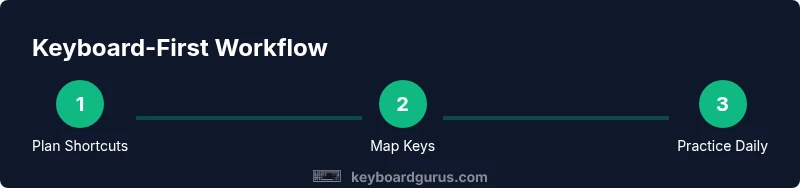
A successful keyboard-first approach hinges on three pillars: mapping (which actions you assign to keystrokes), practice (daily drills to build reflexive use), and ergonomics (comfortable, efficient layouts). Keyboard Gurus analysis shows that consistent shortcut use reduces hand movement and cognitive load over time, creating smoother work sessions. Start by identifying your most frequent actions—navigating between fields, opening new tabs, submitting forms—and pick 3–5 keystrokes to master first. As you grow comfortable, export or memorize a personal cheat sheet and keep it handy while you work. The central question remains: can you use keyboard instead of mouse for your everyday tasks? The answer depends on how you tailor shortcuts to your routine and how much you practice.
Windows shortcuts that unlock faster navigation
Windows offers a rich ecosystem of shortcuts that enable almost every common action without touching the mouse. Key examples include Alt+Tab for switching apps, Win+Tab for task view, and Win+D to show the desktop. In browsers, Ctrl+L focuses the address bar, and Ctrl+Shift+T reopens the last closed tab. For text editing, Ctrl+C/Ctrl+V copy and paste, while Ctrl+Arrow keys jump by word. These shortcuts cater to a broad range of workflows, from coding to researching. If you ask can you use keyboard instead of mouse, the answer is yes—not just for basic tasks but for complex multi-step flows. Start with a handful of core shortcuts and weave them into your daily routine to see gains.
macOS shortcuts you should practice
Mac users benefit from Command-based shortcuts that mirror Windows’ efficiency. Command+Tab cycles applications, Command+Shift+3 or 4 captures screenshots, and Command+Space opens Spotlight for quick launching. In Finder, Command+Option+N creates a new folder, and Command+Arrow moves you to the start or end of a line. For text, Option+Delete deletes words, and Command+C/V/X handles copy/paste/cut quickly. The can you use keyboard instead of mouse question is equally valid here: with a small set of macOS shortcuts and some remapping, you can rapidly perform tasks that previously required a mouse.
Browser and app navigation: keyboard-only in practice
Most modern browsers and productivity apps support comprehensive keyboard navigation. You can reach menus with Alt or Option keys, use Tab and Shift+Tab to move focus through interactive elements, and employ keyboard shortcuts to open, close, and switch tabs. In forms, use Tab to move between fields and Enter to submit, with shortcuts like Ctrl+Enter or Cmd+Enter for faster actions in certain platforms. can you use keyboard instead of mouse becomes a question of applying app-specific shortcuts alongside generic OS shortcuts. Building a consistent practice routine helps you internalize these patterns and reduces reliance on the mouse over time.
Setting up your environment for keyboard-first work
A practical setup includes a comfortable keyboard layout, remapping software, and a clean workspace. Start with a reliable keyboard that fits your hands, then install remapping tools like AutoHotkey on Windows or Karabiner-Elements on macOS to tailor shortcuts. Create a concise cheat sheet listing your top 12 commands, including how to navigate, edit, and manage windows. Consider disabling or repositioning your mouse after a trial period to remove temptation. can you use keyboard instead of mouse becomes a habit that grows with consistent configuration and disciplined practice.
Practical workflows: writing, coding, design, and gaming
In writing, you’ll rely on navigation shortcuts, macro-like sequences for formatting, and quick replacements. In coding, editors and IDEs offer many keyboard-driven commands for refactoring, navigation, and search. Design tools also provide keyboard accelerators for layers, tools, and alignment. Gaming with keyboard-only can be challenging but feasible for many genres, emphasizing movement and interaction shortcuts. The core pattern remains: map the actions you perform most often to quick keystrokes, practice daily, and adjust your setup as tasks evolve. can you use keyboard instead of mouse can become a natural default when you tailor your environment to your work style.
Ergonomics, safety, and long-term habits
Switching to keyboard-first workflows should not come at the expense of comfort. Position wrists neutral and use a split or tented keyboard if possible; take micro-breaks to reduce strain. Ergonomic aids such as wrist rests and proper chair height support sustainable practice. Be mindful of tension in the shoulders, neck, and forearms, and adjust your setup if you experience numbness or persistent discomfort. can you use keyboard instead of mouse often leads to more efficient sessions, but only if you balance speed with sustainable posture and regular breaks.
Getting started today: a 30-minute starter plan
Begin with a 30-minute audit of your daily tasks to identify the three most common mouse-dependent actions. Then map these actions to 3–5 keystrokes you will memorize this week. Create a simple cheat sheet and keep it visible. Practice in a low-stakes environment (e.g., your browser or a text editor) and gradually expand to more complex tasks. Consider recording a short screen video to review your technique and adjust as needed. can you use keyboard instead of mouse is a practical question best answered with a focused, repeatable practice routine.
Authority sources and further reading
To deepen your understanding of keyboard-first workflows, consult established references and official guidance. Here are a few credible resources that discuss keyboard navigation, shortcuts, and accessibility best practices. can you use keyboard instead of mouse and with regular practice you’ll see tangible improvements in speed and accuracy. For more context, see the sources listed in the Authority Sources section.
Tools & Materials
- Ergonomic keyboard setup(Full-size or compact; ensure wrist support and neutral posture)
- Key remapping software(AutoHotkey for Windows; Karabiner-Elements for macOS)
- Cheat sheet (print or digital)(List top 12 shortcuts and their actions)
- Workspace optimization(Position monitor, keyboard, and mouse to minimize reach)
Steps
Estimated time: 60-90 minutes
- 1
Baseline audit
Identify the three most mouse-reliant tasks in your daily routine (navigation, selection, and form submission). Document their current keystroke equivalents and the time they take. This anchors your improvement plan.
Tip: Write each task as a short workflow and note the bottlenecks you expect to remove with shortcuts. - 2
Map core shortcuts
Choose 3–5 primary shortcuts to learn this week, aligning with your identified tasks. Create a simple cheat sheet and practice them in a distraction-free window.
Tip: Start with Alt/Option, Tab, and Enter combinations that cover most navigation and editing actions. - 3
Set up remapping
Install a remapping tool and assign the chosen actions to easily reachable keys. Test in a single app first to avoid conflicting shortcuts.
Tip: Keep a backup of your original key mappings in case you need to revert. - 4
Practice daily in short sessions
Dedicate 10–15 minutes daily to practice the core shortcuts in a single task. Repetition builds muscle memory and confidence.
Tip: Use a timer and track your progress with a quick log. - 5
Expand gradually to multi-step tasks
Once comfortable, expand to sequences: open a file, edit, and save using a single macro. Add one new shortcut every few days.
Tip: Document each sequence as a repeatable script or macro. - 6
Integrate across apps
Apply the same core shortcuts in different apps (browser, text editor, email). Tweak app-specific shortcuts if needed.
Tip: Keep a consolidated list for cross-app use. - 7
Evaluate and refine
After two weeks, compare task times and accuracy with your baseline. Remove underused shortcuts and add new ones as needed.
Tip: Be pragmatic—avoid shortcut fatigue by focusing on high-value actions.
Got Questions?
What is the quickest way to start using a keyboard instead of a mouse?
Identify your top three mouse-dependent tasks and map them to 3–5 keystrokes. Practice daily for 10–15 minutes, and gradually add more shortcuts as you gain confidence.
Start by mapping your top three mouse tasks to three to five keystrokes and practice daily for ten minutes.
Will a keyboard-only setup hurt my productivity at first?
There is a learning curve, but with a focused plan you’ll see faster navigation and fewer context switches over time.
Yes, there’s a learning curve, but you’ll likely become faster after a focused practice period.
What if a program doesn’t support the shortcut I want?
Use remapping software to create a consistent alternative, or adjust the workflow to rely on available shortcuts within that program.
If a program doesn’t support a shortcut, remap or adapt your workflow using other available shortcuts.
Should I disable the mouse entirely while learning?
No—keep it accessible in case you need to switch back for complex tasks or accuracy checks.
No, keep the mouse available until you’re confident with keyboard-only flows.
How can I maintain ergonomics when using a keyboard more?
Choose an ergonomic keyboard setup, maintain neutral wrist posture, and take regular breaks to prevent strain.
Use an ergonomic setup and take breaks to stay comfortable while typing.
Watch Video
What to Remember
- Master 3–5 core shortcuts first
- Use remapping to tailor actions to your tasks
- Practice daily for 10–15 minutes
- Expand gradually to multi-step workflows
- Balance speed with ergonomic safety