How to Use Keyboard Without Mouse: Step-by-Step Guide
Learn to operate your computer with keyboard-only navigation. This comprehensive guide covers OS shortcuts, focus management, form editing, browser tricks, and accessibility tips for Windows, macOS, and Linux to boost productivity without a mouse.


Goal: operate your computer using only the keyboard. In this guide, you’ll learn how to navigate menus, fill forms, switch programs, and manage windows without a mouse, using built-in shortcuts and accessibility features. We’ll provide practical steps, real-world examples, and tips to build speed and accuracy while staying comfortable. No prior experience is required; you’ll progress from basics to advanced workflows.
Mastering keyboard-only navigation: foundational concepts
If you’re curious about how use keyboard without mouse, you’ll quickly see that a keyboard-first approach hinges on three ideas: focus management, predictable shortcuts, and clear visual cues. Focus management means you move the active element (button, link, form field) without a pointer, using the Tab, Shift+Tab, Enter, and arrow keys. Shortcuts are the set of key combinations that trigger actions you would normally perform with a mouse, such as opening menus, switching apps, or submitting a form. Visual cues—like focus rings or highlighted elements—help you know where the next action will occur. According to Keyboard Gurus, adopting a consistent keyboard workflow reduces dependency on pointing devices and can enhance accuracy when tasks involve repetitive clicks. The Keyboard Gurus team emphasizes that building fluency takes deliberate practice, but results appear quickly for routine activities like document editing, web navigation, and email management. In this section, we outline a practical path from basics to reliable, muscle-memory-driven navigation.
Core keyboard shortcuts by operating system
Different operating systems offer similar concepts with their own flavor. In Windows and Linux, you typically move focus with Tab/Shift+Tab and activate with Enter or Space, then use Alt for system-level actions. macOS emphasizes Command-based workflows for switching apps and invoking shortcuts. Across all platforms, practice consistent focus movement, predictable activation patterns, and careful use of modifier keys. Keyboard Gurus analysis shows that learning one universal approach (focus, then action) accelerates proficiency across apps and web tasks. Start with a master list of essential shortcuts for your daily tools, then expand to app-specific combos as needed.
Navigating apps and menus without a mouse
Opening menus, dialogs, and toolbars becomes straightforward once you master focus flow. Use Tab to advance through focusable elements, Shift+Tab to go backward, and Arrow keys to navigate within menus. Press Enter or Space to activate focused elements, and use Esc to dismiss dialogs. For modal dialogs, the key is to keep the focus in the dialog and use Tab to advance controls. In productivity environments, you’ll rely on a consistent focus ring so you always know what will happen when you press Enter. The goal is to reach a reliable rhythm where you can traverse complex menus without looking for a cursor.
Text input, forms, and editing without a mouse
Typing remains the primary task in many workflows, and keyboard-only users must master precise cursor control. Use Home and End to jump to line edges, Page Up/Down to move through content, and Ctrl/Cmd+A to select all text. For editing, rely on clipboard shortcuts (copy, cut, paste) and undo/redo sequences. When filling forms, use Tab to move between fields, Space to toggle checkboxes, and Enter to submit. Practice quick navigation between fields and text editing while maintaining rhythm to minimize keystrokes and maximize accuracy.
Browser and web navigation with the keyboard
Web browsers support puissant navigation patterns that reduce mouse use. Use Tab to focus links and form controls, Enter to activate, and Shift+Tab to go back. Use Ctrl/Cmd+L to focus the address bar, Ctrl/Cmd+K to focus search, and Ctrl/Cmd+T to open a new tab. For switching tabs, learn the app-specific shortcuts, then use Alt+Tab or Ctrl/Cmd+{Page} style shortcuts to move between tasks. Regular practice in a few core sites (email, document cloud, research) will dramatically improve speed and reduce context switches.
Window and workspace management without a mouse
Managing multiple windows is a common hurdle. Focus moves between application windows with system-wide shortcuts, then you can tile or snap windows to create an efficient workspace. Use keyboard shortcuts to minimize, maximize, or close windows, and keep a mental map of your most-used layouts. If you use multiple desktops or workspaces, switch between them with dedicated shortcuts to maintain a clean, distraction-free environment. Consistency in window behavior helps you build reliable sequences over time.
Customization and remapping for productivity
If default shortcuts clash with your workflow, consider safe remapping. Create a small, non-conflicting set of bindings you can memorize quickly, and keep backups of original mappings. Prefer remaps that rely on logical, mnemonic keys rather than obscure combos. Document your changes in a quick-reference sheet and test them in a controlled task before applying them to critical work. Remapping can dramatically reduce keystrokes when you consolidate workflows across apps.
Practical workflows: student, professional, and gamer scenarios
Students use keyboard-only navigation to browse digital textbooks, fill forms, and submit assignments with speed and accuracy. Professionals leverage keyboard fluency to draft documents, manage emails, and navigate databases or CRMs without breaking flow. Gamers typically rely on precise mouse input for aim, but many titles offer menu navigation and options screens that benefit from keyboard shortcuts. Focus on your primary use case, then expand to adjacent tasks to maximize value.
Troubleshooting and accessibility pitfalls
If you hit a wall, verify that accessibility features like sticky keys or mouse keys are enabled and not conflicting with your shortcuts. Some apps have their own shortcut layers that can override system-level bindings, so you may need to adjust per-application settings. Ensure you’re not relying on a single device or mode; diversify your test tasks to confirm you can complete tasks end-to-end with only the keyboard. Regular breaks help prevent fatigue and reduce the risk of repetitive strain injuries.
Keyboard Gurus recommended practice plan
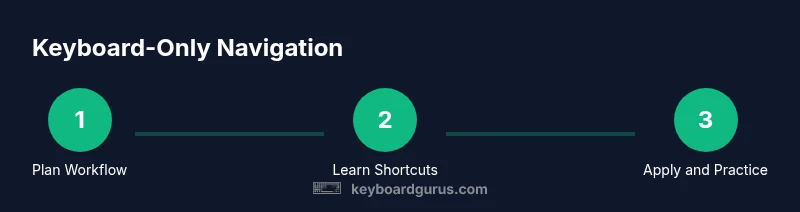
A practical plan combines daily micro-practice with weekly challenges. Start with 10–15 minutes of basic navigation drills, gradually add form filling and tab management, then integrate browser and window-management routines. Track progress in a simple log and adjust shortcuts as you grow comfortable. The Keyboard Gurus team recommends pairing deliberate practice with consistent tool usage, focusing on reliability before speed, and building a personal shortcut library aligned to your routines.
Tools & Materials
- Computer or device with keyboard(Any OS (Windows, macOS, Linux, ChromeOS))
- Enabled accessibility features(Examples: Mouse Keys, Keyboard Shortcuts, Sticky Keys; ensure they are active before practice)
- Optional alternative input(Trackball, keypad, or foot pedal for limited hand mobility)
- Browser with strong keyboard navigation(Tabs, focus rings, ARIA support; test across sites you frequent)
- Shortcut reference sheet(Keep a concise list of essential OS/app shortcuts nearby)
Steps
Estimated time: 45-60 minutes
- 1
Enable essential accessibility features
Turn on mouse keys and sticky keys where available. Verify that focus visuals are enabled and that basic keyboard navigation works in your environment. This foundational setup prevents accidental reliance on a pointing device and reduces fatigue later.
Tip: Test by navigating a simple page and verifying focus movement between links. - 2
Learn base navigation keys
Practice moving focus with Tab and Shift+Tab, advancing with Enter or Space, and returning to previous sections with Escape where supported. Build a muscle memory map of where common controls live in your most-used apps.
Tip: Create a mental map of your app’s layout and rehearse vertical and horizontal focus paths. - 3
Navigate menus and dialogs
Use focus to reach menu bars and items, then activate with Enter. When dialogs appear, keep focus within the dialog and use Tab to move between controls. If you’re stuck, Esc typically closes dialogs or exits modes.
Tip: Avoid hasty key presses—consistency beats speed in early practice. - 4
Interact with text fields and forms
Move to the next field with Tab, toggle checkboxes with Space, and submit with Enter. Use Home/End to jump to line starts/ends and Ctrl/Cmd+A to select all when editing.
Tip: Draft form entries in a text editor first if possible to reduce errors. - 5
Navigate in a web browser
Focus controls with Tab, switch tabs with app-specific shortcuts, and use the address bar to search or navigate. Use highlighting and ARIA cues to keep track of current focus.
Tip: Practice a 3-page workflow (search, result, open) to build fluid tab movement. - 6
Manage windows and desktops
Cycle through open windows, snap or tile windows if supported, and move between workspaces or desktops with keyboard shortcuts. Maintain consistency in where you place frequently used apps.
Tip: Label your most-used tasks and create a mini workflow for them. - 7
Customize shortcuts safely
If you need to remap, pick non-conflicting shortcuts and back up original mappings. Test changes on non-critical tasks before applying to work-wide tasks.
Tip: Document changes in a one-page sheet for quick recall. - 8
Build a daily practice routine
Set a fixed 15–20 minute window each day to repeat the core navigation tasks. Gradually add form filling, browser mastery, and window management as you grow confident.
Tip: Consistency over intensity—short daily practice compounds faster. - 9
Apply to real-world tasks
Start with routine activities like email, document editing, and research. Track speed improvements and adjust your shortcuts to reflect actual use.
Tip: Keep a running log of tasks to measure practical gains. - 10
Review and refine
Periodically audit your shortcut set for efficiency and conflicts. Revisit accessibility settings to ensure you’re benefiting from the latest features.
Tip: Schedule quarterly reviews to keep skills sharp.
Got Questions?
Can I rely on mouse keys as a substitute?
Yes, many systems include mouse keys that let you move the cursor with the numeric keypad or dedicated keys. They’re slower at first but valuable when you cannot use a traditional mouse; enable them in your accessibility settings and practice short moves to avoid fatigue.
Yes—mouse keys can substitute for a mouse, but start with short moves and enable them in accessibility settings.
Which shortcuts are essential for beginners?
Begin with focus navigation (Tab, Shift+Tab), activation (Enter, Space), and basic window controls. Add app-switching and quick search as you gain confidence.
Start with focus navigation, activation, and window controls; then add app-switching.
Is keyboard-only navigation suitable for gaming?
Most fast-action games rely on mouse input for aiming or camera control, so keyboard-only navigation is best for menus and strategy games. For core play, use a traditional setup, or combine keyboard shortcuts for non-action tasks.
Keyboard-only is typically not ideal for fast action games; it works better for menus and strategy.
How can I customize shortcuts safely?
Remap conflicts carefully: avoid overwriting system-critical shortcuts, test after changes, and keep a backup of your original mappings.
Remap cautiously, test, and back up your originals.
What should a beginner focus on first?
Start with the basics: moving focus, activating controls, and navigating common apps. Build consistency before adding speed.
Begin with focus movement and basic activation, then speed comes with practice.
Are there safety or ergonomics considerations?
Yes, repeated key presses can cause strain. Take regular breaks, keep wrists neutral, and adjust your keyboard height to comfort.
Yes—watch for strain and take breaks; keep wrists neutral.
Watch Video
What to Remember
- Start with focus movement and activation basics.
- Build a personal shortcut library aligned to daily tasks.
- Practice daily to develop muscle memory and speed.
- The Keyboard Gurus team recommends adopting a keyboard-first workflow for productivity.