Download Emoji Keyboard: A Practical Guide
Learn how to safely download emoji keyboards, compare popular options, install on iOS and Android, and optimize privacy and performance with Keyboard Gurus' expert guidance.


To download an emoji keyboard, choose a trusted app store, read reviews, verify permissions, install the keyboard, enable it in Settings, and switch to it when typing. Ensure you understand data privacy, language support, and keyboard customization options. For iOS and Android, follow the platform-specific prompts and grant the necessary permissions.
What is an emoji keyboard and why use one
An emoji keyboard is a dedicated input method that prioritizes a rich library of emoji, stickers, GIFs, and sometimes animated options, along with layouts designed to make inserting symbols quick and intuitive. For many users—whether students, gamers, or professionals—an optimized emoji keyboard speeds up communication and helps convey tone more precisely than plain text. According to Keyboard Gurus, adopting a purpose-built emoji keyboard can streamline cross-device messaging, maintain a consistent visual style, and reduce friction when you need to react quickly in chats, emails, or social apps. When you decide to download emoji keyboard software, always pick a reputable source, since quality, privacy practices, and data handling can vary significantly between apps. A thoughtful choice also means evaluating language support, emoji sets, and compatibility with your favorite apps.
How emoji keyboards differ from built-in emoji input
Most devices offer a default emoji picker that is sufficient for casual use, but third‑party emoji keyboards often bring advantages that built-in options lack. You may gain access to extended emoji libraries, custom themes, swipe-based input, and shortcuts for your most-used symbols. However, these benefits come with trade-offs: third‑party keyboards may request broader permissions, can impact device performance, and might introduce data‑collection practices that you should review before installing. A careful comparison helps you decide whether the extra features justify any privacy considerations. Keyboard Gurus notes that the best choice balances expressive power with transparent permissions and ongoing updates.
Privacy and security considerations when using third-party emoji keyboards
Privacy is the core concern when choosing any third‑party keyboard. These apps may request permissions that extend beyond simple input, such as full access to text data or personal information. Always examine the app’s privacy policy, review user feedback about data handling, and verify that the feature set aligns with your comfort level. Keyboard Gurus analysis shows that privacy controls, clear permission explanations, and regular updates are deciding factors for discerning users. If you see vague statements about data collection or if an app demands more data than necessary for input, it’s prudent to skip that option and pick a keyboard with explicit privacy safeguards.
How to evaluate and pick a keyboard app
Start with the basics: does the keyboard support your language and platform, and does it offer the emoji sets you care about? Next, assess permissions—prefer keyboards that request only what they truly need (e.g., input, text suggestions) and provide a clear option to disable clipboard access. Check reviews for reliability and privacy complaints, inspect update frequency, and consider the developer’s reputation. Look for features you’ll actually use: customizable themes, shortcuts for frequently used emoji, and predictable performance. Finally, verify compatibility with your primary apps—some apps restrict third‑party keyboards for security reasons. A systematic checklist helps you reliably pick a stable, privacy‑aware option.
Cross-platform behaviors: iOS vs Android
iOS and Android handle third‑party keyboards differently, which affects setup and performance. On iOS, you’ll typically enable the keyboard in Settings > General > Keyboard and grant full access if you want features like cloud sync or custom emoji sets; on Android, you’ll enable the keyboard in Settings > System > Languages & input and choose between different input methods per app. Differences in permissions, security prompts, and feature parity can influence user experience. Keyboard Gurus' guidance is to test a keyboard in both operating environments to confirm behavior, input speed, and privacy prompts before committing long-term. Regardless of platform, keep your device OS updated to ensure optimal compatibility and security.
Tips for maximizing productivity with emoji keyboards
To get the most from a dedicated emoji keyboard, customize your frequently used emoji into a concise set or shortcut, enabling quick insertion during chats. Use themes to reduce eye strain in long sessions, enable predictive text if available, and disable anytime permission toggles you won’t use. For professional communication, curate a consistent emoji style that matches your work context, and avoid overusing animations or stickers that can distract from the message. Regularly review permissions and privacy settings after any app update to ensure continued alignment with your privacy preferences.
Getting started: download emoji keyboard on your device
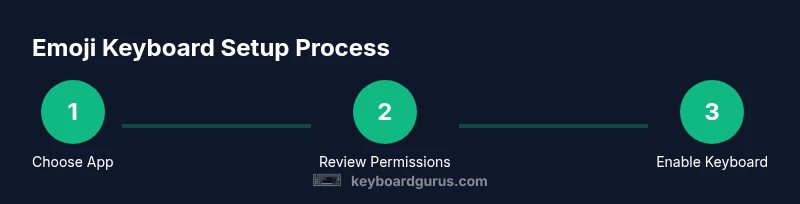
Begin by selecting a trusted emoji keyboard from the official app store for your platform. Read user reviews focusing on privacy and update cadence, then install and grant only the necessary permissions. After installation, go to Settings to enable the keyboard and set it as a primary input method for convenient switching. Finally, customize the keyboard to include your most-used emoji sets and any shortcuts you prefer. If you encounter issues, verify that you’re running a supported OS version and that the app isn’t conflicting with other input methods. Keyboard Gurus recommends starting with a single keyboard to evaluate performance before adding more options.
Authoritative sources and further reading
For guidance on privacy and app safety, you can consult reputable sources like the FTC and accessible standards bodies. This section references general privacy best practices rather than product-specific claims:
- FTC: https://www.ftc.gov
- NIST: https://www.nist.gov
- MIT: https://www.mit.edu
These sources provide a foundation for evaluating any software that handles personal data, including emoji keyboards. Always prioritize apps with transparent privacy statements and regular security updates.
Tools & Materials
- Smartphone (iPhone or Android)(Ensure it’s updated to the latest OS version for compatibility.)
- Active app store account (Apple App Store / Google Play)(Must be signed in to install apps.)
- Stable internet connection(Needed for downloading and updates.)
- Optional: backup keyboard preferences(Useful if you customize layouts and want to save settings.)
Steps
Estimated time: Estimated total time: 20-30 minutes
- 1
Choose a trusted emoji keyboard app
Scan reviews and permissions to pick a keyboard with strong privacy practices. Prefer apps from reputable developers and avoid those with vague data policies.
Tip: Use official app stores and ignore apps with excessive required permissions. - 2
Review permissions before installing
Check which permissions the keyboard asks for and ensure they are reasonable for input functionality. Deny unnecessary access to data like your SMS or full device access unless clearly justified.
Tip: If in doubt, choose an option that limits data collection and offers a privacy-friendly mode. - 3
Install and enable the keyboard in settings
Download the app, then follow prompts to enable the keyboard in your device’s settings. Grant full access only if you’re comfortable with the data flow and feature set.
Tip: Keep a backup: know how to switch back to your default keyboard quickly. - 4
Switch to the emoji keyboard in apps
In your favorite messaging or social apps, switch to the emoji keyboard and test basic typing. Verify that emoji insertion is smooth and that emoji sets load correctly.
Tip: Test in both chat and email apps to ensure compatibility. - 5
Customize shortcuts and emoji sets
Add your most-used emoji to a quick-access panel or shortcuts to speed up usage in conversations. Tailor themes and layouts to reduce strain during long sessions.
Tip: Back up custom layouts if the app supports cloud sync. - 6
Test privacy settings and update cadence
Regularly review permission changes after updates and verify that privacy settings remain aligned with your preferences. Update the keyboard when new security patches are released.
Tip: Disable features you don’t use to minimize data exposure.
Got Questions?
Is it safe to download emoji keyboards from third-party stores?
Safety depends on the developer and the permissions requested. Prefer keyboards with transparent privacy policies and positive reviews. If a store or app seems dubious, skip it and choose a trusted alternative.
Safety depends on the developer and the permissions asked. Look for transparency and positive reviews before you install.
Do emoji keyboards affect device performance?
Some keyboards can affect performance if they run extensive scripts or use cache-heavy features. Use well-reviewed apps and monitor battery and memory usage after installation.
Some keyboards can impact performance; pick well-reviewed options and monitor device resources after install.
Will emoji keyboards track what I type?
Most keyboards can log input data if you grant full access. Always read the privacy policy and disable features you don’t need to limit data collection.
They may log input data if you allow full access. Read policies and limit permissions where possible.
Can I use emoji keyboards offline?
Many emoji keyboards offer offline emoji sets, but some features (like cloud sync) require online access. Check the feature list before relying on offline functionality.
Most offer offline emoji sets, but cloud features need internet.
How do I quickly switch back to my system keyboard?
Use the globe key or keyboard switcher in your app bar. Some devices also allow a long-press on the spacebar to switch inputs.
Use the globe or spacebar switcher to change keyboards rapidly.
Watch Video
What to Remember
- Choose apps with clear privacy policies and regular updates.
- Always review permissions before installation.
- Test compatibility across apps and switch back if needed.
- Customize and back up your emoji sets for efficiency.
- Stay informed about platform-specific setup steps on iOS and Android.