How to Get an Emoji Keyboard: A Complete Guide
Learn how to enable and customize an emoji keyboard on Windows, macOS, iOS, and Android with a clear, step-by-step approach from Keyboard Gurus.


Learn how to get an emoji keyboard on Windows, macOS, iOS, and Android. This quick guide shows built-in options, fast shortcuts, and safe third‑party alternatives so you can emoji with confidence in emails, chats, or docs. We’ll cover setup, quick-access tricks, privacy concerns, and how to switch between keyboards smoothly.
What is an emoji keyboard and why you might want one
An emoji keyboard is a supplementary input method that lets you insert graphic icons, expressions, and symbols into text fields without leaving your typing flow. On most devices, you already have built‑in emoji sets and keyboards, but you may want to optimize access to fit your workflow. The question of how to get an emoji keyboard is common among students, gamers, and professionals who communicate with tone as clearly as with words. According to Keyboard Gurus, emojis can help convey mood, reduce misinterpretation, and save time in casual chats, emails, and collaboration apps. This guide explains practical paths to enable, customize, and design your emoji experience.
We’ll cover platform differences, quick shortcuts, and best practices so you can switch from basic text to expressive communication in a few taps. Throughout, you’ll see concrete steps, platform‑specific tips, and safety considerations to protect your privacy while enjoying richer messaging. By the end, you’ll know exactly how to get an emoji keyboard, whether you’re on Windows, macOS, iOS, or Android, and you’ll have a clear sense of when to rely on built‑in options versus third‑party keyboards. The goal is to give you a dependable, fast emoji workflow that matches your daily tasks and brand voice.
Platform-wide emoji support: Windows, macOS, iOS, Android
All major platforms include emoji support, but the way you access them differs. Windows 10/11 provides an emoji panel you can summon with Windows key + . or Windows key + ; on most apps. macOS offers a dedicated emoji picker that you can open with Control + Command + Space and then insert an emoji into any text field. iOS and Android coordinate emoji keyboards with the system keyboard; you can enable or switch keyboards via the language & input settings. Keyboard Gurus analysis shows that most users rely on the built‑in emoji sets first because they’re fast, safe, and consistently rendered across apps. If you’re new to this, start with the built‑in options to learn what’s available and how it renders in your favorite apps.
keyboard rendering varies by font and platform, so it may look different in Slack, Gmail, or Twitter even when you select the same emoji. The benefit of starting with the built‑in options is you’ll avoid compatibility issues and tracking concerns associated with some third‑party keyboards. Once you’re comfortable, you can expand to supplemental fonts or keyboards if you need more symbols, a broader color palette, or newer emoji versions.
Quick-start guide to enabling emoji input on your device
To get going, identify your operating system and the input method you want to use. The fastest path for most users is to enable the built‑in emoji keyboard and practice a couple of shortcuts so you can insert an emoji in one or two taps. Before you begin, make sure your device is updated to the latest OS version to ensure the newest emoji are available. The Keyboard Gurus team recommends testing a few emoji across your go‑to apps to verify that the glyphs render consistently. Then, bookmark your preferred emoji set for quick access.
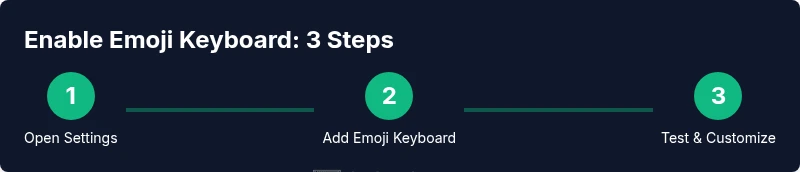
Follow these steps in plain language: 1) Open Settings (or System Preferences) on your device. 2) Navigate to Language & Input (or Keyboard). 3) Add or enable the emoji keyboard or input method. 4) Learn the quick access shortcut for your platform (Windows, macOS, iOS, or Android). 5) Switch back to your primary keyboard and try inserting emojis in a document or chat. 6) If you want more emojis, consider a compatible font or third‑party option with caution. 7) Revisit privacy settings and permissions to prevent apps from collecting sensitive data through keyboards.
Testing and validating your emoji keyboard
After enabling emoji input, test it to ensure you can quickly insert emojis in common contexts. Start a chat in your favorite messaging app, compose a short email, and add a few emojis to convey tone. Check rendering in multiple apps because some apps may substitute or preview emojis differently. If you notice inconsistent symbols, return to settings and try the system emoji set again, or use the OS’s default font for consistency. You should also experiment with frequently used categories (smileys, gestures, animals) to build muscle memory.
Keep a short list of your go‑to emojis and the keyboard shortcut that calls them. This will reduce friction during intense moments like gaming chats or project deadlines. If you rely on emoji heavily for professional communication, consider documenting a small “emoji style guide” for your team so everyone uses consistent symbols.
Enhancing with third-party options and fonts
While built‑in options are fast and reliable, third‑party keyboards or fonts can expand your emoji vocabulary and aesthetics. Look for reputable apps from major publishers, and review permissions before installing. Some third‑party keyboards offer extra emoji packs, skin tone options, or themed collections that may align with your brand voice. If you choose to install one, disable cloud syncing if you’re concerned about data privacy, and restrict access to system data. Always test the keyboard in a few apps and monitor battery and performance after installation.
If you rely on a highly customized emoji vibe for content or branding, trial a few options in a non‑critical context before exposing them to client work. Remember that not every app will render third‑party emoji the same way, so maintain a “core emoji set” for professional use.
Safety, privacy, and best practices
Emoji keyboards can introduce privacy considerations, especially if they are third‑party or add fonts that collect input. Prefer baked‑in options first, and only install keyboards from trusted developers. Regularly review app permissions and disable access to sensitive data where possible. Update your OS and apps to ensure compatibility and security; newer emoji versions rely on newer fonts that ships with the OS. When using emoji in professional communications, be mindful of tone and audience; avoid overuse and select symbols that reinforce your message rather than confuse readers.
Keyboard etiquette and professional use of emojis
Emojis can improve clarity, but misuse can undermine professionalism. Use emojis sparingly in emails, customer comms, or formal documents. Check the target audience and platform; some business tools may strip emoji or render them inconsistently. Build a small set of approved emojis, and provide a quick reference for colleagues. This keeps your communications friendly but clear and consistent.
Tools & Materials
- Device capable of emoji input (PC/Mac/Android/iOS)(Any smartphone or computer with a text field)
- Access to emoji keyboard settings(OS-specific: Windows, macOS, iOS, or Android settings area)
- Internet connection(Useful for downloading fonts or apps if needed)
- Optional emoji keyboard apps or fonts(For extra collections or themes if built‑in options don’t suffice)
Steps
Estimated time: 15-25 minutes
- 1
Identify your platform
Determine whether you’re on Windows, macOS, iOS, or Android. This guides you to the exact settings path and shortcut for emoji input. Knowing your platform avoids wasted clicks and ensures you enable the correct emoji set.
Tip: Write down your platform name and OS version for quick reference. - 2
Open emoji settings
Access the emoji input method through the system settings or keyboard preferences. This step unlocks the ability to add or switch emoji keyboards and characters.
Tip: Use search in settings to locate 'emoji' or 'keyboard' quickly. - 3
Enable or add the emoji keyboard
Turn on the built‑in emoji keyboard or add it as an input method. Ensure it’s listed in your active keyboards or input methods.
Tip: If you don’t see it, update your OS to the latest version. - 4
Learn the quick access method
Familiarize yourself with the platform shortcut (e.g., Windows key + . on Windows, Control + Command + Space on macOS). Practice using it in common apps like messaging and email.
Tip: Keep a shortcut cheat sheet handy until it’s second nature. - 5
Test emoji rendering
Type emojis into a few apps (chat, word processor, email) to confirm consistent rendering. If you notice discrepancies, switch back to the system emoji or adjust font settings.
Tip: Test in both light and dark mode, as some glyphs render differently. - 6
Consider third‑party options with caution
If you need more emojis, evaluate reputable third‑party keyboards or fonts. Review permissions and privacy settings before installation.
Tip: Disable cloud sync and limit data access for extra security. - 7
Practice quick switching and usage
Practice switching between your primary keyboard and the emoji input for speed. Build a small set of preferred emojis to speed up your workflow.
Tip: Assign a memory cue to your emoji set (e.g., favorites by category).
Got Questions?
What is an emoji keyboard and why do I need one?
An emoji keyboard is a built‑in or app-based input method that lets you insert emoji characters into text. It helps convey tone and emotion, often making communication clearer and quicker. Most users start with built‑in options and only move to third‑party keyboards if they need more symbols or customization.
An emoji keyboard lets you insert emoji into text and helps convey tone. Start with built‑in options, then consider other keyboards if you need more symbols.
Can I enable emoji keyboard on Windows without additional apps?
Yes. Windows includes an emoji panel that you can open with the Windows key and the period key. You can select an emoji and insert it into any text field. This works across most apps and doesn’t require extra software.
Windows has a built‑in emoji panel accessible via the Windows key plus the period key. No extra apps needed.
Is emoji keyboard support the same on all devices?
Emoji support is broadly consistent but varies by platform and font. Some symbols may render differently or be unavailable on older OS versions. Always test critical emojis in the apps you use most.
Emoji rendering can differ across platforms and fonts; test in your main apps to ensure consistency.
Are third‑party emoji keyboards safe to install?
Third‑party keyboards can offer more icons, but they may access sensitive input data. Install only from trusted developers, review permissions, and disable cloud syncing if privacy is a concern.
Third‑party keyboards can be risky; use trusted sources and limit data access.
Why might some emojis not appear on my device after enabling?
New emojis require recent OS fonts. If an emoji doesn’t show, update the OS or switch to the system emoji set to ensure compatibility. App rendering can also affect visibility.
If emojis don’t show, update your OS fonts or switch to the system emoji; app rendering can vary.
How do I switch quickly between keyboards while typing?
Learn the platform shortcut (e.g., Windows key + . or Control + Space) and practice. You can also keep the emoji keyboard pinned in your input methods for rapid access.
Use the platform shortcut to switch keyboards and practice until it’s fast.
Watch Video
What to Remember
- Enable emoji keyboard on your device.
- Test rendering across apps for consistency.
- Prefer built-in options before third‑party keyboards.
- Keep your OS updated for best emoji support.