How to Make Emojis on a Computer Keyboard
Learn to type and insert emojis on Windows, macOS, and Linux using built-in shortcuts and simple workflows. Keyboard Gurus shares practical steps, tips, and best practices.


You will learn to make emojis on computer keyboard using built-in OS shortcuts, emoji panels, and simple copy-paste workflows across Windows, macOS, and Linux. We'll cover steps, tips, and best practices for professional and casual contexts. Whether you’re texting, coding, or documenting ideas, this guide shows reliable methods that work in common apps like word processors, chat programs, and social platforms. Keyboard Gurus provides practical insights to streamline emoji input.
What emojis are and why they matter
Emojis are small pictographs that convey tone, emotion, and nuance that plain text alone often lacks. They help readers interpret intent, surface humor, and soften statements in conversations. For keyboard users, emojis are a quick way to add clarity without typing long explanations. According to Keyboard Gurus, understanding how to access and insert these symbols can improve communication, reduce misinterpretation, and speed up collaboration across chats, emails, and documents. In this guide we’ll explore how to make emojis on computer keyboard, and show options for Windows, macOS, and Linux. By embracing emojis, you’ll see how color and placement can influence message reception, especially in team settings where tone matters.
Throughout this article, we’ll reference practical examples you can try in common apps like messaging clients, word processors, and note-taking tools to demonstrate how emoji usage scales from casual chats to professional emails.
OS overview: Emoji input across Windows, macOS, and Linux
Across major operating systems, emoji input is supported natively, but access paths vary. Windows exposes an emoji panel activated by a keyboard shortcut, macOS provides a universal emoji viewer accessible from any text field, and Linux distributions often rely on desktop-environment plugins or clipboard-based methods. The key to smooth emoji use is knowing which panel or app to trigger, how to search, and where the emoji will render correctly given fonts and platform differences. Keyboard Gurus notes that font support matters: not every emoji shows identically across apps, so test a few to ensure your message looks as intended. As you explore, consider the contexts you frequently type in—work documents, chat, or social posts—and decide which method feels most reliable for each situation.
Windows: Accessing the emoji picker
On Windows 10 and 11, press Windows key and the period key (Win + .) to open the emoji picker. You can also use Windows key + semicolon (Win + ;) on some older builds. Once the panel opens, browse categories, or use the search box to find a specific emoji. Double-click or press Enter to insert it at the cursor. If you’re typing in a non-Unicode field, ensure the target app supports emoji rendering. For developers or coders, try the Windows Unicode input method in editors that support Unicode literals when keyboard shortcuts fail.
macOS: Accessing the emoji viewer
macOS provides a built-in emoji viewer that works in nearly all text fields. Press Control + Command + Space to open the viewer, then type to search, browse categories, or click an emoji to insert it. The viewer also offers skin-tone variations and accessibility options. For longer messages, you can keep the window handy and switch back to your document to paste. If you frequently insert a small set of icons, create a quick note with those characters for faster access.
Linux: Emoji input options and tips
Linux is diverse; emoji input depends on your desktop environment. In GNOME-based setups, you may use an emoji picker integrated into the text field, while KDE offers system-wide emoji input via widgets or shortcuts. If your environment lacks a launcher, you can copy emojis from online lists or install a lightweight emoji picker. Remember that font availability and rendering may vary by terminal, editor, or application. For terminal users, combining Unicode input with a font that supports color emoji can be particularly effective.
Practical ways to insert emojis in apps
If your OS shortcut isn’t available or reliable in a particular app, copy-pasting from an emoji list or online resource remains a universal fallback. For frequent use, keep a small clipboard-friendly emoji sheet in your browser bookmarks or a note app. Some apps support colon-based shortcodes (like :smile:) and render them as emoji, though this depends on the platform and plugin. When sharing across groups or teams, prefer standardized emoji that convey clear meaning and avoid overloading messages with too many symbols.
Enhancing emoji usage with shortcuts and customization
Create or learn quick shortcuts to reach your preferred emojis. Some users save their most-used emojis as favorites in the emoji panel or in a clipboard manager. You can also configure OS-level shortcuts to open the emoji picker on demand, reducing context switching. If you often type the same emoji in code, consider using code snippets or editor plugins that render emoji inline. The goal is to reduce friction while keeping readability intact.
Accessibility considerations and inclusive emoji use
Emoji appearance can vary by screen readers and accessibility settings. If your audience uses assistive tech, include alt text or accompanying descriptive language for critical emojis. In professional contexts, accompany emoji with words to avoid misinterpretation by readers with diverse abilities. Consider providing a short explainer when introducing new or non-obvious emojis and use universally understood icons whenever possible.
Troubleshooting and best practices
If emojis appear as square boxes or fail to render, verify your font support and app compatibility. Update your system fonts, or switch to a universal font that covers color emoji. Be mindful of tonal differences across platforms, and avoid using emoji as the sole means of conveying critical information. When in doubt, rely on words and context to clarify tone. Regularly test emoji rendering in the primary apps you use and adjust your workflow to fit those results.
Authority sources and further reading
For a deeper dive into emoji standards and compatibility, refer to reputable resources like Unicode.org’s emoji charts and Britannica’s overview of emoji history and usage. These sources help explain why emoji appearance can vary and how developers implement emoji rendering across platforms. Keyboard Gurus also provides practical guidance based on ongoing analysis in 2026 to help you optimize emoji input across devices.
Tools & Materials
- Computer or laptop (Windows/macOS/Linux)(Any modern OS supports emoji input.)
- Emoji input method (OS feature or app)(Windows Emoji Panel; macOS Emoji Viewer; Linux emoji picker)
- Clipboard or emoji reference sheet(Useful for quick access or fallback)
- Internet access (optional)(Reference lists or guides for less common emojis)
Steps
Estimated time: 15-25 minutes
- 1
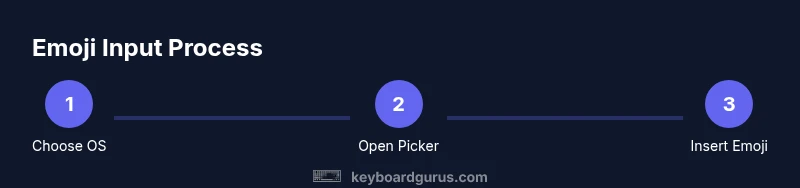
Identify OS and emoji method
Determine whether you are on Windows, macOS, or Linux and decide which emoji input method you will use. This ensures you select the correct shortcut or picker and avoids trying a method that isn't supported on your system.
Tip: Knowing your exact OS version helps you pick the most reliable shortcut. - 2
Open the emoji picker
Trigger the built-in emoji picker or viewer for your OS. Position the cursor in a text field before opening so the emoji inserts at the right location.
Tip: If the shortcut doesn’t work, check for conflicting hotkeys in the active application or system settings. - 3
Search and select the emoji
Use the search or category filters in the picker to find the emoji you want. Preview options to ensure you’re choosing the correct symbol.
Tip: Typing a short description (e.g., 'smile', 'thumbs up') often speeds up the search. - 4
Insert the emoji
Insert by double-clicking the emoji or pressing Enter, depending on your OS. Verify the emoji renders in the target app.
Tip: In many apps, if the emoji doesn’t insert, try pasting from the clipboard as a fallback. - 5
Use a fallback copy-paste method if needed
If the picker is unavailable, copy emojis from a trusted list or a quick note and paste them into your document or chat.
Tip: Keep a small reference sheet handy for quick access to your favorite symbols. - 6
Customize shortcuts or favorites
If your OS or editor supports it, configure shortcuts to open the emoji picker or save frequently used emojis as favorites for one-click insertion.
Tip: Custom shortcuts reduce switching cost during fast typing sessions. - 7
Test across apps and contexts
Try inserting emojis into different apps (email, chat, document, code editor) to verify rendering and ensure consistent tone.
Tip: Some apps render emojis differently due to font availability; adjust usage accordingly.
Got Questions?
What is the fastest way to type emoji on Windows?
Use Win + . to open the Windows emoji picker, then double-click an emoji or press Enter to insert it. This is the quickest method in most apps.
Open the Windows emoji picker with Win plus the period key, then select and insert your emoji.
How do I insert emoji on macOS?
Press Control + Command + Space to open the macOS emoji viewer, search, and insert by clicking. It works in nearly any text field.
Open the macOS emoji viewer with Control-Command-Space, pick an emoji, and insert it.
Can I type emoji in Linux without installing extra software?
Yes. Many Linux environments include built-in pickers or can access emoji via clipboard lists. If not, you can install a lightweight picker or copy from online resources.
Most Linux setups offer an emoji picker or a simple copy-paste approach; check your desktop docs.
Why do emoji look different in different apps?
Emoji appearance depends on the font and rendering engine used by each app. Always test your emoji in key programs to ensure the intended meaning remains clear.
Fonts and apps render emojis differently, so test how they appear in your main tools.
Are there accessibility considerations with emoji use?
Screen readers describe emoji as text variants (e.g., 'smiling face'). Provide alt text or accompany emojis with descriptive language when necessary.
Some readers convert emoji to text; include context or a short description when using important symbols.
Is there a shortcut for frequently used emoji?
Many emoji pickers allow saving favorites or recentemente used items. Use these to speed up insertion for common symbols.
Save your go-to emojis as favorites for quick access.
Watch Video
What to Remember
- Identify your OS and the preferred emoji method at the start.
- Use built-in emoji pickers for fast insertion in most apps.
- Copy-paste remains a reliable fallback for rare cases.
- Test emoji rendering across apps to maintain consistent tone.