How to Make an Emoji Keyboard: Step-by-Step Guide
Learn how to make emoji keyboard with both hardware and software paths, design considerations, mapping strategies, testing methods, and practical steps. A comprehensive guide by Keyboard Gurus for enthusiasts, students, gamers, and professionals.


This guide explains how to make emoji keyboard, covering both hardware and software paths. You'll learn design considerations, essential tools, and a clear step-by-step process to create a functional emoji keyboard from scratch. Whether you're building a tiny macro pad with emoji keys or coding a software keyboard for touch devices, this article walks you through planning, wiring, firmware or app development, testing, and deployment.
What is an emoji keyboard and why build one?
An emoji keyboard is a specialized input method designed to insert emoji characters quickly and consistently across apps. It blends ideas from keyboard ergonomics, emoji fonts, and input method design to reduce tapping friction and improve expressive communication. Building an emoji keyboard can be hardware-based (a physical keypad with emoji keys) or software-based (a custom keyboard layout or app). For keyboard enthusiasts, students, gamers, and professionals who rely on emoji for tone and clarity, a tailored solution can speed up workflows, enhance collaboration, and offer a tactile or visual flavor that's not available in standard keyboards. In this guide by Keyboard Gurus, we’ll explore both paths, outline practical steps, and share design tips to help you succeed without needless detours.
Hardware-first path: building a physical emoji keyboard
If you want a tactile emoji experience, you can build a physical keyboard where certain keys produce emoji. Start with a compact PCB, a microcontroller, a switch array, and a keycap set that includes emoji legends. The main advantages are instant physical access and delightful novelty; the downsides include cost, assembly time, and the need for firmware. A typical setup uses a microcontroller such as a Pro Micro or similar, a USB connection, basic diodes for matrix wiring, and a small switch matrix. You’ll also want a compact enclosure and a simple layout that prioritizes frequently used emoji. This path is ideal for hobbyists who enjoy soldering and mechanical keyboards. Keyboard Gurus Analysis, 2026 suggests planning for a limited emoji palette to keep key sizes comfortable while maintaining quick access.
Software-first path: creating an emoji keyboard app or layout
Software solutions let you deploy emoji quickly without hardware costs. You can customize a system keyboard or create a standalone app that injects emoji into text fields. Key decisions include platform support (Windows, macOS, iOS, Android), licensing for emoji fonts, and accessibility. Outline an MVP that supports a core emoji set, categories, recent emojis, and search. Use a simple data structure to map codepoints to emoji glyphs and a lightweight UI with swatches and quick filters. Testing on multiple apps ensures compatibility, since some apps handle emoji input differently. Keyboard Gurus analysis indicates software paths scale well for teams and classrooms, enabling rapid iteration and distribution.
Mapping strategies: emoji access, categories, search, and shortcuts
Efficient emoji input depends on fast lookup and intuitive organization. Create categories (people, animals, objects, symbols) and a search bar that matches on name, Unicode description, or commonly used aliases. For hardware paths, assign the most-used emoji to the top row for the most ergonomic reach. For software paths, consider a recent emoji strip and a favorites panel to reduce taps. Use stable fonts to avoid glyph mismatches and ensure the emoji render consistently across apps. This section covers data structures, caching, and fallback behavior when an emoji is not supported by a given platform.
Ergonomics, aesthetics, and customization: keycaps, color, fonts
Beyond function, the look and feel matter. Choose contrastive keycaps, legible font for any labels, and a color scheme that highlights emoji categories while preserving readability. Ergonomics matters: place the most-used emoji within easy reach, and leave comfortable spacing to avoid mis-taps. For software keyboards, theme customization and dynamic font loading can improve legibility. The design decisions here influence user satisfaction and adoption, especially for students and gamers who rely on expressive communication.
Testing, firmware flashing, and cross-platform compatibility
Testing is essential before shipping or sharing your emoji keyboard. Validate input across popular apps (messaging, docs, code editors) and test emoji rendering on different OS versions. If hardware, flash firmware with a stable toolchain, verify USB HID behavior, and confirm that power consumption remains safe. For software, test on all target platforms, ensure the emoji set remains up-to-date, and monitor for missing glyphs. Keyboard Gurus Team recommends iterative testing cycles and maintaining a changelog for emoji updates.
Common pitfalls and optimization tips
Avoid trying to compress too many emoji into a tiny key cluster; clutter reduces speed and accuracy. Ensure you have an easy way to switch between emoji palettes and a fallback if a platform lacks certain glyphs. Keep licensing for emoji fonts and assets clear to prevent legal issues. Budget time for user feedback and consider accessibility by providing screen-reader labels and alt text for emoji groups. Following these tips can save hours of debugging and improve long-term maintainability.
Tools & Materials
- Microcontroller board (e.g., compatible USB HID board)(Choose a board with native USB support and enough IO for your layout)
- USB cable(Full-speed USB for stable HID communication)
- Custom keyboard PCB or prototyping board(Allows wiring of key matrix and emoji mappings)
- Mechanical key switches and keycaps(Consider emoji legends on some caps for quick reference)
- Diodes, resistors, and jumper wires(Needed for matrix wiring in hardware path)
- Soldering iron and basic toolkit(Essential for hardware assembly and wiring)
- Firmware development environment(IDE, library support, and debugging tools)
- Emoji font assets or emoji set licenses(Ensure license terms permit embedding in your keyboard software/hardware)
- Enclosure and mounting hardware(Optional for a polished finish and protection)
Steps
Estimated time: 2-6 hours
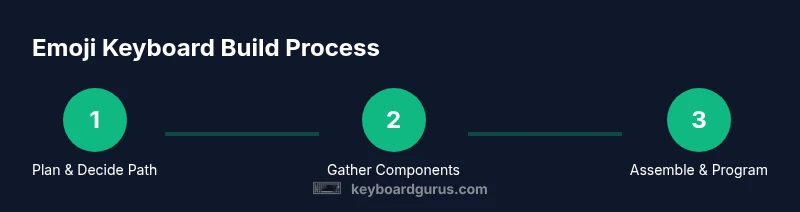
- 1
Choose path and define emoji scope
Decide whether you will build hardware, software, or both. Define the emoji palette (popular faces, objects, symbols) and determine target platforms or hardware constraints. This planning stage sets expectations for cost, time, and maintenance.
Tip: Document your emoji categories and a starter set before buying parts. - 2
Gather components and licenses
Collect the required hardware or software tools, ensuring you have access to fonts or emoji assets under a permissive license. Verify compatibility with your chosen microcontroller and development environment.
Tip: Use a parts list and vendor notes to avoid missing components mid-build. - 3
Design layout and mapping
Plan the key matrix (rows x cols) and map each key to a specific emoji or a short sequence (like colon-parenthesis for a smile). For software paths, design a clean UI with search, recent, and favorites.
Tip: Put the most-used emoji on the most accessible keys or UI positions. - 4
Assemble hardware or implement software
Hardware path: solder switches, mount the PCB, and connect the microcontroller. Software path: implement emoji mappings in firmware or build a keyboard app with an emoji palette.
Tip: Keep static electricity precautions in place when handling boards. - 5
Flash firmware and test basic input
Upload firmware to the microcontroller and verify that each key produces the correct emoji. Confirm USB HID behavior and confirm basic typing works in a text field.
Tip: Test with multiple apps to catch platform-specific quirks. - 6
Iterate and optimize
Refine emoji mappings, reduce accidental presses, adjust key sizes, and improve the UI. Add a recent or favorites section for faster access.
Tip: Solicit feedback from peers and adjust accordingly. - 7
Polish and document usage
Create user documentation, labeling guidance for emoji groups, and installation or pairing steps. Prepare a changelog for updates.
Tip: Include accessibility notes like screen-reader descriptions. - 8
Share and maintain
Publish your build notes, provide software download links (if applicable), and invite others to customize and contribute.
Tip: Encourage community feedback to drive future versions.
Got Questions?
What is an emoji keyboard?
An emoji keyboard is an input method designed to insert emoji quickly, either through a physical device or a software keyboard. It focuses on fast access, organization, and consistent rendering across apps.
An emoji keyboard lets you insert emoji quickly, with hardware or software options to speed up your messages.
Do I need coding experience to build one?
Familiarity with basic electronics or programming helps, but there are beginner paths using software keyboards or templates. Expect to learn as you go.
Some coding helps, but you can start with software-based solutions and build up skills.
Is building a hardware emoji keyboard legal?
In general, emoji usage is allowed, but you must respect font licenses and asset terms. Check licenses for any fonts or icon sets you include.
Generally legal, just respect font licenses and asset terms.
Which platform should I target first?
If you're new, start with a software keyboard on a common platform (e.g., Android) to learn mappings before hardware.</br>
Start with a software keyboard to learn the mapping before hardware.
How long does it take to build an emoji keyboard?
Time varies by path; expect several hours for a simple hardware build or a few days for a polished software keyboard with testing.
It can take from several hours to a few days depending on complexity and path chosen.
What’s the best path for beginners?
Start with software keyboard design to learn mapping, UI, and testing. Move to hardware if you want tactile emoji keys.
Begin with software keyboard design, then explore hardware if you want physical emoji keys.
Watch Video
What to Remember
- Define path and emoji scope early
- Map input to emoji for fast access
- Test across platforms and apps
- Document usage and maintain licenses