Heart Emoji on Keyboard: A Practical How-To
Learn reliable methods to type the heart emoji on any keyboard. This Keyboard Gurus guide covers Windows, macOS, iOS, Android, and Linux workflows with shortcuts and tips to ensure consistent rendering.


By the end of this guide, you’ll be able to type or insert the heart emoji on keyboard across Windows, Mac, iPhone, Android, and Linux. We cover built-in emoji panels, text shortcuts, and reliable copy-paste methods to ensure consistent rendering in messages, documents, and apps. This article also shares platform-specific tips and caveats so you can avoid misrendered characters.
Understanding Heart Emoji on Modern Keyboards
The heart emoji has become a standard way to convey warmth, affection, or emphasis in digital communications. Typing it on a keyboard isn’t always straightforward because rendering depends on the operating system, apps, fonts, and even the input method. When you type the heart emoji on keyboard, you’re often inserting a colorful glyph rather than a simple ASCII symbol like <3. This distinction matters for readability, accessibility, and cross-app consistency. For keyboard enthusiasts, knowing how to trigger the emoji panel or input the Unicode sequence can save time in chats, docs, and collaborative work. The heart emoji on keyboard has evolved from a basic glyph to a versatile symbol that supports variations and modifiers in many environments. Throughout this guide, the phrase “heart emoji on keyboard” will refer to the actual emoji input process, not the plain text heart. According to Keyboard Gurus, ensuring consistent rendering across platforms is crucial when sharing screenshots or collaborating with teammates.
In short, the heart emoji on keyboard is a multi-path task: you can use built-in emoji pickers, OS shortcuts, or Unicode inputs depending on your device. Mastery means you can reproduce the same visual heart across devices and apps, reducing confusion in professional or gaming contexts. Keyboard Gurus analysis shows that most modern systems provide robust emoji support, but discrepancies across apps still require deliberate method selection and testing.
Platform-Specific Shortcuts: Windows, macOS, iOS, Android, Linux
The fastest way to insert a heart emoji is to use the platform’s emoji picker or keyboard shortcut. Each major ecosystem has a preferred method, and once you learn one, you can apply the same principle on other devices. This section covers Windows, macOS, iOS, Android, and Linux so you can quickly insert the heart emoji on keyboard wherever you type.
Windows: Press the Windows key and the period key (Windows key + .) to open the emoji panel. Type “heart” in the search box and select the heart emoji from the results. If you need a simple character, you can also try Alt codes (e.g., Alt + 2665) in apps that support Unicode input, but this yields the heart symbol rather than a colorful emoji.
macOS: Press Command + Control + Space to launch the macOS emoji picker. Type “heart” to filter results and click the one you want. Some apps will render consistently, while others may switch to a monochrome version depending on font support.
iOS (iPhone/iPad): On the iOS keyboard, switch to the emoji keyboard by tapping the globe or emoji button. Navigate to the heart category or use the search field to find a heart quickly. This method works across Messages, Notes, and most third-party apps.
Android: Open your keyboard’s emoji panel (often a smiley icon). Use the search or browse to locate “heart” and insert it into your text. App rendering varies little on modern Android, but some apps may display different heart styles.
Linux: Emoji input on Linux depends on the desktop environment. Use an on-screen keyboard or the emoji picker in GNOME/KDE if available. In terminals or apps lacking emoji support, pasting a colored heart may not render correctly; test in the target app.
These platform-specific shortcuts demonstrate how the same heart emoji on keyboard can be summoned in different environments. Practice on one device, then replicate the approach on others to ensure consistent results across your workflows.
Emoji Pickers and Text Shortcuts You Should Know
Beyond the standard emoji panels, there are quick-access tricks that speed up heart input without leaving the keyboard. Emoji pickers are your friend for rapid insertion, while text shortcuts help when emoji panels are unavailable or blocked by an app.
- Use the OS emoji picker: It is the most reliable way to insert the full color emoji set. Practice the search steps so you can reach the heart emoji in two taps.
- Explore app-specific shortcuts: Some apps (slack, Discord, or social platforms) support emoji shortcuts, keyword searches, or even custom fonts that render hearts differently. Always test in your primary app to avoid surprises.
- Consider text-to-emoji workflows: In some editors, typing a simple keyword like heart or <3 may auto-convert to an emoji, depending on the editor’s smart-punctuation features. This is not universal, so verify rendering.
For keyboard enthusiasts, knowing where to press, how to search, and when to rely on copy-paste reduces friction and keeps your messages visually consistent. Remember: the heart emoji on keyboard is more about input reliability than about a single trick. Keyboard Gurus recommends practicing the standard emoji picker in at least one OS and then porting that habit to other platforms.
Best Practices for Consistent Rendering Across Apps
Rendering consistency matters when you share notes, code, or logs across platforms. The same heart emoji input can appear as a different glyph depending on the app's font, color support, and rendering engine. To minimize surprises, follow these practices:
- Prefer the actual emoji character over text replacements whenever possible. This helps maintain color and intent across apps.
- Test across the target apps: messaging, docs, code editors, and social platforms. A heart that looks great in one app may appear differently in another.
- Be mindful of fonts: Some fonts lack color emoji support, causing a monochrome glyph or fallback. If you rely on color, ensure your document uses a font with color emoji support.
- Use Variation Selector 16 (VS16) when needed: VS16 forces emoji presentation in some environments. Not all apps honor it, so verify rendering.
- Document your chosen method: For teams, note which method you used to insert the heart emoji so teammates can reproduce the same result. This reduces back-and-forth in shared files.
The heart emoji on keyboard is a small input with potentially big impact on readability and tone. By standardizing your approach—prefer emoji pickers for color, test in your apps, and stay mindful of font support—you can create consistently friendly communications across devices. Keyboard Gurus emphasizes that consistency builds trust in collaboration and content quality.
Troubleshooting Common Issues
If you encounter trouble typing the heart emoji on keyboard, start with a quick checklist and consider alternatives to maintain flow in your work.
- App rendering differences: Some apps render the heart emoji in monochrome or with altered shapes. Try a different emoji style or switch to a font that supports color emojis.
- Emoji panel missing: If your OS emoji picker doesn’t appear, ensure you’re on a supported version and keyboard input is active in text fields. Rebooting the app or OS can also help.
- Unicode input not working: Some apps don’t accept Unicode input via Alt codes or codes. Prefer the native emoji panel or clipboard paste as a fallback. Remember, not all systems support VS16 in every context.
- Clipboard inconsistencies: Copy-paste can fail if the target app strips rich text or emoji. In such cases, copy from a trusted source and paste into a plain text area first, then re-copy if needed.
- Accessibility concerns: Screen readers may announce the heart differently. If accessibility is a priority, test with a11y features and consider providing a textual alternative when appropriate.
If you continue to experience issues, re-check platform-specific steps and ensure you’re using an up-to-date environment. The heart emoji on keyboard remains a reliable symbol when input methods are chosen thoughtfully and tested in the intended app.
Beyond the Heart: Variants and Related Symbols
The heart family includes a range of symbols that convey nuanced emotions and ideas. In addition to the classic red heart ❤️, you’ll often encounter colored hearts, love-related symbols, and decorative hearts that suit different contexts.
- Red heart ❤️: The most widely recognized symbol for love and warmth; widely supported and color-rendered in modern apps.
- Beating or sparkling hearts: 💖, 💗, 💕 convey emphasis and enthusiasm; choose based on tone and audience.
- Heart suit and symbols: ♡ (white heart), ♥ (black heart) offer text-based alternatives when color rendering is limited.
- Variations across platforms: Some platforms render certain hearts with slightly different shapes or colors. Always test in your target environment to ensure your message’s tone is preserved.
If you’re documenting a process or sharing visuals, consider including multiple heart variants to accommodate rendering differences. The heart emoji on keyboard remains a flexible symbol, and knowing how to access its variants helps you tailor your communication to the audience and medium.
Tools & Materials
- Device with emoji support(Windows 10/11, macOS, iOS, Android, or a modern Linux distro)
- Internet access(Optional for looking up emoji names or fonts)
- Emoji picker knowledge(Familiarity with OS emoji panels or on-screen keyboards)
- Clipboard manager (optional)(Speeds up copy-paste across apps)
- Font with color emoji support(Not always required but improves rendering)
Steps
Estimated time: 8-12 minutes
- 1
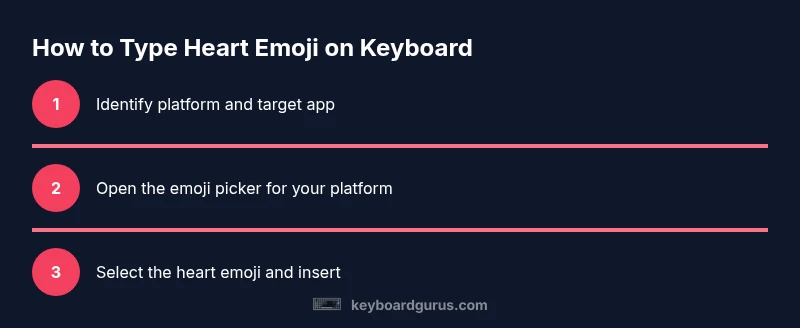
Identify platform and exactly where you want to insert the emoji
Determine your operating system and the target app to choose the correct input method. This first step ensures you don’t waste time trying a method that won’t work in your environment. If you’re on Windows, macOS, iOS, Android, or Linux, the following steps will apply in context.
Tip: Knowing your platform helps you pick the right emoji input path. - 2
Open the emoji picker for your platform
Launch the built-in emoji input method suitable for your device. Windows users press Windows key + ., macOS users press Cmd + Ctrl + Space, iOS/Android users switch to the emoji keyboard, and Linux users access the system emoji picker if available. This step is the gateway to the heart emoji on keyboard.
Tip: If the picker doesn’t appear, confirm your text field is active and the app supports emoji input. - 3
Search for and select the heart emoji
Use the picker’s search (type heart) or browse the emoji categories to locate the heart symbol. Selecting the correct entry inserts the exact glyph you need across most apps.
Tip: Prefer the colorful emoji when available; some apps render monochrome glyphs if color support is missing. - 4
Insert the heart emoji into your text
Click or tap the heart emoji to insert it at the cursor position. Verify the result in the target field to ensure it appears as intended.
Tip: If the emoji panel collapses, reopen it and reselect the symbol carefully. - 5
Alternative: input via Unicode or copy-paste
When emoji input is restricted, use a Unicode input (where supported) or copy the heart emoji from a trusted source and paste it into your document. This ensures you can continue with your workflow.
Tip: Don’t rely on plain ASCII text like <3 if you need color and consistency. - 6
Test rendering across apps
Open the same text in the apps you frequently use to confirm the heart emoji renders consistently. If discrepancies appear, adjust the font or use an emoji panel method that yields consistent results.
Tip: Always verify in the final app to prevent miscommunication. - 7
Document and share your input method
Record the method you used so teammates can replicate it. This helps maintain consistency when collaborating on files or chats.
Tip: A quick internal tip sheet improves team-wide consistency.
Got Questions?
How do I type a heart emoji on Windows?
Open the emoji panel with Windows key + . or search for the heart in the panel, then insert. Some apps also support Alt codes like 2665 for the heart symbol in environments that don’t support emoji input.
Press Windows key and period to open the emoji panel, search for heart, then insert.
How do I type a heart emoji on Mac?
Use Cmd + Ctrl + Space to open the macOS emoji picker, search for 'heart', and insert into your text. Results render according to the app’s font support.
Press Command-Control-Space to open the emoji picker, then choose a heart.
Can I type a heart using ASCII or Unicode codes?
Yes. You can input the heart symbol (♥) via Unicode where supported, or use VS16 to request emoji presentation in some apps. Emoji input is generally more reliable for colorful rendering.
Unicode input or VS16 can help in apps that don’t support the emoji panel.
Why doesn’t the heart emoji show the same everywhere?
Rendering varies by font, platform, and app. Some environments show a monochrome heart or a different glyph. Test in your target app and use VS16 if needed.
Different apps and fonts cause visual differences; always test.
Is there a difference between ❤️ and <3?
Yes. ❤️ is a colored emoji, while <3 is ASCII text that can be converted or displayed differently. Emojis typically render with color and are more universal across platforms.
Heart emoji is a graphic; <3 is plain text.
Can I customize heart emoji colors?
Some platforms offer colored hearts, but color availability depends on the default fonts and app support. Check your target app’s font and emoji set.
Color hearts depend on the platform and app; verify rendering.
Watch Video
What to Remember
- Master platform-specific emoji input methods
- Test emoji rendering in target apps before sharing
- Prefer emoji pickers over ASCII text for clarity
- Carry a quick-reference method for teammates