Typing Enye (ñ) on Any Keyboard
Learn how to type the enye character (ñ) across Windows, macOS, Linux, and mobile. This comprehensive guide covers layouts, shortcuts, Unicode input, and troubleshooting for reliable multilingual typing.


How to type the enye character (ñ) on any keyboard. This quick answer covers the core options: enable a Spanish or US-International layout, use OS-specific shortcuts, or copy-paste as a fallback. These methods ensure you can input enye reliably in documents, emails, code, and multilingual projects. You’ll also learn when to choose each method.
how is enye in keyboard
Enye, written as the letter ñ (lowercase) or Ñ (uppercase), is a key part of Spanish and several other languages. The character is Unicode U+00F1 (lowercase) and U+00D1 (uppercase). When you ask how is enye in keyboard, the answer depends on your keyboard layout and your operating system. The keyboard's ability to produce this character hinges on layout choices (Spanish, Latin American, or US-International) and on input methods that support accented characters. In this section, we’ll outline why enye matters and lay a foundation for typing it accurately in plain text, programming, and content creation. Keyboard Gurus notes that many learners assume enye is available on every keyboard; in reality, you often need to switch layouts or use a dead-key approach. The right method minimizes friction and reduces errors in multilingual writing. As you’ll see later, choosing a method that matches your workflow will save time across long documents, emails, comments, and code.
According to Keyboard Gurus, the fastest path to consistent input is to pick a layout that includes enye as a dedicated key or to learn a reliable dead-key sequence. If you frequently switch languages, consider adding Spanish or US-International to your system and pinning it to a quick-access shortcut. For developers, having ñ accessible in code comments or strings is not optional; it improves readability and correctness. We'll now examine the common layouts and why each matters for typing enye.
Tools & Materials
- A computer or mobile device(Needed to configure layouts and test input)
- Keyboard with Latin script support(Any standard keyboard; Spanish or US-English layout recommended for direct access to ñ)
- Additional keyboard layouts (Spanish, US-International)(Installable in OS settings to enable enye input)
- On-screen keyboard or virtual keyboard (optional)(Helpful for testing or when hardware keys are unavailable)
- Reference sheet for shortcuts(Cheat sheet for quick input methods)
Steps
Estimated time: 15-25 minutes
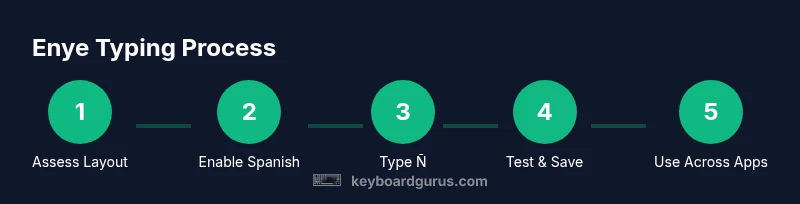
- 1
Identify your baseline layout
Check which keyboard layout is currently active on your device and identify whether it includes ñ directly or requires a dead-key sequence. Knowing your baseline helps you choose the right method for enye input.
Tip: Prefer a layout that offers dedicated ñ access if you type multilingual content daily. - 2
Add a preferred layout (Spanish or US-International)
Install and switch to a layout that includes enye. This reduces reliance on workarounds and keeps input consistent across apps.
Tip: Pin the new layout to a quick-access shortcut to switch without digging through settings. - 3
Learn the primary method for your OS
Familiarize yourself with the most reliable method on your platform—direct key in Spanish layouts, or dead-key sequence in US-International.
Tip: Practice a short sequence until it becomes automatic. - 4
Test input across common apps
Type enye in a document, code editor, and browser to verify rendering and avoid surprises in multilingual text.
Tip: If a program strips diacritics, switch to a Unicode input method for reliability. - 5
Optionally enable Unicode input
On platforms with Unicode input (like Linux), you can insert ñ via a Unicode sequence when other methods fail.
Tip: Remember the code point for ñ is U+00F1 (lowercase) and U+00D1 (uppercase). - 6
Document your preferred method
Create a personal quick-reference note or macro for enye to keep consistency across devices.
Tip: A small note saves time during long projects and collaboration.
Got Questions?
How do I type Ñ on Windows without a Spanish keyboard?
On Windows, you can enable the US-International or Spanish keyboard layouts, which provide direct access to Ñ. You can also use Unicode input as a fallback if you can’t switch layouts.
Enable a multilingual layout such as US-International, or use Unicode input if you can’t switch layouts.
How do I type Ñ on a Mac?
On macOS, you can press Option+N to create a tilde, then press N to produce ñ. For uppercase Ñ, you may use Option+Shift+N or switch to a Spanish keyboard layout.
Mac users can get Ñ by pressing Option+N then N; switch to Spanish layout for direct access if preferred.
What is the difference between enye and n with tilde?
Enye (ñ) is the lowercase n with tilde; N with tilde (Ñ) is the uppercase. They have distinct Unicode code points and are used in different linguistic contexts.
Ñ is uppercase, ñ is lowercase, and both are separate characters with distinct codes.
Can I type enye on Linux without special keyboards?
Yes. Linux users can use Ctrl+Shift+U to enter a Unicode, then type 00F1 and press Enter for ñ. Alternatively, enable a Spanish layout.
Linux supports Unicode input or a Spanish layout for enye.
Is there a quick way to input enye without changing layouts?
Yes, you can copy-paste ñ from a known source or use a text snippet expansion tool. Some editors also support snippets for multilingual characters.
Copy-paste or use a text snippet for quick access.
Watch Video
What to Remember
- Choose a layout with dedicated ñ for daily typing
- Learn one reliable OS-specific shortcut sequence
- Test entradas across apps to ensure consistent rendering
- Document your method for cross-device consistency