How to Type the Spanish Ñ on Keyboard
Learn clear, step-by-step methods to type the Spanish ñ and Ñ on Windows, Mac, and Linux. Includes shortcuts, layout tips, and practical practice from Keyboard Gurus to boost speed and accuracy.


You can type the Spanish letter ñ (lowercase) and Ñ (uppercase) on any keyboard by using a few built-in methods. On Windows, use an Alt code or switch to a Spanish keyboard layout. On Mac, press Option+n, then n for ñ (or Shift for Ñ). On Linux, enable a compose key or map, and type a special sequence to produce ñ. Keyboard Gurus recommends practicing both methods for speed.
Understanding the Spanish ñ and Ñ
If you’ve ever wondered how to do the spanish n on keyboard, you aren’t alone. The letter ñ is a small n with a tilde, and it appears in many common Spanish words such as niño, mañana, español, and año. On a standard English keyboard, this glyph isn’t part of the default layout, which can slow you down when typing in Spanish. The Keyboard Gurus team has tested several workflows and found that you only need to master a couple of reliable methods to type the character smoothly in writing, coding, and chat. According to Keyboard Gurus, picking a primary workflow and sticking with it for a while is the fastest path to fluency. In this guide we’ll cover Windows, macOS, and Linux approaches, and we’ll show you how to practice so the character becomes second nature. The goal is simple: learn practical, repeatable keystrokes that work across apps, websites, and IDEs, while keeping your hand position comfortable. This is a practical how-to guide designed for keyboard enthusiasts, students, and professionals who frequently switch between languages.
Throughout this article you’ll see the exact keystrokes in context, with tips on when to use each method. If you’re just starting out, start with one method on your primary OS, then add alternatives for when you’re on a different machine. That redundancy is the key to maintaining speed when you’re typing Spanish text on any computer. Keyboard Gurus analysis, 2026 suggests that familiarity with multiple methods reduces hesitation and improves accuracy in real-world typing tasks.
note: null
Tools & Materials
- Keyboard (any layout)(Include access to alternate input methods (Windows, Mac, Linux) if needed)
- Computer with Windows(For Alt codes and Spanish layouts)
- Computer with macOS(For Option+n method and Keyboard Viewer if needed)
- Compose key option (Linux)(Choose a reliable compose key (e.g., Right Alt) and memorize common sequences)
- US-International or Spanish keyboard layout(Helpful as a fallback or for budget quick setup)
Steps
Estimated time: 25-40 minutes
- 1
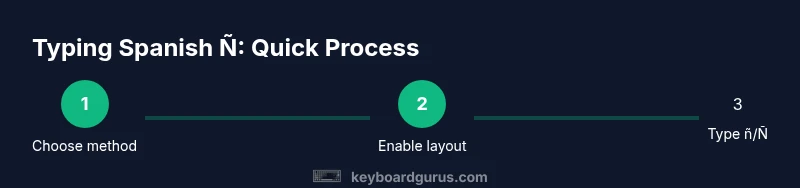
Decide your primary input method
Choose one reliable method to start with: Windows Alt codes or the Spanish/US-International layout, Mac’s Option+n shortcut, or a Linux compose-key sequence. Pick the method you’re most likely to use most often on your primary OS and commit to practicing it first.
Tip: Starting with one method minimizes cognitive load and speeds up initial learning. - 2
Enable the chosen layout on your OS
Go to your system settings and enable the selected input method (for Windows: add Spanish or US-International; for Mac: add Spanish - ISO or US International; for Linux: set a Compose key or switch to a preferred layout). Enable quick-switch shortcuts if available.
Tip: Having a visible shortcut makes it easier to switch when you switch languages. - 3
Test a simple ñ in a text field on Windows
Open a text editor and try typing ñ using your chosen Windows method. If you selected an Alt code, you’ll hold Alt and type the code on the numeric keypad; if you chose a layout, type using the dedicated key sequence.
Tip: Ensure Num Lock is on or your numeric keypad is active to avoid unexpected characters. - 4
Type Ñ on Windows with a dedicated shortcut
Repeat a simple sentence to practice both lowercase and uppercase Ñ in your Windows workflow. Use the same Alt-code approach or layout method you decided in step 1.
Tip: Mix lowercase and uppercase to build muscle memory for capitalization rules. - 5
Type ñ on Mac with Option+n
On macOS, press Option+n, then n for ñ. For Ñ, press Option+n, then Shift+n (or N). This is fast once you memorize the sequence and works in most apps.
Tip: If you frequently switch to another language, enable a quick language switcher to reduce friction. - 6
Type Ñ on Linux using Compose key
Configure a Compose key (often Right Alt) and practice composing ñ by typing Compose, ~, n. The same sequence with Shift-capital yields Ñ. This method is flexible across apps.
Tip: Practice the exact key order until you can recall it without thinking. - 7
Alternative: use a dedicated key mapping
If you prefer not to memorize codes, map a single key or a pair of keys to ñ/Ñ using your OS’s keyboard settings or a simple utility. This gives you a one-key result.
Tip: This approach is especially handy for writers who type in bilingual contexts. - 8
Practice with real text to build speed
Create a small practice routine: 15 minutes of typing Spanish phrases containing ñs, followed by 10 minutes of free writing. Regular practice cements your shortcut habits and improves accuracy.
Tip: Use authentic sentences to simulate real editing work. - 9
Verify characters and adjust as needed
After typing, review the output to ensure correct accents and capitalization. If you notice conflicts with other shortcuts, reconfigure the mapping or layout and test again.
Tip: Conflicts can arise from global shortcuts; remap to avoid clashes. - 10
Create a quick-reference cheat sheet
Save a short guide with the primary methods you use and the most common sequences. Keep it near your keyboard or as a browser bookmark for fast recall.
Tip: A memory aid reduces hesitation by offering immediate cues.
Got Questions?
What is the easiest way to type ñ on Windows?
The easiest path is usually to switch to a Spanish or US-International keyboard layout or use an Alt-code if you’re on a numeric keypad. Both approaches work in most apps, including word processors and browsers.
On Windows, switch to Spanish or US-International layouts, or use an Alt-code for the ñ character.
How do I type Ñ on Mac quickly?
On macOS, the fastest method is Option+n, then n for ñ; for Ñ, Option+n followed by Shift+n. This shortcut works in most apps and doesn’t require changing your keyboard layout.
Use Option+n, then n for ñ, or Shift+n for Ñ on a Mac.
Can I type ñ without changing my keyboard layout?
Yes. You can use Linux Compose keys or system-level mappings, and Windows Alt codes or Python-based input methods. This lets you type ñ without switching keyboards entirely.
Yes, you can type it without changing layouts by using Compose keys or Alt codes.
What should I do if Alt codes don’t work on my computer?
If Alt codes fail, switch to a layout that includes ñ and Ñ or use a Compose key sequence. Check that the numeric keypad is active on Windows and that you’re using the correct code.
If Alt codes fail, switch to a language layout or use your Compose key sequence.
Are there universal shortcuts for Linux across distributions?
Linux options vary by distribution, but most share support for a Compose key and for US-International layouts. Pick one method and practice across applications.
Most Linux setups support a Compose key and shared layouts; pick one and practice.
Watch Video
What to Remember
- Choose a primary method and practice it.
- Enable the right layout on your OS and learn its shortcuts.
- Mac users should memorize Option+n + n/Shift+n.
- Linux users can rely on a Compose key for versatility.
- Keep a quick-reference sheet for fast recall.