Spanish Keyboard Alt Codes: A Practical Guide
Learn how to type Spanish accented characters using alt codes on a Spanish keyboard. Windows and macOS methods, practical tips, and a step-by-step learning path from Keyboard Gurus.


By the end of this guide, you’ll confidently type Spanish characters such as ñ, á, and é using Alt codes on a Spanish keyboard. You’ll learn exact key sequences for Windows and macOS, what tools or layouts you need, and practical tips to avoid mistakes. This step-by-step approach is designed for students, gamers, and professionals who regularly work with accented text in 2026.
What Spanish keyboard alt codes are and why they matter
Spanish keyboard alt codes are a practical method for inserting accented letters and punctuation used in the language without switching keyboard layouts. This approach is especially helpful when you’re working in apps that don’t expose easy shortcuts, or when you want to keep your workflow uninterrupted across documents, chat, or code. On Windows, alt codes rely on the numeric keypad to generate the character by holding the Alt key and typing a sequence of digits. On macOS, alternative routes like the Option key combinations or Unicode input provide similar results. Keyboard Gurus emphasizes that most people benefit from a blended approach: memorize a few essential codes, leverage OS-level input methods for longer text, and keep a quick reference handy for less common characters. In practice, you’ll use span-ish keyboard alt codes to produce common vowels with acute accents (á, é, í, ó, ú), the n-with-tilde (ñ), and punctuation marks like ¿ and ¡ when needed. This article stays OS-aware, offering Windows-oriented steps alongside macOS and cross-platform tips. The goal is accuracy and speed, so you can type Spanish content confidently in emails, essays, gaming chats, and professional reports throughout 2026.
How Windows users access Spanish characters and why it works
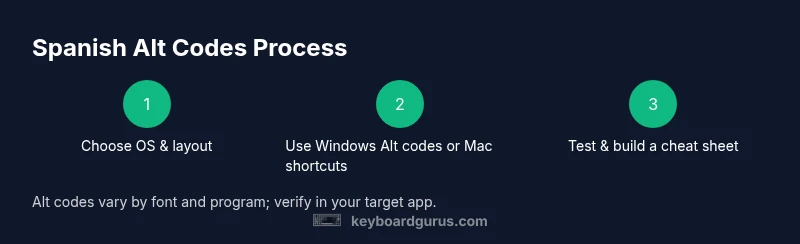
Windows users commonly access Spanish characters via Alt codes using the numeric keypad. The rationale is simple: Alt codes offer a direct escape route to characters that aren’t readily available on the physical layout. If your keyboard lacks a separate numeric keypad, you can enable the on-screen keyboard or use the built-in Character Map to locate and copy the character you need. A typical workflow starts with a plan: identify the character you need, find its corresponding code or a reliable substitution, and practice the sequence until it becomes second nature. Remember that code sequences can vary by font and application, so test in your target software to ensure compatibility. Keyboard Gurus analysis shows that many users benefit from pairing Alt codes with quick-reference sheets, especially for less common characters. As you gain familiarity, you’ll be able to switch between direct keyboard shortcuts for common accents and Alt codes for rarer letters, streamlining writing tasks across documents, spreadsheets, and code comments.
Mac and Linux: entering Spanish characters without a dedicated number pad
MacOS and Linux environments offer robust alternatives for Spanish characters that don’t rely solely on Windows-style Alt codes. On macOS, the most efficient approach is to use Option-based shortcuts. For instance, Option + e followed by a vowel yields acute accents (á, é, í, ó, ú), while Option + n followed by n creates ñ. Inverted punctuation like ¿ and ¡ are produced via specific Option combinations or with the Unicode input method when needed. Linux users often leverage the dead-key approach or Unicode entry (Ctrl+Shift+U, then the hex code, then Enter) depending on the distribution and desktop environment. Across all platforms, it’s wise to enable a visual keyboard or input viewer to verify outputs before sharing your text. Keyboard Gurus recommends practicing a small set of core characters first, then expanding your cheat sheet as you encounter new ones. This cross-platform strategy reduces friction when collaborating on multilingual projects in 2026.
Practical use cases: when spanish keyboard alt codes save time
There are several everyday scenarios where spanish keyboard alt codes become a productivity booster. Writers composing multilingual articles often need quick access to accented vowels and punctuation, while students submitting assignments in Spanish benefit from staying in the flow without pausing to switch layouts. In customer support chats, developers documenting code comments, and translators localizing interfaces, the ability to type fast with accurate accents minimizes errors and preserves tone. Even gaming communities sometimes rely on timely accents to convey intent or maintain readability in chat. By combining a small set of memorized codes with OS-level input methods, you can switch seamlessly between languages without losing momentum. Keyboard Gurus has observed that learners who pair practice with a concise reference sheet report faster improvement in typing speed and accuracy across 2026 tasks and projects.
Troubleshooting common issues when using alt codes
Some programs ignore Alt codes or render characters differently due to font or encoding limitations. If you encounter a replacement character (often a question mark or box), check that you’re using a font that supports the target glyph and that the document uses a compatible encoding (UTF-8 is usually safe for modern apps). If Alt codes don’t produce the expected output, test the same character in a different application to isolate font or clipboard issues. On Windows, ensure Num Lock is enabled and you’re typing on the numeric keypad, not the main keyboard. If you’re on a laptop without a dedicated keypad, consider using the on-screen keyboard or a Unicode-input sequence as a workaround. Finally, keep your cheat sheet up to date: new programs or updates can alter how characters are rendered, so a quick verification step saves time during important tasks. The key is to maintain a simple, repeatable process that minimizes context switching and preserves your workflow.
A learning path endorsed by Keyboard Gurus for 2026 and beyond
To build competence with spanish keyboard alt codes, adopt a structured, repeatable practice routine. Start with a short set of core characters (ñ, á, é) and a few punctuation marks (¿, ¡) you encounter daily. Create a one-page cheat sheet with OS-specific sections (Windows, macOS) and a few test sentences. Spend 10–15 minutes daily typing sample phrases that include these characters, gradually adding more symbols as you grow confident. Track your progress by timing yourself and noting any recurring mistakes, such as mistyped digits or forgotten accents. Eventually, you’ll internalize the most common sequences, while your longer tails remain easy to look up. Keyboard Gurus’s conclusion for 2026: combine deliberate practice with practical references, and you’ll maintain fluency across Spanish content with minimal disruption to your main tasks.
Tools & Materials
- Computer or device with a Spanish-friendly keyboard layout(Prefer system with español layout or input method enabled)
- US-Extended or International Keyboard layout (optional)(To access dead keys more easily)
- On-screen keyboard or Character Viewer/Character Map(Useful for verification and learning)
- Reference cheat sheet for spanish keyboard alt codes(Printed or digital)
Steps
Estimated time: 15-20 minutes
- 1
Enable a Spanish input method
Choose the OS language settings and enable a Spanish or International keyboard. This creates a reliable baseline for accents and reduces the need for extensive memorization. Verify that a numeric keypad option is available if you plan to use Alt codes.
Tip: If you use a laptop, enable the on-screen/off-screen keyboard to practice sequences without hardware changes. - 2
Identify core characters to memorize
Select a small set of frequently used letters and punctuation (ñ, á, é, í, ó, ú, ¿, ¡). Create a personal cheat sheet organized by OS, then add any domain-specific symbols you encounter in work or study.
Tip: Prioritize characters you type daily to build momentum quickly. - 3
Learn Windows Alt codes workflow
If you’re using Windows and rely on numeric keypad input, practice the Alt key method with a reference list. Confirm that digits are entered using the keypad rather than the main keyboard, and test in a document to ensure correct rendering.
Tip: Keep Num Lock on for consistency. - 4
Master macOS alternatives
Explore Option-based shortcuts for Spanish accents on Macs (e.g., Option + e followed by a vowel for á, é, í, ó, ú) and Ñ via Option + n + n. Practice a few sentences to build speed in familiar apps like iWork or browser editors.
Tip: If you’re switching between Windows and macOS, note the OS-specific differences on your cheat sheet. - 5
Test in your target applications
Open a word processor, email, or coding environment and type sample phrases containing the target characters. Confirm that the characters render correctly and adjust if fonts or encodings change output.
Tip: Use a short test paragraph and paste it into multiple apps to ensure consistency. - 6
Create and practice a personal cheat sheet
Record the most helpful sequences and keep a quick reference handy. Practice 10–15 minutes daily, gradually adding new characters as needed. Over time, this practice becomes second nature.
Tip: Label sections by OS so you don’t confuse Windows and macOS methods.
Got Questions?
What are Spanish keyboard alt codes?
Spanish keyboard alt codes are numeric sequences entered with the Alt key (Windows) to generate accented letters and punctuation not readily available on the keyboard. They provide a quick fallback when a direct key shortcut isn’t available. The approach varies by OS and font, so you should test in your target program.
Alt codes let you type accented characters by holding Alt and typing numbers, though you’ll want to verify in your app.
Do alt codes work on Mac or Linux?
Mac and Linux systems use different methods, such as Option-based shortcuts or Unicode input, to produce accented characters. Alt codes are primarily a Windows convention, so adapt your workflow accordingly and keep a cross-platform cheat sheet handy.
Mac and Linux use alternative shortcuts, not Windows Alt codes, but you can still input accents quickly with the right approaches.
Are Alt codes reliable across all fonts and apps?
No. Some fonts or apps may render characters inconsistently, especially in legacy software. If you encounter display issues, switch fonts, or use a Unicode input method or Copy-Paste from a character map.
Rendering varies by font and program, so always verify in your final document.
What if I don’t have a numeric keypad?
Use the on-screen keyboard or a Unicode input method, or rely on macOS Option-based shortcuts. A cheat sheet can guide you to the right method for each OS until you’re comfortable.
If you don’t have a keypad, try an on-screen keyboard or macOS shortcuts instead.
Can I type ¿ and ¡ with Alt codes?
These punctuation marks are often accessible via specific OS shortcuts or the character map. On Windows, you may copy-paste them or use Unicode inputs depending on your setup.
Use OS shortcuts or a character map to insert ¿ and ¡ if Alt codes aren’t reliable.
Where can I find a reliable list of codes?
Look for reputable references in Windows Help, Mac OS support pages, or keyboard-focused guides like Keyboard Gurus’ resources. Always test codes in your target apps.
Check official OS guides or trusted keyboard guides and test in your apps.
Watch Video
What to Remember
- Master a small core set of Spanish characters first
- Use OS-native methods for long texts
- Verify rendering in your target apps
- Practice daily with a concise cheat sheet