How to Do an Accent on Keyboard: A Practical Guide
Learn practical methods to type accented characters across Windows, macOS, iOS, and Android. Discover shortcuts, Unicode input, and layout tricks to keep your typing smooth and accurate.


By using built-in keyboard shortcuts and layouts, you can type most accented characters quickly. This quick guide shows cross-platform methods—Alt codes on Windows, Option keys on macOS, Unicode input, and international layouts—that let you insert letters like é, ñ, and ö without copying-pasting.
What is typing accents and why it matters
If you're learning how to do an accent on keyboard, you're improving readability and accuracy in multilingual writing. Accented characters appear in many languages and matter for tone and meaning. Keyboard Gurus analysis shows that most writers benefit from knowing multiple methods across platforms. According to Keyboard Gurus, mastering quick accent input reduces typing friction and helps you communicate more clearly in emails, essays, and code comments.
Core concepts: dead keys, Unicode, and layout choices
Two core ideas power most accent input: dead keys and Unicode. A dead key lets you press an accent modifier (like a dead acute) and then a base letter to produce é or á. Unicode provides a universal encoding; you can type U+00E9 for é in many apps, then switch to a composed character. Layout choices—US International, UK Extended, or language-specific layouts—shape which keys you press most often. Understanding these concepts helps you choose the most comfortable method for your workflow.
Platform-specific input methods: Windows, macOS, Linux, iOS, and Android
Windows users often leverage Alt codes (with the numeric keypad) to insert accented letters, while Mac users commonly use Option-based sequences to compose characters. Linux distributions may support Compose keys or Unicode entry; mobile devices rely on long-press popups or on-screen keyboards with dedicated accent keys. Knowing these options helps you pick a method that matches your daily tasks, whether writing code, composing emails, or typing in a browser.
Unicode input and character maps: when to use each
Unicode input is powerful when you know the exact code point (for example, U+00E9 for é). But in casual writing, a character map or built-in emoji/character picker often works faster. For repeated work, a clipboard manager or a text-expansion tool can store your most-used accented letters for quick pasting. Keyboard Gurus recommends keeping a short, personal cheat sheet of the codes you use most.
Switching layouts and international keyboards: getting comfortable across apps
Enabling an international layout like US International or a dedicated language pack gives you accent keys integrated into your standard keyboard. Practice switching between layouts with a simple hotkey (for example, Windows: Alt+Shift or Windows key + Space; macOS: Command+Space depending on settings). Ensure your software uses the same input method in your editors, terminals, and IDEs to avoid surprises.
Tools and utilities that speed up typing accents
Clipboard managers, keyboard shortcut managers, and language input tools can dramatically reduce friction. Apps that present a quick accents palette or a dynamic hotkey menu let you insert multiple accents without memorizing codes. A light font and high-contrast UI help you spot diacritics quickly, especially when working with long documents or code notes.
Practical examples: common accented letters
Here are representative letters you’ll use often, with quick methods. á, é, í, ó, ú: use platform-specific shortcuts (Windows Alt codes: 0253, 0233, 0237, 0243, 0250); macOS: Option+e then the base letter (e.g., é = Option+e, e); ñ and ç: macOS Option+n then n, or Option+c for ç; ö and ü: macOS Option+u then o/u. For Windows, Alt codes are 0225 (á), 0233 (é), 0241 (ñ), 0246 (ö), 0252 (ü).
Troubleshooting common issues and best practices
If accented characters appear as boxes or wrong glyphs, check the active input method, ensure the font supports the diacritic, and confirm you’re using the correct key sequence for your platform. When collaborating across teams, set a consistent input method in your editor and terminal, and consider saving a few shortcuts in a personal cheat sheet.
Tools & Materials
- Keyboard with numeric keypad(Alt codes on Windows require a numeric keypad or NumPad emulation.)
- Operating system with language/keyboard settings(Access to input methods like US International or Compose.)
- Character map or emoji picker(Helpful for rarely used characters.)
- Web browser or text editor(Test and paste accented characters.)
- Unicode code reference or cheat sheet(Bookmark a list of common codes.)
Steps
Estimated time: 20-40 minutes
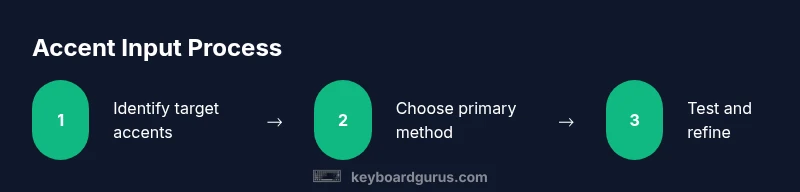
- 1
Identify your target accents
List the most frequent accented letters you use and note their preferred methods per platform. This helps you pick a method you'll actually remember.
Tip: Start with 3–5 letters you type daily. - 2
Choose a primary method per platform
On Windows, decide between Alt codes or a US International layout. On Mac, learn the Option-based sequences or the Compose key.
Tip: Consistency reduces errors. - 3
Practice Alt codes or Option shortcuts
Set aside 15 minutes to practice ten common letters. Use a test document to verify output.
Tip: Keep a tiny cheat sheet handy. - 4
Enable and test the international layout
Switch to a dedicated international layout and verify it doesn't break your default typing. Test in a word processor and a terminal.
Tip: Know the hotkey to switch layouts. - 5
Use Unicode input for rare characters
Lookup the exact code point and type the sequence (e.g., U+00E9 for é) in your editor.
Tip: Unicode input is precise but slower for everyday use. - 6
Leverage on-screen palettes for speed
If you frequently type many accents, use a palette or shortcut tool to insert multiple diacritics.
Tip: Palette tools are great for long documents. - 7
Test across apps and save your cheats
Open a few apps you write in regularly and confirm consistent behavior. Save your keystrokes as a macro if needed.
Tip: Document your final method.
Got Questions?
What is the easiest method to type accented characters?
The easiest method varies by platform. Windows users often rely on Alt codes, macOS users on Option-key sequences, and international layouts can simplify frequent accents. Practice one method consistently.
Use platform-specific shortcuts like Alt codes on Windows or Option keys on Mac, and consider an international layout for frequent accents.
Can I type accents without changing system settings?
Yes. You can use dead keys, Unicode input, or the on-screen character palettes without changing your system language. These methods are quick once learned.
Yes, you can input accents using dead keys, Unicode, or character palettes without changing system settings.
How do I type accents on mobile devices?
Mobile keyboards provide long-press on letters to reveal accented variants. You can also enable international keyboards if you type in multiple languages.
On phones, just press and hold the letter to pick an accent variant, or enable a language keyboard for more options.
What are dead keys and how do they work?
Dead keys are keys that modify the following letter's diacritic. You press the dead key (like the accent) and then a base letter to produce the accented character.
Dead keys modify the next letter to create accents, like pressing an accent key then a letter.
Is there a universal method for all apps?
No single method works identically in every app. Keyboard input can vary by software, font, and platform. Choose a primary method and test across your tools.
There isn’t one universal method; test different options in your tools.
Watch Video
What to Remember
- Master platform-specific methods for speed
- Use international layouts to reduce remapped keystrokes
- Keep a quick reference for frequent accents
- Test your output across apps to ensure consistency