How to Use Special Characters on Keyboard
Learn practical methods to type and insert symbols, accents, and emoji across Windows, macOS, and mobile. Discover shortcuts, palettes, and Unicode input to type with confidence.


You will learn practical ways to type and insert special characters across Windows, macOS, and mobile devices, including shortcuts, menus, and Unicode input. This guide covers accents, currency signs, arrows, symbols, and emoji to help you work faster and with fewer errors.
Why special characters matter on keyboards
According to Keyboard Gurus, mastering how to use special characters on keyboard saves time and reduces errors when composing in multiple languages. In practice, this means accented letters for French, Spanish, and Portuguese; currency symbols for invoices and receipts; arrows or mathematical symbols for diagrams; and emoji or dingbats for clearer tone in messages. The ability to input these characters quickly enhances multilingual communication, academic writing, programming, and creative content creation. By understanding the origins of diacritics, punctuation variants, and typographic symbols, you can choose the best method for readability and accessibility. Keyboard Gurus analysis shows that users who adopt reliable character-entry workflows report fewer interruptions and smoother document workflows across apps like word processors, browsers, and email clients. This section lays the foundation: know what you need to type, why it matters, and how to access it with confidence.
Basic methods for all platforms
Before diving into platform-specific tricks, it helps to master a few universal approaches. First, you can rely on visible keys on your keyboard: many symbols are produced by Shift combinations (for example, Shift+2 to get @ on most US keyboards, or Shift+3 for £ in some layouts). Second, dead keys and diacritics let you build accented characters by pressing a base letter then adding a combining mark. Third, Unicode input provides a universal route to any character by code point, which is especially useful for rarely used symbols. Finally, you can use on-screen palettes or keyboard viewers that offer extended character sets without memorizing every code. These methods work across Windows, macOS, and mobile devices with slight variations in how you activate them.
Platform-agnostic shortcuts you can rely on
- Use the OS character palettes to browse symbols and copy-paste them into your document. This avoids memorizing dozens of codes.
- Learn a few core Escape/Alt sequences that map to common sets (punctuation, currency, mathematical signs).
- Keep a short reference sheet for your most-used symbols and assign shortcuts to them using a text-expansion tool or macro software.
- Ensure your fonts include the glyphs you want; otherwise, characters may render as empty boxes or fallback symbols that disrupt readability.
Platform-specific shortcuts: Windows, macOS, Linux, iOS, Android
Windows users can type many symbols with Alt codes or Unicode input. macOS users leverage Option-key combinations and the built-in Character Viewer. Linux can use the Compose key and Unicode entry. On mobile, long-press on keys often reveals alternate characters, and language packs provide extended keyboards. Each platform has nuances, but the underlying principle remains the same: access a broader character set without leaving your workflow.
Using emoji and extended characters in documents and browsers
Emojis and extended symbols can add tone and clarity to messages, articles, and slides. Windows 10/11 offer the Emoji Panel (Win + .) and the Unicode input method; macOS provides the Emoji & Symbols viewer (Control+Cmd+Space). Browsers generally support emoji and many symbols through the system font, but font coverage and rendering can vary across sites. When including symbols in code or data, prefer Unicode-escaped forms or well-supported fonts to ensure consistency across devices and platforms.
Practical workflows for speed and consistency
Once you know the core methods, build a repeatable workflow. Use a short reference guide for your most-used characters, create text-expansion snippets for repeated terms, and consider a lightweight macro tool to map rarely used symbols to easy keystrokes. If you work across languages, configure language-specific input sources and keyboard layouts to reduce toggling. Finally, test outputs in your target apps to confirm glyph support, alignment, and font fallbacks, so your documents look the same on all devices.
Tools & Materials
- Keyboard with a numeric keypad (optional but helpful)(Numerical keypad enables easier Alt code entry on Windows)
- Computer with Windows/macOS/Linux(Ensure you can access system character tools)
- A reference sheet of common symbols and codes(Print or digitally save for quick lookup)
- Font set that includes extended glyphs(Check for consistent glyphs across platforms)
- Text expansion or macro tool (optional)(Useful for frequent symbols or terms)
- Access to language and input settings (keyboard layouts)(Needed to switch between layouts quickly)
Steps
Estimated time: 15-25 minutes
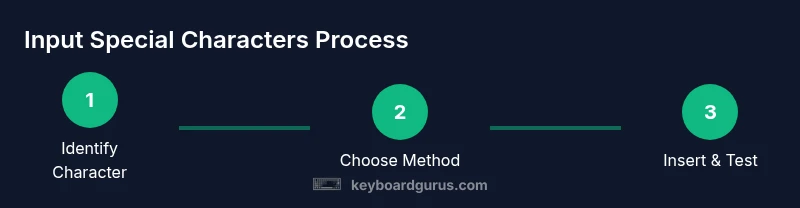
- 1
Identify the target character
Decide which symbol, accent, or emoji you need. If you’re unsure, search a reliable character map or your reference sheet before attempting methods. Understanding the exact glyph helps you choose the fastest input route.
Tip: Start by listing your most-used characters to speed up future entries. - 2
Choose a primary method per platform
Pick one reliable method for Windows, macOS, and mobile. For example, Alt codes or Unicode on Windows, Option-based shortcuts on macOS, and long-press for symbols on mobile keyboards.
Tip: Consistency matters—stick to one method per platform to reduce errors. - 3
Enable and test the OS palette or viewer
Open the character viewer or emoji panel and verify that the character appears in your document. Confirm font compatibility and alignment in your target application.
Tip: Pin frequently used symbols for faster access. - 4
Use Unicode for rare symbols
When a symbol isn’t on the keyboard, input its Unicode code point and apply the appropriate conversion (e.g., Alt+X on Windows). This ensures you can insert any character.
Tip: Keep a small Unicode cheat-sheet handy. - 5
Adopt a text-expansion workflow
Create shortcuts for phrases or symbols you type often. This minimizes keystrokes and reduces errors during rapid typing sessions.
Tip: Test expansions in all apps you use to ensure compatibility. - 6
Validate rendering across apps
Open your document in different applications and devices to verify glyph rendering, font fallback behavior, and spacing.
Tip: If glyphs don’t render, switch to a more universal font or adjust encoding.
Got Questions?
How do I type accents quickly on Windows and macOS?
On Windows, use Alt codes or Unicode input (Alt+X). On macOS, use Option-key combinations or the Character Viewer. Practice a few common accents first to build muscle memory.
You can type accents quickly using Windows Alt codes or macOS Option shortcuts, then verify in your document. Start with the most common accents to build speed.
What is the best method if I don’t have a dedicated symbol key?
Use Unicode input where available, or rely on the OS character palettes to locate the symbol and copy-paste it. Consider a text-expansion tool to map frequent symbols to keystrokes.
If there’s no symbol key, Unicode input or the palette is your friend, and a quick text-expander can save time.
Can I insert emojis in professional documents?
Emojis are widely supported in modern editors, but ensure they match your document’s tone. Use the OS emoji panel (Win+.) or macOS Emoji Viewer, and verify rendering in your target format.
Yes, you can, but test rendering and tone to keep documents professional where needed.
How do I insert symbols in Word or Google Docs?
Both Word and Google Docs provide Insert Symbol menus and Unicode input. Use the built-in shortcuts and also consider keeping a few symbols on your clipboard for faster pasting.
Word and Docs have easy symbol menus and Unicode tricks—practice a couple until they’re quick.
Are there security concerns with Unicode input?
Unicode input itself is safe; risk arises if you paste untrusted symbols from unknown sources. Keep your workflow within trusted editors and avoid executing hidden payloads via pasted text.
Unicode input is safe, just be careful with unknown sources when pasting symbols.
Watch Video
What to Remember
- Learn platform-specific methods for inserting symbols
- Rely on character palettes to avoid memorizing every code
- Use Unicode input for rare or new characters
- Test rendering across apps to ensure consistency
- Build a repeatable symbol workflow for speed