How to Type e Accents on Keyboard: A Complete Guide
Learn practical methods to type e accents on keyboard across Windows, Mac, Linux, and mobile. Explore dead keys, Unicode input, Alt codes, and layout strategies to speed up multilingual typing.


Learn how to type e accents on keyboard across Windows, macOS, Linux, and mobile. This guide covers dead keys, Unicode input, Alt codes, and common layouts, so you can produce é, è, ê, and ë quickly and accurately in any app. Whether you type in English, French, Spanish, or multilingual notes, mastering these methods saves time and reduces errors. Ready to type with confidence?
What e accents on keyboard covers
e accents on keyboard refers to producing characters like é, è, ê, ë, and other accented e variants using a keyboard. This matters in many languages (French, Spanish, Italian, Portuguese, and more) where diacritics change pronunciation and meaning. According to Keyboard Gurus, many keyboard users struggle with diacritics because the default US layout omits common accented vowels. By learning a few reliable methods you can switch between languages without hunting for symbols, improving readability and speed. This guide lays out practical, OS-specific options and a clear workflow so you can choose the method that fits your setup. Throughout, you’ll see how to combine dead keys, Unicode, and keyboard layouts to type e accents on keyboard quickly and confidently.
The core idea is to select a consistent approach that works across most apps (text editors, browsers, and IDEs) and devices. We’ll cover Windows, macOS, Linux, and mobile devices, as well as general tips for accuracy, ergonomics, and memory retention. As you read, try a few sample words such as “résumé,” “naïve,” and “fiancée” to see which technique feels fastest for you. The goal is to reduce friction so typing e accents on keyboard becomes second nature.
How this guide is organized
- Quick methods you can apply immediately
- OS-specific workflows for Windows, macOS, and Linux
- Mobile typing tips for iOS and Android
- Practical tips to speed up your workflow and avoid common pitfalls
- A concise FAQ to answer common questions
- An optional infographic and a video search prompt to extend learning
Why consistency matters for e accents on keyboard
When you standardize on one reliable method (for example, a preferred dead-key sequence or a specific Unicode entry), you cut down on cognitive load and reduce mistakes. Multilingual communication benefits from accurate diacritics, especially in formal writing or academic work. Keyboard Gurus analysis shows that users who adopt a single, tested method tend to type accented vowels more quickly and with fewer keystrokes. With practice, e accents on keyboard become near-instantaneous, enabling smoother switching between languages during notes, emails, and code comments.
In practice, consistency means choosing a method you can reliably reproduce across apps, languages, and devices. It also means keeping a short cheat sheet handy for less common accents (ê, ë, ė, ę) so you’re never stuck hunting for a symbol in a menu. This approach minimizes context switching and helps you keep your hands on the keyboard rather than the screen.
Common challenges and how to overcome them
- Inconsistent results across apps: Some programs may override your input method. Test in a word processor, a code editor, and a browser to ensure the same character appears.
- Missing symbols after layout changes: If you switch layouts, you may lose access to certain e accents. Revisit your preferred method and adjust shortcuts as needed.
- Inability to type in plain ASCII mode: If you often switch back to non-diacritic input, consider a toggle or a dedicated key shortcut to switch layouts quickly.
- On smaller devices, fatigue can reduce accuracy: Prefer simpler methods (like long-press on mobile) when you’re multitasking to maintain accuracy.
Quick-start cheat sheet for e accents on keyboard
- É and é: often produced via a dead-key sequence or Alt codes on Windows, and via Option sequences on Mac.
- È, è, and ê: use grave or circumflex patterns on your keyboard according to the OS method chosen.
- ë and ė: typically require more extended sequences or Unicode entry.
- Keep a browser tab with a reference chart for the most common accents and update your cheat sheet as you discover what works best for your workflow.
- Practice with a few sample words daily to reinforce muscle memory and speed.
Tools & Materials
- Windows PC(Enable US-International layout or prepare Alt codes (e.g., Alt+0233 for é))
- Mac computer(Use long-press or Option+e sequences to produce é, then e to complete the option)
- Linux machine(Configure a compose key or a dead-key layout like intl)
- Numeric keypad(Helpful for Windows Alt codes when the main keyboard lacks a numeric pad)
- Reference cheat sheet (digital or print)(Quick lookup for common e accents (é, è, ê, ë) and their entry methods)
- Mobile device (iOS/Android)(Test long-press or symbol picker in a messaging app or keyboard app)
Steps
Estimated time: 25-40 minutes
- 1
Choose your primary method
Decide which technique you will rely on most (dead keys, Alt codes, Unicode, or a compose/shortcut) and commit to it for a consistent workflow across apps.
Tip: Start with a single method that you can test across at least two apps. - 2
Enable a suitable keyboard layout
On Windows, install and select the US-International layout. On macOS, set up the appropriate input source (e.g., ABC - Extended) or use a dedicated Option-key sequence. On Linux, configure a compose key or intl layout as preferred.
Tip: After enabling, confirm that a dead key sequence produces the expected accent in a test document. - 3
Type accented e with dead keys
Learn the basic dead-key sequence for é: press the apostrophe key (′) as a dead key, then press e to produce é. Translate similar patterns for è (grave) and ê (circumflex) based on your chosen layout.
Tip: Practice with several words to build muscle memory. - 4
Use Alt codes on Windows (if no dead keys)
If your keyboard lacks a dead-key option, press and hold Alt while typing the numeric code on the keypad: é is Alt+0233, è is Alt+0232, ê is Alt+0234.
Tip: Enable Num Lock or use on-screen keypad if your device lacks a dedicated keypad. - 5
Try macOS Option sequences
For é, press Option+e to activate the acute accent, then press e again for é. Other e variants use different sequences (e.g., Option+` for è followed by e).
Tip: Keep a short reference near your workspace until the sequences feel natural. - 6
Explore Linux Compose key
Configure a Compose key, then type a sequence like 'e then ' or 'e with an accent key to produce e accents on keyboard.
Tip: Test in a terminal and a text editor to ensure consistency. - 7
Test on mobile devices
On iOS or Android, long-press e to reveal accent options or switch to a multilingual keyboard template set that includes diacritics.
Tip: Practice with long-press across multiple apps for reliability. - 8
Create a quick cheat sheet
Document your go-to method and the most common codes or sequences for e accents on keyboard to speed up future typing sessions.
Tip: Keep the cheat sheet accessible from your home screen or bookmarks. - 9
Validate across apps and languages
Open a few apps (text editor, email client, browser, IDE) and verify the exact diacritic appears as intended.
Tip: If a symbol changes, adjust the layout or method accordingly.
Got Questions?
What is the easiest way to type é on Windows?
On Windows, you can type é by enabling the US-International layout and using the dead-key sequence ' (apostrophe) + e, or by using the Alt code Alt+0233. Both methods produce the correct character and work across most applications.
On Windows, enable US-International and press the apostrophe, then e, or use Alt+0233 to type é.
Can I type e-accents on a standard US keyboard without changing layouts?
Yes. You can use dead-key sequences, Alt codes, or Unicode input to insert accented e characters without changing your primary keyboard layout. The specific method depends on your OS and how you configure input options.
Yes, with dead keys, Alt codes, or Unicode input you can type accented e characters without changing layouts.
What is a Compose key and how do I use it?
A Compose key is a special key that starts a multi-key sequence to produce a character. For example, pressing Compose, then e, then ' can yield é on many Linux setups. Configure the Compose key in your system settings and experiment with common sequences.
A Compose key starts a multi-key sequence to output a character, like é on Linux.
Is there a universal method for all devices?
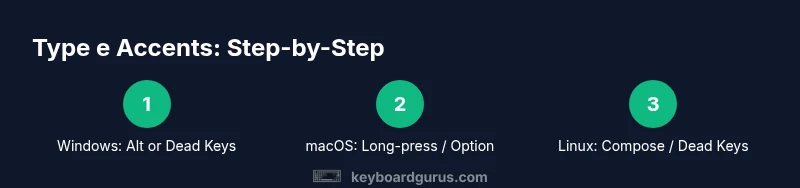
No. Each operating system has its own best practices. Windows often uses Alt codes or US-International; macOS uses Option sequences or long-press; Linux commonly relies on Compose or dead-key layouts. Pick one method and stick with it across devices when possible.
There isn't a universal method; use OS-specific approaches and apply them consistently.
How can I memorize these methods effectively?
Practice with a few representative words daily using your chosen method. Create a small cheat sheet and drill the sequences in real writing tasks to build familiarity and speed.
Practice daily with a chosen method and keep a short cheat sheet to build speed.
Are there accessibility options for people with motor disabilities?
Yes. You can use on-screen keyboards, sticky keys, or voice typing in combination with simple diacritic shortcuts. Adjust input methods to fit your accessibility needs and reduce repetitive motion.
There are accessibility options like on-screen keyboards and voice typing to help with diacritics.
Watch Video
What to Remember
- Choose one reliable method and practice daily.
- Dead-key methods save keystrokes for frequent accents.
- Mac, Windows, and Linux have OS-specific flows—lean on one consistent approach.
- Test across apps to prevent surprises in documents and messages.
- Keyboard Gurus recommends a simple, documented workflow for long-term speed.