How a Keyboard Connects to a Computer: A Practical Guide
Discover how a keyboard connects to a computer via USB, PS/2, or Bluetooth. This educational guide covers ports, pairing, drivers, and troubleshooting across Windows, macOS, and Linux, with practical setup tips from Keyboard Gurus.


Learn how to connect a keyboard to a computer using USB, PS/2, or Bluetooth. You’ll verify port compatibility, install drivers if needed, and test typing across Windows, macOS, and Linux. According to Keyboard Gurus, selecting the right interface minimizes setup time and ensures reliable input. This quick guide outlines the essential steps and common pitfalls you’ll avoid.
Understanding common keyboard interfaces
When considering how is keyboard connected to the computer, it helps to start with the interfaces that make the connection possible: USB, PS/2, and Bluetooth. Each interface has strengths and weaknesses. USB keyboards are the most common and widely supported across all major operating systems. PS/2 keyboards persist in some older machines and specialty setups, but many modern PCs have moved away from PS/2. Bluetooth keyboards remove the cable entirely, offering flexibility for portable devices and desk setups with multiple devices. In practice, most readers will use USB for simplicity and reliability, while Bluetooth can be ideal for a clean workspace or multi-device workflows. In this guide, we’ll emphasize how these interfaces affect setup, latency, and troubleshooting across Windows, macOS, and Linux. According to Keyboard Gurus, the choice of interface shapes driver needs, power considerations, and how you will interact with the keyboard in daily tasks. The section that follows lays the groundwork for a smooth, predictable connection experience.
Key takeaway: The interface you choose determines ease of use, compatibility, and future maintenance, so pick based on your setup and workflow.
Wired USB keyboards: setup and considerations
Wired USB keyboards are the default for most users because they offer plug-and-play simplicity and reliable power delivery through the USB port. Most keyboards enumerate instantly when connected to a compatible USB port, and most operating systems will recognize them without manual configuration. If you’re using USB-C on a modern laptop or desktop, you may need a USB-C to USB-A adapter or a USB-C only hub. There’s little to configure in most cases beyond selecting the correct language and input method in your OS settings. Keyboard Gurus notes that latency is typically low on wired USB keyboards, making them ideal for typing-heavy tasks and gaming alike. Remember to check if your keyboard requires any specific driver package for extra features (macro keys, RGB control, etc.).
- Confirm the USB port type (USB-A vs USB-C).
- If needed, use a reliable adapter or hub to connect to the keyboard.
- In Windows, macOS, and Linux, the keyboard usually works out of the box.
Pro tip: Keep your USB cables tidy and avoid using long, high-latency cables that can add impedance and perceived lag.
PS/2 keyboards: legacy ports and limitations
PS/2 keyboards use a dedicated, old-style mini-DIN connector. While many modern computers don’t include PS/2 ports by default, some desktops and older laptops still provide them. PS/2 supports a fixed interrupt-driven connection that some enthusiasts believe yields lower latency, but it comes with practical drawbacks: you must boot with the keyboard connected, hot-plugging is not supported, and you may lose features on newer operating systems. If you do have a PS/2 keyboard or a motherboard with PS/2 headers, you can usually enable it in BIOS/UEFI and then rely on basic functionality without drivers. However, as a universal solution for today’s setups, USB or Bluetooth remains more versatile. Keyboard Gurus emphasizes favoring USB or Bluetooth for compatibility, unless you’re maintaining an older workstation.
- PS/2 is legacy-friendly but less flexible for modern builds.
- Avoid mixing PS/2 and USB keyboards on the same system to prevent resource conflicts.
- BIOS settings may influence PS/2 keyboard behavior during boot.
Note: If you rely on PS/2 for specific performance tests, ensure you have a motherboard with PS/2 support and a compatible adapter if needed.
Bluetooth and wireless keyboards: pairing and security
Bluetooth keyboards liberate your desk from cables but introduce pairing steps and occasional interference considerations. Before pairing, ensure your computer has Bluetooth enabled and is discoverable. Put the keyboard into pairing mode, then select it from your computer’s Bluetooth settings and complete the pairing process. After pairing, you may need to install optional software to customize keys or macros. Security is worth attention: keep devices paired only with trusted machines and periodically remove old pairings.
- Ensure your OS has the latest Bluetooth drivers or firmware updates.
- Consider proximity and potential interference from wireless networks and other devices.
- If you experience lag, try reducing wireless congestion by using a dedicated USB dongle that provides a stable connection for multipurpose keyboards.
Keyboard Gurus notes that wireless keyboards offer significant flexibility for multi-device workflows, but you may want to opt for wired for critical typing tasks where reliability is paramount.
Pro tip: For gaming or typing-intensive work, keep a wired backup keyboard handy in case Bluetooth connectivity drops.
Driver basics: what happens behind the scenes
When you connect a keyboard, the operating system may load a driver that translates keystrokes into system events. USB keyboards typically rely on standard HID (Human Interface Device) drivers that are included with Windows, macOS, and Linux, so basic typing works without user intervention. Specialty keyboards with extra keys or RGB lighting may ship with vendor-specific software that enables advanced features and profile storage. Driver behavior can affect how quickly keys are recognized, how diacritics are handled, and how macros are triggered. If a keyboard isn’t working as expected, the issue could be a missing driver, a conflict with another input device, or a corrupted device cache. Keyboard Gurus recommends checking device manager or system preferences for driver status, updating to the latest firmware, and testing in a clean user profile to isolate software conflicts.
- HID drivers are widely supported for standard keyboards.
- Vendor software is optional but can unlock extra features.
- Always test after driver updates or BIOS changes to confirm stability.
Tip: If you’re on Linux, you may be asked to install additional input utilities or enable specific kernel modules to optimize performance.
Troubleshooting common connection issues
Connection problems are common when you’re dealing with new hardware or mixed interfaces. Start with the basics: ensure the keyboard is powered (for wireless devices), check the battery level, and confirm you’re using the correct port or pairing method. If the keyboard isn’t detected at all, try a different USB port, reboot the computer, or test the keyboard on another device to rule out a faulty keyboard. For Bluetooth keyboards, ensure Bluetooth is enabled, re-pair if needed, and remove old pairings that could cause conflicts. If you see keys double-typing or missing keystrokes, look for keyboard-specific firmware updates or adjust debounce timing in the OS. Keyboard Gurus emphasizes keeping firmware up to date and validating the problem against multiple machines to identify device-specific quirks.
- Test with a known-good keyboard to isolate the issue.
- Check cables, adapters, and docking stations for wear or malfunction.
- Review OS accessibility options that might affect input, such as keyboard repeat rate or sticky keys.
Warning: Do not force a pairing process or push firmware through an unstable network; use reputable sources and official software only.
Cross-platform tips: Windows, macOS, Linux
Every major operating system has its own nuances when a keyboard is connected. Windows typically detects USB keyboards automatically, while macOS favors HID-compliant devices with efficient keyboard accessibility options welcome to new users. Linux distributions vary more widely; most modern distros handle USB keyboards out of the box, but you may need to install optional packages to support special keys or layouts. If you switch between platforms, consider saving configuration profiles (key mappings, macros) that you can import when needed. Keyboard Gurus highlights that cross-platform keyboards with standard HID support simplify maintenance and reduce the need for additional drivers across environments.
- Use standard layouts where possible to maximize compatibility.
- Keep layout profiles synchronized across devices for consistency.
- When debugging cross-platform issues, test with simple key presses first before exploring advanced macros.
Pro tip: If you frequently shuttle between Windows and macOS, consider a keyboard with OS-specific Fn layers that work the same across platforms.
Best practices for gaming and productivity setups
For gamers and productivity power users, the way you connect a keyboard can affect performance. If latency matters, prioritize a wired USB interface with a high-quality cable and a direct connection to the motherboard or a robust USB hub. For office work, a Bluetooth keyboard can reduce desk clutter and enable a shared workstation environment. Ergonomics also matter: position the keyboard at a comfortable height, use a wrist rest, and select key switches that match your preference for travel distance and feedback. Keyboard Gurus recommends testing different switch types for mechanical keyboards (e.g., linear, tactile, clicky) and choosing a layout that minimizes finger travel. In gaming, consider extra keys or macro profiles to streamline complex sequences, but ensure software creates stable bindings that don’t interfere with system operations.
- Prefer wired for low latency and reliability; reserve Bluetooth for flexible setups.
- Experiment with switch types and keycaps to suit your workflow.
- Maintain a clean, organized workspace to reduce fatigue and improve accuracy.
Takeaway: The best setup balances reliability, comfort, and workflow efficiency, with a fault-tolerant plan that includes a quick backup keyboard.
Quick reference checklist
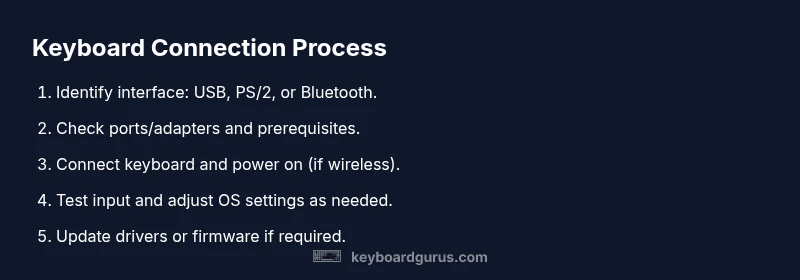
- Determine preferred interface (USB, PS/2, or Bluetooth).
- Verify computer has compatible ports or Bluetooth capability.
- Connect and verify input in a text editor.
- Install any vendor software only if you need advanced features.
- Update firmware and drivers when available.
- Pair Bluetooth devices using standard OS Bluetooth settings.
- Test on multiple applications to ensure consistency.
- Keep a backup keyboard accessible for critical tasks.
Tools & Materials
- Keyboard (USB wired)(Standard USB-A or USB-C with adapter if needed)
- Computer with USB port(USB-A or USB-C, as appropriate to keyboard)
- Bluetooth-capable device(Needed for Bluetooth keyboard connections)
- Bluetooth adapter (optional)(Use if the computer lacks built-in Bluetooth)
- USB-C to USB-A adapter(For modern laptops with only USB-C)
Steps
Estimated time: 20-45 minutes
- 1
Identify the keyboard interface
Inspect the keyboard to determine whether it uses USB, PS/2, or Bluetooth. This determines the immediate setup path and which ports or pairing steps you’ll use. If it’s a modern device, USB is the most common and straightforward option.
Tip: If unsure, start with USB—it's usually plug-and-play and widely supported. - 2
Check the computer’s available ports
Look at the back or sides of your computer for USB-A, USB-C, or PS/2 ports. If you’re on a laptop, you may need adapters for USB-C-only devices. For Bluetooth, ensure the computer’s wireless radio is enabled.
Tip: Having the right adapter ready speeds up the process. - 3
Connect a wired USB keyboard
Plug the keyboard into a USB port. If the device is detected automatically, you’ll usually be prompted to set up preferences such as language and layout. If not detected, try another USB port or reboot.
Tip: Avoid using USB hubs for initial setup to reduce latency and power issues. - 4
Test the keyboard input
Open a text editor and type to confirm all keys register correctly. Check for noise, missed keys, or unusual behavior in special keys like Backspace or Enter.
Tip: If certain keys don’t work, reset the keyboard or reinstall drivers. - 5
Install or update drivers if needed
For most USB keyboards, drivers aren’t required beyond BASIC HID support. If your keyboard includes extra features, install vendor software according to the manual.
Tip: Only download drivers from the official vendor site. - 6
Pair a Bluetooth keyboard (if applicable)
Turn on pairing mode on the keyboard, then enable Bluetooth on the computer and select the keyboard from the device list. Complete the pairing process and verify input.
Tip: If pairing fails, remove the device and re-pair, ensuring no other devices interfere. - 7
Test Bluetooth stability across apps
Use a variety of apps to ensure consistent input performance. Check latency in typing tasks, and verify that media keys or macros work if supported.
Tip: Close other Bluetooth devices nearby that could cause interference. - 8
Tweak settings for comfort and efficiency
Adjust keyboard repeat rate, key sensitivity, and layout preferences in the OS settings. Consider enabling extended keyboard features if your model supports them.
Tip: Save a profile for your most-used tasks and switch as needed. - 9
Finalize and document your setup
Record which interface you used, any adapters required, and any drivers or software installed. This helps with future troubleshooting and upgrades.
Tip: Keep a spare keyboard handy for critical work.
Got Questions?
What is the most common method to connect a keyboard today?
The most common method is USB wired, which offers plug-and-play reliability and broad compatibility across Windows, macOS, and Linux. PS/2 is legacy in many systems, while Bluetooth provides wireless flexibility. Test to confirm your setup works as expected.
Today, USB wired is the most common method because it’s reliable and universally supported across major operating systems.
Why isn’t my keyboard recognized by my computer?
Possible causes include a faulty cable, a loose connection, disabled ports in BIOS/UEFI, outdated drivers, or conflicts with other input devices. Try a different USB port, reboot, and check device manager or system settings for the device status.
If your keyboard isn’t recognized, start with a different USB port and a reboot, then check device settings.
Do USB keyboards need drivers?
Most USB keyboards rely on standard HID drivers and work without additional software. Some keyboards with extra features (macro keys, RGB lighting) may require vendor software to access those features.
Most USB keyboards work without extra drivers, but check the vendor if you want extra features.
Can I use a keyboard without an internet connection?
Yes. A wired USB keyboard works offline since it uses standard HID support built into the OS. Bluetooth pairing may require internet for initial setup in some devices but most pairing is offline once drivers are installed.
Yes—you can connect a keyboard without internet; pairing for Bluetooth might need the device to be discovered, but no internet is required.
How do I pair a Bluetooth keyboard?
Enable Bluetooth on the computer, put the keyboard in pairing mode, and select it from the available devices list. Complete the pairing prompt and test typing to confirm. If problems occur, remove and re-pair the device.
Turn on Bluetooth, put the keyboard in pairing mode, then choose it from your computer’s list and finish the prompts.
What port should I use for gaming keyboards?
For gaming, a wired USB connection is preferred for the lowest latency and highest reliability. If you must use wireless, ensure a high-quality dongle and keep batteries fresh to maintain responsiveness.
For best gaming performance, use a wired USB connection; wireless can work but may introduce latency.
Watch Video
What to Remember
- Identify the correct interface first
- USB is the simplest and most reliable option
- Bluetooth offers freedom but may add latency
- Drivers are usually HID; vendor software adds features
- Test across apps and keep a backup keyboard handy