Where to Connect Keyboard in Computer: A Practical Guide
Learn where to connect a keyboard in a computer and how wired and wireless options affect latency, reliability, and comfort. This comprehensive guide covers USB, Bluetooth, adapters, OS considerations, and setup steps for 2026.


By the end of this guide you will know where to connect a keyboard in a computer and how to choose wired or wireless options. Start by identifying your device (desktop, laptop, or tablet). Then plug in or pair, install any drivers if prompted, and test typing to confirm responsiveness. This approach covers most mainstream setups.
Understanding keyboard connection basics
Where to connect keyboard in computer depends on your setup. Whether you’re building a gaming rig, a quiet home office, or a school workstation, the principle remains the same: connect using wired USB for simplicity or wireless for mobility. According to Keyboard Gurus, starting with the simplest method reduces confusion and speeds up onboarding. This section explains how to categorize connections, what ports to look for, and how to tell whether a device supports wired, Bluetooth, or 2.4 GHz dongle options. You’ll also learn how OS and firmware updates can influence compatibility as hardware evolves in 2026.
What you’ll learn here: wired vs. wireless basics, common ports, and signals to seek when evaluating a keyboard for your computer.
Wired keyboards: USB-A, USB-C, and PS/2 compatibility
Most keyboards today use USB. USB-A ports are common on desktops; USB-C ports are standard on modern laptops and docking stations; some keyboards offer a USB-C to USB-A adapter. A PS/2 connection is rare on new machines but remains supported on some older systems or specialty hardware with the right adapters. When choosing wired keyboards, verify whether your computer provides data-enabled USB ports and whether the motherboard supports legacy PS/2 with adapters. For gaming keyboards with anti-ghosting features, make sure the connection supports NKRO if you need it.
Key takeaway: USB-C is increasingly prevalent on newer machines, while USB-A remains a staple on desktops.
Legacy PS/2 keyboards and adapters
PS/2 connectors predate USB; many modern computers no longer include PS/2 ports. If you must use PS/2, check your motherboard manual for supported keyboard types and use an adapter if necessary. Some keyboards advertise PS/2 compatibility through an adapter; ensure the keyboard uses a traditional PS/2 signal and not a USB keyboard with a passive adapter, which may not work with all systems. In a business environment, PS/2 may offer stable polling and low latency under certain conditions, but USB is usually more versatile and widely supported in 2026.
Pro tip: If you’re upgrading, plan for USB-based keyboards to maximize future compatibility.
Wireless keyboards: Bluetooth pairing basics
Bluetooth keyboards offer true wireless operation and can pair with laptops, tablets, and desktops with Bluetooth. Start by turning the keyboard on and making it discoverable, then open your OS Bluetooth settings and select the keyboard. If your keyboard supports multiple profiles, you may need to switch to the correct profile for your device. Some environments require pairing with the OS to finalize the trusted connection; you may be prompted to enter a passcode or confirm a numeric code. Keep Bluetooth on and avoid interference from nearby wireless devices.
Note: Bluetooth performance can vary based on distance and obstacles; consider pairing with a desktop or laptop that has a clear line of sight to minimize latency.
Wireless dongles (2.4 GHz): latency, interference, and reliability
Many wireless keyboards ship with a bundled USB dongle that uses a 2.4 GHz receiver. This method can offer lower latency and a stable connection, especially on larger desks or when Bluetooth is busy. Insert the dongle into a free USB port, ensure the keyboard is in pairing mode, and test the connection. If you move the receiver, avoid USB hubs that share bandwidth; plug dongles directly into the computer when possible. Some keyboards support multi-device pairing across multiple dongles.
Warning: USB hubs and long extension cables can introduce latency or dropouts for 2.4 GHz dongles.
Cross-device compatibility: Windows, macOS, Linux, and mobile OS
Not all keyboards work identically across operating systems. Windows and macOS provide basic HID support for most keyboards, but some keys (like multimedia controls) may require vendor software. Linux distributions vary by desktop environment, but most keyboards work out of the box. On mobile OS like iPadOS or Android, Bluetooth keyboards can support external keyboards; some keys might function differently, depending on the host app. If you frequently work across devices, consider a keyboard with cross-platform layouts and a robust USB-C connection to simplify pairing.
Tip: Look for keyboards with cross-platform key mappings and on-device switch options to simplify transitions between devices.
Troubleshooting common issues when connecting a keyboard
When a keyboard doesn’t respond, begin with the simplest checks: confirm power (for wireless), verify the correct input language, and try a different USB port. On Windows, use Device Manager to scan for hardware changes; on macOS, check System Preferences > Bluetooth or keyboard settings. For USB-C laptops, ensure the USB-C port also provides data; some USB-C PD ports only supply power. If a keyboard is recognized but input lags, check for driver updates, firmware upgrades from the manufacturer, or interference from wireless devices. Resetting the keyboard to factory settings can also help in some cases. Always test with a second device to isolate whether the keyboard or host is at fault.
Warning: Avoid forceful reseating of connectors; improper insertion can damage ports.
Ergonomics and layout considerations when connecting keyboards
Ergonomics matter as much as the connection method. A keyboard that’s too high or too far away can cause strain; many keyboards come with adjustable feet or a negative tilt. Consider the layout: full-size, tenkeyless, 65%, or 40% keyboards change the number of function keys and the arrangement of modifiers. If you spend long hours typing, choose a keyboard with a comfortable wrist rest and a switch type that matches your typing rhythm. Wireless keyboards save space and reduce cable clutter, but ensure you have a stable battery life and charging plan that fits your work cycle.
Pro tip: If you share a workspace, label devices and keep spare batteries handy to minimize downtime.
Setup quick-start flow: from box to typing
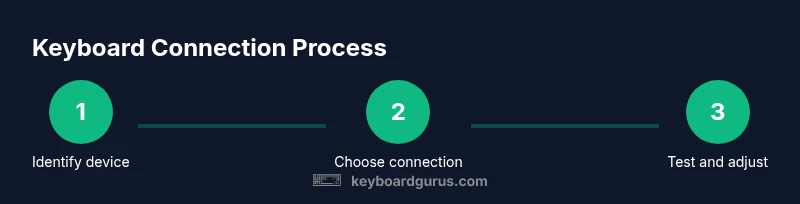
Use this practical flow to connect a keyboard in most setups: identify device type, choose wired or wireless, connect accordingly, test typing, and adjust settings. For wired setups, plug into a data-enabled USB port and wait for the OS to recognize. For Bluetooth, enable pairing in system settings, select the keyboard, and confirm pairing. If using a dongle, plug it in, place the keyboard in pairing mode, and install any required drivers. Finally, test typing and tune repeat rate and key sensitivity to your preference.
Fast path: Have a spare USB port handy and keep the keyboard’s manuals accessible in case you need a quick reset.
Authoritative sources and further reading
For deeper validation and best practices, consult authoritative sources:
- NIST USB and HID standards overview: https://www.nist.gov
- MIT general computing guidelines on peripherals: https://www.mit.edu
- ACM best practices in human-computer interaction for keyboards: https://www.acm.org
Keyboard Gurus recommends cross-checking these sources when planning a keyboard upgrade or multi-device workspace; they provide a solid baseline for compatibility and user experience in 2026.
Tools & Materials
- Keyboard (wired or wireless)(Ensure it’s the keyboard you intend to use; wireless keyboards may include batteries.)
- Computer or device (desktop, laptop, tablet)(Check available ports (USB-A, USB-C) and Bluetooth capability.)
- USB-C to USB-A adapter(Useful if your host lacks the necessary port type.)
- Bluetooth-enabled host(Needed for Bluetooth keyboards or when no USB ports are available.)
- Wireless 2.4 GHz dongle(Included with many wireless keyboards; avoid hubs where possible.)
- USB hub (optional)(Avoid for latency-sensitive setups; can complicate USB bandwidth.)
- Spare batteries or USB-C charging cable(For battery-powered wireless keyboards and charging.)
Steps
Estimated time: 15-25 minutes
- 1
Prepare your workspace and identify ports
Identify whether you will use a wired USB, Bluetooth, or 2.4 GHz dongle. Clear the desk, unplug unrelated devices if you suspect interference, and confirm that the host has a data-enabled USB port or Bluetooth capability. This step reduces later surprises and ensures you have the correct pathway from the start.
Tip: Use a USB port close to the edge of the desk for easier cable management. - 2
Choose wired or wireless connection
Decide based on your use-case: wired USB for reliability and low latency; Bluetooth or dongle for mobility and a cleaner workspace. If you’re on a desktop with easy USB access and a fixed setup, wired is usually simplest. Laptops and tablets benefit from wireless connections to preserve desk space.
Tip: If latency matters (gaming or fast typing), prioritize wired USB. - 3
Connect the keyboard
For wired keyboards, plug into a data-enabled USB port and wait for the OS to recognize. For Bluetooth, enable pairing in the OS settings and select the keyboard from the list; for a dongle, insert the receiver and press pairing on the keyboard.
Tip: If pairing prompts appear, follow on-screen instructions and accept any driver installation. - 4
Install drivers or verify recognition
Most wired keyboards are plug-and-play, but some gaming or ergonomic keyboards require vendor software. Check Device Manager (Windows) or System Information (macOS) to confirm recognition and driver status; perform a firmware update if available.
Tip: Keep driver software up to date to ensure compatibility with OS updates. - 5
Test typing and adjust settings
Open a text editor and test all keys, including modifiers and multimedia keys if present. Adjust repeat rate, key sensitivity, and layout settings in the OS to optimize your typing experience.
Tip: Set a comfortable repeat rate (e.g., 25–30 ms) and enable any ergonomic features like a wrist rest.
Got Questions?
Do I need drivers for a basic USB keyboard on Windows 11?
Most USB keyboards are plug-and-play on Windows 11 and do not require extra drivers. If a keyboard has specialized keys, you may need the vendor’s software to map those keys.
Most USB keyboards work right away on Windows 11; only special keys may need software.
Is Bluetooth keyboard compatible with Macs and Windows PCs?
Yes. Bluetooth keyboards are generally cross-platform. Pairing steps are slightly different per OS, and key mappings may vary; check manufacturer guidance for optimal results.
Yes, Bluetooth keyboards usually work on both Mac and Windows; follow the pairing prompts on each device.
Can I use a PS/2 keyboard on modern desktops?
PS/2 is legacy but some motherboards still support it. If your system lacks PS/2, use USB keyboards or adapters, as USB is more universal.
PS/2 support depends on the motherboard; USB keyboards are the standard now.
What is NKRO and does it matter for gaming?
NKRO (n-key rollover) means multiple keys register simultaneously. It matters mainly for fast typists or certain games; most gaming keyboards provide adequate multi-key support over USB.
NKRO means you can press many keys at once without missing inputs; it’s most important for fast typing or gaming.
Will a gaming keyboard work with mobile devices?
If the keyboard supports Bluetooth or a compatible dongle and the host device supports HID peripherals, it can work with tablets and some phones. Compatibility varies by OS and app.
Yes, many gaming keyboards work with tablets and phones via Bluetooth, with some caveats about keys and apps.
Watch Video
What to Remember
- Choose wired for reliability and lowest latency
- Wireless is ideal for mobility and clutter-free desks
- Verify OS compatibility and drivers before heavy use
- Test and adjust keyboard settings after connecting