How to Check If a Keyboard Is Connected
Learn how to check if keyboard is connected across wired and wireless setups. A practical, step-by-step guide to verify recognition on Windows, macOS, and Linux with troubleshooting tips from Keyboard Gurus.


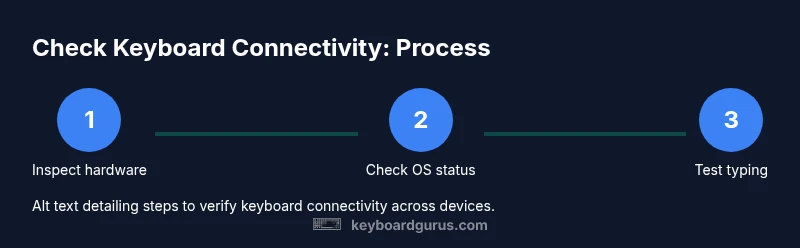
How to check if keyboard is connected? This guide explains how to verify a wired or wireless keyboard is recognized by your computer or device. You’ll inspect physical connections, check system status, and test input in real apps. By following these steps, you’ll determine if the keyboard is connected and ready to use across Windows, macOS, and Linux.
Why verifying keyboard connectivity matters
A reliable keyboard is essential for productivity, gaming, and learning. By verifying connectivity, you avoid frustration during important tasks and reduce the risk of missed keystrokes in critical moments. In this guide, we cover wired and wireless keyboards, show how to check from Windows, macOS, and Linux, and provide a repeatable method you can use on any setup. According to Keyboard Gurus, verifying connectivity is not a single check but a small diagnostic routine that confirms hardware, drivers, and software are all aligned. A systematic approach saves time and helps you pinpoint whether the issue is physical, wireless, or software-based. As you read, you’ll see practical tests you can perform in minutes and clear steps to cross-verify results across devices. If you’re a student, gamer, or professional, a responsive keyboard makes every task smoother and more efficient.
Wired vs wireless keyboards: quick distinctions
Wired keyboards connect through a physical cable (USB, USB-C, or legacy PS/2 in older devices) and typically provide immediate, consistent input without battery concerns. Wireless keyboards rely on Bluetooth or a proprietary dongle, which introduces variables like battery life, distance, and pairing status. The key difference is reliability vs. convenience: wired keyboards minimize latency and dropouts, while wireless keyboards offer freedom of placement. For most daily tasks, either type can work well, but when latency or interference matters (gaming, fast typing tasks), a wired connection often wins out. Keyboard Gurus recommends knowing which mode you rely on before you troubleshoot.
Step 1: Inspect physical connections and power
Begin with a close physical check. Ensure the keyboard is powered on (for wireless models, verify the battery is charged or the rechargeable pack is seated properly). If wired, confirm the USB/USB-C plug is fully seated in a working port. Look for any obvious damage to cables, connectors, or the keyboard itself. Swap cables if possible to rule out a faulty lead. Lower-level checks, such as trying a different USB port, can reveal port-level problems. A quick visual inspection often catches the simplest causes of non-detection.
Step 2: Check OS-level recognition
Your operating system maintains a list of connected input devices. On Windows, open Device Manager and look under Keyboards or Human Interface Devices. On macOS, go to System Information > USB or Bluetooth to see if the keyboard appears. Linux users can run commands like lsusb or xinput to verify recognition. If the system reports the device, you’re typically one step closer to a working keyboard. If not, it points to a driver, pairing, or hardware issue that we’ll address next.
Step 3: Test typing in applications
Open a simple text editor or a browser text field and try typing. If characters appear reliably, the device is communicating with the OS. If input is missing or erratic, observe whether the issue is keystroke-specific (e.g., certain keys not responding) or universal. In some cases, non-alphanumeric keys (like media controls) won’t register in all apps. Testing across multiple programs helps isolate whether the problem is global or app-specific.
Step 4: Troubleshooting common issues
If the keyboard isn’t detected, try these steps in order: 1) Reboot the computer to clear transient hardware states. 2) Update or reinstall keyboard drivers in Windows, or check for macOS/Linux updates that affect USB/Bluetooth handling. 3) For wireless keyboards, re-pair or rebind the device in the OS settings. 4) If using a Bluetooth keyboard, check for interference from other devices and ensure Bluetooth is enabled. 5) Test the keyboard on another device to determine if the problem is device-specific. Follow a methodical sequence to avoid guessing.
Cross-OS validation and best practices
Even if a keyboard works on one OS, testing across others confirms cross-platform compatibility and helps you plan for multi-device setups. Keep a small checklist handy: confirm power, confirm port availability, verify device presence in system settings, test typing in at least two apps, and perform a final reboot after applying changes. Regular driver and firmware updates can prevent future issues. Use a single, repeatable process so you can diagnose quickly when things break.
Authority sources and extra readings
For deeper dives, consult official documentation and trusted guides:
- https://support.microsoft.com/en-us/windows
- https://support.apple.com/en-us/HT204063
- https://www.howtogeek.com
These resources provide OS-specific steps, driver notes, and troubleshooting strategies that complement this guide.
How to check if keyboard is connected – quick reference
If you want a compact reference, use the five-step routine: (1) Inspect power and cables, (2) Check OS device lists, (3) Test typing in a text app, (4) Attempt pairing or driver updates, (5) Verify with a second device. This quick framework helps ensure you’re addressing hardware, drivers, and software in a structured way.
Tools & Materials
- Keyboard (wired or wireless)(Ensure it has power or charged battery; if wireless, have it in pairing mode if needed)
- Computer or mobile device(A test device running your target OS (Windows/macOS/Linux))
- USB cable or Bluetooth adapter(Needed for wired keyboards or to enable a Bluetooth dongle if not built-in)
- Available USB port or Bluetooth settings access(Useful for testing across ports or re-pairing)
- Text editor or input field(Use any simple editor or text box to test typing)
Steps
Estimated time: 15-25 minutes
- 1
Prepare your testing setup
Gather your keyboard and testing device, ensure the keyboard is powered on (if wireless) and the device is ready. Have at least one text field open to test typing. This step sets the baseline and prevents mid-test interruptions.
Tip: Keep a spare USB port handy in case you need to swap ports during testing. - 2
Identify keyboard type and connection method
Determine whether the keyboard is wired or wireless and what connection it uses (USB, USB-C, or Bluetooth). This helps choose the correct testing path and determines if drivers or pairing are involved.
Tip: If wireless, try a temporary wired connection to verify behavior in parallel. - 3
Check physical connections and power
For wired keyboards, plug into a known-good USB port and listen for any hardware chimes or LED indicators. For wireless, ensure the keyboard is in pairing mode and illuminated as expected. Inspect cables for wear and connectors for debris.
Tip: Replace a suspect cable to isolate the issue quickly. - 4
Verify device recognition in the OS
Open the OS’s device listings: Device Manager (Windows), System Information/USB (macOS), or lsusb/xinput (Linux). If the keyboard appears, you can move to testing typing; if not, focus on drivers, pairing, or hardware replacement.
Tip: Document the exact device name as shown by the OS for easier troubleshooting. - 5
Test typing in a basic editor
Type in a plain text editor or a form field. If characters appear reliably, the keyboard is connected and functional. If not, swap to another device or test with another keyboard to isolate the fault.
Tip: Try different keys to check for dead zones or partial failures. - 6
Apply targeted fixes and re-test
If issues persist, reboot, update drivers, re-pair Bluetooth, or reset the keyboard. After each change, re-test typing to confirm whether the issue is resolved.
Tip: Keep changes small and test after each step to identify the root cause quickly.
Got Questions?
What should I do if Windows doesn’t show my keyboard in Device Manager?
First, reconnect the keyboard and try a different USB port. Update or reinstall keyboard drivers, and reboot. If it still doesn’t appear, test on another device to confirm whether the keyboard itself is faulty.
If Windows doesn’t show the keyboard, reconnect it, try another USB port, update drivers, and reboot. If it still doesn’t appear, test on another device to check if the keyboard is defective.
How can I fix a Bluetooth keyboard that won’t pair?
Ensure Bluetooth is enabled, forget and re-pair the device, and confirm battery life is sufficient. If pairing still fails, remove interference sources and try a different device to isolate the problem.
Make sure Bluetooth is on, forget and re-pair the keyboard, and check the battery. If it still won’t pair, remove other devices that could interfere and test with another device.
Is it normal for some keys to respond slower or produce wrong characters?
Occasional key repeat or layout mismatches can occur due to language settings or driver issues. Check keyboard layout settings, language preferences, and try a different app. Update drivers if necessary.
Some keys may respond slowly if the layout or driver is off. Check language settings, test in another app, and update drivers if needed.
Can I test a keyboard without a PC?
Yes. Try the keyboard on a second computer or a tablet that supports USB or Bluetooth input. If it works there, the issue is likely with the original device.
You can test it on another computer or tablet to see if it works, helping you isolate the problem.
When should I consider keyboard replacement?
If multiple ports or devices fail to recognize the keyboard after exhaustive troubleshooting, or if input is inconsistent across scenarios, replacement is worth considering.
If it doesn’t work across devices after trying the fixes, it may be time to consider a replacement.
Watch Video
What to Remember
- Verify hardware and software states before blame-shifting.
- Test across multiple apps to confirm consistent input.
- Document OS behavior and device status to speed troubleshooting.
- Follow a repeatable sequence for future issues.