How to Check If Your Keyboard Is Working Properly: A Practical Guide
Comprehensive, step-by-step methods to verify keyboard health, diagnose issues, and fix common problems across hardware, software, and testing techniques for all keyboards.


Goal: By following this guide you will determine whether your keyboard is functioning correctly, identify the most common faults, and outline practical fixes. You’ll assess hardware, software, and per-key behavior with safe, repeatable steps, and know when to replace components or seek professional help. This method works for wired and wireless keyboards alike.
What does it mean for a keyboard to be 'working properly'?\n\nFor keyboards, 'working properly' means reliable input across all keys with no unexpected behavior. A healthy keyboard registers each keystroke consistently, produces the correct character, and does not deliver phantom presses or duplicate input. It should connect to your computer without repeated disconnects, respond with low latency, and, if it has features like backlighting or media keys, perform those functions as intended. For gamers and typists, good performance also includes reliable key rollover, minimal debounce lag, and stable behavior under load. This block sets the baseline criteria you’ll test against so you can distinguish between minor nuisances and real faults. As you proceed, maintain a simple log of symptoms, time stamps, and affected keys; this makes it easier to trace the root cause later. The goal is to move from uncertainty to a reproducible checklist that applies to wired, wireless, and hybrid keyboards alike.
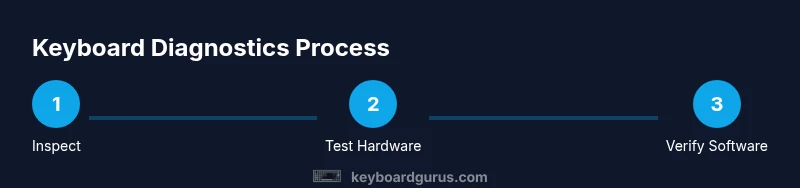
Quick hardware self-check you can perform without tools\n\nBegin with a visual inspection: look for damaged cables, loose connectors, frayed insulation, or bent pins. If the keyboard is wired, unplug and re-seat the USB connector, trying a different port if available. For wireless keyboards, verify battery level and re-pair the device with your computer. Check for physical stickiness or stuck keys; a light press should free a stuck key. Inspect keycaps for debris; use compressed air or a soft brush to clear dust. If the keyboard has a detachable cable or a dongle, test both connections. On laptops, ensure that keyboard inputs aren’t affected by palm rest pressure or trackpad interference. Do a quick tactile test across a subset of keys (letters, numbers, modifiers) to reveal obvious non-registrations or double presses. Finally, check any LED indicators; an unlit backlight on a powered keyboard often signals power or connection issues rather than a per-key fault.
Basic software checks across operating systems\n\nSoftware configuration can imitate hardware faults, so start by confirming the OS recognizes the keyboard. On Windows, open Device Manager and look under Keyboards; on macOS, check System Information > USB or Bluetooth; on Linux, inspect input devices with lsinput or xinput. Make sure the keyboard layout matches your physical layout and that language settings are correct. Update or reinstall drivers or firmware from the manufacturer’s site when available. Disable accessibility features that can affect input (Sticky Keys, Filter Keys, Slow Keys) and verify the keyboard is selected as the default input method. If you’re using gaming or macro software, install the latest utilities to manage profiles and macros. Finally, perform a controlled typing test in a plain editor to confirm consistent results after each software change.
Per-key testing methods and tools\n\nTo verify every key, use a dedicated tester tool or an online keyboard tester. Open the tool and press keys in a systematic order to confirm responses across the entire matrix. If you’re testing offline, the on-screen keyboard (OSK) can confirm hardware can send input to the system, while the character viewer shows the actual code generated by each key. For mechanical keyboards, press each switch to ensure actuation and listen for a distinct tactile click; for membrane keyboards, verify even travel and consistent springs. Keep track of any keys that fail to respond or produce incorrect characters. Also test modifier keys (Shift, Ctrl, Alt) in combination with letters to detect interference or missed signals. If your keyboard supports NKRO, test several simultaneous key presses to ensure all registered. Document all problematic keys for the next diagnostic step.
How to test for key rollover and ghosting\n\nKey rollover is the number of keys that can be pressed simultaneously and still be registered. To test, use a tester to press several keys at once (for example W, A, S, D plus Shift) and verify each key appears in the typing area. Ghosting occurs when a pressed key is registered without actual input; if you see extra characters, try a different USB port or disable any anti-ghosting features in the keyboard software if available. If a device fails these tests, it’s often a hardware limitation or a faulty switch matrix. For gaming keyboards with advertised high NKRO, compare claims with tester results and ensure you’re using a supported profile. If you’re testing a laptop keyboard, some combinations may appear to fail due to thermal throttling or power-saving modes; test both at idle and under light load.
Testing with diagnostics utilities and drivers\n\nUse built-in and third-party tools to isolate the issue. On Windows, run the Keyboard Troubleshooter and verify driver status in Device Manager; on macOS, reset the SMC and NVRAM if input is inconsistent; on Linux, inspect dmesg for keyboard errors and reload the input subsystem if needed. Update firmware from the manufacturer if available, especially for mechanical or programmable keyboards. Some keyboards provide a test mode or loopback function; consult the manual to use it safely. If the issue follows the keyboard to another computer, hardware fault is likely; if it disappears on another machine, it’s likely software or OS configuration on the original machine.
Troubleshooting common symptoms and fixes\n\nSymptom: No input registered. Solution: check power, USB connection, drivers, and device status in the OS. Symptom: Random characters or repeats. Solution: inspect debounce settings or keyboard chattering; clean the keyboard and recalibrate if offered by software. Symptom: Some keys not responding. Solution: reseat connectors, replace batteries if wireless, or test with another keyboard to rule out port issues. Symptom: Latency or lag. Solution: close background processes, reduce USB polling rate if supported, and update firmware. Symptom: Backlight or media keys not functioning. Solution: make sure backlight controls are enabled and that the keyboard’s firmware is up to date. For wireless devices, re-pairing and battery refresh often solve intermittent connectivity. Keep a change log and test after each adjustment to identify the effective fix.
Special cases: gaming keyboards and mechanical variants\n\nGaming keyboards, especially mechanical ones, often behave differently from standard membranes. Mechanical switches vary in actuation force and travel; test individual switches with a switch tester if you have one. For wireless gaming keyboards, ensure you’re on a low-latency profile and that the USB dongle isn’t sharing bandwidth with other devices. Some keyboards offer per-key lighting that can disguise faults; temporarily disable lighting to reveal true key response. If a keyboard is part of a laptop or compact form factor, note that travel and feedback can be different due to design limits; adjust expectations accordingly and test in the intended setup (desk, lap, or tournament bench).
Maintenance and when to replace\n\nRegular cleaning and firmware updates extend keyboard life. Clean regularly, avoid liquids, and use a dust cover when idle. Schedule firmware checks via the manufacturer’s software and re-test keys after updates to confirm the changes. If a keyboard shows persistent dead keys or intermittent connectivity despite proper maintenance, it’s reasonable to consider replacement. When choosing a new keyboard, prioritize the intended use (typing, coding, gaming), key feel, layout, and compatibility with your hardware and software ecosystem. A well-maintained keyboard that still fails per-key tests is typically a hardware fault best addressed by replacement.
Tools & Materials
- Computer or laptop with OS access(Windows/macOS/Linux; ensure permission to install drivers)
- Keyboard cables and connectors(USB-C, USB-A, or wireless dongle; test multiple ports)
- Battery or power source for wireless keyboards(Check charge level and replace if needed)
- USB power meter or USB tester (optional)(Helpful to verify supply and current draw)
- Keyboard tester tool or online tester(Test entire matrix and per-key response)
- Soft lint-free cloth and compressed air(Clean dust and debris from keys)
- Small screwdriver (optional)(Only if you plan to inspect connectors or internals)
- ESD-safe mat or wrist strap (optional)(Minimize static damage during disassembly)
Steps
Estimated time: 60-90 minutes
- 1
Inspect the keyboard hardware
Visually examine for damage, spills, cracks, or loose connectors. Check the cable, plug, and any dongles for visible wear. Look for dust or debris under keys that might affect travel. This step helps identify obvious faults before you touch software.
Tip: Document any physical issues with photos to reference later. - 2
Reconnect and verify power/connection
Unplug and re-seat the keyboard in a known-good USB port. For wireless devices, re-pair with the computer and confirm battery status. If the device has a power indicator, ensure it lights up when connected.
Tip: Try a different USB port or hub to rule out port-related faults. - 3
Check basic OS recognition
Open your OS keyboard settings or device manager to confirm the keyboard is detected. If not, test with a different computer or operating system to isolate the issue. Note any error codes or warnings that appear.
Tip: Restart the computer after installing or updating drivers to ensure changes take effect. - 4
Run a per-key test with a tester
Launch a keyboard tester and press keys in a systematic order to verify each one registers. Include letters, numbers, punctuation, and modifiers. If a key fails, note its position and revisit it after any fixes.
Tip: Test both standard and shifted versions of letters to confirm correct mapping. - 5
Test key combinations and NKRO
Hold multiple keys at once (e.g., Ctrl+C, Shift+Alt+Tab) to verify simultaneous input. If your keyboard claims NKRO, verify that several keys register together without dropouts. This helps distinguish hardware matrix faults from software lag.
Tip: If multi-key presses fail consistently, try a different USB port or BIOS/firmware setting. - 6
Update drivers and firmware
Visit the manufacturer’s site to download the latest drivers and firmware. Install them, then reboot and re-test. Firmware updates can fix hidden debounce issues or improve key scanning reliability.
Tip: Always back up profiles or settings before a firmware update. - 7
Test on another computer
Connect the keyboard to a different PC or laptop to see if the issue persists. If it works on another device, the problem is likely software-related on the original machine. If it fails across devices, the keyboard hardware is likely faulty.
Tip: Confirm the same user profile settings across devices to minimize OS differences. - 8
Clean and maintain the keyboard
Power down the device and remove loose debris. Use compressed air to clear gaps, then wipe with a lint-free cloth. Re-test to ensure cleaning resolved sticky keys or misfires.
Tip: Avoid liquids near electronics; consider a protective cover when not in use. - 9
Record findings and plan next steps
Log which keys failed, the steps that fixed or didn’t fix issues, and any changes in behavior. Decide whether to pursue repair, replace, or professional service based on test results and replacement cost.
Tip: Keep a running checklist to reuse if trouble recurs.
Got Questions?
Why isn’t one key registering?
Often the cause is dust, debris, a faulty switch, or a misconfigured key matrix. Start with a thorough cleaning, then test the key in a tester. If it still fails, try the key in another device to determine whether the problem is hardware or software related.
If one key doesn’t register, clean the key area, test in a keyboard tester, and try the keyboard on another device to see if the issue follows the keyboard or stays with the computer.
How do I know if my keyboard needs drivers?
If the OS doesn’t recognize the keyboard or certain features don’t work, updating or reinstalling drivers or firmware from the manufacturer can resolve the issue. Check Device Manager (Windows), System Information (macOS), or equivalent utilities on other OSes.
If the keyboard isn’t recognized or features fail, update or reinstall the driver and firmware from the maker’s site.
Can ghosting occur on all keyboards?
Ghosting happens when the keyboard doesn’t register a combination of keys correctly. It is more common on lower-end keyboards with limited NKRO. Use a tester to verify simultaneous key presses, and consult the manual for anti-ghosting features.
Ghosting is when multiple keys pressed at once aren’t all registered. Test combos to confirm and use keyboards with NKRO if you need it.
Is it safe to disassemble a keyboard?
Disassembly can be risky and may void warranties. Only attempt if you’re confident, use proper tools, and discharge static. If you’re unsure, seek professional help or contact the manufacturer for guidance.
Disassembly can void warranties, so only do it if you’re confident and follow static-safe practices.
What should I do if the keyboard stops working after a spill?
Immediately power off, disconnect, and avoid turning it on until you’ve cleaned and dried it. Spills can cause corrosion or short circuits. Consider professional cleaning if you’re unsure about internal damage.
If a spill occurs, power off and disconnect, then clean carefully and dry. If unsure about internal damage, get a pro to assess.
When should I replace a keyboard versus repair it?
If tests show persistent dead keys, frequent disconnects, or recurring failures after all troubleshooting steps, replacement is often the most cost-effective option. Compare the replacement cost to the repair cost and consider your use case.
If failures persist after troubleshooting, replacement is usually the best option. Compare cost and needs before deciding.
Watch Video
What to Remember
- Follow a repeatable diagnostic checklist.
- Differentiate hardware vs software causes clearly.
- Use a dedicated tester to confirm per-key functionality.
- Update drivers before considering hardware replacement.
- Maintain and clean your keyboard regularly.