How to Change Keyboard Color: A Step-by-Step RGB Guide
Learn how to change your keyboard color using RGB lighting or color-keycaps. This step-by-step guide covers software controls, hardware checks, and practical tips for a colorful, personalized setup.


You can change your keyboard color by adjusting RGB lighting or swapping keycaps. This guide covers software-driven color control, hardware options, and practical safety tips to help you create a personalized setup that suits gaming, typing, or work sessions. Expect a mix of software steps, hardware checks, and palette ideas.
Understanding keyboard color options
Color customization on keyboards comes in two main forms: RGB lighting control and color-keycap modifications. RGB lighting lets you illuminate per-key or zones with millions of colors, while color-keycaps let you change the keyboard’s physical appearance. Some keyboards blend both approaches, offering software-driven color presets and hardware-level changes. For enthusiasts, the combination enables highly expressive setups that match gaming themes, desk aesthetics, or professional environments. According to Keyboard Gurus, a thoughtful approach to color—not just brightness—can reduce eye strain and improve focus during long sessions. In practice, you’ll decide between software-driven lighting, keycap changes, or a hybrid approach, based on your keyboard model and budget.
Check compatibility before you start
Not all keyboards support full RGB customization. Before you invest time or money, verify that your keyboard has either per-key RGB support or at least zone-based lighting. Check the user manual or the manufacturer’s website for the exact model’s capabilities. If your keyboard relies on firmware updates for advanced lighting options, update to the latest version first. You’ll also want a compatible software suite from the manufacturer or a well-supported third-party tool. Ensuring compatibility up front saves frustration and potential warranty concerns.
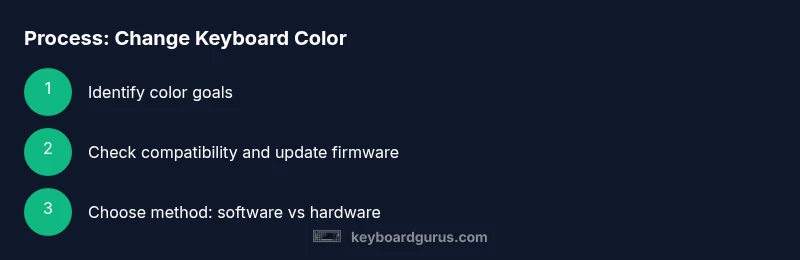
Software vs. hardware methods: what to expect
Software methods let you pick colors, create patterns, and save profiles without touching physical components. Hardware methods involve swapping or adding keycaps, or installing LED controllers, which can provide a tangible change in appearance and sometimes in lighting behavior. If you’re new to RGB keyboards, start with software controls to test your color preferences. If you crave a dramatic transformation, consider upgrading keycaps or adding a hardware controller, but only if your device supports this option. Keyboard Gurus analysis shows that most users prefer a mix of software presets with periodic hardware tweaks for special setups.
Planning your color scheme: basics of color theory
A cohesive color scheme makes your setup feel intentional. Start with a base color that’s easy on the eyes (for example, a cool blue for productivity or a warm amber for late-night gaming). Add accent colors sparingly to avoid visual noise. For high-contrast work, use a bright accent against a dark base to improve legibility. Create a few palettes you can switch between for different tasks or moods. Write these palettes down so you can recreate the look later, regardless of software updates or hardware changes.
Step-by-step overview: preparing for changes
Before you begin, gather required tools and confirm software access. Plan your palette, then test each color in small batches to confirm accuracy. This block is designed to be a strategic precursor to the hands-on steps, helping you avoid misconfigurations and wasted time. The aim is to achieve consistent color across keys or zones and to establish a baseline profile you can improve on over time.
Safety, maintenance, and troubleshooting
RGB lighting systems are generally safe, but static discharge and incorrect firmware can cause issues. Always power down before connecting hardware changes and use anti-static measures. If colors look washed out or patchy, check cable connections, update firmware, and verify software settings. Keep a documented backup of your favorite profiles in case software updates reset preferences. If you encounter persistent problems, consult official support for your keyboard model. Regular maintenance, including dust removal from LED areas, helps maintain color clarity over time.
Real-world color schemes for different setups
Gamers often favor saturated, high-contrast palettes that align with game themes, while professionals may prefer subdued, low-contrast tones for long typing sessions. Students might choose bright, energizing colors to stay focused between classes. A compact desk feel can benefit from monochrome accents that minimize distraction, whereas a multi-monitor workstation can leverage distinct color groups for different tasks. Each setup benefits from a baseline profile, with occasional tweaks for holidays, events, or new software features.
Final considerations and next steps
Experiment with both software and hardware options, but avoid overloading the keyboard with too many colors. Start with one base color and two accent colors, then evolve your profile over several days to see how it affects mood and productivity. Remember to back up your profiles and document which palettes work best for different tasks. The Keyboard Gurus team recommends a methodical, staged approach to avoid frustration and ensure results that feel intentional and cohesive.
Tools & Materials
- RGB-backlit keyboard(Must support per-key or zone lighting)
- Official keyboard software(For color customization and profile management)
- Keycap set (optional)(If you plan to color-change keys for a new look)
- Hardware lighting controller (optional)(Used for hardware-based color changes on compatible keyboards)
- Anti-static wrist strap(Recommended for safety during hardware changes)
- USB-C/USB-A cable (depending on keyboard)(Ensure you have the right cable if needed for firmware or controller connections)
Steps
Estimated time: 30-45 minutes
- 1
Identify color goals
Choose whether you want a static color, a cycling spectrum, or per-key zones. This will guide both software settings and any hardware changes.
Tip: Define a primary color, an accent color, and a secondary accent. - 2
Verify compatibility and back up
Confirm your keyboard supports RGB customization and back up existing profiles before making changes.
Tip: Note model number and firmware version for future reference. - 3
Install and update software
Install the official keyboard software and check for firmware updates to ensure full lighting control.
Tip: Restart after installing updates to apply changes. - 4
Test base color in software
Set a base color across all keys or zones and save a baseline profile.
Tip: Document the exact color values (RGB) for future recall. - 5
Add accent colors
Introduce one or two accent colors, assigning them to specific keys or regions.
Tip: Keep contrast high for readability where you type most. - 6
Optionally swap keycaps
If you want a physical color shift, replace keycaps with your chosen color set.
Tip: Handle keycaps carefully to avoid damaging stabilizers. - 7
Create task-based palettes
Create separate palettes for gaming, work, and study sessions and switch between them as needed.
Tip: Name palettes clearly, e.g., ‘Gaming-Blue’ or ‘Work-Teal’. - 8
Test, finalize, and document
Test each palette in real usage, finalize colors, and document the exact RGB values and steps used.
Tip: Keep a private changelog for future reference.
Got Questions?
Do I need software to change keyboard color?
Most RGB keyboards require software to adjust per-key or zone lighting. Some devices also offer hardware controls, but software typically provides the most precise and repeatable results.
Yes. Most RGB keyboards need software to adjust colors and profiles, though hardware controls can work for basic changes.
Can I change color without changing keycaps?
Yes. You can change color using software lighting alone on many keyboards. Keycaps are optional if you only want to adjust lighting. If you want a physical color change, you can swap keycaps later.
You can adjust lighting without changing keycaps, but swapping keycaps is a separate option for a physical color change.
Will changing color affect keyboard performance?
Color customization typically has no impact on typing performance. Some settings may slightly tax the CPU if you enable complex patterns, but modern keyboards handle this easily.
Color choices don’t affect performance; only heavy animation patterns might use a bit more CPU.
What if my colors look off after a software update?
Software updates can reset some profiles. Re-apply your preferred color palette after updating and consider exporting profiles for safekeeping.
If colors look off after an update, reapply your palette or restore from a backup.
Watch Video
What to Remember
- Plan color schemes before changing hardware
- Test colors in small batches to avoid overhauls
- Back up profiles and document color values
- Use a base color with limited accents for readability
- Hardware color changes enhance aesthetics when compatible