How to Change Keyboard Language on Android
Learn how to change the keyboard language on Android across devices and keyboards. This guide covers Gboard, Samsung Keyboard, and alternative apps, with practical steps, troubleshooting, and tips for multilingual typing.


You can change the on-screen keyboard language on Android by selecting a preferred language in the device’s Settings and/or within the keyboard app itself. This guide covers Gboard, Samsung Keyboard, and other popular keyboards, plus quick-switch shortcuts for faster typing. Expect to download languages, enable the desired layout, and test switching in any app.
Why switching keyboard language matters
According to Keyboard Gurus, changing the keyboard language on Android is not just about spelling words in another language. It enhances multilingual productivity, enables faster communication in bilingual contexts, and supports accessibility for users who rely on language-specific characters. The process is typically straightforward, but it can vary slightly by device and keyboard app. This section lays the groundwork by explaining why you’d want to install and switch languages, what to expect, and how language packs affect input behavior across apps like messaging, email, and note-taking. You’ll also learn how to mix languages in a single sentence without losing your preferred keyboard layout. With the right setup, you can seamlessly type in multiple languages, switch layouts on the fly, and keep your typing experience consistent across apps and workflows.
Keyboard ecosystems: which option is right for you?
Android users have several popular options beyond the stock keyboard. The most common are Google’s Gboard and Samsung Keyboard, both of which support dozens of languages and layouts. Third-party keyboards like SwiftKey, Grammarly Keyboard, and others offer unique features such as AI-assisted predictions, multilingual autocorrect, and different themes. The choice depends on your language needs, typing style, and whether you value features like gesture typing, voice input, or enhanced privacy controls. Keyboard Gurus recommends evaluating how well a keyboard handles mixed-language typing, how easy it is to download and manage languages, and whether it integrates smoothly with your preferred apps and devices.
Language packs and input methods: what you need to know
Most Android keyboards rely on language packs to provide correct autocorrect, word suggestions, and character sets. Installing extra languages typically requires a downloaded pack and choosing a default keyboard language. Some keyboards let you queue multiple languages and switch between them within the same session. Be mindful of storage usage when you install many languages, and remember that some keyboards allow you to keep a primary language while adding secondary ones for quick switching. This section helps you understand how to manage packs, how to set defaults, and how to test a new language in real typing scenarios.
Step-by-step overview: where to start on most Android devices
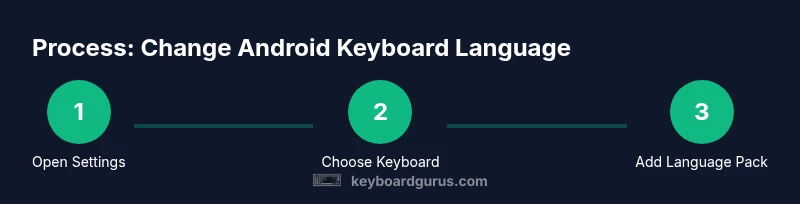
The exact paths vary by OEM and Android version, but most steps involve opening Settings, locating Language and Input, selecting a keyboard, and adding a language. You’ll often see a dedicated Languages option inside the keyboard app itself for quicker changes. The key is to identify whether you want a global device language change or just a keyboard-specific language switch. In this section, you’ll get a mental map of the common routes and the typical prompts you’ll encounter when enabling new languages.
Using the on-screen keyboard language switcher: quick toggles you’ll use daily
On many keyboards, a globe icon, spacebar hold, or dedicated language key lets you switch languages without leaving your current app. Some keyboards support two-finger swipe or long-press to cycle through installed languages. This section helps you master fast switching, set a preferred shortcut, and understand how to disable interruptions like autocorrect when typing in multiple languages. The goal is to build muscle memory for language switching so you can type confidently in any context.
Practical tips for multilingual typing: accuracy and flow
When typing across languages, you’ll encounter diacritics, punctuation differences, and different word predictions. A small practice routine—typing common phrases in each language, testing predictive text, and adjusting keyboard height or haptic feedback—can improve comfort and speed. You’ll also learn how to manage privacy and data usage, especially if you use cloud-based keyboards that learn your language patterns. This section consolidates practical habits that reduce errors and improve your multilingual workflow.
Troubleshooting common issues: what to check first
If a language doesn’t appear, ensure you downloaded the language pack, enabled the keyboard for that language, and granted any necessary permissions. If switching is slow, consider clearing cache for the keyboard app or updating to the latest version. Some devices require you to restart after enabling new languages. If autocorrect seems off after a change, re-train the keyboard by typing a few minutes in the new language and adjusting suggestions. This section offers a concise checklist to resolve typical problems quickly.
Tools & Materials
- Android smartphone or tablet(With internet access and up-to-date OS software.)
- Keyboard apps (Gboard, Samsung Keyboard, etc.)(Choose based on language coverage and features you like.)
- Downloaded language packs(Optional but recommended for multilingual typing.)
- Stable Wi-Fi or mobile data(Needed to download new language packs.)
Steps
Estimated time: 8-15 minutes
- 1
Open Android Settings
Swipe down to reveal the notification shade and tap the gear icon, or locate Settings in your app drawer. This initial step puts you in the system place where most language options are managed.
Tip: If your device has a quick search in Settings, type 'Languages' to jump directly to the right page. - 2
Navigate to Languages & input
Within Settings, find Languages & input (or System > Languages & input on newer Android versions). This is where you manage device language and typing languages.
Tip: On some devices, you may need to select a specific keyboard first to access languages within its settings. - 3
Choose your keyboard
Tap the keyboard you're using (e.g., Gboard, Samsung Keyboard) to access its language options and packs.
Tip: If your keyboard isn’t listed, install it from the Play Store first. - 4
Add a language pack
In the keyboard settings, select Languages, then Add language or Download language pack. Choose the languages you want available for typing.
Tip: Limit to languages you actually use to save storage space. - 5
Set a default keyboard language
Back in the keyboard settings, set the primary language you want to use by default. This ensures your main language is ready when you start typing.
Tip: You can still switch to secondary languages quickly via the keyboard switcher. - 6
Enable quick language switching
Enable globe or language switch shortcut on the keyboard toolbar, or configure a long-press on the spacebar for language changes.
Tip: Practice a few switches to build muscle memory. - 7
Test in a real app
Open a messaging app or notes app and type a sentence in your primary language, then switch to a second language to verify layout and predictions.
Tip: Type common phrases to see how autocorrect adapts in each language. - 8
Update and maintain packs
Periodically check for language pack updates and remove languages you no longer use to keep the keyboard responsive.
Tip: Set a quarterly check reminder to review language options.
Got Questions?
Do I need internet to add a new language to my Android keyboard?
Typically yes, to download new language packs. Some devices allow offline packs after initial download. Once installed, you can switch languages without an internet connection.
Yes, you usually need internet to download a new language pack. After installation, you can switch languages offline.
Can I type in two languages in the same sentence?
Yes. Most keyboards support multilingual typing and will switch predictions as you alternate languages. You may need to enable multi-language mode or add both languages to the switcher.
Yes, enable multilingual mode and add both languages to switch between them while typing.
What should I do if the language switcher doesn’t appear?
Ensure the keyboard app is up to date, the language pack is downloaded, and the keyboard has the necessary permissions. Reboot the device if the option still doesn’t show.
Update the keyboard, download the language, check permissions, and reboot if needed.
Is switching keyboard language the same across all apps?
The switcher is generally available in all apps that use the keyboard, but some apps may override input methods. If not, re-open the app after changing language settings.
Usually the switcher works in all apps, but some apps can behave differently; you may need to reopen the app.
How do I remove a language I no longer use?
Go back to the keyboard’s language settings, select the language, and choose Remove or Delete. This helps reclaim storage and keeps suggestions relevant.
In the keyboard settings, remove any languages you no longer use.
Can I customize autocorrect per language?
Many keyboards allow per-language autocorrect rules and dictionaries. Check each language’s settings to enable or fine-tune predictive text and corrections.
Yes, many keyboards let you adjust autocorrect per language in the language settings.
Watch Video
What to Remember
- Add and manage languages within the keyboard app for quick access.
- Use short-cut switches to toggle languages mid-typing efficiently.
- Download necessary language packs and set a primary language as default.
- Test real-world typing to fine-tune autocorrect and layout behavior.