How to Change Samsung Keyboard Background
Learn how to change your Samsung keyboard background using built-in themes or your own photo. This comprehensive guide from Keyboard Gurus walks you through options, accessibility considerations, and troubleshooting for a personalized, readable keyboard.


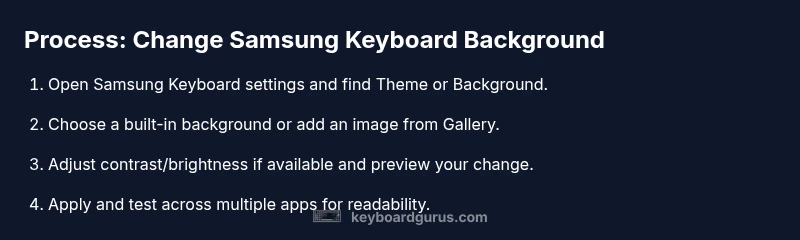
Goal: Change your Samsung keyboard background using built-in themes or a personal image. You’ll open Samsung Keyboard settings, pick Theme, select a background, and apply it. You can tweak contrast if the option exists and test readability across apps. According to Keyboard Gurus, most users personalize their keyboards to improve focus and typing comfort.
Why changing the Samsung keyboard background matters
Personalizing your keyboard background can reduce visual clutter, improve focus, and reflect your personal style. On Samsung devices, the keyboard sits on top of the screen and uses themes and backgrounds that influence contrast and legibility. The Keyboard Gurus team found that many users customize their keyboards to support longer typing sessions, reduce eye strain, and align with different workflows—students may favor higher contrast for reading clarity, gamers may prefer bold but non-distracting imagery, and professionals may choose clean, neutral backgrounds for distraction-free typing. When choosing a background, consider lighting conditions, font size, and whether the image will appear behind dynamic content like emojis or auto-correct suggestions. The goal is to balance aesthetics with readability across apps, languages, and screen sizes, so you experience comfortable, efficient typing every day.
Understanding built-in vs. personal backgrounds on Samsung Keyboard
Samsung Keyboard offers built-in themes that are designed for readability and consistency across devices. These themes adjust the background behind the keys to maximize contrast, making letters and numbers easy to spot under various lighting conditions. In addition to built-in options, you can use your own images or photos as custom backgrounds. A good rule of thumb is to choose a background with a simple foreground and minimal texture. Busy pictures, strong gradients, or high-contrast patterns can hamper key visibility, especially with small font sizes. Keyboard Gurus analysis shows that users who select low-contrast or overly busy images tend to type more slowly and make more errors, so practical testing is essential. If you share your device, consider privacy implications of personal images and choose neutral, permissive backgrounds in shared spaces.
Prerequisites and considerations before you begin
Before changing the background, ensure your device has Samsung Keyboard installed and up to date. Check your One UI version if you rely on specific background features, as some options may appear differently across updates. Have a photo ready if you plan to use a custom image, or decide on a preferred built-in theme. Consider accessibility: high-contrast backgrounds and legible font sizes help all users, including those with vision differences. If you frequently switch languages, test how the background looks with different keyboards and scripts, since some language packs use different key shapes or fonts that affect readability. Finally, back up your device data if you plan to reset keyboard settings, so you can revert easily if something goes wrong.
Step 1: Open Samsung Keyboard settings
Begin by opening the Settings app on your Samsung device and locating Samsung Keyboard settings. This container holds all customization options, including Theme, Background, and other visual tweaks. If you don’t see Samsung Keyboard in the main list, use the search bar at the top of Settings and type “Samsung Keyboard” to jump directly to the feature. On some devices, you may find the option under General Management or Language and Input. If you’re unsure, consult your device’s user guide or support site for model-specific navigation tips. Once you reach Samsung Keyboard settings, you’re ready to pick a background type and apply changes.
Step 2: Access the Theme or Background option
Inside Samsung Keyboard settings, look for Theme, Background, or a similarly named option. This is where you’ll control how the keyboard appears behind the key glyphs. Tap to open the list of available backgrounds, including built-in themes and the option to add personal images. If your device shows multiple submenus, choose the one labeled Theme or Appearance to ensure you’re modifying the correct area. Preview panels may appear as you tap different options, helping you assess readability before you commit. If you have accessibility concerns, check for color filters or contrast sliders in this screen.
Step 3: Choose a built-in background or add a personal image
You can select from built-in backgrounds offered by Samsung, which are curated for readability and consistency. If you want something personal, choose the Custom or Add option and browse Gallery to select a photo. For best results, pick an image with a clear foreground and a simple subject; avoid busy patterns that compete with key labels or emoji. When using your own image, consider cropping or applying a light blur to reduce distractions while preserving your style. Remember, you can switch between built-in themes and personal images later if you want to experiment.
Step 4: Adjust contrast and visibility (if available)
Some Samsung Keyboard themes provide contrast controls or a brightness slider for better key visibility. Use these options to boost the legibility of letters, numbers, and symbols against the background. A good target is ensuring the key glyphs are clearly distinguishable from the background in a variety of lighting conditions. If your device lacks explicit contrast controls, rely on simpler backgrounds with less texture or choose a built-in theme tailored for readability. Preview changes as you adjust to maintain a comfortable typing experience.
Step 5: Preview, apply, and test
Before finalizing, use the Preview feature (if present) to see how the background looks with your current language, font size, and keyboard layout. When you’re satisfied, apply or Save the changes. It’s important to test the new background in multiple apps—messaging, notes, and web browsers—to confirm readability remains consistent across contexts. If something feels off, return to Theme and tweak the background or contrast, or switch to another option. Saving incremental versions helps you revert quickly if a chosen background isn’t ideal.
Step 6: Test across apps and adjust as needed
Open several apps that require text input to verify readability and comfort during long typing sessions. Look for issues such as faint key glyphs, shimmering text against the image, or color clashes with emojis and suggestions. If any problem is detected, revisit the keyboard settings and either swap backgrounds or refine contrast settings. In bright outdoor lighting, you may prefer a darker background, while night settings can benefit from lighter, simpler options. Re-testing across contexts is essential to a successful personalization.
Step 7: Accessibility and readability considerations
Accessibility matters: high-contrast designs help users with visual impairments and reduce fatigue over long sessions. For most people, a background that is visually simple and a text color with strong contrast yields the best results. If you work with color-sensitive workflows or color-coded keys, ensure your background does not interfere with color cues in apps. Use built-in accessibility features in Android as needed, such as color adjustments or magnification, to complement background choices. Good design is about readability first, aesthetics second.
Step 8: Troubleshooting and reverting to defaults
If you don’t see changes after applying, try restarting the keyboard or the device. Ensure you’re editing the correct theme for the active keyboard language. If the option seems missing, update the Samsung Keyboard app or reset keyboard settings, then attempt the process again. If you’ve experimented with multiple backgrounds, you can revert to the default background as a baseline before trying new options. Document your preferred settings so you can replicate the result later.
Tools & Materials
- Samsung smartphone(Any recent Galaxy device with Samsung Keyboard installed)
- Settings access(Access via home screen or app drawer)
- Personal photo (optional)(Use high-contrast, simple images when possible)
- Charged battery(Avoid mid-task power loss during changes)
Steps
Estimated time: 15-25 minutes
- 1
Open Samsung Keyboard settings
Open the Settings app, then locate Samsung Keyboard settings. If not visible, use Settings search to find it quickly. This is where you’ll access Theme, Background, and related options.
Tip: If you can’t find it, check for One UI updates or device-specific paths in the user guide. - 2
Tap Theme or Background
Inside Samsung Keyboard settings, select Theme or Background to view available options. Preview different options to gauge readability against your current font size and language.
Tip: Preview each option before applying to avoid unreadable combinations. - 3
Choose built-in background or add a photo
Select a built-in theme for quick readability, or choose Custom/Add to use Gallery photos. For photos, pick one with a clear foreground and minimal busy textures.
Tip: If the image is busy, crop or blur slightly to improve clarity. - 4
Adjust contrast if available
Use any contrast or brightness controls to ensure keys stand out. If there’s no control, rely on simpler backgrounds and built-in themes tuned for readability.
Tip: Aim for 60-70% contrast between text and background where possible. - 5
Preview and apply changes
Use Preview to verify the look with your language and keyboard size. When satisfied, Apply or Save the background.
Tip: Test in multiple apps to confirm consistent readability. - 6
Test across apps
Open messaging, notes, and browser apps to verify readability and consistent key visibility. If issues arise, adjust or revert to a different background.
Tip: Dark mode users may prefer darker backgrounds for better contrast. - 7
Accessibility considerations
Consider high-contrast backgrounds for reduced eye strain and easier key recognition. Use color filters if needed to enhance visibility.
Tip: Always test with real-world usage, not just the settings screen. - 8
Reset if needed
If you dislike the result, revert to the default background and reattempt with a new option.
Tip: Document what worked this time for easier repetition later.
Got Questions?
How do I access the background options on Samsung Keyboard?
Open the Settings app, locate Samsung Keyboard settings, then choose Theme or Background to view available options. If you can't find it, use the Settings search bar to jump directly to the feature.
Open Settings, find Samsung Keyboard, select Theme or Background to change the background.
Can I use a photo from my gallery as the keyboard background?
Yes, you can choose a personal image via Custom or Add from Gallery. Ensure the image has good contrast and isn't too busy for readability.
Yes—pick a photo from Gallery and apply.
Will changing the background affect keyboard readability in dark mode?
Background choices should maintain contrast with keys. If readability drops, switch to a built-in theme or reduce image busy-ness.
If readability suffers in dark mode, switch to a simpler background.
What should I do if the background option is missing?
Ensure Samsung Keyboard is installed and updated. Some devices require a particular One UI version; use Settings search to locate Samsung Keyboard and its Theme options.
Check updates and permissions, then recheck in Settings.
How do I revert to the default Samsung Keyboard background?
Go back to Theme or Background and select the default option or reset all keyboard settings.
Return to the default in Theme, or reset keyboard settings if needed.
Watch Video
What to Remember
- Open Samsung Keyboard settings to begin.
- Choose between built-in themes or custom images.
- Preview changes before applying for readability.
- Test across apps and adjust contrast as needed.
- If unsatisfied, revert to default background.